
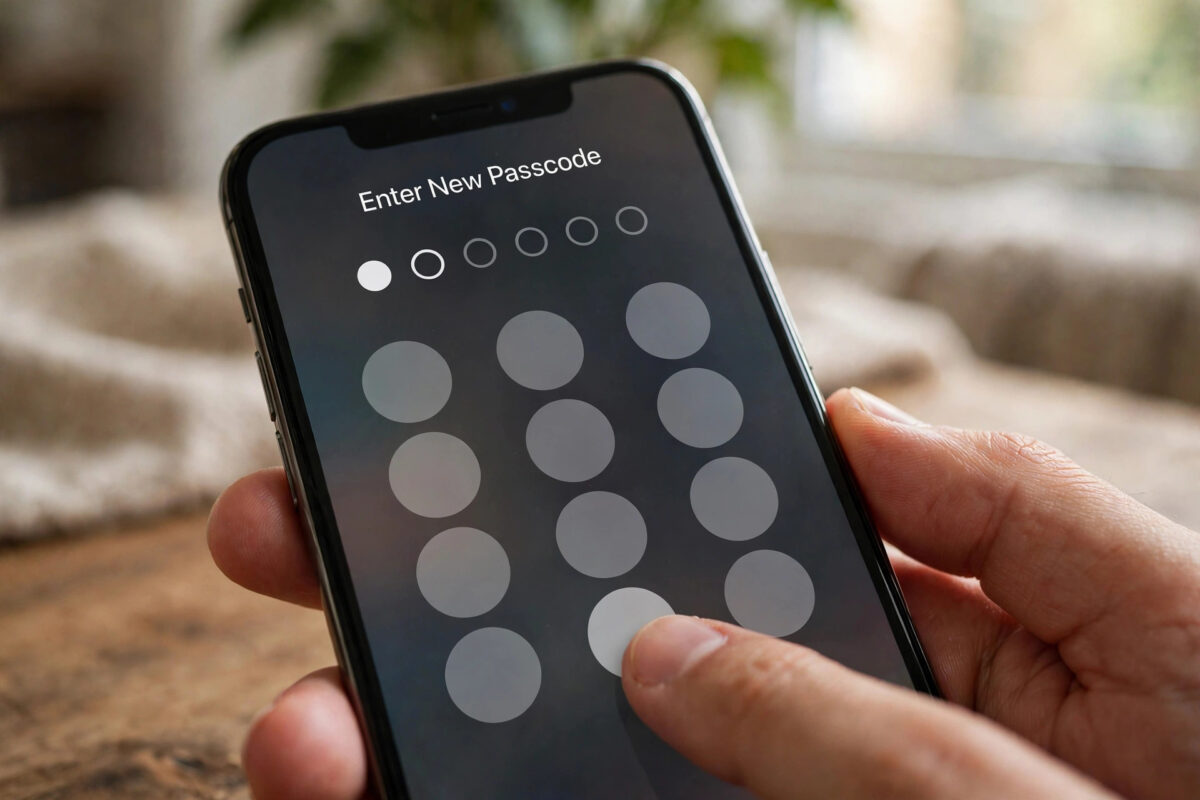
Your iPhone passcode is the master key to your digital life. It protects your photos and messages, it unlocks your banking apps through Face ID fallback, and it authorises the most sensitive changes on the phone. If it is your birthday, your child’s birthday, or 123456, it deserves an upgrade.
Changing the passcode takes less than a minute, and iOS offers stronger options than the standard six digits, including longer numeric codes and full alphanumeric passwords.
This guide shows how to change the passcode, how to choose a format that is both memorable and strong, and the extra settings that make a stolen phone far less useful to a thief.
Quick Answer
To change your iPhone passcode, go to Settings, Face ID and Passcode (or Touch ID and Passcode), enter your current passcode, tap Change Passcode, enter the old code once more, then type the new one. Tap Passcode Options on that screen to switch from six digits to a longer custom numeric code or a full alphanumeric password, which is the most secure choice.
Step by Step: Change the Passcode
You need your current passcode to make the change. If you have forgotten it entirely, that is a different problem requiring an erase, covered at the end of this guide.
- Open Settings and tap Face ID and Passcode (Touch ID and Passcode on older models).
- Enter your current passcode.
- Scroll down and tap Change Passcode.
- Enter the current passcode again.
- Type your new passcode, or tap Passcode Options first to choose a different format.
- Re-enter the new passcode to confirm. It is active immediately.
Face ID and Touch ID keep working after a passcode change, but the phone will ask for the new passcode after restarts and at the usual security checkpoints, so use it a few times straight away to fix it in memory.
Choose a Stronger Passcode Format
Not all passcodes are equal. A thief who watches you type four digits, or who knows your birthday, has a real chance of getting in. Stronger formats multiply the difficulty enormously.
- Six-digit numeric: the default. Fine for most people, weak if the digits are a date or a pattern.
- Custom numeric code: 8 or more digits. A big security jump while staying easy to type. Choose digits with no personal meaning.
- Custom alphanumeric code: letters, numbers and symbols, like a real password. The strongest option, slightly slower to type, though Face ID means you rarely type it.
Avoid birthdays, anniversaries, house numbers, repeated digits like 111111, and sequences like 2580 (straight down a keypad). A random-looking date from history that only you know, or the initials-and-year style alphanumeric code, works well.
Extra Settings That Strengthen the Passcode
While you are in the passcode menu, a few neighbouring settings dramatically change how safe the phone is if it is ever stolen.
- Turn on Erase Data: after 10 failed passcode attempts the phone wipes itself. Powerful protection, but think twice if small children play with your phone.
- Set Require Passcode to Immediately, so there is no grace window after the screen locks.
- Under ‘Allow Access When Locked’, turn off Control Center, USB accessories and Notification previews for maximum safety.
- Enable Stolen Device Protection (in the Face ID menu) if available. It adds delays and biometric checks for sensitive changes away from familiar places.
These settings cost you almost nothing day to day, because Face ID handles the routine unlocking. They only bite someone who has your phone but not your face.
Good Habits After Changing the Code
A new passcode only helps if you remember it and nobody else learns it. Set yourself up properly in the first five minutes.
- Type the new code several times during the first day: after a restart simulation, from the lock screen, in Settings.
- Store it in a reputable password manager, or write it down and keep the note somewhere safe at home, not in the phone case.
- Never share the code casually. Anyone with the code can do more than someone with your face, including changing the code itself.
- Change the code again if you ever suspect someone watched you type it.
If typing the code in public worries you, that is another reason to rely on biometrics. Our guide on using Face ID to unlock apps shows how to keep the passcode out of sight almost entirely.
Passcodes for Children, Parents and Shared Phones
Households complicate passcodes. A code your six-year-old can remember is a code anyone can guess, and a code your elderly parent cannot remember will be written on a sticky note attached to the phone. The right approach depends on whose phone it is.
For a child’s own iPhone, set a code you both know, store it in your password manager, and use Screen Time’s separate passcode for restrictions so the child cannot change the device code. For a parent’s phone, enable Face ID or Touch ID prominently so the code is rarely typed, choose a longer numeric code drawn from something meaningful to them but not public (a first house number plus a childhood street number, for example), and keep a written copy with their important documents.
For a genuinely shared family iPad-style iPhone, accept the trade-off honestly: a shared code is a weak code, so do not keep banking apps or password managers signed in on that device. The goal is matching the code’s strength to what the device can actually reach. A strong code on your personal phone, biometrics doing the daily work, and no sensitive accounts on shared devices is a sensible, livable security posture for most families.
Common Mistakes and Helpful Tips
- Do not use the same digits as your bank card PIN, SIM PIN or door code. One leak should never unlock everything.
- A longer code you remember beats a complex code you forget. Forgotten passcodes mean an erase, so memorability matters.
- If a partner or parent needs emergency access, store the code in your password manager’s shared or emergency-access feature rather than telling everyone.
- Custom alphanumeric codes can slow down the ‘erase and restore’ panic moments; write the code down before you need it in a stressful situation.
Apple explains passcode types and Stolen Device Protection in its support library. The official Apple guide to Stolen Device Protection is worth reading once you have set a strong code.
Conclusion
Changing your iPhone passcode takes a minute: Settings, Face ID and Passcode, Change Passcode. The real win is upgrading what you change to: a longer custom numeric code or an alphanumeric password with no personal meaning, backed by Erase Data, immediate passcode requirement and Stolen Device Protection. Practise the new code on day one, store it safely, and you have quietly made your phone dramatically harder to break into.
Frequently Asked Questions
How often should I change my iPhone passcode?
There is no fixed schedule. Change it when you suspect someone has seen it, when a relationship or living situation changes, or when you realise the current code is guessable. A strong code changed rarely is better than a weak code changed monthly.
What is the most secure passcode type on iPhone?
A custom alphanumeric passcode, essentially a password with mixed letters, numbers and symbols, is the strongest. An 8-plus digit custom numeric code is a close second and easier to type. Both are far stronger than a 4 or 6 digit date-based code.
Will changing my passcode log me out of apps or Apple Pay?
No. Your apps, cards and accounts stay signed in. The phone simply uses the new code from that moment on. You will be asked for the new passcode after restarts and when Face ID requires confirmation, as usual.
I forgot my current passcode. Can I still change it?
No. Changing the passcode requires the current one. A forgotten passcode can only be resolved by erasing the iPhone and setting it up again, then restoring a backup. Face ID cannot substitute for the passcode in the passcode settings.
Does a stronger passcode slow down Face ID?
Not at all. Face ID works exactly the same; the passcode is only requested in the background security situations iOS defines, such as after a restart, after 48 hours, or after several failed face matches.



Leave a Reply