
Updating your iPhone keeps it secure, fixes bugs and unlocks new features, whether that is a big release like iOS 27 or a small security patch. Yet many people delay updates for months because they worry something will go wrong and they will lose their photos and messages. With a little preparation, updating is safe and boring in the best possible way. Here is the careful way to do it.
Quick Answer
To update safely, back up your iPhone first, connect it to Wi-Fi and a charger, make sure you have a few gigabytes of free space, then go to Settings > General > Software Update and tap Update Now. The whole process usually takes 20 to 45 minutes, and your data, apps and settings stay exactly as they were.
Step 1: Back Up Before Anything Else
Updates almost never delete data, but “almost never” is not a guarantee you should rely on with years of photos. A backup takes a few minutes and removes all the risk. You have two easy choices:
- iCloud: Settings > your name > iCloud > iCloud Backup > Back Up Now, while connected to Wi-Fi.
- Computer: connect the phone and use Finder on a Mac or the Apple Devices app / iTunes on Windows.
If you have never backed up before, our step-by-step guide on backing up your iPhone to iCloud walks through it in detail. Confirm the backup finished by checking the time shown under the backup button before you go any further.
Step 2: Prepare the Phone
- Charge up. Plug the phone in, or make sure it is well above 50%. An update that runs out of power mid-install is the one genuinely risky scenario.
- Join a stable Wi-Fi network. Updates are large, often several gigabytes, and downloading over mobile data is slow and expensive.
- Check free space. In Settings > General > iPhone Storage, aim for at least 5–6 GB free so the update can download and unpack comfortably.
- Know your passcode and Apple ID password. You may be asked for both during or after the update.
Step 3: Install the Update
- Open Settings > General > Software Update.
- If an update is available, tap Download and Install or Update Now.
- Enter your passcode when asked and agree to the terms.
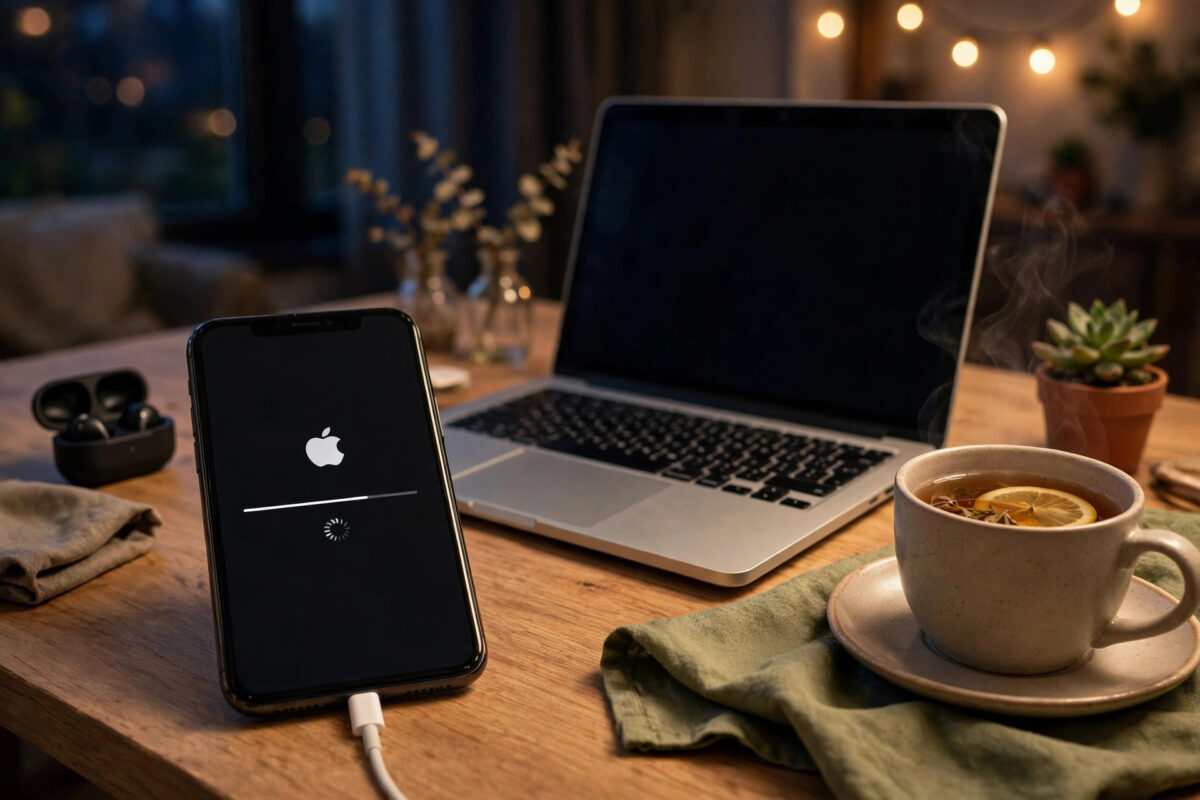
- Wait while the update downloads, prepares, and then the phone restarts to install it. The Apple logo with a progress bar is normal, and the phone may restart more than once.
- When the lock screen returns, unlock the phone and follow any short setup prompts.
Do not unplug the phone, force it off, or start pressing buttons while the progress bar is showing, even if it seems stuck for several minutes. Large updates can sit at one point for a while as they verify the installation.
Turn On Automatic Updates
If you dislike thinking about updates, let the phone handle them. In Settings > General > Software Update > Automatic Updates, turn on the options to download and install iOS updates automatically, and enable Security Responses & System Files so small security fixes arrive quickly. The phone will update overnight while charging on Wi-Fi, and you will simply wake up to the finished result.
What to Expect After a Big Update
After a major release like iOS 27, the phone does background work for a day or two: re-indexing search, analysing photos and recalibrating the battery estimate. The battery may drain faster and the phone may feel warm during this period. That is expected and settles on its own. Apple publishes details of each release and its security fixes on its official iPhone User Guide and support pages, where you can also confirm which models an update supports.
Mistakes to Avoid
The classic mistake is updating on a nearly flat battery over hotel Wi-Fi minutes before you need the phone for travel; give updates time and a proper connection. Another is ignoring the free-space warning and letting the download fail repeatedly instead of clearing a few large apps or videos first. Finally, avoid installing beta software on your main phone unless you accept real instability; betas are for testing, and their bugs are not a fair picture of the finished update.
Major Updates vs Small Updates: Does the Care Differ?
Not all updates are equal. The big autumn release, such as iOS 27, changes the most under the surface, adds headline features, and does the heaviest background work afterwards. For those, the full routine in this guide matters most: a verified backup, plenty of free space, and a free hour in your evening. Small point updates, the ones with numbers like 27.1 or 27.0.1, usually exist to fix bugs and patch security holes. They install faster and settle quicker, but they deserve the same basic respect: plugged in, on Wi-Fi, with a reasonably recent backup behind you.
Security patches are the ones never worth postponing. Features can wait a week while early bugs are ironed out, but a patch that closes a hole being actively exploited should go on as soon as you can manage it, and Apple’s rapid Security Responses exist precisely to deliver those fixes in minutes rather than weeks. A sensible personal policy is: security responses immediately, small updates within a few days, and the giant annual release whenever suits you in its first month, once you have a fresh backup and a quiet evening.
Conclusion
A safe iPhone update is just three habits: back up, plug in, and be patient. Do those and you can install everything from small security patches to iOS 27 itself without worry. Set automatic updates afterwards and you will stay protected with almost no effort at all.
Updating a Phone With Very Little Free Space
If your storage is nearly full, the update may refuse to download or fail partway. Before deleting anything precious, remember that many phones can update through a computer without needing the full working space on the device itself, because the computer manages the download. On the phone, the quickest space wins are offloading unused apps, deleting downloaded videos inside streaming apps, and clearing old message attachments, all of which are reversible or painless. Avoid the temptation to delete photos in a hurry; with iCloud Photos, deletions sync everywhere. Clear space calmly, run the update plugged in, and then decide at leisure what deserves to come back onto the phone.
One Final Tip
Pick a regular update moment and stick to it, for example the first evening of each month: check for updates, confirm last night’s backup exists, and install whatever is waiting while the phone charges. Turning updates into a small routine removes both the risk of running old, vulnerable software and the stress of a giant update landing the night before you travel.
Frequently Asked Questions
Will updating iOS delete my photos, apps or messages?
No. A normal update keeps all your data, apps, settings and messages in place. The backup you make first is only a safety net in case something unexpected interrupts the process.
How long does an iPhone update take?
A small patch may finish in 10 to 15 minutes. A major version can take 30 to 60 minutes including download time, depending on your Wi-Fi speed and how much data the phone needs to process afterwards.
My update is stuck on “Preparing Update”. What should I do?
Wait at least 30 minutes first, as preparation can be slow on nearly full phones. If it never moves, delete the downloaded update in Settings > General > iPhone Storage, restart the phone, and download it again.
Can I use my iPhone while the update downloads?
Yes. Downloading and preparing happen in the background while you use the phone normally. Only the final installation stage, when the Apple logo and progress bar appear, requires the phone to be left alone.
Should I update on the first day a new iOS is released?
If your phone is essential for work, waiting a few days is sensible, as Apple sometimes issues a quick follow-up fix. If you enjoy new features and have a fresh backup, updating on day one is generally fine.



Leave a Reply