
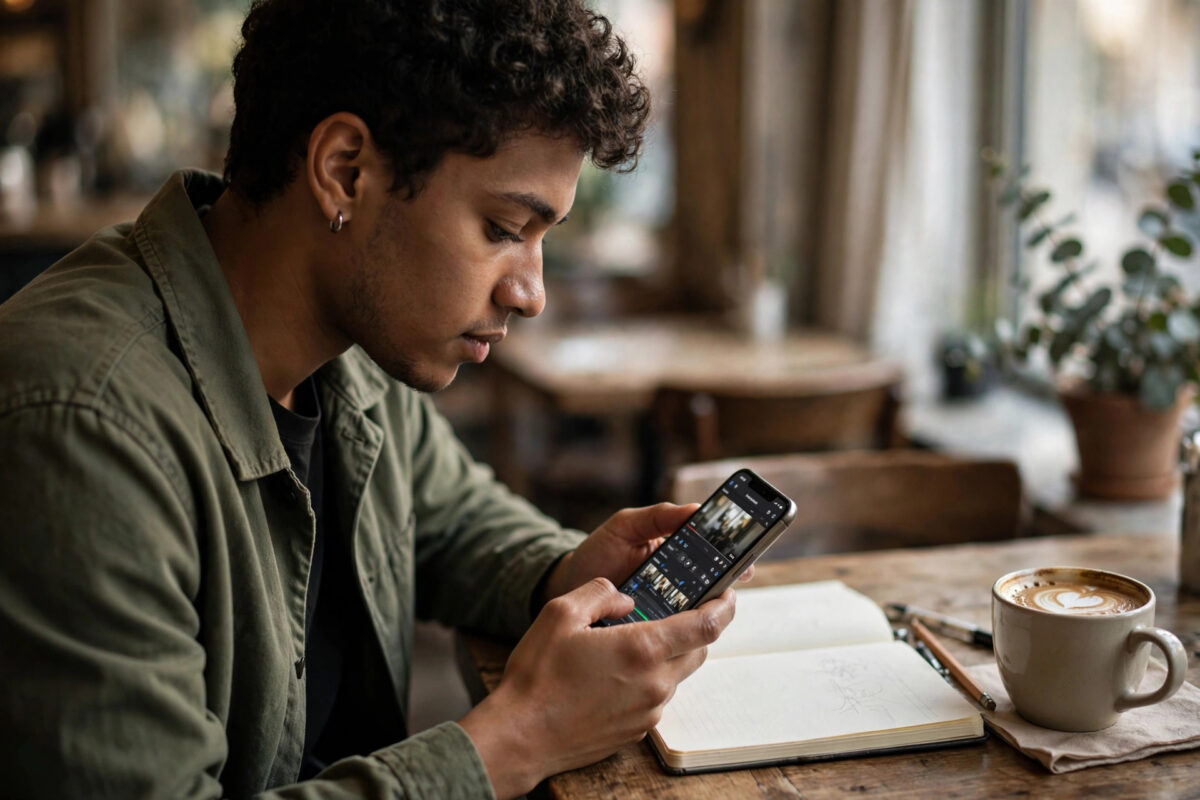
The YouTube Create app was already a handy free editor on your phone. Its newest trick is conversational AI editing: instead of dragging clips on a timeline, you type or say what you want changed, and the app performs the edit. Remove the background noise, add captions, make a version half as long — all by asking.
This guide explains how conversational editing works in YouTube Create, how to use it step by step, and where it helps most compared with editing by hand.
Quick Answer
Open your project in the YouTube Create app, tap the AI assistant, and type a plain instruction like “remove background noise and add captions” or “make a 30-second version of this video.” The app applies the changes, shows you a preview, and lets you accept, adjust, or undo each edit before exporting. You get the speed of AI with the final say of a human editor.
What Conversational Editing Means in Practice
Traditional mobile editing is manual: select clip, drag edge, open menu, choose effect. Conversational editing flips that. You describe the outcome, and the app figures out which tools to use and in what order.
The assistant understands your media. It can find spoken words for captions and cuts, detect faces and subjects, hear noise and silence, and identify scene changes. That understanding is what makes requests like “cut every part where I am not talking” or “make the product shots brighter” possible in one sentence.
Crucially, the edits are non-destructive and reviewable. The app presents changes as steps you can toggle, refine with a follow-up message, or undo entirely. Think of it as a very fast assistant editor who never gets tired but still needs your approval. If you mainly publish quick clips, compare this with the lighter workflow in our guide on how to edit YouTube Shorts with AI prompts in the Shorts composer.
Getting Your Project Ready
Conversational editing works on any project, but a little setup improves results. Import all the clips you might use before you start prompting, in roughly the order you want them. The assistant makes better choices when it can see the full material rather than a single fragment.
Check that the app is updated, because the AI features are arriving in stages through 2026 and older versions show a simpler editor. Give the app storage permission so it can render previews quickly, and work on Wi-Fi if your project uses large files, since some processing may involve uploads depending on the effect.
Finally, decide the target before prompting: platform, length, and style. “Make it shorter” is a weak brief. “Make a punchy 45-second version for Shorts, keeping the demonstration and dropping the unboxing” gives the assistant something it can actually execute.
How to Edit Conversationally Step by Step
- Open YouTube Create and start a new project or open an existing one.
- Add your video clips from the gallery.
- Tap the AI assistant icon, shown as a sparkle or chat symbol in current versions.
- Type your first instruction, focusing on structure: length, order, and what to remove.
- Review the proposed edit in the preview player.
- Reply with adjustments in plain words, such as “keep the joke at the start” or “not that clip, the next one.”
- Once the structure is right, prompt for polish: captions, noise cleanup, colour, and music.
- Proofread captions and watch the full result with sound on.
- Export or upload directly to YouTube from the app.
The rhythm is brief, review, refine. Each round takes seconds, and the conversation history acts like an edit decision list you can scroll back through. YouTube Help documents the Create app’s supported features as they roll out to more regions.
Requests That Work Especially Well
Some instructions play directly to the assistant’s strengths. Cleanup requests are the standout: removing background noise, levelling volume between clips, and cutting long silences transform rough footage quickly. Captioning a whole video in a named style is another near-instant win.
Repurposing is the third strength. Asking for a short vertical version of a long video, a version without a sponsored segment, or a highlights cut from an event video saves the tedious hunting through timelines. The assistant is also good at consistency jobs: matching colour across clips shot in different light, or applying the same title style to every segment.
It is less reliable at taste. Jokes, emotional beats, and deliberate pacing are creative calls; let the assistant assemble and clean, but make those final decisions yourself.
Tips for Better Conversations With the Editor
Be specific about subjects and times. “The clip where the dog appears” works better than “the middle bit.” If the assistant picks wrong, correct it by description rather than starting over: “the second dog clip, after the beach scene” teaches it exactly what you meant.
Do structural edits before cosmetic ones. There is no point colour-grading a clip you later cut. Also save versions: before a big experimental request, duplicate the project so you can compare the AI’s bold version against your safe one.
Short prompts, sent one at a time, beat long paragraphs. If a request fails or partially applies, split it: first “add captions,” then “make captions bold yellow,” then “fix the word it misheard at the start.”
A Sample Conversation, Start to Finish
To make the rhythm concrete, imagine a ten-minute cooking video becoming a Short. You open with structure: “Make a 60-second vertical version focused on the finished dish and the three key steps.” The assistant proposes a cut; you watch and reply, “Start with the plated dish, then the steps.” Next, cleanup: “Remove the fan noise and cut pauses longer than a second.” Then polish: “Add captions in bold white, and fix the herb name it will mishear — it is tarragon.” Finally, taste: you trim two seconds manually because the joke lands better that way.
Four short prompts, one manual touch, and a video that once took an evening of timeline work exists before your coffee cools. That division of labour — AI for volume, you for judgement — is the entire philosophy of the feature, and learning it on one real project teaches you more than a dozen tutorials.
Common Mistakes to Avoid
- Accepting the first result without watching. Always preview the full video, with sound, before exporting.
- Vague instructions. “Make it better” produces random changes. Describe the outcome you want.
- Skipping caption proofreading. Automated captions mishandle names and accents. Check them.
- Editing in the wrong order. Structure first, polish second, or you waste effort on clips that get cut.
- Trusting it with final creative calls. Humour and emotion need your judgement, not the assistant’s.
Conclusion
Conversational AI editing in YouTube Create turns hours of fiddly timeline work into a short chat: describe, review, refine. Use it for structure, cleanup, captions, and repurposing, keep your prompts specific and sequential, and reserve the creative decisions for yourself. It is the fastest route from rough phone footage to a video that feels properly edited.
Frequently Asked Questions
Is YouTube Create free to use?
Yes, the Create app is free, and its editing features, including the AI assistant as it rolls out, are part of the app rather than a paid tier at the time of writing.
Can I talk to the assistant with my voice?
Current builds focus on typed instructions, and voice input depends on your phone’s keyboard dictation. Typing also gives you a written record of the edits you requested.
Does conversational editing work for long videos?
It can, and repurposing long videos into shorts is one of its best uses. Very large projects may process more slowly, so patience and Wi-Fi help.
What if the assistant misunderstands my request?
Undo the step and rephrase with more specific descriptions of the clip, subject, or moment you mean. Splitting a big request into smaller ones fixes most misunderstandings.
Can I edit the result manually afterwards?
Absolutely. AI changes are normal edits in the project. You can trim, move, and adjust everything by hand at any point, mixing both methods freely.



Leave a Reply