
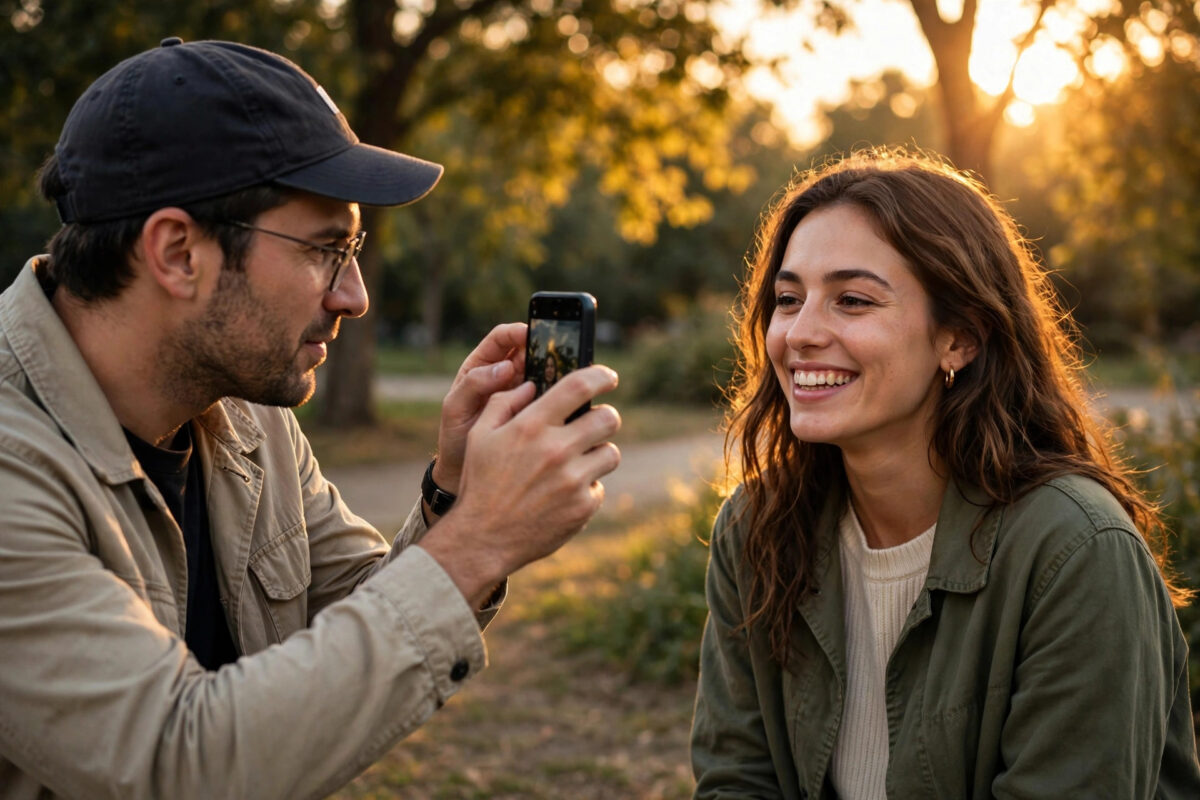
A 200-megapixel camera sounds like a spec-sheet trophy, but on the Huawei nova 16s Pro it genuinely changes how you can shoot portraits — if you know when to use the full-resolution mode and when the phone’s standard mode is actually better. Used blindly, 200MP just gives you enormous files. Used wisely, it gives you portraits you can crop, reframe, and print.
This guide explains the nova 16s Pro’s high-resolution and portrait modes, the exact steps for each, and the lighting and distance rules that make the results look professional.
Quick Answer
To use the 200MP camera modes on the Huawei nova 16s Pro for portraits, open the Camera app and choose the High-Res (200MP) mode from the mode carousel or the “More” menu, then shoot in bright light and keep the phone steady — full-resolution shots capture fine skin, hair, and fabric detail that lets you crop tightly afterwards. For classic portraits with blurred backgrounds, use Portrait mode instead, which shoots at a lower resolution but applies depth-based background blur and beauty controls. Best plan: take the portrait in Portrait mode for the look, and one frame in 200MP mode for a detailed version you can crop into a second, closer portrait for free.
How the 200MP Sensor Actually Works
Most of the time, the nova 16s Pro does not save 200 separate megapixels. It uses a technique called pixel binning: neighbouring pixels combine their data, producing a standard-size photo (around 12.5MP) with better light sensitivity and less noise. That binned mode is the right choice at night, indoors, and for anything that moves.
The dedicated High-Res mode switches binning off and records the sensor’s full output. The rewards and the costs are mirror images:
- Rewards: far more detail, huge cropping freedom, better large prints
- Costs: much larger files, slower saving, weaker low-light performance, no benefit at all in poor light
Understanding that trade-off is the whole skill. 200MP is a daylight, steady-hands tool.
Shooting Portraits in 200MP High-Res Mode
- Open the Camera app and swipe the mode bar to More, then tap High-Res (or select the 200MP option in the mode list, depending on software version).
- Confirm the resolution indicator shows the full 200MP setting.
- Frame your subject with more space around them than usual — the cropping freedom is the point, so do not fill the frame edge to edge.
- Tap the subject’s face to focus and set exposure; slide the sun/exposure icon down slightly if skin looks too bright.
- Hold the phone with both hands, elbows tucked in, and press the shutter gently. Stay still for a moment after the shot — big files take a breath to save.
- Review by pinching to zoom in the gallery. Hair strands, eyelashes, and fabric texture should stay crisp — that is your cropping material.
- Later, crop the shot two ways: the full portrait, and a tight head-and-shoulders version. You have just made two portraits from one frame.
Shooting in Portrait Mode (For the Blurred Background Look)
- Select Portrait from the camera mode bar.
- Position your subject 1 to 2 metres away, with at least a few metres of space behind them — depth separation is what makes the blur convincing.
- Adjust the aperture/blur control to taste. Moderate blur looks natural; maximum blur often eats hair edges and glasses.
- Explore the lighting effects (stage, window, and similar styles) for indoor shots, and keep beauty settings modest — heavy smoothing is the first thing that makes portraits look artificial.
- Take several frames. Portrait mode occasionally misjudges an edge — earrings, wispy hair, a raised arm — and a spare frame saves the shot.
Which Mode Should You Use When?
- Bright outdoor portrait, time to compose: 200MP High-Res, then crop
- Café, evening, or indoor portrait: Portrait mode or standard Photo mode — light matters more than pixels
- Group shots: standard Photo mode; High-Res slows you down and Portrait blur confuses multiple faces at different depths
- A portrait you may print large: 200MP, on a steady hand or a tripod
- Moving subjects — children, pets: standard mode, always; its faster capture wins
Huawei’s official camera support pages describe the mode layouts for the current software, handy if your camera app arranges the modes differently. And if your phone is brand new, our nova 16s Pro setup and data-transfer guide gets the phone ready before your first photo walk.
Editing and Sharing Your 200MP Portraits
The file size that makes 200MP powerful also makes it awkward to share. A single full-resolution photo can be far too large for some messaging apps, which will silently compress it into something ordinary — wasting the whole point of shooting it. For sharing at full quality, send the original through a cloud link, a direct device transfer, or an app that offers an “original quality” option, and tell the recipient why the file is big.
Editing is where the mode earns its keep. In your gallery editor or a photo app, you can straighten, re-crop to a different aspect ratio for printing or social posts, or rescue a portrait where the subject ended up off-centre — all without the quality loss that cropping a normal photo brings. A good workflow: keep the untouched 200MP original as your master file, export edited copies for sharing, and once a month move the masters off the phone to a computer or cloud backup so the phone’s storage stays healthy.
Common Mistakes and Useful Tips
Using 200MP in low light. The most common error. Unbinned pixels gather little light each, so night shots turn noisy and soft — worse than the standard mode’s. Save High-Res for daylight.
Filling the frame in High-Res mode. That throws away the mode’s one superpower. Step back, shoot wide, crop later.
Maxing out portrait blur. Heavy fake bokeh chews through hair and glasses edges and shouts “phone portrait”. Half strength looks like an expensive lens.
Ignoring storage. A 200MP photo can be ten times the size of a normal shot. A portrait session in High-Res can eat gigabytes — check your free space before a big day, and offload afterwards.
Conclusion
The nova 16s Pro gives you two portrait tools, not one: Portrait mode for the classic blurred-background look in any light, and the 200MP High-Res mode for bright-light detail you can crop into extra portraits afterwards. Match the mode to the light, leave room around your subject in High-Res, and keep the blur tasteful — your portraits will look a class above the spec sheet.
Frequently Asked Questions
Does 200MP mode make portraits look better on the phone screen?
Not visibly — a phone screen cannot show 200 megapixels. The difference appears when you zoom in, crop tightly, or print large. On screen, a standard-mode portrait and a 200MP portrait look nearly identical.
Why do my 200MP photos look grainy indoors?
Because each tiny pixel receives very little light indoors, and the camera compensates with sensitivity that adds noise. Indoors and at night, the standard binned mode combines pixels for cleaner results — it is the better tool for those conditions.
How much storage does a 200MP photo use?
Roughly speaking, several times a normal photo — often 30 to 60 MB per shot depending on the scene’s detail. A long session adds up quickly, so review and delete the failures the same day.
Can I use flash or night mode with 200MP?
High-Res modes on phones typically limit extra processing features, and flash rarely flatters portraits anyway. For evening portraits, switch to Portrait or standard mode and find soft ambient light — a window, a lamp, street lighting — instead.
What is the best distance for Portrait mode?
About 1 to 2 metres from your subject, with clear space behind them. Too close distorts facial features; too far and the depth mapping weakens, so the background blur looks patchy. The camera app will usually prompt you if you are out of the ideal range.



Leave a Reply