
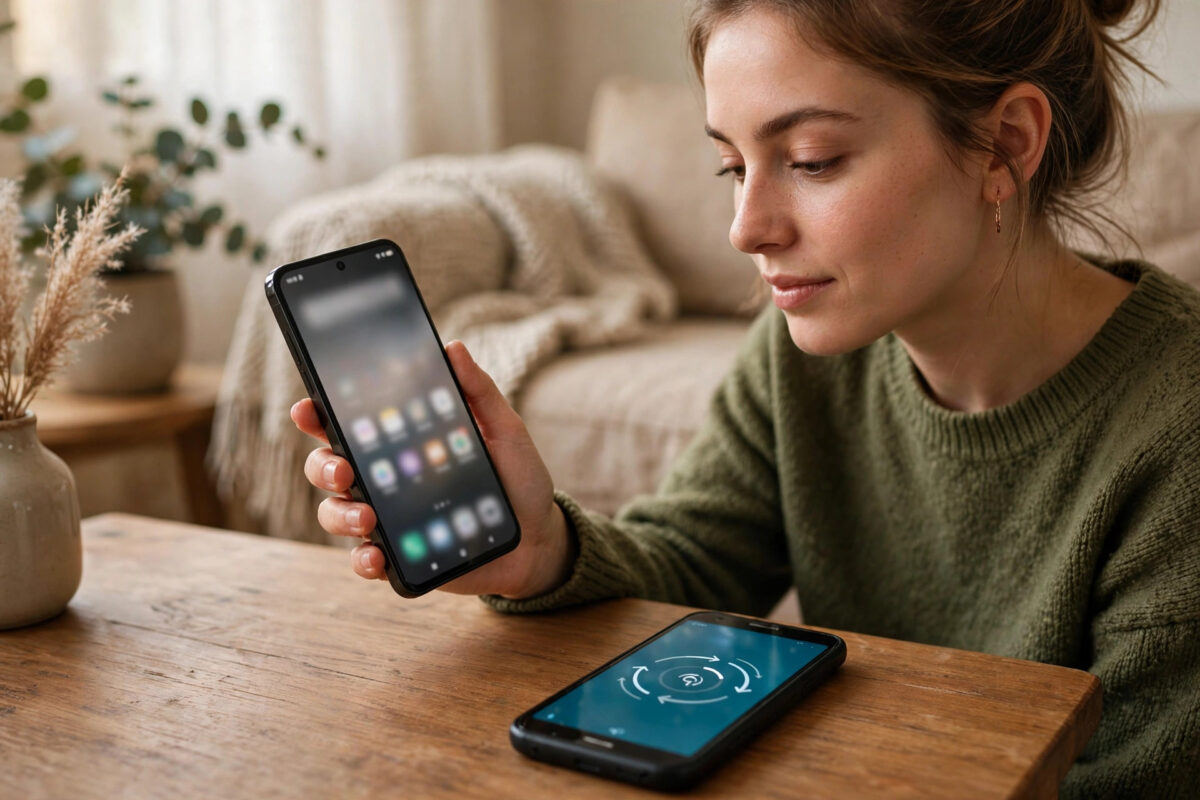
The Huawei nova 16s Pro is one of the most interesting mid-range launches of the season, and switching to it from another Android phone is refreshingly painless — as long as you use Huawei’s own transfer tool and know the one big difference to expect: Huawei phones run on Huawei Mobile Services and AppGallery rather than Google’s services.
This guide takes you through first setup, the Phone Clone transfer from your old Android, and the post-move checks that stop day-two surprises.
Quick Answer
To set up a Huawei nova 16s Pro and transfer your data, finish the phone’s first-boot setup (language, Wi-Fi, Huawei ID), then install Huawei’s Phone Clone app on your old Android phone, open Phone Clone on the nova 16s Pro, and scan the QR code it shows with the old phone. Choose what to copy — contacts, photos, messages, apps, and files — and keep both phones close while the transfer runs over a direct Wi-Fi connection. Most people move everything in 20 to 45 minutes. Afterwards, sign back into your key apps and download anything missing from AppGallery, since Google apps and the Play Store do not come pre-installed on Huawei phones.
First Boot: Setting Up the Nova 16s Pro
- Charge and insert your SIM (or set up eSIM if your model and carrier support it).
- Power on and choose your language and region.
- Connect to your home Wi-Fi. Setup downloads updates; do not do this on a weak mobile signal.
- Sign in with a Huawei ID, or create one. This account backs up your contacts and settings to Huawei Cloud and unlocks AppGallery fully.
- Accept the system update when offered. Camera and battery improvements often arrive in the first patch.
- Set your screen lock — fingerprint and PIN — during setup rather than later.
- Postpone the app downloads until after Phone Clone has done its work, so you do not install duplicates.
Transferring From Your Old Android With Phone Clone
Phone Clone is Huawei’s official migration app and it works from almost any Android brand, not just Huawei phones:
- On the nova 16s Pro, open Phone Clone and choose “This is the new phone”, then select the old phone type (Android).
- A QR code and a temporary Wi-Fi hotspot name appear on the new phone.
- On the old phone, install Phone Clone from its app store and open it.
- Choose “This is the old phone” and scan the QR code on the nova 16s Pro.
- The phones connect directly to each other. Select the data categories: contacts, call logs, messages, photos, videos, music, documents, and apps.
- Start the transfer and keep both phones near each other, plugged in if their batteries are low.
- When it finishes, the new phone summarises what moved. Your photos and contacts should be visible immediately; apps may take a few minutes to finish installing.
Huawei’s official support pages carry the same Phone Clone walkthrough with screenshots for the current app version, which helps if your menu wording differs slightly.
The Google Apps Question, Answered Honestly
New Huawei phones do not ship with the Google Play Store or Google apps pre-installed, and Phone Clone cannot change that. In practice:
- Most popular apps — social, messaging, banking, shopping — are available in AppGallery or through Huawei’s built-in app search, which points to legitimate sources.
- Alternatives cover the essentials: Petal Maps for navigation, the browser for YouTube and Gmail on the web.
- Some apps that hard-require Google services (certain banking or work apps) may have limited features. Check your two or three critical apps on day one, while your old phone still works.
None of this is a deal-breaker for most users, but discovering it before you wipe the old phone — rather than after — is the difference between an inconvenience and a crisis. The same “verify before you retire the old device” rule anchors our Googlebook and Windows migration guide.
After the Transfer: Your Checklist
- Messages and chats: WhatsApp and similar apps restore chats from their own cloud backups inside the app — open them and follow their restore prompts before using the old phone’s copy.
- Photos: compare the gallery count on both phones.
- Two-factor apps: move or re-register them while the old phone is still in your hand.
- Banking apps: expect fresh sign-ins and device approvals.
- Contacts in the cloud: make sure contacts also sync to your Huawei ID, so the next move is even easier.
- Battery and camera: spend day one normally, then explore the camera — including the portrait tricks in our nova 16s Pro camera guide — once the admin is done.
Moving WhatsApp and Other Chat Apps Properly
Chat apps cause more switch-day panic than everything else combined, so treat them as their own project. The rule for nearly all of them is the same: they back up to their own cloud account, and they restore only when you sign in on the new phone with the same phone number. Back up inside each app on the old phone first — do not trust that an old automatic backup is current — then install the app on the nova 16s Pro, sign in, and accept the restore prompt before you start chatting. Anything you send or receive on the new phone before restoring can complicate or overwrite the restore, so patience here is worth real messages.
If a chat app is missing from AppGallery, check the phone’s built-in app search before looking elsewhere; it routes to the developer’s official source for many popular apps, which keeps you clear of the fake download sites that infest search results for new phones.
Common Mistakes and Useful Tips
Transferring over mobile data. Phone Clone creates its own direct Wi-Fi link between the phones; if it offers to use your network instead, you selected the wrong option. Direct transfer is faster and uses no data.
Letting the old phone sleep mid-transfer. Keep both screens awake or plugged in. A sleeping old phone pauses the transfer and confuses everyone.
Factory-resetting the old phone the same evening. Keep it for a week. Authenticator codes and one stubborn app login always surface on day three.
Hunting for the Play Store for an hour. It is not there, by design. Start with AppGallery and the built-in app search; between them, most users find everything they need in minutes.
Conclusion
Set up the nova 16s Pro with your Huawei ID, move everything with Phone Clone over its direct connection, and then spend ten minutes verifying chats, banking, and two-factor apps before the old phone goes anywhere. The Huawei ecosystem difference is real but manageable, and approached in this order, switching takes under an hour with no nasty surprises.
Frequently Asked Questions
Does Phone Clone work from Samsung, Pixel, and other Android brands?
Yes. Phone Clone is designed to move data from almost any Android phone to a Huawei device, regardless of brand. Install it on the old phone from its app store, scan the new phone’s QR code, and choose your data.
Will my WhatsApp chats transfer to the nova 16s Pro?
WhatsApp moves chats through its own backup system. Back up your chats in WhatsApp on the old phone first, then install WhatsApp on the nova and sign in with the same number — it will offer to restore your history. Do this before wiping the old phone.
Can I install the Google Play Store on the nova 16s Pro?
Not officially. Huawei phones use AppGallery and Huawei Mobile Services instead. Most mainstream apps are available there or through the phone’s built-in app search, and Google services like Gmail and YouTube work through the browser. Be wary of websites selling unofficial Play Store installers — they are a common source of malware.
How long does the transfer take?
A typical move — a few thousand photos, contacts, messages, and apps — takes roughly 20 to 45 minutes over Phone Clone’s direct Wi-Fi link. Very large video libraries take longer; plug both phones in and let it run.
What should I do if Phone Clone will not connect?
Restart both phones, make sure the old phone’s Wi-Fi is on, and start again from the QR code. If the old phone keeps joining your home network instead of the new phone’s hotspot, temporarily forget the home network on the old phone during the transfer.



[…] handy if your camera app arranges the modes differently. And if your phone is brand new, our nova 16s Pro setup and data-transfer guide gets the phone ready before your first photo […]