
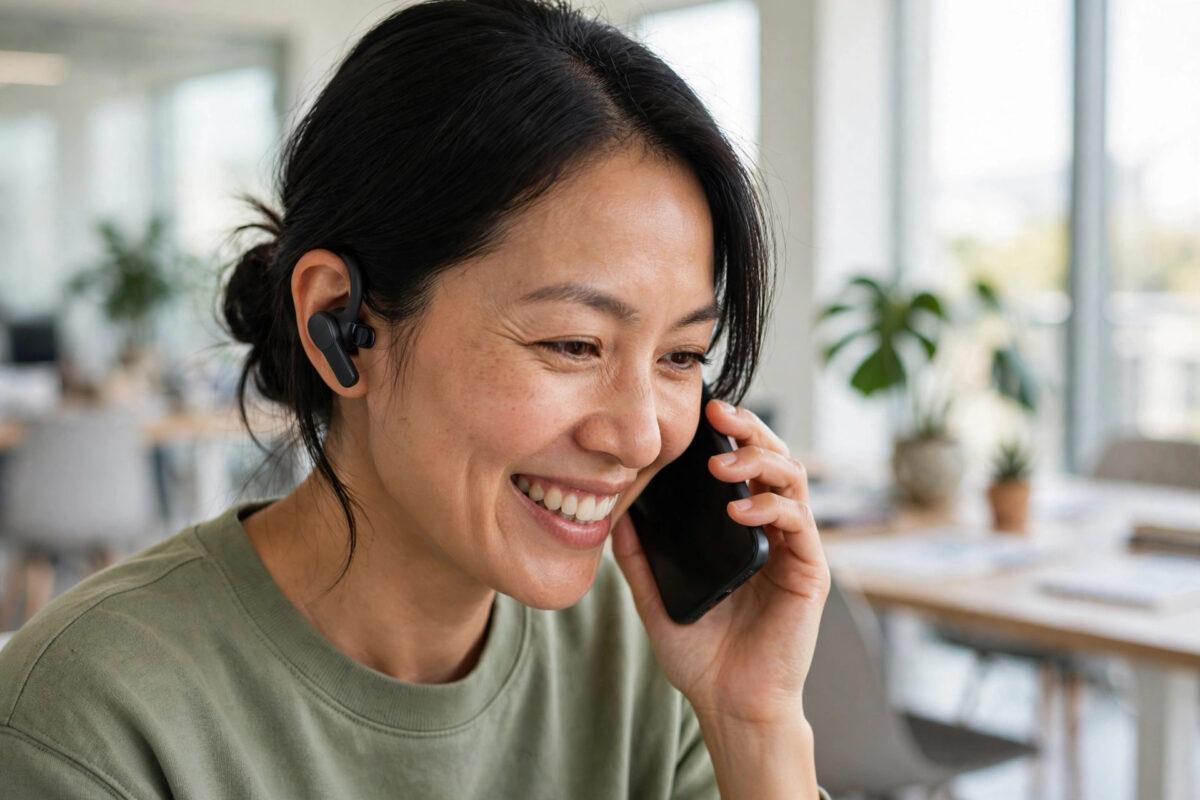
Your phone rings while your hands are full of shopping, tools, or a steering wheel. With Samsung’s Galaxy Buds On, you do not need a free hand: a simple nod answers the call, and a shake of your head declines it. It sounds like a gimmick until the first time it saves you fumbling for your phone.
Head gestures are switched off by default, though, and they only work well when they are set up and calibrated properly. Here is how to enable them, practise them, and fix the false triggers that annoy new users.
Quick Answer
To answer calls with head gestures on Samsung Galaxy Buds On, open the Galaxy Wearable app, go to Earbud settings, find Head gestures (under controls or accessibility features), and switch the feature on. Follow the short calibration: nod your head up and down to answer a call, and shake it side to side to decline. Then test it with a real call from another phone. The gestures only work while you are wearing both earbuds and a call is ringing, and you can turn the feature off in the same menu at any time.
How Head Gestures Work
Each Galaxy Buds On earbud contains motion sensors — the same kind that track movement for other smart features. When a call comes in, the buds listen for two deliberate patterns:
- Nod (up and down, twice or one clear nod): answer the call
- Shake (left and right): decline the call and send it to voicemail
The system deliberately ignores small movements. It is looking for clear, rhythmic gestures performed while the phone is ringing, which is why random head-bobbing to music does not answer calls that are not there — and why half-hearted tiny nods are the main reason the feature “doesn’t work” for new users.
Step-by-Step: Enable and Calibrate
- Wear both earbuds and make sure they are connected to your Galaxy phone.
- Open the Galaxy Wearable app and tap your Galaxy Buds On.
- Open Earbud settings and find Head gestures. If you cannot see it, update the earbud firmware first — the feature arrived with software updates for many owners.
- Switch Head gestures on and read the short description of each gesture.
- Run the practice or calibration if offered: nod when prompted, then shake when prompted, at a natural pace.
- Ask someone to call you, or call your phone from a second phone, and test both gestures for real.
- Adjust by making your gestures a little bigger and slower if the test fails — deliberate beats quick.
Samsung’s official Galaxy Buds support pages describe the same settings path; if your menu names differ slightly, your firmware version is the reason, and updating is the fix.
Getting Reliable Results
Three things decide whether head gestures feel magical or useless:
Fit
The buds must sit still on your ears. A loose clip means your head moves but the bud wobbles late, confusing the sensors. Revisit your fit using our Galaxy Buds On setup guide before blaming the feature.
Gesture style
Think “polite nod to a neighbour”, not “tiny chin dip”. Two clear movements, about one second apart, register best. Exaggerate slightly for the first week while you learn what the buds expect.
Both buds in
The feature compares motion from both sides to reject accidents. With one bud in a pocket, gesture answering is disabled — which is correct behaviour, even when it surprises you.
When Gestures Trigger at the Wrong Time
Early users report two annoyances. First, vigorous nodding along to music or a podcast can occasionally be read as a gesture when a call arrives at that exact moment — rare, but it happens; the defence is that the gesture must land while the phone rings, and you can always reject the call normally if you answered by accident. Second, looking down sharply at your phone to see who is calling can register as a nod’s first half. The fix for both is the same: make your real gestures more distinct than your everyday movements, and if false triggers keep happening in your routine — cycling, gym work, physical jobs — turn the feature off during those activities and use the touch controls instead.
Everyday Situations Where Gestures Shine
Once the novelty fades, owners tend to rely on head gestures in the same handful of moments. Cooking is the big one — hands covered in flour or sauce, phone ringing in another room, and a nod keeps the call (and the recipe) alive. Driving and cycling come next, where reaching for a phone is dangerous or illegal: a shake sends an unwanted call away without your eyes ever leaving the road. Commuters carrying bags in both hands, parents holding a baby, dog walkers mid-clean-up, tradespeople up a ladder — the pattern is always identical. Your hands are busy, your head is free.
There is also a quieter benefit: discretion. Declining a call with a small head shake in a meeting or on a train is far less disruptive than a ringing phone being fumbled out of a pocket, and answering with a nod looks like nothing at all to the people around you. Several owners report that gestures stop being a feature they think about and become simply how calls work — which is exactly what good wearable design is supposed to feel like. If you find yourself in the opposite situation, though — somewhere formal where even nodding feels odd — the touch controls remain one tap away, and the gestures never disable them.
Common Mistakes and Useful Tips
Testing without a real call. Gestures only arm while a call is ringing. Waving your head at a silent phone proves nothing either way; always test with an actual incoming call.
Nodding too fast. A quick bob reads as a shake’s cousin. Slow, separated movements are the entire trick.
Expecting it to work with one bud. It will not, by design. For one-bud users, set up the touch-and-hold control for answering instead.
Forgetting it exists during a call. The gestures are for answering and declining only. They do not end an ongoing call — nodding mid-conversation just looks enthusiastic.
Conclusion
Head gestures on Galaxy Buds On are a small feature that earns its place the first time your hands are genuinely full. Enable them in the Galaxy Wearable app, calibrate with clear, slow movements, make sure both buds fit securely, and test with a real call. Do that, and answering the phone becomes a nod — literally.
Frequently Asked Questions
Can I end a call with a head gesture too?
No. The gestures cover answering (nod) and declining (shake) an incoming call. To end a call, use the earbud touch control or your phone as usual.
Do head gestures work when only one earbud is in?
No — the system needs motion data from both earbuds to recognise gestures reliably and avoid accidents. With a single bud, answer with the touch control instead.
Why does my nod not answer the call?
Usually the gesture is too small or too fast, or the buds are sitting loosely. Refit the buds, recalibrate in the Wearable app, and practise a clear double nod at a natural pace during a test call.
Can other people see me using head gestures?
Yes, a nod is a nod — but it is far less conspicuous than digging a phone out of a bag, and in most situations people simply think you are agreeing with something. It is one of the more discreet hands-free controls available.
Do head gestures use much battery?
The motion sensors sip power, and the extra drain is minor compared with audio playback. You are unlikely to notice a difference in daily battery life from enabling the feature, even if you answer calls by gesture all day long. The sensors are the same low-power components the buds already use for wear detection, so the feature costs almost nothing to leave switched on permanently.



Leave a Reply