
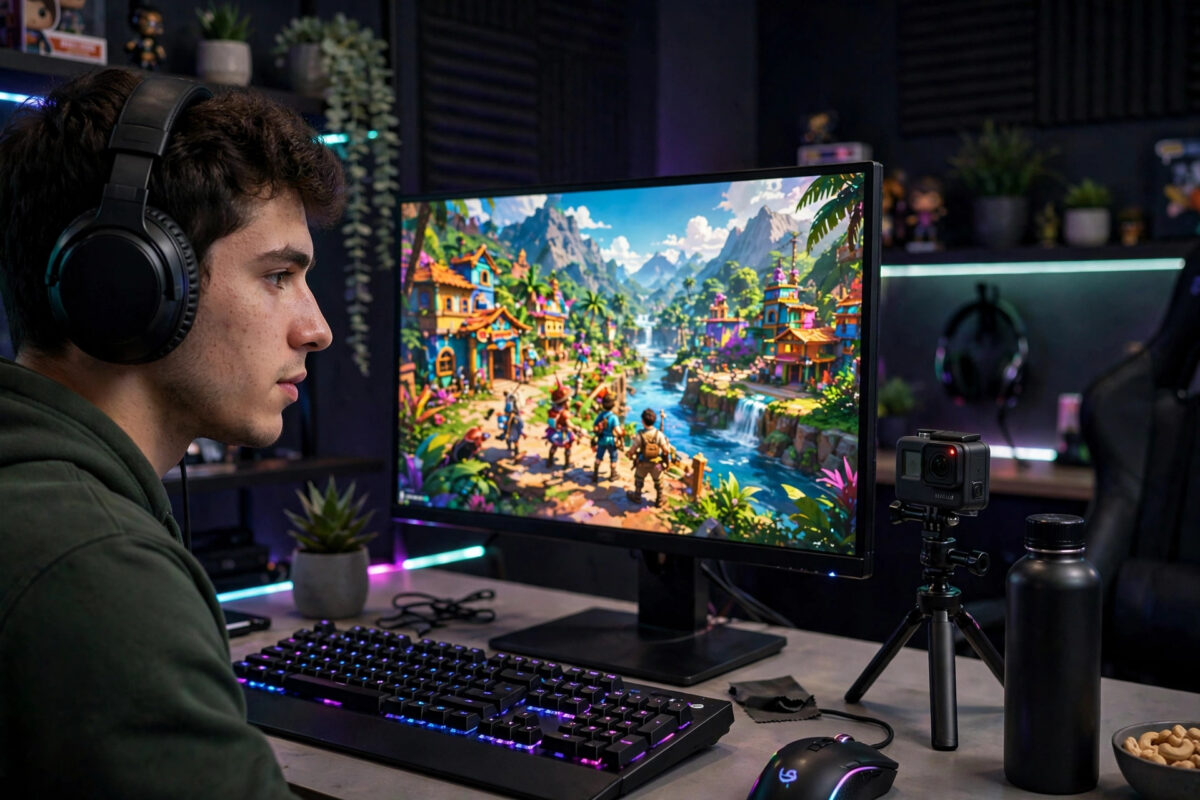
You just pulled off the best play of your gaming life — and nobody saw it, including you, because you were not recording. The fix is free and probably already on your PC. Windows ships with a built-in game recorder, your graphics card almost certainly includes another, and the free OBS Studio powers half the streamers on the internet. This guide explains each option and the settings that give you smooth clips without wrecking your frame rate.
Quick Answer
The easiest free way to record gameplay on a PC is the built-in Xbox Game Bar: press Windows key + Alt + R to start and stop recording, or Win + Alt + G to save the last 30 seconds as a clip. For higher quality and full control, use OBS Studio, and if you have an NVIDIA or AMD graphics card, their free overlay tools (NVIDIA App / AMD Software) record with the least performance loss thanks to hardware encoding.
Option 1: Xbox Game Bar – Already on Your PC
Game Bar comes with Windows 10 and 11 and is designed for exactly this job.
- Open your game, then press Win + G to open the Game Bar overlay.
- In Settings → Gaming → Captures, choose your recording folder, background recording length, frame rate (30 or 60 fps), and whether to include audio.
- Turn on “Record in the background while I’m playing a game” if you want the magic save-that-moment feature.
- While playing: Win + Alt + R starts/stops a recording; Win + Alt + G saves the last 30 seconds (adjustable up to 10 minutes) of what just happened.
- Find your clips in Videos → Captures, or open the Gallery widget in the overlay.
Game Bar records the game window only, at good quality, with modest impact on performance. For quick clips to share with friends, it is genuinely all most players need.
Option 2: OBS Studio – Best Quality and Control, Free
OBS Studio is the free, open-source recorder behind countless YouTube channels. It takes ten minutes to learn and repays you with 1080p or 4K recordings, separate audio tracks, overlays, and no watermarks or time limits.
- Download OBS from the official OBS Studio website and run its auto-configuration wizard, prioritising recording quality.
- Add a source: “Game Capture” for a specific game, or “Display Capture” for the whole screen.
- In Settings → Output, choose the hardware encoder if offered (NVENC on NVIDIA, AMF on AMD, Quick Sync on Intel) — it records using a dedicated chip so your game barely notices.
- Set Recording Quality to “High Quality, Medium File Size” (or Indistinguishable for editing later), and record to MKV if you fear crashes — OBS can remux to MP4 afterwards without quality loss.
- Press Start Recording, play, and stop when done. Your file lands in the folder set under Settings → Output → Recording Path.
If recording makes your game stutter, cap the recording at 60 fps, lower the output resolution to 1080p, and check your PC is not already overheating — our guide on checking CPU temperature with a free monitor tool will tell you in minutes.
Option 3: Your Graphics Card’s Own Recorder
NVIDIA’s app (successor to GeForce Experience’s ShadowPlay) and AMD Software’s ReLive both record using the GPU’s built-in encoder, giving the smallest performance hit of any method. Their standout feature is instant replay: the card quietly keeps a rolling buffer of your last few minutes, and one hotkey saves the highlight permanently. If you play competitively and every frame matters, enable this instead of continuous recording — you get the clip and the performance.
Settings That Actually Matter
- Frame rate: 60 fps for fast games, 30 fps halves the file size for slower titles and clips.
- Resolution: match your monitor; downscaling 1440p gameplay to 1080p keeps files friendly for sharing.
- Bitrate/quality: for encoder presets, “quality” modes beat fixed bitrates for game footage full of motion.
- Storage: an hour of 1080p60 can take 10–30 GB. Record to your biggest drive and trim clips you keep — the Captures folder fills silently.
- Microphone: Game Bar and OBS can include your mic; set it as a separate track in OBS if you plan to edit commentary later.
Common Mistakes to Avoid
- Recording with the CPU (x264 “veryfast” and slower presets) on a mid-range PC — the game and encoder fight for the same resource and both lose. Use the hardware encoder.
- Forgetting background recording is off, then missing the moment of the year. Enable it in Captures settings before you need it.
- Recording your entire desktop with notifications, chats, and email visible — use Game Capture and enable Do Not Disturb.
- Storing recordings on a nearly full SSD, which also happens to be slowing your games. Keep space free and archive old clips.
- Uploading raw giant files to share one 20-second highlight — trim first with the free Photos/Clipchamp editor in Windows.
After Recording: Trimming and Sharing Without Extra Software
A raw recording is rarely what you want to send. A three-minute clip with ten good seconds tests your friends’ patience, and the file is bigger than most chat apps accept. Windows already includes the finishing tools:
- Trim in the Photos app or Clipchamp. Open the video in Photos, choose Edit/Trim, and drag the handles to the moment that matters. Clipchamp (free with Windows) goes further: cut the middle out, add text, and export at a share-friendly size.
- Compress for the destination. Discord, WhatsApp, and email all have size limits that a 1440p original will blow past. Exporting a trimmed copy at 1080p — or 720p for quick chat shares — keeps uploads painless.
- Turn highlights into GIFs or short clips. For pure reaction moments, a five-second clip beats a video link. Clipchamp exports short segments perfectly well for this.
- Archive smart. Keep the full-quality original of genuinely great sessions on your largest drive, delete the routine ones ruthlessly, and name keepers with the game, date, and a hint of the content (Valorant_2026-08-14_ace-clutch.mp4) so future-you can find them.
Recording vs Streaming: One Setup, Two Jobs
If clips turn into ambitions, know that OBS does both: the same scenes and sources that record locally can stream to YouTube or Twitch with the Stream key added. The settings diverge in one place — streaming needs a bitrate your upload speed can sustain (often 6000 kbps for 1080p60), while local recording should use quality-based settings with no such ceiling. Many creators record locally while streaming at a modest bitrate, keeping a pristine copy for edited videos afterwards. Your free setup already supports growing in that direction whenever you are ready.
Conclusion
Recording gameplay on a PC is completely free at every level: Game Bar for one-hotkey simplicity, OBS Studio for creator-grade quality and control, and your GPU’s own software for the lightest touch on performance. Turn on background recording today, and the next unbelievable play will not just live in your memory.
Frequently Asked Questions
Does recording gameplay lower my FPS?
A little, depending on the method. Hardware encoding (NVENC, AMF, Quick Sync) typically costs only a few percent. CPU encoding and recording at very high resolutions cost more, which is why the GPU tools feel almost free.
What is the best free recorder with no watermark?
OBS Studio: no watermark, no time limit, no resolution cap, and it is open-source. Xbox Game Bar is also watermark-free since it is part of Windows.
How do I record only the last 30 seconds of gameplay?
Enable background recording in Windows Settings → Gaming → Captures, then press Win + Alt + G whenever something great happens. NVIDIA and AMD’s instant replay features do the same job with adjustable buffer lengths.
Where does Xbox Game Bar save recordings?
By default in your user folder under Videos → Captures. You can open the folder from the Game Bar Gallery, and change capture settings (though not the base folder) in Windows Settings.
Can I record gameplay and my voice at the same time?
Yes. Game Bar has a microphone toggle (Win + Alt + M), and OBS lets you add your mic as its own source and even its own audio track for editing.



Leave a Reply