
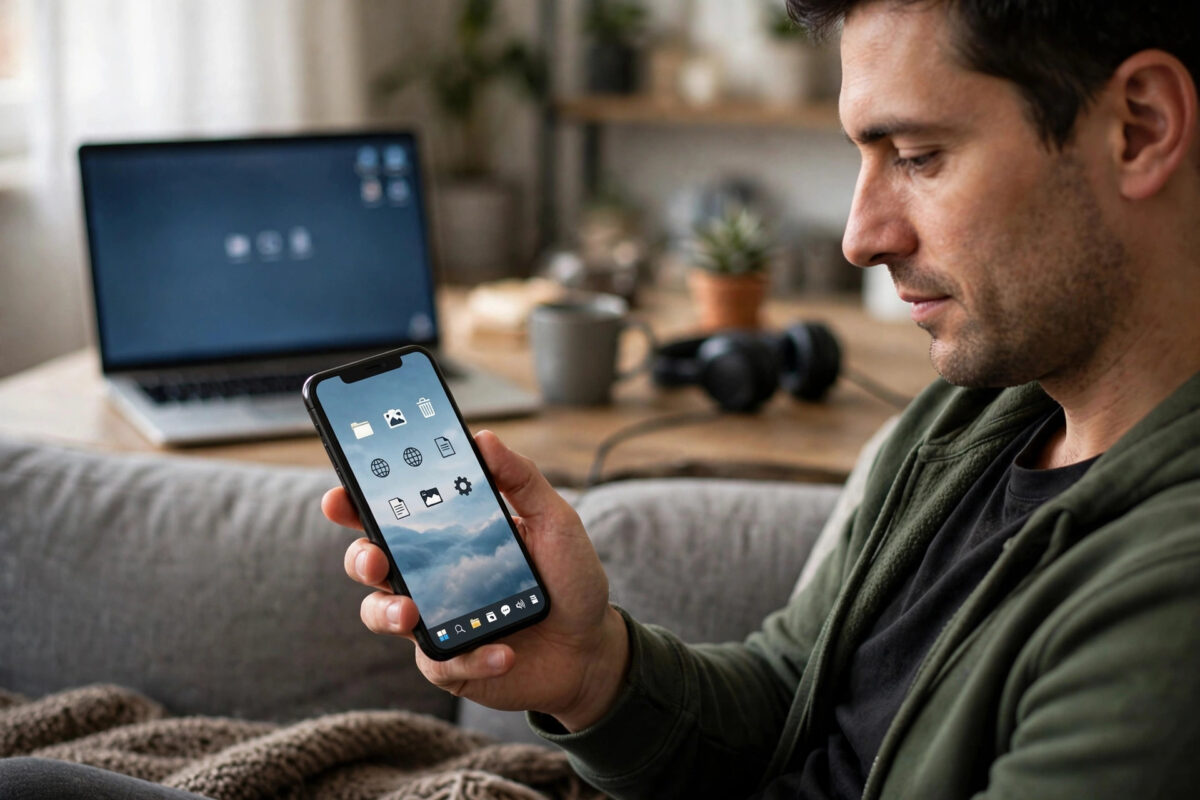
Left an important file on your home PC while you are out? Need to start a download, check a render, or help a family member with a computer problem from the sofa? A free remote desktop tool lets you see your PC’s screen on your phone and control the mouse and keyboard as if you were sitting in front of it. This guide explains the easiest free ways to do it and how to set everything up in minutes.
Quick Answer
The easiest free way to control your PC from your phone is Chrome Remote Desktop: install the host component on your PC from Google’s official page, set a PIN, then open the app or website on your phone and tap your computer’s name. AnyDesk and Microsoft’s Windows app are also free for personal use and give you a smoother picture. Once set up, you can connect from anywhere as long as both devices are online.
What You Need Before You Start
- Your PC switched on and connected to the internet (it cannot be fully powered off).
- Your phone with the matching remote desktop app installed.
- The same account signed in on both devices for account-based tools.
- A screen lock password or PIN on the PC, so nobody else can use an unattended session.
- For access while away from home, the PC should not go to sleep — set sleep to “Never” while plugged in, or enable wake settings that suit you.
Method 1: Chrome Remote Desktop (Simplest and Free)
Google’s tool is free with no time limits, works on Windows, macOS, and Linux, and lives inside the browser, which is why it is the top recommendation for beginners.
- On your PC, open Chrome and go to the Chrome Remote Desktop access page.
- Under “Set up Remote Access,” click the download button and install the small host program.
- Give your computer a name and create a PIN of at least six digits. This PIN is what protects every connection.
- On your phone, install the Chrome Remote Desktop app (or open the same page in mobile Chrome) and sign in with the same Google account.
- Tap your computer’s name, enter the PIN, and your desktop appears. Pinch to zoom, use the on-screen keyboard icon for typing, and switch between “trackpad” and “touch” mouse modes in the menu.
Method 2: AnyDesk for a Faster, Sharper Picture
AnyDesk is free for personal use and is known for low lag, which makes it better if you need to scroll through documents or watch a process run.
- Download AnyDesk on the PC and note the nine-digit address shown on the main screen.
- For unattended access, open Settings → Security and set a password for unattended access. Without this, someone at the PC must click “Accept” for every session.
- Install the AnyDesk app on your phone, type the PC’s address, enter the password, and connect.
- Use the app’s session menu to switch monitors, transfer files, or adjust quality if your connection is slow.
Method 3: Windows’ Built-In Remote Desktop
Windows Pro editions include Remote Desktop, and Microsoft’s free mobile app can connect to it. It works best on your home network; connecting from outside usually needs extra network setup, so most home users are happier with the two methods above. If your edition is Windows Home, this option is not available as a host, another reason Chrome Remote Desktop is the safer default recommendation.
Tips for a Smooth and Safe Session
- Use a strong, unique PIN or password and never share it. Remote access is a door into your whole computer.
- Turn on two-step verification on the account you use to sign in (Google or AnyDesk account).
- Lower the streaming quality on mobile data; text and windows stay readable and lag drops a lot.
- Keep the host software updated — remote tools are security-sensitive, and updates patch real holes.
- Disable unattended access if you only needed it once. You can re-enable it in seconds.
- If your router or firewall causes connection problems at home, our guide to fixing Wi-Fi dead zones at home can help stabilise the link your PC depends on.
Common Mistakes to Avoid
- Leaving the PC logged in without a lock-screen password — anyone with the app and PIN could get full control.
- Posting your AnyDesk address or TeamViewer ID publicly. Treat it like a house key.
- Accepting a connection request you did not start. Scammers often trick people into installing remote tools; never connect at a stranger’s request.
- Expecting it to work with the PC asleep or off. Plan power settings in advance if you travel.
What You Can Realistically Do From Your Phone
Once the connection works, set your expectations by task type, because a phone screen is not a monitor:
- Excellent: grabbing a file and sending it to yourself, starting or checking downloads and renders, approving prompts, restarting a stuck program, reading documents, and walking a family member through a fix while you watch their screen (or they watch yours).
- Workable: light document editing, managing files, changing settings, and checking dashboards. The zoom and trackpad modes make small text manageable for short sessions.
- Painful: detailed spreadsheet work, photo editing, coding, and anything involving gaming — input lag and the small screen fight you the whole way. For those, the phone session is an emergency bridge, not a workplace.
A few quality-of-life tricks make a big difference. Set the remote session’s resolution lower (for example 1280×720) on mobile data — text stays readable and everything feels twice as fast. Learn your app’s gesture shortcuts: two-finger tap for right-click in most apps, and a long-press often acts as a click-and-hold for dragging. If your PC has two monitors, find the monitor-switch button before you travel, because the remote view may open on the screen you did not expect. And if you plan to transfer files regularly rather than occasionally, use the file-transfer mode built into AnyDesk or Chrome Remote Desktop’s companion features instead of emailing things to yourself mid-session.
One more scenario worth preparing: helping parents or relatives. Set up unattended access on their PC with their permission while you are visiting, agree a strong password together, and write down which app to open. The next “my printer is doing something weird” phone call becomes a two-minute fix instead of a forty-minute guessing game — just make sure they know the golden rule from the safety section: you will never ask them to read out a code to a stranger, and neither should anyone else.
Conclusion
Controlling your PC from your phone is free, quick to set up, and genuinely useful once it is in place. Chrome Remote Desktop is the easiest all-round choice, AnyDesk feels faster, and Windows’ own tool suits Pro users on a home network. Set it up before you actually need it, protect it with a strong PIN, and your whole computer is always in your pocket.
Frequently Asked Questions
Is Chrome Remote Desktop really free with no limits?
Yes. For personal use it is completely free, with no session time limits and no subscription. You only need a Google account and the free host program installed on the PC.
Can I control my PC from my phone when I am on mobile data?
Yes. Both devices just need an internet connection. The picture will use some data, so lower the quality settings on a limited plan and prefer Wi-Fi when you can.
Does the PC need to be on all the time?
It needs to be on and awake (or able to wake). Set sleep to “Never” while plugged in, or check whether your PC supports waking over the network, if you want access while travelling.
Can someone else access my PC without me knowing?
Only if they have your account login or your access PIN/password. Use strong credentials, enable two-step verification, and review the tool’s connected-devices list regularly. Legitimate sessions also show a visible notice on the PC screen.
Which tool is best for helping family members with their PC?
Chrome Remote Desktop’s “Remote Support” mode is ideal: it generates a one-time code, so you can help without setting up permanent unattended access on their machine.



[…] Linux, Android, and iOS, and both can control a PC from a phone — see our step-by-step guide on controlling your PC from your phone for free for the setup […]