
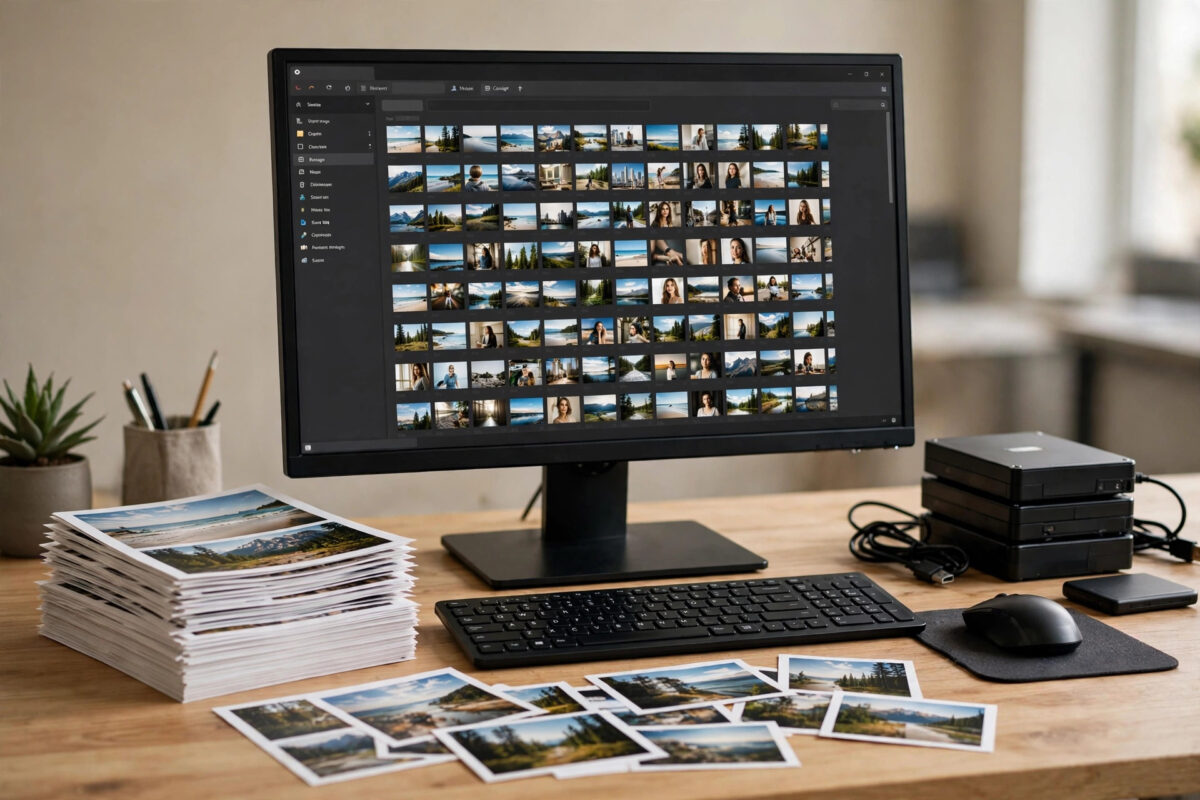
Duplicate files are one of the quietest ways a Windows PC runs out of space. The same photo saved in three folders, a downloaded installer you forgot about, or a music collection copied twice can easily eat several gigabytes without you noticing. The good news is that free duplicate file finder tools can scan your drive, compare files by their actual content, and show you exactly what can be safely removed.
Quick Answer
The best free duplicate file finder for Windows is dupeGuru for most people, because it is fast, compares files by content rather than name, and handles photos and music especially well. Microsoft’s own ecosystem also helps: tools like CCleaner’s built-in Duplicate Finder and the open-source Czkawka are strong free options. Whichever tool you choose, scan first, review the results carefully, and always keep at least one copy of every file group before deleting anything.
Why Duplicate Files Build Up So Fast
Duplicates rarely come from one big mistake. They build up slowly through everyday habits:
- Downloading the same file twice because the first download seemed to fail.
- Copying photos from a phone or camera into a new folder “just to be safe.”
- Backing up a folder into another folder on the same drive.
- Apps creating cached or exported copies of media files.
- Moving to a new PC and merging old and new libraries without checking.
A single duplicate is harmless. Thousands of them waste space, slow down backups, and make your folders confusing. Before you start cleaning, it also helps to understand what is using your storage overall, which our guide on how to free up disk space on Windows explains step by step.
The Best Free Duplicate File Finder Tools
1. dupeGuru – Best Overall Free Choice
dupeGuru is a free, open-source tool built for one job: finding duplicate files accurately. Instead of trusting file names, it uses a “fuzzy matching” algorithm that compares file content, so it can catch copies that were renamed. It has special modes for music (comparing audio tags) and pictures (finding visually similar images, not just identical ones). The results window groups duplicates together and lets you filter, mark, and delete in bulk.
2. Czkawka – Fastest Scanner
Czkawka is another free open-source option, written in Rust, and it is noticeably fast on large drives. On top of duplicates, it can find empty files, empty folders, similar images, and broken files, which makes it a good all-in-one cleanup companion. Its interface is less polished than dupeGuru’s, but the speed makes up for it on big drives.
3. CCleaner Duplicate Finder – Easiest for Beginners
If you already use CCleaner, its built-in Duplicate Finder (under Tools) is the simplest starting point. You choose which drives and folders to scan, whether to match by name, size, date, or content, and it presents a clean list where you tick the copies to remove. Because it comes from the official CCleaner website, beginners often feel more comfortable with it.
4. AllDup – Most Flexible Filters
AllDup is a free tool aimed at users who want control. It can compare files byte by byte, search inside archives, and filter by size, date, attributes, and more. The preview feature lets you check photos and text files before deleting, which reduces the risk of removing the wrong copy.
How to Find and Delete Duplicates Safely: Step by Step
- Back up first. Copy important folders to an external drive or cloud storage before any cleanup session.
- Install one tool from its official website and run a scan of your user folders first (Documents, Pictures, Music, Downloads), not the whole drive.
- Exclude system folders. Never scan or clean inside C:\Windows or Program Files. Some “duplicates” there are required by Windows and different apps.
- Sort results by size so the biggest space-wasters appear first.
- Review each group. Keep the copy in the folder where it belongs and mark the extras. Use the tool’s “select all but one” or “keep oldest/newest” helper if available.
- Use the Recycle Bin. Choose the option that sends files to the Recycle Bin instead of permanently deleting them, so you can undo mistakes for a few days.
- Restart and test. Use your PC normally for a day or two. If everything works, empty the Recycle Bin to actually reclaim the space.
How These Tools Know Two Files Are Truly Identical
Good finders do not rely on names alone. Most work in stages: first they group files by exact size, because different sizes cannot be duplicates. Then they compute a partial and finally a full cryptographic hash (a unique fingerprint of the content) for the remaining candidates. If two files produce the same full hash, their content is identical with near-perfect certainty. Picture-focused tools go further and compare visual similarity, which is why they can flag a resized or slightly edited copy of the same photo.
Common Mistakes to Avoid
- Deleting every copy in a group. The tool lists the original together with its duplicates. Always leave one unmarked.
- Cleaning system and program folders. Duplicate DLLs and system files often exist for a reason.
- Trusting name-only matches. Two files called “report.docx” may contain completely different work. Prefer content-based matching.
- Permanent deletion on the first run. Use the Recycle Bin until you are confident.
- Scanning a nearly-full drive without a backup. Cleanup is safe when done carefully, but a backup removes all stress.
After the Cleanup: Stopping Duplicates From Coming Back
One good cleanup feels great; a simple routine keeps it that way. Most duplicates return through the same few doors, so close them:
- One home for each collection. Decide that photos live in Pictures, downloads get sorted weekly, and music lives in one library folder that your player actually uses. Duplicates breed when the same collection exists in three “temporary” places.
- Import, do not copy-and-paste. When moving photos from a phone or camera, use an import flow that empties into dated folders, then delete from the device inside the same session. The “copy now, sort later” habit is the single biggest duplicate factory.
- Check Downloads monthly. Installers and documents get downloaded twice because the first copy is buried. A five-minute monthly sort — or a scheduled scan of just the Downloads folder with your finder tool — keeps it honest.
- Be careful with cloud sync overlaps. If OneDrive, Google Drive, and a manual backup all mirror the same folders onto the same drive, you can end up with two or three local copies of everything. Pick one sync home per folder.
- Scan quarterly, not weekly. A scan every three months with results sorted by size catches the big offenders while they are still few. Put it on the same mental checklist as your other PC housekeeping.
Finally, a word about near-duplicates the tools cannot judge for you: five almost-identical burst photos of the same moment, three drafts of a document named final, final2, and final-real. Content-matching tools will not flag files that merely resemble each other unless they offer similarity modes, and even then the keep-or-delete decision is yours. That is fine — those are creative choices, not junk. The tools handle the true copies; you curate the rest.
Conclusion
A free duplicate file finder can hand back gigabytes of space in a single afternoon. dupeGuru is the best all-round free pick, Czkawka is the fastest, and CCleaner’s finder is the friendliest for beginners. The tool matters less than the method: back up first, scan only your own folders, review each group, keep one copy of everything, and delete through the Recycle Bin. Follow that routine every few months and duplicate clutter will never take over your drive again.
Frequently Asked Questions
Is it safe to delete duplicate files found by these tools?
Yes, as long as you review the groups, keep one copy of each file, avoid system folders, and send deletions to the Recycle Bin first. The risk comes from rushing, not from the tools themselves.
Can a duplicate finder find similar photos, not just exact copies?
Yes. Tools like dupeGuru (picture mode) and Czkawka can compare images visually and flag resized, recompressed, or lightly edited versions of the same photo, showing a similarity percentage so you can decide.
Why does the tool show duplicates inside program folders?
Many programs install their own copies of shared libraries and resources. Those are not safe to remove. Restrict your scans to personal folders such as Documents, Pictures, Music, Videos, and Downloads.
How much space can I realistically recover?
It depends on your habits. Casual users often recover 2–10 GB, while people with large photo, music, or video collections copied over the years can recover 50 GB or more.
Will deleting duplicates speed up my PC?
It mainly frees storage, which helps if your drive was nearly full — Windows and SSDs both slow down when space is very low. It will not fix slowness caused by weak hardware or too many startup programs.



Leave a Reply