
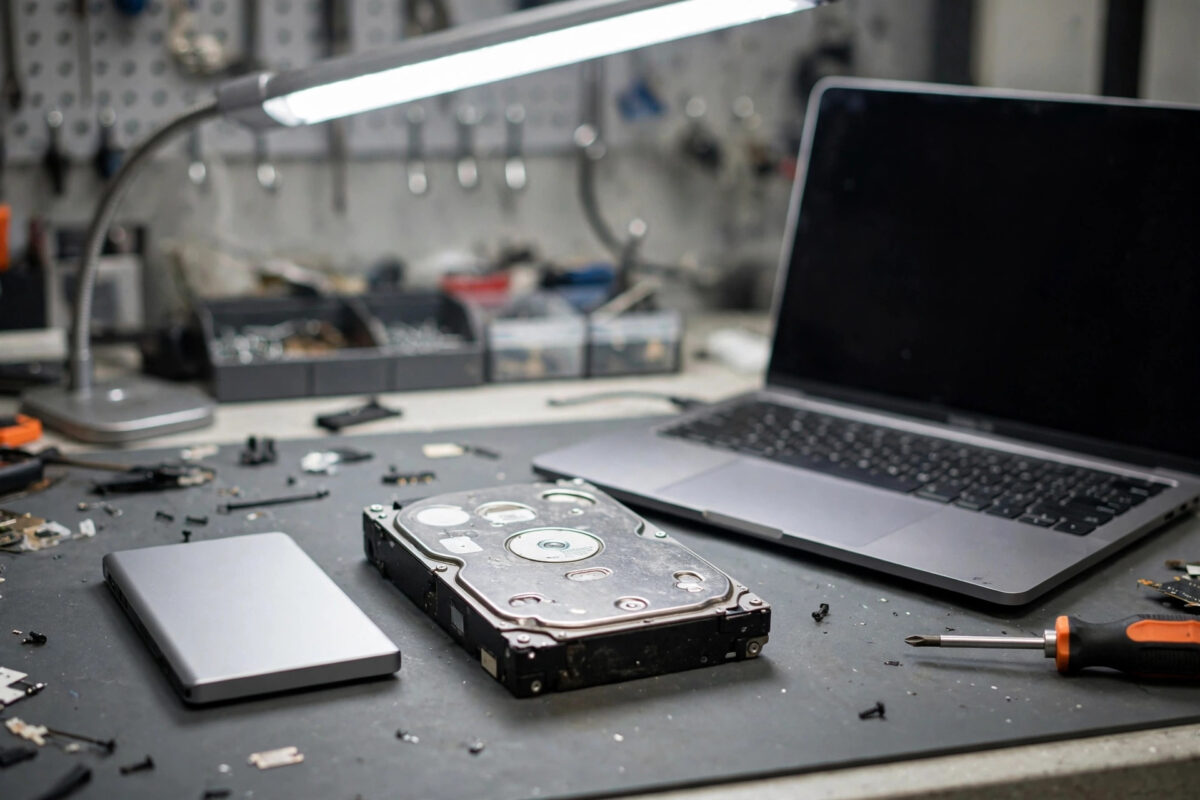
Swapping an old hard drive for an SSD is the single best upgrade you can give a PC — boot times collapse, programs snap open, and a tired laptop feels new again. The part people fear is reinstalling Windows and losing their setup. Cloning removes that fear entirely: it copies your entire drive, byte for byte, to the SSD, so you swap the hardware and carry on exactly where you left off.
This guide covers the best free cloning software and the complete step-by-step process, including the checks that stop most cloning failures before they happen.
Quick Answer
To clone a hard drive to an SSD for free: connect the SSD, then use free cloning software — Samsung Data Migration if your SSD is a Samsung, or Hasleo Backup Suite Free, DiskGenius or the bootable Clonezilla for any brand — select your current drive as the source and the SSD as the target, enable “SSD alignment,” and start the clone. When it finishes, swap the drives (or change the boot order in BIOS), boot from the SSD, and confirm everything works before wiping the old drive. The target SSD must have enough space for the data actually used on your old drive.
What Cloning Actually Copies
A clone is a complete copy of a drive: Windows, programs, settings, files, the hidden recovery and boot partitions — everything, in the right places. That is what makes the SSD bootable as a perfect replacement. Cloning differs from copying files in File Explorer (which misses the boot structures) and from a backup image (which must be restored before use). One important size rule: most cloning tools require the used data on the source to fit the target. Cloning a 1 TB drive with 300 GB used onto a 500 GB SSD is fine with smart tools; cloning 600 GB of data onto that same SSD is not.
The Best Free Cloning Tools
1. Samsung Data Migration (Best If Your SSD Is Samsung)
If you bought a Samsung SSD, Samsung’s own free tool is the easiest clone in computing: three clicks, a progress bar, done. It only works when the target is a Samsung SSD, which is its one limitation.
2. Hasleo Backup Suite Free (Best General Windows Tool)
Hasleo’s free suite includes a clear “System Clone” and disk clone wizard that handles cloning a live Windows system to a smaller or larger SSD, with automatic partition resizing and SSD alignment. Its interface is friendlier than Clonezilla’s and it costs nothing — a genuine hidden gem for this job.
3. DiskGenius Free (Clone Plus Partition Tools)
DiskGenius combines disk cloning (including an “OS migration” mode) with partition management in one free program. It is a strong pick when your target SSD is smaller, because its migration mode intelligently adjusts partition sizes while copying.
4. Clonezilla / Rescuezilla (Free, Bootable, Any Situation)
Clonezilla is the open-source veteran: you boot it from USB and clone with Windows completely out of the picture. It is extremely reliable and indifferent to operating systems, but its text menus intimidate beginners. Rescuezilla wraps the same power in a friendly graphical interface. Download Clonezilla only from the official Clonezilla website.
5. Brand Tools From Your SSD Maker
Many SSDs include a free OEM cloning licence: Crucial bundles Acronis True Image for Crucial, WD/SanDisk offer Acronis for their drives, and SK hynix and others have their own tools. Check your SSD’s support page before installing anything else — the bundled tool is usually the smoothest path. The official DiskGenius website is the place to get DiskGenius if you go that route.
What You Need Before You Start
- A way to connect the SSD: a spare SATA slot and cable in a desktop, or a USB-to-SATA adapter/enclosure for a laptop (very cheap, and reusable as an external drive case afterwards).
- Enough target space: check your source drive’s used space in File Explorer first.
- A backup of irreplaceable files. Cloning is reliable, but the target drive gets overwritten — and mistakes in picking source and target are the number one cause of cloning disasters.
- Time and power: 30 minutes to a few hours depending on data size; keep laptops plugged in.
How to Clone Your Drive, Step by Step
- Connect the SSD and confirm Windows sees it (Disk Management will show it as unallocated; that is normal — do not format it).
- Tidy the source drive a little. Empty the Recycle Bin and delete obvious junk so there is less to copy. Do not defragment an SSD source; for an HDD source it does not matter for cloning.
- Open your cloning tool and choose Disk Clone or System/OS Clone.
- Select the SOURCE: your current Windows drive. Then the TARGET: the new SSD. Read these two choices three times. The target is erased completely — choosing backwards wipes your real drive.
- Enable SSD optimisation/alignment if offered, and let the tool adjust partition sizes to fit the target.
- Start the clone and let it finish without using the PC for heavy work.
- Shut down. For a laptop, physically swap the drives now. For a desktop, either swap the SATA cables or enter BIOS/UEFI and set the SSD as the first boot device.
- Boot and verify: Windows should start noticeably faster. Check your files, open several programs, and confirm the SSD shows as drive C: in Disk Management.
- Only after a few days of confidence, wipe the old drive and reuse it for storage or backups.
If the SSD is much larger or smaller than the old drive and partitions need rearranging afterwards, our guide to the best free partition manager tools covers adjusting them safely.
Common Mistakes and Pro Tips
- Mistake: mixing up source and target. The classic cloning catastrophe. The target is always the empty new SSD; if the tool shows data being written to your old drive’s name, stop immediately.
- Mistake: cloning to a drive that is too small. Used space must fit. Delete or offload big files first if you are cutting it close.
- Mistake: removing the old drive before testing. Keep it untouched until the SSD system has booted several times and you have checked your important programs and files.
- Tip: enable AHCI and check TRIM afterwards. In Windows, search “Defragment and Optimize Drives” — your SSD should be recognised as a solid-state drive and show TRIM running on schedule.
- Tip: laptop users — clone with the SSD in the USB enclosure, then swap it in. Some laptops clone more reliably this way than the reverse.
Conclusion
Cloning moves your entire Windows life onto a fast SSD without reinstalling anything. Use your SSD maker’s free tool if one exists, Hasleo or DiskGenius for a friendly general-purpose clone, or Clonezilla for a bulletproof bootable option. Choose source and target with obsessive care, boot from the SSD, verify — then enjoy a computer that feels brand new.
Frequently Asked Questions
Can I clone a 1 TB hard drive to a 500 GB SSD?
Yes, if the data actually stored on the 1 TB drive is less than the SSD’s usable capacity (about 465 GB). Smart cloning tools copy used data and shrink partitions to fit. If used data exceeds the target size, delete or move files first.
Is Macrium Reflect Free still available?
No — Macrium discontinued Reflect Free, so new users should choose another tool from this guide (Hasleo Backup Suite Free, DiskGenius, Clonezilla or your SSD brand’s bundled software). Old Reflect Free installations still work but no longer receive updates.
Will cloning copy my Windows licence and programs?
Yes. A clone is a complete copy of the drive, so Windows, its activation, installed programs, settings and files all come across. Windows activation is tied to your motherboard, not the drive, so swapping storage does not affect it.
How long does cloning take?
Cloning 300 GB over a fast connection typically takes 30–90 minutes. USB 2.0 adapters, nearly full mechanical drives and large data volumes can stretch it to several hours. A USB 3 or internal SATA connection is much faster.
Why won’t my PC boot from the cloned SSD?
Usually because the boot order still points at the old drive, the clone was made without the EFI/boot partitions, or both drives are connected and confusing the boot manager. Set the SSD first in BIOS/UEFI, and if needed, temporarily disconnect the old drive for the first successful boot.



Leave a Reply