
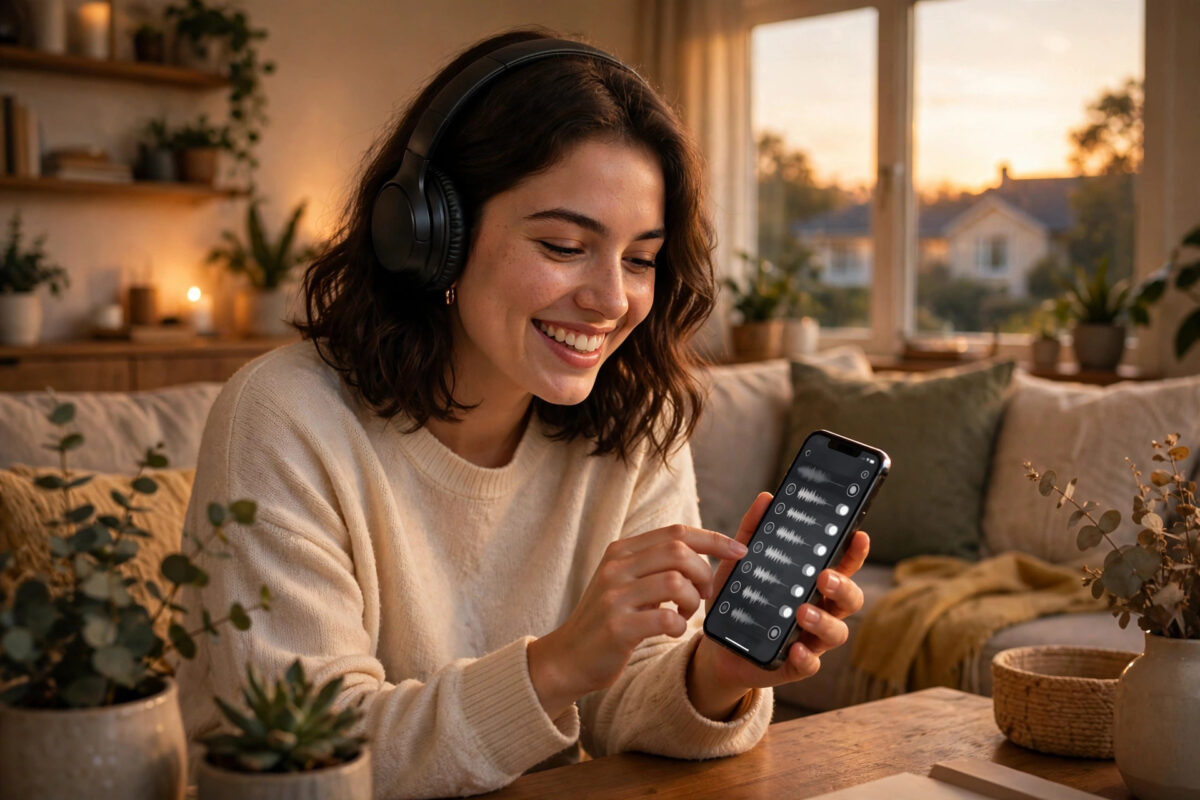
Every phone comes with the same handful of default ringtones, which is why a whole room full of people reaches for their pocket when one phone rings. Making your own ringtone fixes that. Pick the chorus of a favourite song, the funniest line from a podcast, or a sound you recorded yourself, and your phone becomes instantly recognisable.
You do not need audio editing software or any technical skill. A free online MP3 cutter lets you trim a song right in your browser, add a smooth fade so the ringtone does not start with a jolt, and save the result in the right format for your phone. Here is exactly how to do it.
Quick Answer
To make a custom ringtone with an online MP3 cutter, upload your song to a free tool such as MP3Cut by 123apps, drag the sliders to select a 15 to 30 second section, add a fade-in and fade-out, then save it as MP3 for Android or M4R for iPhone. Transfer the file to your phone and select it in the ringtone settings.
What You Need Before You Start
The process takes about five minutes. You only need three things: the audio file you want to trim (MP3, WAV, M4A, and most other formats work), a web browser on a computer or phone, and a way to move the finished file to your phone, such as a USB cable, email, or cloud storage. Keep in mind that streaming apps like Spotify do not give you downloadable files, so use music you own or a recording you made.
Step-by-Step: Trim a Song with an Online MP3 Cutter
One of the simplest and most popular tools is MP3Cut, the free online audio cutter by 123apps. It runs entirely in your browser, and your file is processed without complicated menus. The steps below work the same way on almost every online cutter.
- Open the MP3 cutter website and click the “Open file” button.
- Select the song from your computer, phone, or cloud storage. The audio appears as a visual waveform.
- Press play and listen for the part you want. The best ringtone sections are usually a chorus or a strong opening, between 15 and 30 seconds long.
- Drag the left slider to the start point and the right slider to the end point. You can type exact times if the tool offers time boxes, which is more precise than dragging.
- Use the play button to preview just the selected section. Nudge the sliders until the clip starts and ends cleanly, ideally on a beat.
- Turn on “Fade in” and “Fade out” if available. A two or three second fade stops the ringtone from blasting at full volume instantly.
- Choose the output format. Select MP3 for Android phones, or M4R if the tool offers it for iPhones.
- Click Save or Cut, then download the finished ringtone file.
Getting the Ringtone onto Your Phone
Android Phones
Copy the MP3 file into the Ringtones folder on your phone using a USB cable, or send it to yourself by email or a messaging app and save it. Then open Settings, Sound and vibration, Phone ringtone, and pick your new file. Some phones ask you to tap a plus button to add a custom file from storage.
iPhones
iPhones are stricter. The ringtone must be in M4R format and under 40 seconds. The practical route is to save the M4R file to your computer and sync it through Finder or iTunes, or use the GarageBand app on the phone to import the audio and export it as a ringtone. After that it appears in Settings, Sounds and Haptics, Ringtone.
Choosing the Perfect Section of a Song
A ringtone is not a full song, so choose the section with care. The chorus is the safest choice because it is catchy and usually loud enough to hear in a noisy street. Avoid quiet intros, long instrumental builds, and sections with sudden silence. Also think about the people around you: a ringtone plays in offices, buses, and family dinners, so pick something you will not be embarrassed by in public. If you want different sounds for different people, most phones let you assign a separate ringtone to each contact, which is a great reason to cut two or three clips while you are at it.
If your source audio is trapped inside a video file, do not worry. You can pull the sound out first using the method in our guide on the best free online video converter for turning MP4 into MP3, then trim the resulting file with the cutter.
Beyond Ringtones: Notification Tones, Alarms, and Contact Tones
Once you can cut audio confidently, the same five-minute skill unlocks a set of smaller sounds. Notification tones should be much shorter than ringtones — one to three seconds — because they play dozens of times a day; a single piano note, a short beep from a song, or one funny word from a clip works far better than a chorus. Alarm sounds deserve the opposite thinking: choose a section that starts gently and builds, because a full-volume chorus at 6 a.m. trains you to hate your favourite song. Many people cut one long clip into a matched set — chorus for the ringtone, a two-second hook for messages — so the phone sounds like one personality. And as mentioned earlier, assigning different ringtones to family, work, and unknown numbers lets you decide whether to hurry for the phone without even looking at it.
Common Mistakes and Useful Tips
- Making the clip too long. Most calls go to voicemail after 20 to 30 seconds, so anything longer is wasted. Keep it short.
- Cutting mid-word or mid-beat. Preview the loop several times. A clean start and end make a homemade ringtone sound professional.
- Skipping the fade-out. A ringtone that stops abruptly sounds broken. A short fade makes it feel intentional.
- Using a file that is too quiet. Some cutters have a volume or normalise option. Use it if your clip is hard to hear.
- Forgetting where you saved the file. Rename the download to something clear like “ringtone-chorus.mp3” so you can find it on your phone later.
Recording Your Own Sounds as Ringtones
Songs are not the only source material. Some of the best ringtones are sounds you record yourself: a child saying “pick up the phone,” a pet’s funniest noise, a few notes you play on an instrument, or a voice note someone sent you. Record the sound with your phone’s voice recorder, or save the voice note if the app allows it, then run the file through the same cutter to trim the silence from the start and end — recordings almost always have dead air at both ends, and a ringtone should start the instant the phone rings. Normalise the volume while you are there, because home recordings are usually quieter than studio music. A personal sound like this is impossible to confuse with anyone else’s phone, and it tends to make people smile instead of reaching for the mute button.
Conclusion
An online MP3 cutter turns any song you own into a personal ringtone in about five minutes. Upload the file, select a punchy 15 to 30 second section, add fades, save it in the right format for your phone, and set it in your sound settings. Once you have done it once, you will never go back to the default tones again.
Frequently Asked Questions
How long should a custom ringtone be?
Between 15 and 30 seconds is ideal. iPhone ringtones must be under 40 seconds, and most calls stop ringing after about 30 seconds anyway.
Is it legal to make a ringtone from a song?
Making one for your own personal use from music you own is generally accepted. Sharing or selling ringtones made from copyrighted songs is not allowed.
Why will my iPhone not accept an MP3 ringtone?
iPhones require the M4R format. Convert your clip to M4R with the cutter or through GarageBand, then sync it to the phone.
Can I cut a ringtone directly on my phone’s browser?
Yes. Online cutters work in mobile browsers. The only extra step is saving the file into the right folder or app afterwards.
What audio formats can online MP3 cutters open?
Most accept MP3, WAV, M4A, OGG, and FLAC files, and can also extract the audio track from common video formats such as MP4.



Leave a Reply