
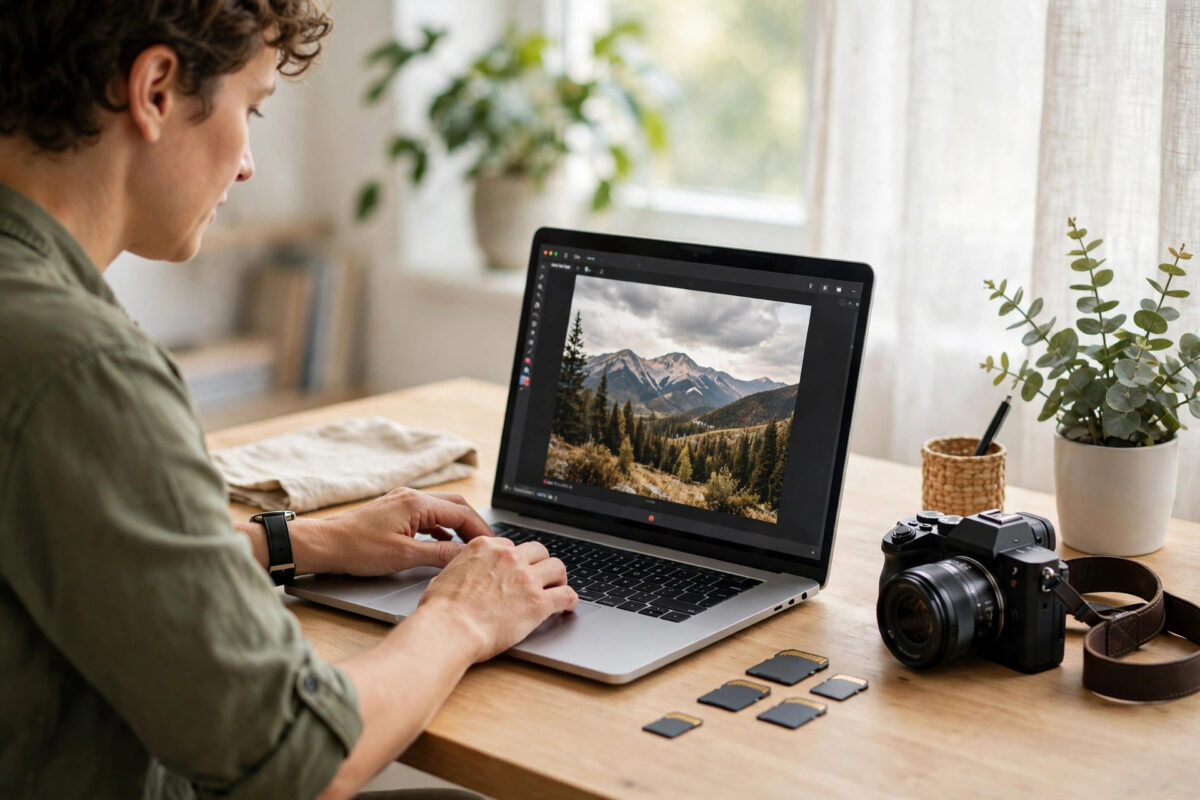
Open almost any slow website and you will find the same culprit hiding in plain sight: images. On a typical page, images account for more than half of the total download size — sometimes far more, when a single unedited phone photo weighs 6 MB. Every extra megabyte is seconds of waiting for your visitors, especially on mobile connections. The good news is that image weight is the easiest performance problem to fix. Compressing your images can shrink page size dramatically with no visible loss of quality. This guide shows you how, step by step.
Quick Answer
To compress images for your website, first resize them to the actual size they will display (no wider than about 1600 pixels for hero images, 800–1200 for in-article images), then compress them with a tool like TinyPNG or a WordPress plugin such as ShortPixel or Smush, and save them in a modern format — WebP where possible. Done properly, this cuts image file sizes by 50–80% with no difference your visitors can see, and pages load noticeably faster.
Why Images Slow Your Website Down
Every image on a page is a separate file the visitor’s browser must download before the page feels complete. A photo straight from a modern smartphone can be 4000 pixels wide and several megabytes — yet it will probably be displayed at 800 pixels wide inside your article. The visitor downloads the giant version anyway, wasting time and data, and the browser then shrinks it on the fly.
This is why images are usually the single biggest cause of poor scores in speed tests and of slow loading on phones. It also connects directly to engagement: heavy pages are the pages people abandon, which is why image optimisation sits at the top of our guide on how to reduce your website bounce rate.
Step 1: Resize Before You Compress
Compression cannot fix an image that is simply the wrong size. Resize first:
- Full-width hero/banner images: 1600–1920 pixels wide is plenty, even for large screens.
- In-article images: match your content width — usually 800–1200 pixels.
- Thumbnails and product grids: 400–600 pixels.
- Logos and icons: upload at twice the display size for crispness on retina screens, but no larger.
Most image editors, including the free tools built into Windows, macOS, and online editors, offer a resize or export-for-web option. Set dimensions at export and you have already saved more weight than compression alone ever could.
Step 2: Choose the Right Format
- WebP is the modern default for websites — roughly 25–35% smaller than JPG at the same quality, supported by every modern browser, and the format Google recommends.
- JPG remains a safe choice for photographs where WebP is not available.
- PNG is for graphics that need transparency or crisp lines — screenshots, logos, diagrams. Never use PNG for photographs; the files are enormous.
- SVG is ideal for logos and simple icons because it scales perfectly at a tiny file size.
- AVIF is even smaller than WebP and growing in support; some tools now offer it, though WebP remains the safer all-round choice in 2026.
Step 3: Compress — Understanding Lossy vs Lossless
Compression comes in two flavours:
- Lossless compression removes wasted data without changing a single pixel. The file shrinks modestly (often 5–20%) and quality is mathematically identical.
- Lossy compression discards detail the human eye barely notices. Done well — around 80–85% quality for photos — the result looks the same to visitors but can be 50–80% smaller.
For website photographs, smart lossy compression is the right default. Your visitors will never spot the difference on a screen, but they will feel the speed. Reserve lossless for graphics where every pixel matters, such as detailed diagrams.
Three Ways to Compress Your Images
Option 1: Free online tools (best for a few images at a time)
TinyPNG/TinyJPG and Squoosh let you drag in images, compress them in the browser, and download the results — Squoosh also converts to WebP and shows a live quality preview. Perfect when you prepare images before uploading them to WordPress.
Option 2: A WordPress compression plugin (best for ongoing publishing)
Plugins such as ShortPixel, Smush, and Imagify compress every image automatically on upload and can bulk-optimise your existing media library. Most also generate WebP versions and serve them to compatible browsers. Install one, set lossy (“glossy” or similar) compression, run the bulk optimiser once, and every future upload is handled for you. The WordPress plugin directory shows current ratings for each — pick one that is actively maintained.
Option 3: Your hosting or CDN tools
Some hosts and CDNs convert and compress images on the fly. If yours offers it, it can replace a plugin entirely — but test carefully, because on-the-fly conversion sometimes conflicts with other optimisation plugins.
Step 4: Add the Supporting Habits
- Enable lazy loading (built into WordPress by default) so images below the fold only load as the visitor scrolls to them.
- Use descriptive file names and alt text while you prepare images — compression time is also SEO time.
- Do not upload print-size originals “just in case.” Keep originals on your own computer; the website needs only web sizes.
- Re-run a speed test after optimising a busy page (Google PageSpeed Insights is free) so you can see the improvement in real numbers.
Common Mistakes to Avoid
- Compressing the same image repeatedly. Re-saving a JPG again and again degrades it each time. Always compress from the original file.
- Cranking quality down to 40% for extreme savings. Blurry, artefact-covered images make a site look cheap. Around 80% is the sweet spot for photos.
- Optimising images but uploading them at 4000px anyway. Dimensions matter more than compression. Resize first, always.
- Installing two image optimisation plugins. They conflict, double-process, and bloat the database. Choose one.
- Forgetting the existing library. New uploads are only half the story — your old, heavy images are on your most-visited pages. Run the bulk optimiser.
- Uploading huge images that then fail. Oversized files also cause upload errors; if you have hit those, our guide on fixing image upload errors in WordPress explains the causes.
Conclusion
Image optimisation is the rare website improvement that costs nothing, risks nothing, and pays off on every single page load. Resize images to the size they will actually display, compress them intelligently at around 80% quality, prefer WebP, and automate the whole thing with one good plugin so you never have to think about it again. Your pages will load faster, your speed scores will climb, your mobile visitors will stay longer — and no one will ever notice a difference in how your photos look.
Frequently Asked Questions
How much can image compression actually speed up my site?
On image-heavy pages, total page weight commonly drops by 40–70%, which can turn a five-second load into a two-second load on mobile connections. The exact gain depends on how unoptimised your images were to begin with — the worse the starting point, the bigger the win.
Will compressing images make them look blurry?
Not at sensible settings. Lossy compression at 80–85% quality removes detail human eyes cannot perceive on screens. Problems only appear at extreme settings (below roughly 60%) or when an already-compressed image is compressed again. Always compress from the original.
What is the best image size for a blog post?
Match the width of your content area — typically 800 to 1200 pixels wide for in-article images, with file sizes ideally under 150 KB each. Hero images can go up to about 1600–1920 pixels wide. Anything larger wastes bandwidth without looking better.
Should I convert all my images to WebP?
Yes for photographs and general graphics. WebP gives you JPG-beating quality at significantly smaller sizes and is supported by all modern browsers. Most compression plugins generate WebP automatically while keeping the original as a fallback, which is the safest setup.
Do I need a plugin, or can I compress images manually?
Both work. Manual compression with tools like Squoosh or TinyPNG before uploading gives you full control and keeps your site lean. A plugin is better if you publish often or have a large existing library to fix. Many site owners do both: prepare images properly, and let a plugin catch anything they miss.



Leave a Reply