
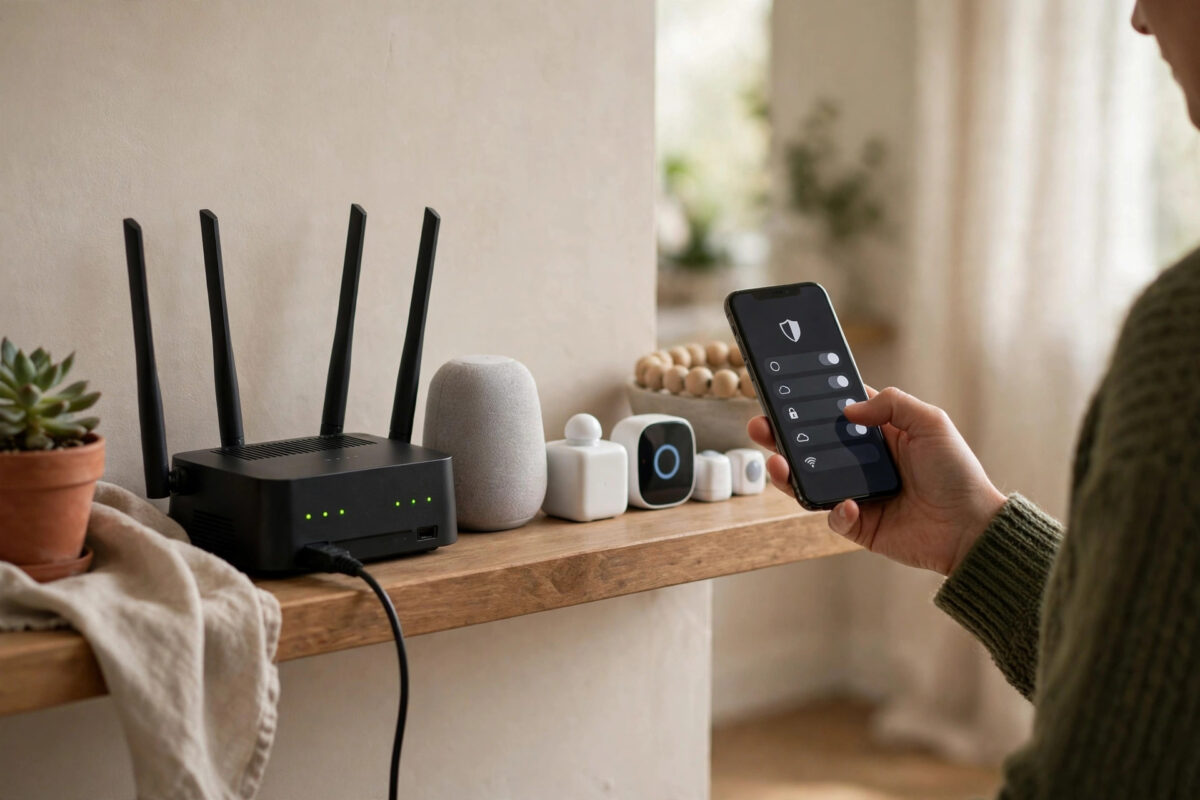
Every smart bulb, camera, and plug you add is a small computer on your network — and like any computer, it can be attacked if it is left with default settings. The good news is that smart home security is mostly common sense: a handful of habits at setup time will protect almost every home. This guide gives you those habits in a clear checklist.
Quick Answer
Protect your smart home by securing the router first (strong unique Wi-Fi password, WPA3 or WPA2, updates on), using a unique password and two-factor authentication on every smart home account, keeping device firmware updated, buying from reputable brands, and turning off features you do not use such as remote access and UPnP. A separate guest or IoT network adds an extra layer for cautious households.
Why Smart Devices Get Targeted
Attackers rarely care about your light bulbs themselves. Compromised gadgets are used as recruits in botnets (huge networks that attack websites), as listening posts on your network, or as stepping stones towards more valuable targets like your laptop and banking sessions. Cameras and doorbells are the sensitive ones: a hijacked camera feed is a serious privacy breach. Almost every real-world incident traces back to the same handful of causes — default or reused passwords, unpatched firmware, and abandoned no-name devices that never receive updates. All three are within your control.
Step 1: Secure the Router — Your Front Door
- Change the router’s admin password from its printed default to something unique. This is different from the Wi-Fi password and just as important.
- Set a long, unique Wi-Fi password (a passphrase of several words works well) and use WPA3 if your router offers it, WPA2 as the minimum. Avoid WEP or open networks entirely.
- Update the router firmware and enable automatic updates if available.
- Turn off WPS push-button pairing and remote management from the internet unless you specifically need them.
- Rename the network to something that does not reveal your name, address, or router model.
The UK’s National Cyber Security Centre publishes a plain-English guide to securing connected devices at home that reinforces exactly these router-and-password basics.
Step 2: Lock Down Every Account
- Unique password per platform: Your Alexa, Google, SmartThings, and camera accounts must not share passwords with each other or with your email. A password manager makes this painless.
- Two-factor authentication everywhere: Turn it on for every smart home account that offers it. App-based codes are stronger than text messages, but either is far better than a password alone. This matters most for anything with a camera or a lock — accounts like those created when setting up a smart lock deserve the strongest protection you have.
- Review household members: Check who has access in each app a few times a year, and remove old guests, ex-partners’ phones, and tradespeople’s temporary access.
- Use individual codes: For locks and alarms, everyone gets their own PIN so access can be revoked per person.
Step 3: Keep Devices Updated and Supported
Firmware updates are where security fixes live. Enable automatic updates in every device app. When buying, favour brands with a published update policy and a history of patching — the cheapest camera on a marketplace site often receives no updates at all, forever. If a device you own has been abandoned by its maker (no updates for years), replace it, starting with anything that has a camera or microphone.
Step 4: Reduce What Each Device Can Do
- Disable features you do not use: If you never access cameras remotely, turn remote viewing off. Disable voice purchasing on smart speakers, or protect it with a PIN.
- Turn off UPnP on the router: It lets devices open internet ports by themselves, which has been abused repeatedly.
- Review microphone and camera permissions in companion apps, and use physical camera shutters or lens covers where provided.
- Set up a guest or IoT network if your router supports it: Keeping smart gadgets on their own network means a compromised bulb cannot see your laptop or NAS. Many mesh systems offer a dedicated IoT network option designed for this.
- Position cameras thoughtfully: Point them at entrances and valuables, not at neighbours or private spaces — good security and good manners.
Step 5: Watch for Warning Signs
Check in occasionally. A camera that moves or activates when nobody is using it, settings that change themselves, unknown devices in your router’s client list, or a router admin page you suddenly cannot log into are all reasons to act: change passwords from a clean device, update everything, and factory reset the suspect gadget. If a camera account shows logins from places you do not recognise, treat it as compromised — reset its password, enable two-factor, and review the household member list immediately.
Common Mistakes to Avoid
- Keeping default passwords: “admin/admin” on a camera or router is the number one way homes get breached.
- One password for everything: A leak anywhere becomes a leak everywhere. Unique passwords plus two-factor is the fix.
- Buying the cheapest unknown brand: No update policy means vulnerabilities stay open forever.
- Port forwarding cameras manually: Old setup guides suggest it; modern apps use secure cloud relays instead. Never expose a camera directly to the internet.
- Ignoring old devices: That forgotten smart plug from five years ago is still on your network. Audit your device list yearly — starting from the inventory you build when setting up your basic smart home.
Smart Speakers and Privacy Settings Worth Five Minutes
Speakers and displays deserve one extra pass because they listen for a living. Open your Alexa or Google Home privacy dashboard and do four things: review and delete stored voice recordings, turn off “improve the service with my recordings” options if you are not comfortable contributing them, set recordings to auto-delete every few months, and check the list of third-party skills or services connected to your account — remove any you no longer recognise or use. Voice purchasing should either be off or protected with a voice profile and PIN. On cameras with cloud plans, check where recordings are stored and how long they are kept, and turn on login alerts so a new sign-in to your camera account emails you immediately. None of this reduces what the devices do for you day to day; it simply shrinks what an attacker — or an overly curious service — can reach.
Conclusion
Smart home security is not about being an expert; it is about not being the easiest target. Secure the router, give every account a unique password with two-factor authentication, keep firmware current, buy supported brands, and switch off what you do not use. Those habits take an afternoon to apply and protect every device you add afterwards automatically.
Frequently Asked Questions
Can hackers really get into smart home devices?
Yes, but almost always through weak or reused passwords, default credentials, or unpatched old devices — not through sophisticated attacks on an updated, well-configured home. The basic habits in this guide block the realistic threats.
Should I put smart devices on a separate network?
It is a worthwhile extra layer if your router offers a guest or IoT network: gadgets stay isolated from your computers and storage. It is optional for most homes, but easy wins like unique passwords and updates come first.
How do I know if a smart device is secure before buying?
Check that the brand publishes security updates, offers two-factor authentication on its account, and has a support page with recent firmware releases. In the UK, look for compliance with the PSTI law, which banned default passwords on new devices.
Is it safe to buy second-hand smart devices?
It can be, with care: factory reset the device, update its firmware immediately, and register it to your own account so the previous owner has no access. Avoid second-hand cameras or locks whose reset state you cannot verify.
What should I do if I think a camera has been hacked?
Disconnect it from power, then from a phone or computer change the account password and enable two-factor authentication. Update the camera’s firmware, factory reset it, and reconnect it. Check the account’s login history and household members, and secure your router the same way.



Leave a Reply