
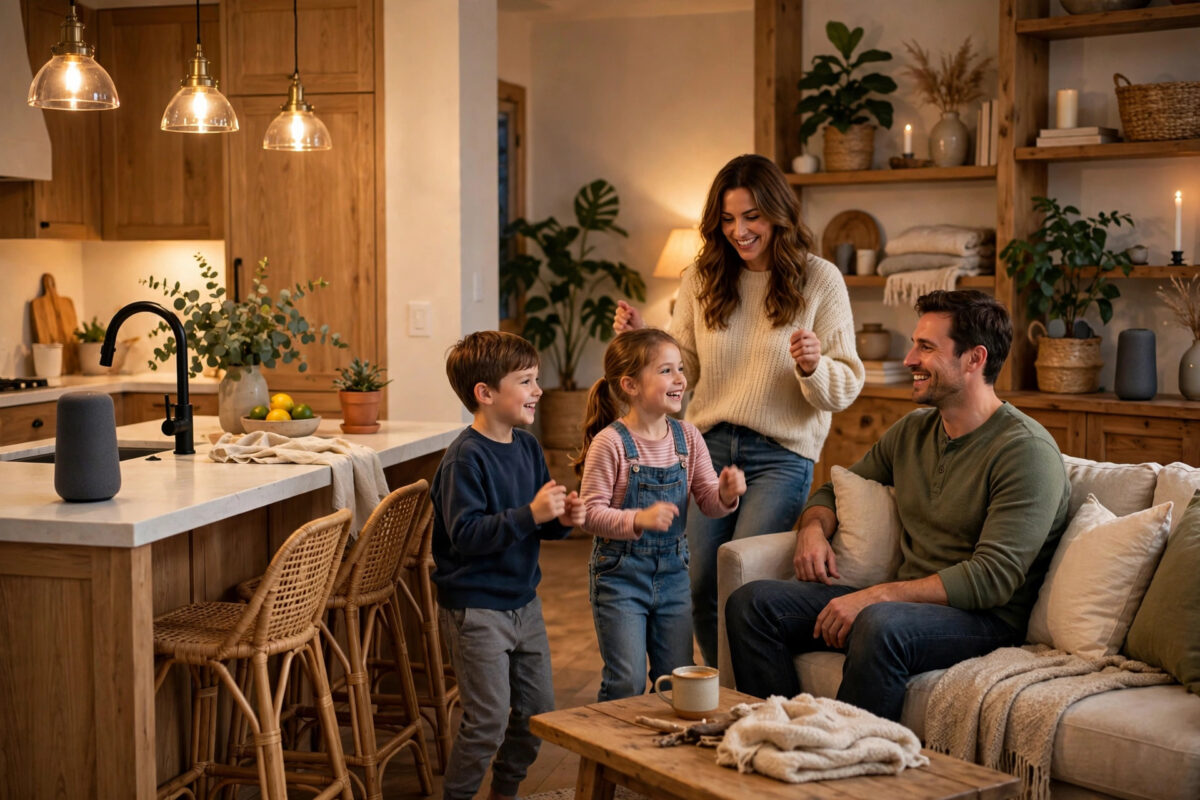
Multi-room audio lets the same music follow you from kitchen to bedroom to garden, all in sync, controlled from one app or a single voice command. Every major smart speaker brand — Amazon Echo, Google Nest, Apple HomePod, Sonos — offers it, but each uses its own system, and speakers from different brands generally cannot group together. This guide explains how each platform works and how to set groups up properly.
Quick Answer
Pick one speaker ecosystem, connect all the speakers to the same Wi-Fi network and account, then create speaker groups in the app: Alexa app (Speaker Groups), Google Home app (Speaker Groups), Apple Home (zones and AirPlay 2), or the Sonos app (Rooms). Name groups by area — “Downstairs”, “Everywhere” — then play by saying “play music downstairs” or casting to the group.
The Golden Rule: One Ecosystem Per Group
Multi-room grouping happens inside each brand’s own system. Echo speakers group with Echo speakers; Nest and Google speakers group together; HomePods pair through AirPlay 2; Sonos groups with Sonos. You cannot put an Echo and a Nest speaker in one synchronised group. Two workarounds exist: Bluetooth (one speaker at a time, with delay) and whole-home systems like Sonos that accept multiple input sources. The practical advice is simple: if multi-room matters to you, standardise on one brand for the rooms you want grouped. The same single-platform logic applies across your setup, as our guide on starting a basic smart home explains.
Setting Up Groups on Each Platform
Amazon Echo (Alexa)
- Open the Alexa app and go to Devices > + > Combine Speakers.
- Choose “Multi-room music” and select the speakers to include.
- Name the group — “Downstairs” or “Everywhere” — and save.
- Play by voice: “Alexa, play jazz downstairs”, or select the group in your music app via Alexa Cast.
Alexa also supports a stereo pair for two identical Echo speakers with true left/right separation, and a home theater mode pairing Echos with a Fire TV.
Google Nest and Google Home
- Open the Google Home app, tap + or Settings > Speaker groups (under Devices in newer versions).
- Create a group, tick the Nest Audio, Nest Mini, Chromecast, or compatible speakers to include, and name it.
- Cast from any Chromecast-enabled app (Spotify, YouTube Music, and hundreds more) by tapping the Cast icon and choosing the group, or say “Hey Google, play music on Downstairs”.
The Google Nest support pages on speaker groups keep the current steps for adding and editing groups, including moving speakers between groups.
Apple HomePod and AirPlay 2
HomePods are assigned to rooms in the Home app automatically. To play in several rooms, start music on one HomePod, then in Control Centre or the Music app tap the AirPlay icon and tick additional rooms — AirPlay 2 keeps them in sync. Two HomePods in the same room can form a stereo pair via the Home app. Siri accepts “play this in the kitchen too”.
Sonos
Sonos was built for multi-room: every speaker is a “room” in the Sonos app, and you group rooms with one tap on the group icon, with independent volume per room. Sonos also accepts AirPlay 2 and Spotify Connect per room or group, and it is the easiest system for mixing music sources across a whole house.
Getting Sync and Sound Right
- Wi-Fi quality decides sync: Grouped speakers constantly exchange timing data. Weak coverage causes dropouts and drift — speakers in a group should all have a strong signal, ideally on the same network band and access point.
- Balance volumes per room: Set per-speaker volume so a small bedroom speaker is not drowned by a big living-room unit; most apps remember relative levels.
- Mind the delay for TV: Multi-room groups add buffering delay, so they are poor TV speakers (except dedicated home theater modes like Echo + Fire TV or HomePod + Apple TV). Use groups for music, radio, and podcasts.
- Use routines: Morning news in the kitchen, evening playlist downstairs — routines in Alexa, Google Home, and Sonos make multi-room feel automatic.
If your grouped speakers fall out of sync or drop in and out, treat it as a network problem first — our troubleshooting notes on fixing echo and sync problems on smart speakers walk through restarts, updates, and regrouping that cure most cases.
Common Mistakes to Avoid
- Mixing brands in one “group”: It cannot be done natively; plan purchases around one ecosystem.
- Speakers on different networks: Guest networks, extenders with different names, or a mix of router and mesh SSIDs split groups apart. Everything grouped must share one network and account.
- Placing a group speaker at Wi-Fi’s edge: One weak speaker causes the whole group to stutter. Check each location’s signal.
- Expecting TV audio everywhere: Group delay makes dialogue lag the picture. Use TV-specific pairings for television sound.
- Duplicate names: Two speakers both called “Kitchen” confuse voice control. Unique, room-based names keep commands reliable.
Planning a Whole-Home System: Rooms, Wiring, and Budget
If you are starting from zero and multi-room is the goal, plan backwards from the rooms. List where you actually spend listening time — for most homes that is the kitchen, living room, main bedroom, and bathroom or garden. Put your best speaker in the biggest listening room, mid-size speakers in the kitchen and bedroom, and small speakers elsewhere; groups do not need identical models, only the same ecosystem. A realistic budget path is to buy one good speaker and one mini during a sale period, live with two rooms for a month, then add rooms during the next sale — smart speakers are discounted so frequently that paying full price is rarely necessary. In new builds or renovations, ask the electrician about ceiling speakers wired to a streaming amplifier (Sonos Amp and similar) for the main room: the speakers disappear into the ceiling while joining the same groups as your portable units. Outdoors, a weatherproof speaker on the terrace joins the group for summer, with the caveat that garden Wi-Fi range needs checking first. Planning this way keeps the system coherent for years instead of becoming a drawer of mismatched bargains.
Conclusion
Multi-room audio is one of the most satisfying smart home upgrades, and it is free once you own two speakers from the same family. Connect everything to one network and account, build groups named by area, keep Wi-Fi strong in every room, and music will follow you around the house in perfect time.
Frequently Asked Questions
Can I group Echo and Google speakers together?
No. Alexa groups only include Echo and Alexa-built-in speakers; Google groups include Nest, Google, and Chromecast devices. To play across brands you would need a unifying system like Sonos fed by one source — the speakers themselves cannot sync directly.
Why do my grouped speakers keep dropping out?
Almost always Wi-Fi. One speaker with a weak signal stalls the group. Move speakers or add a mesh node, keep them on the same network name, and restart the router if dropouts began after a change.
Can each room play different music at the same time?
Yes. Groups are flexible: play one stream to “Everywhere”, or send different music to different groups and speakers simultaneously. Your music service’s plan limits how many simultaneous streams you can run.
Do speaker groups work with Spotify and Apple Music?
Yes. Alexa groups work with Spotify Connect and Alexa Cast from Amazon Music; Google groups appear as Cast targets in Spotify and most music apps; HomePods and Sonos work via AirPlay 2 and their own apps. Voice control depends on linking your music account in the platform app.
What is the cheapest way to start multi-room audio?
Two small speakers from one ecosystem — a pair of Echo Dots or Nest Minis bought on sale — plus free groups in the app. Add bigger speakers to main rooms later; the small ones move to bedrooms and bathrooms.



Leave a Reply