
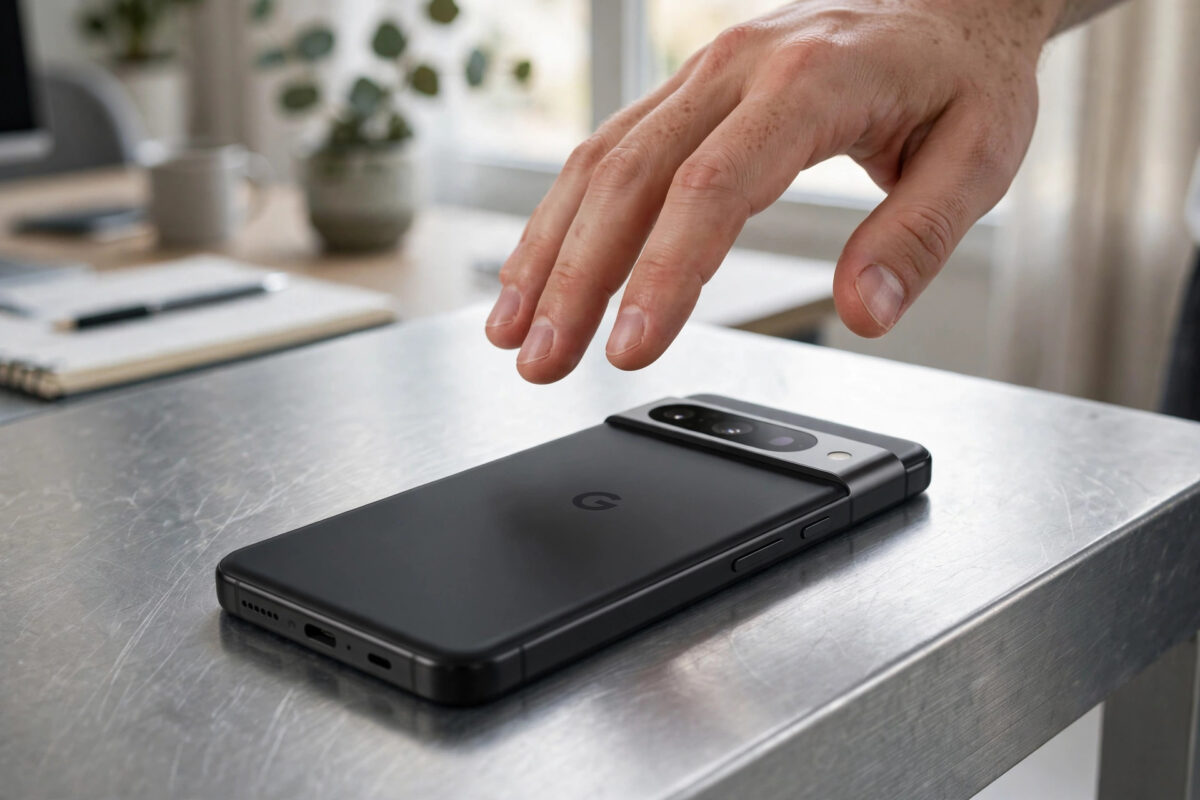
Updates are supposed to make a phone feel newer. So when your Pixel came back from the September 2026 update feeling slower, with stutters in animations and a back panel that warms up during ordinary scrolling, it is natural to assume something went wrong. You are not alone in noticing it: lag and overheating complaints after the September 2026 Pixel update have been widely discussed, including in consumer tech coverage of the rollout.
The reassuring part is that lag and heat after an update are usually two signs of the same thing: the phone is working harder than it should in the background. Once you reduce that hidden workload, both symptoms tend to improve together. This guide explains why it happens, then walks through the fixes in order, from a proper restart and storage check to per-app controls and the developer option that limits background activity.
Quick Answer
To fix lag and overheating on a Pixel after the September 2026 update, restart the phone, free up storage, update all apps, identify and restrict any app with heavy background use, and allow a day or two for post-update optimisation to finish.
If the phone still heats up while idle after those steps, test it in safe mode to isolate a third-party app, clear the cache of the worst offender, and check for a follow-up patch, because persistent idle heat is not normal settling behaviour.
Why a Pixel Gets Slow and Warm Right After an Update
Immediately after a monthly or feature update, your Pixel recompiles app code, rebuilds media indexes, syncs accounts, and runs integrity checks. That work is deliberately scheduled when the phone is idle and charging, but real life gets in the way, and the tasks can spill into your normal usage, where you feel them as lag and warmth.
Beyond that normal settling period, three causes explain most stubborn cases. An app that has not been updated for the new build can loop repeatedly, keeping the processor busy. A nearly full storage drive slows everything, because the system has little room to work. And a stuck download, sync, or backup can quietly pin one processor core for hours, producing exactly the warm, sluggish phone owners describe.
Step 1: Restart Properly and Let Optimisation Finish
Do not start by changing settings. Start by giving the phone one clean restart and then the conditions it needs to finish its post-update work without interruption.
- Press and hold Power and Volume Up, then tap Restart.
- After it boots, connect the phone to a charger and leave it on Wi-Fi, locked and idle, for 30 to 60 minutes.
- During that time, avoid gaming, camera use, and large downloads.
- Use the phone normally afterwards and judge smoothness over a full day, not ten minutes.
This sounds passive, but it genuinely resolves a large share of post-update complaints. Trusted Reviews’ coverage of September update issues echoed the same pattern seen by many owners: symptoms that looked alarming on day one faded once background work completed, while a minority of phones needed the deeper steps below.
Step 2: Free Up Storage Space
Android slows noticeably when storage is almost full, and updates themselves consume several gigabytes. Aim to keep at least 10 to 15 percent of your storage free, and treat this as a performance fix, not just tidiness.
- Open Settings > Storage and check the free space figure at the top.
- Tap categories such as Apps, Images, and Videos to find the biggest users.
- Use Files by Google > Clean to remove junk files, old memes, and large forgotten downloads.
- Delete downloaded streaming content you have already watched inside its own app.
- Restart once after a big clear-out so the system can reorganise.
Our Android performance and Pixel troubleshooting guides return to storage again and again for a reason: it is the most overlooked cause of a phone that feels old overnight, and it costs nothing to fix.
Step 3: Update Every App and Remove the Troublemakers
An outdated app on a new system build is a classic source of loops and heat. Update everything first, then use the battery and app screens to find anything still misbehaving, because background CPU use shows up in battery statistics even when the app never appears on screen.
- Open the Play Store > profile picture > Manage apps and device and install all pending updates.
- Open Settings > Battery > Battery usage and look for an app with abnormal background time.
- Open that app in Settings > Apps, then tap Storage and cache > Clear cache.
- Set its App battery usage to Restricted if it does not need to run in the background.
- Uninstall apps you no longer use, especially older utilities, cleaners, and boosters.
Google describes the same identify-and-restrict workflow in Google’s official help for Pixel performance and battery problems, and it is worth following before assuming the update itself is permanently faulty.
Step 4: Reduce Heat by Calming Display, Network, and Sync
Heat has physical sources too. A bright high-refresh screen, a phone hunting for weak 5G signal, and accounts syncing constantly all generate warmth and consume the processor time that makes the interface feel laggy.
- Set Settings > Display > Brightness level to a comfortable manual level and keep Adaptive brightness on.
- If your model offers it, test Smooth display off for a day under Display settings to compare heat and smoothness.
- In weak-signal areas, open Settings > Network and internet > SIMs and test LTE as the preferred network type.
- Open Settings > Passwords, passkeys and accounts and check for an account stuck syncing; toggle it off and on.
- Pause large cloud photo backups while on mobile data and let them run on Wi-Fi while charging instead.
A note on cases and charging heat
A thick case traps heat, and a phone that is already warm from background work will feel worse inside one. If your Pixel overheats while charging after the update, remove the case while it charges, keep it out of direct sunlight, and avoid gaming on the charger until the post-update workload has settled.
Step 5: Use Safe Mode to Prove Whether an App Is Responsible
Safe mode disables third-party apps, giving you a clean comparison. If the phone runs cool and smooth in safe mode, the September update itself is fine and one of your apps is the problem, however innocent it looks.
- Press and hold Power and Volume Up, then long-press Power off.
- Confirm the reboot to safe mode and use the phone for a few hours.
- Note whether heat and lag disappear with your apps disabled.
- Restart to exit, then remove or update recently changed apps one at a time, testing between each.
Common Mistakes When Fixing Lag and Overheating
- Installing cleaner and booster apps: they add background load and ads, and often cause the very lag they promise to cure.
- Clearing data instead of cache: clearing data logs you out and deletes app content; start with cache unless you mean to reset the app.
- Disabling system services at random: turning off core services breaks notifications, location, and updates without fixing heat.
- Testing for five minutes: thermal and performance problems need hours of normal use to judge fairly between changes.
- Changing ten settings at once: change one thing, test, and repeat, or you will never know what actually helped.
Another frequent error is ignoring follow-up patches. Monthly rollouts often receive a smaller corrective build, so check Settings > System > System update every few days while problems persist, rather than assuming the September build is the final word on the matter.
When to Escalate Beyond These Fixes
If your Pixel overheats while completely idle, drains rapidly, shows thermal warnings during light tasks, or remains laggy in safe mode after several days, the issue may be the build itself or, less commonly, ageing hardware. Back up your data, note the exact build number under Settings > About phone, and report the behaviour through Settings > Tips and support. That report, multiplied across owners, is what pushes a corrective patch out faster.
Conclusion
Lag and overheating after the September 2026 Pixel update usually share one root cause: heavy background work, a misbehaving app, or a phone with too little free space. Restart and let optimisation finish, free up storage, update and restrict problem apps, calm display and network demands, and use safe mode to prove any suspicion. Work through the steps in order and most Pixels return to running cool and smooth within a couple of days.
Frequently Asked Questions
Is it normal for a Pixel to get warm after an update?
Yes, for the first day or so. Recompiling apps, indexing media, and syncing accounts generate real heat. Warmth that continues for several days, appears while the phone is idle, or comes with rapid drain is not normal settling and deserves the checks in this guide.
How much free storage does a Pixel need to run smoothly?
Keep at least 10 to 15 percent of total storage free. Below that, Android struggles with caches, updates, and temporary files, and the slowdown can feel sudden. Check Settings, then Storage, and clear large media and unused apps first.
Will clearing the cache partition fix September update lag?
Modern Pixels do not offer the old cache partition wipe in the same way older Android phones did. Clear individual app caches instead, starting with the app showing abnormal background use, and restart afterwards so the system rebuilds cleanly.
Should I factory reset my Pixel for overheating?
Only after the other steps fail, including safe mode testing. A reset that restores the same faulty app from a backup can bring the problem straight back, so install apps gradually afterwards and watch which one reintroduces the heat.
Can the September 2026 update permanently damage the battery?
There is no evidence that a normal software update permanently damages a healthy battery. Prolonged heat is not good for battery health over months, which is another reason to fix a looping app or stuck sync promptly rather than living with a warm phone.



Leave a Reply