
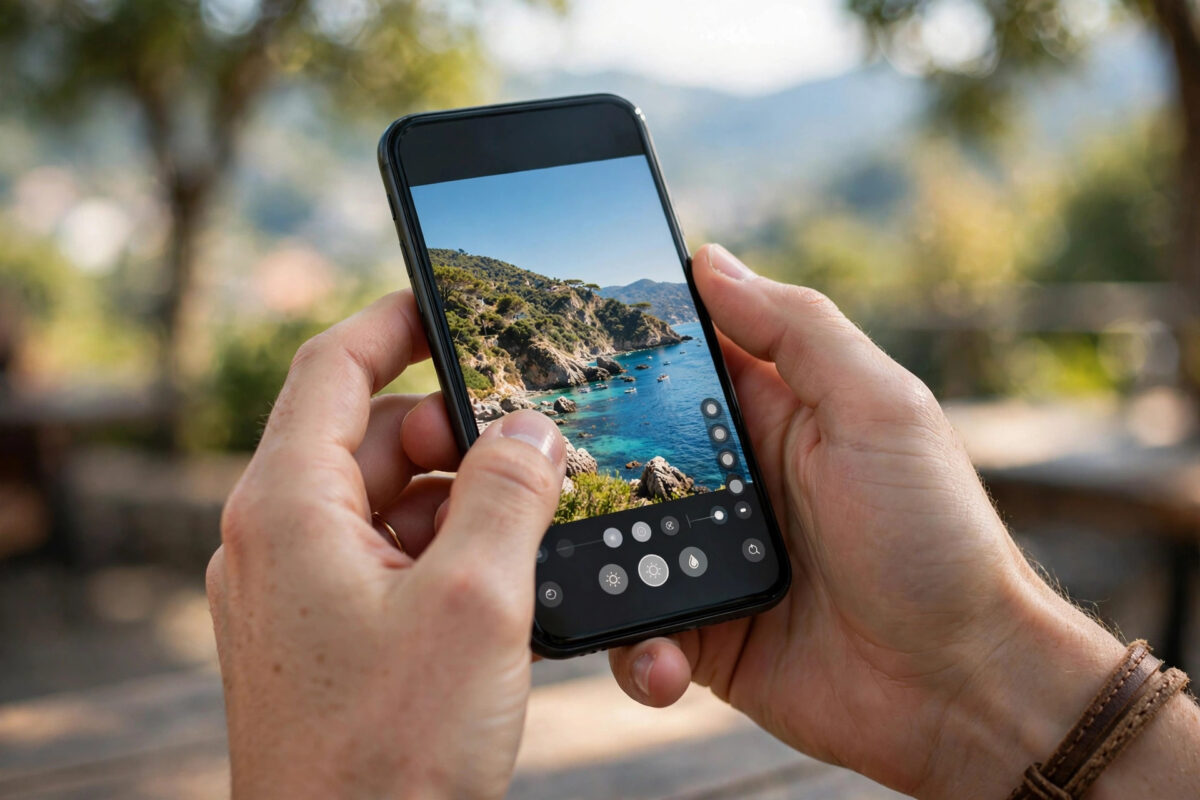
Phone cameras are excellent, but the photo you take is rarely the photo you imagined. Harsh light washes out faces, a stranger wanders into the background of a perfect holiday shot, or a product photo for your small shop looks dull next to competitors.
AI photo editing apps fix these problems in seconds rather than hours. They can remove objects, replace a grey sky, smooth skin without that plastic look, and lift a dark image — all with a few taps instead of complicated desktop software.
With so many apps claiming AI powers, choosing is confusing. This guide explains what the main types actually do well, how to pick based on your photos, and how to get natural results instead of over-processed ones.
Quick Answer
For most people, start with Google Photos or Snapseed for free, powerful everyday edits, use Adobe Lightroom Mobile for colour and portraits, and try a dedicated AI app like Remini or Picsart when you need object removal, background changes, or old photo restoration. The best choice depends on whether you mainly fix, enhance, or creatively transform your pictures.
What AI Photo Editing Can Actually Do on a Phone
AI editing is not one feature. It is a collection of tools that understand what is in the image — a face, a sky, a building, a plate of food — and edit that part intelligently instead of applying the same filter to everything.
That understanding is why modern apps feel almost magical compared with old sliders. They can brighten only the faces, sharpen only the subject, or erase a bin from the background and fill the gap believably.
The Most Useful AI Features
- Object removal that rebuilds the background behind a person, sign, or clutter you erase.
- Portrait tools that soften skin, brighten eyes, and blur backgrounds in a realistic way.
- Sky and lighting replacement that fixes dull weather or badly exposed scenes.
- One-tap enhancement that balances colour, contrast, and sharpness for a quick improvement.
- Restoration for old, scratched, or low-resolution family photos that need repair and upscaling.
Not every app does all of these well. Some are brilliant at portraits and weak at landscapes, which is why matching the app to your most common photos matters more than chasing the longest feature list.
The Best Types of AI Photo Apps to Consider
Rather than hunting for a single winner, think in categories. Most phone photographers end up happily using two apps: one reliable all-rounder and one specialist for a job the first cannot do.
All-Rounders for Everyday Photos
Google Photos is the easiest recommendation for Android and iPhone users who want powerful help without learning an editor. Features described in Google Photos’ AI editing features such as Magic Editor let you move subjects, remove distractions, and unblur faces, and much of it works automatically in the background.
Snapseed, also from Google, suits people who want more control for free. Its selective editing and healing tools are not marketed as flashy AI, but its intelligent adjustments handle most everyday fixes without subscriptions or watermarks.
Serious Colour and Portrait Editing
Adobe Lightroom Mobile is the choice when colour quality matters — for creators, sellers, and anyone who shoots a lot of portraits or travel photos. Its AI masking selects a person, sky, or subject in one tap so you can adjust only that area.
The Adobe Photoshop Express editor for quick fixes and collages sits alongside it for faster jobs such as retouching, overlays, and ready-made looks. Both offer useful free tiers, with paid plans unlocking advanced masking, healing, and cloud storage.
Creative and Specialist AI Apps
Apps such as Picsart, Remini, and YouCam Perfect focus on transformation rather than subtle correction. Background replacement, AI headshots, cartoon and style effects, and old photo enhancement are their strengths.
These are excellent for social media content, profile pictures, and rescuing damaged family photos. The caution is taste: their strongest effects are easy to overuse, and results can look artificial if you accept every default setting.
Explore our other mobile photography and AI app guides for everyday users if you want help with shooting better photos in the first place, not just fixing them afterwards.
How to Choose the Right App for You
The right answer depends on three honest questions about your habits, not on which app has the most advertising behind it.
A Simple Decision Process
- Look through your last fifty photos and note the main problem — darkness, clutter, dull colour, or damaged old pictures.
- Pick one app whose strongest feature matches that problem and install its free version or trial.
- Edit ten real photos you care about, not sample images, and judge the results at full size.
- Check the export quality, whether a watermark is added, and what the paid plan actually unlocks.
- Keep the app only if you would use it weekly; delete the rest to avoid subscription clutter.
Free tiers are genuinely capable for occasional editing. Paid plans usually make sense when you edit often, need high-resolution exports without watermarks, or want the newest AI features such as generative background replacement.
Get Natural Results: A Practical Editing Workflow
Even the best app produces poor photos when every slider is pushed to maximum. Professionals use AI in a specific order and stop earlier than beginners expect.
Step-by-Step for a Clean, Natural Edit
- Start with crop and straighten, because composition problems cannot be fixed with filters later.
- Apply one-tap enhancement as a base, then reduce its strength if faces look too sharp or colours too rich.
- Remove distractions next, zooming in afterwards to check the filled background looks believable.
- Adjust portraits gently — soften skin a little, whiten nothing dramatically, and keep natural texture visible.
- Fine-tune brightness and colour last, comparing with the original using the before-and-after view.
- Export at the highest available resolution and keep the unedited original stored separately.
A useful test is to put the phone down for a minute, then look again. Edits that seemed subtle while you worked often look stronger with fresh eyes, and pulling one setting back usually fixes it.
Privacy, Cost, and Quality Warnings
Many AI features process photos in the cloud, which means your image is uploaded to a server for editing. For everyday snaps that is fine for most people, but it deserves a moment’s thought for sensitive pictures.
Before You Upload and Subscribe
- Read whether the app stores uploaded photos, for how long, and whether they are used to train its AI.
- Prefer on-device editing modes for private family or document photos when the app offers them.
- Check renewal prices and cancellation steps before starting any free trial that requires payment details.
- Confirm the free version exports at a resolution good enough for your use, especially for printing.
Subscription creep is real in this category. Three forgotten app subscriptions can cost more than one excellent one, so review them every few months and keep only what you still open.
Common Mistakes
Over-editing is the number one mistake. Skin with no texture, skies in impossible colours, and halos around subjects all signal heavy-handed AI, and viewers feel something is wrong even if they cannot name it.
A second mistake is editing a bad photo instead of retaking it. If a shot is badly blurred, the subject is tiny, or half a face is cut off, no app will rescue it properly — take the photo again whenever you can.
Habits That Quietly Ruin Your Results
Applying a strong filter after careful manual edits undoes your subtle work in one tap. Choose one approach per photo: either a quick filter edit or a considered manual one.
Editing an already-compressed copy is another trap. Screenshots and images saved repeatedly from social apps lose quality each time. Always start from the original file in your camera roll for the cleanest result.
Finally, ignoring backups catches people out. If an AI restoration of a family photo is precious, save both versions immediately to cloud storage or another device.
Conclusion
The best AI photo app for your phone is the one matched to your real problems: an all-rounder like Google Photos for everyday fixes, Lightroom Mobile for colour and portraits, or a specialist for removal, restoration, and creative effects.
Start free, edit a small batch of your own photos, and judge the results at full size. With a light touch and a sensible workflow, AI will make your pictures look like the moment felt — not like a filter advertisement.
Frequently Asked Questions
Are free AI photo editing apps good enough?
For most everyday photos, yes. Free tools handle enhancement, cropping, healing, and basic portrait fixes very well. Paid plans mainly add advanced AI features, watermark-free high-resolution exports, and bigger cloud libraries.
Which app is best for removing people from photos?
Google Photos with Magic Eraser and Adobe’s tools are consistently strong for removing strangers and clutter cleanly. For large or complex objects, check the result zoomed in, because the rebuilt background matters as much as the removal itself.
Can AI really fix old and damaged family photos?
Specialist restoration apps can noticeably improve faded, scratched, and blurry old photos, and upscale them for printing. They cannot recover detail that was never captured, so manage expectations on very small or severely damaged originals.
Do AI editing apps reduce photo quality?
They can if you export at low resolution or keep re-editing compressed copies. Starting from the original, exporting at maximum quality, and saving the untouched original separately keeps your photos safe.
Is it safe to upload personal photos to AI apps?
Reputable apps explain their storage and training policies in their privacy settings. For sensitive images, choose on-device processing where available, avoid obscure apps with vague policies, and delete uploaded copies when the service provides that option.



Leave a Reply