
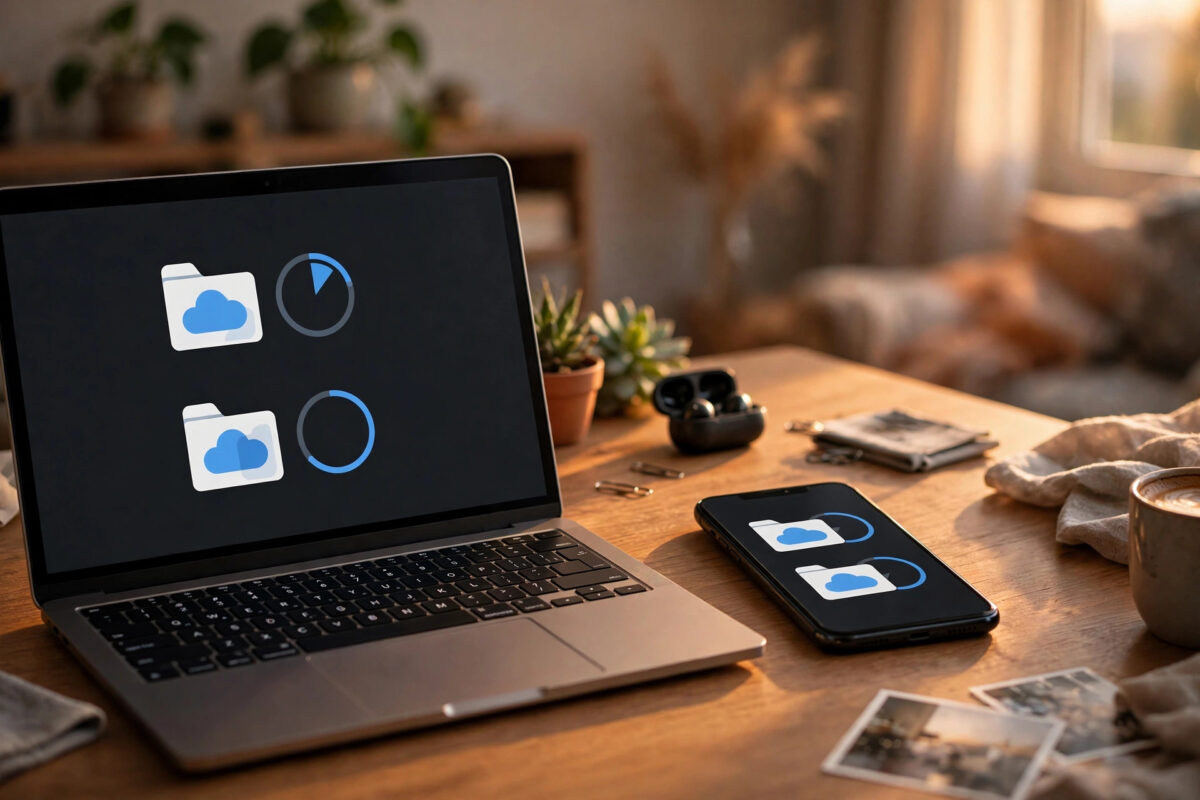
Taking a photo on your phone and then emailing it to yourself so you can open it on your PC belongs to the past. Copying documents with a USB cable, hunting for the latest version of a file, and wondering which device holds the newest copy wastes time every single day, and it only takes one lost phone to turn that inconvenience into lost work.
Automatic sync solves the problem properly. Set it up once, and photos, documents, and folders move between your phone and PC by themselves over Wi-Fi, stay up to date on both devices, and remain backed up in the cloud in case anything goes wrong. The tools to do it are already built into Windows, Android, and iPhone.
This guide shows you how to set up automatic sync with OneDrive, Google Drive, and iCloud, how to sync only on your home network if you prefer, and how to fix the settings that most often stop sync from working.
Quick Answer
To sync files automatically, install the same cloud app, such as OneDrive or Google Drive, on both your phone and PC, sign in with the same account, and turn on auto-upload and folder sync in its settings. Files placed in the synced folder, and photos you take, will then appear on both devices without any manual copying.
How Automatic Sync Actually Works
Sync is not the same as a backup, although the two overlap. A backup copies files to a safe place. Sync keeps the same files current in several places at once: edit a document on your PC and the edited version replaces the old one on your phone; delete a synced file on one device and it is deleted on the others too. That convenience is powerful, but it is also why you should understand your settings before you begin.
Most services offer two helpful space-saving modes. Files On-Demand in OneDrive and similar streaming options in Google Drive show you every file on your PC without downloading them all, fetching each file only when you open it. On phones, apps cache recently used files for offline access. Learning to pin important files for offline use, and free up space on the rest, keeps sync fast on both devices.
Option 1: Sync With OneDrive (Best for Windows Users)
OneDrive is built into Windows 10 and 11 and works smoothly with both Android phones and iPhones, which makes it the most natural choice if your PC is your main computer.
Set Up OneDrive on Your PC
- Click the OneDrive cloud icon in the system tray near the clock. If it is not there, search for OneDrive in the Start menu and open it.
- Sign in with your Microsoft account and choose the OneDrive folder location, accepting the default unless you have a reason to change it.
- On the folder backup screen, turn on backup for Desktop, Documents, and Pictures if you want those standard folders to sync automatically.
- Right-click the OneDrive icon, open Settings > Sync and backup, and confirm that sync is not paused.
- Under Settings > Advanced settings, check whether Files On-Demand is on, and adjust the upload and download rate limits only if your connection is slow.
Set Up OneDrive on Your Phone
- Install the OneDrive app from Google Play or the App Store and sign in with the same Microsoft account.
- Tap your profile icon, open Settings > Camera upload, and turn on Camera upload so photos and videos sync automatically.
- Choose whether uploads happen only on Wi-Fi or also on mobile data, and include videos only if your storage plan allows it.
- Open the Files tab and confirm your PC folders appear. Open one document to verify it downloads and displays correctly.
From now on, anything you save into Desktop, Documents, Pictures, or the OneDrive folder itself syncs both ways. Microsoft’s instructions at Microsoft OneDrive support and setup help cover account recovery and storage limits if you get stuck at sign-in.
Option 2: Sync With Google Drive
Google Drive suits people who live in Gmail, Google Docs, and Android, and its desktop app works well on Windows too. You will find complementary setup walkthroughs in Network Ustad’s cloud and productivity guides if you use several Google services together.
Set Up Google Drive for Desktop
- Download Google Drive for desktop from Google, install it, and sign in with your Google account.
- Open the Drive icon in the system tray, click the gear icon, and choose Preferences.
- Under My Computer, add the folders you want to sync, such as Documents and Pictures.
- Under Google Drive, choose Stream files to save disk space, or Mirror files if you want a complete offline copy on the PC.
- Open Google Drive in File Explorer, where it appears as a new drive, and confirm your files are visible.
Set Up Google Drive and Photos on Your Phone
- Install the Google Drive app and sign in with the same account. Your synced folders appear under the Computers and My Drive sections.
- Install Google Photos, open Photos settings > Backup, and turn backup on so your camera roll syncs automatically.
- Choose your upload size and whether backup may use mobile data.
- To send a file from phone to PC quickly, open it, tap Share > Save to Drive, and pick the synced folder.
Google’s own steps are documented at Google Drive Help and support, including how shared storage quotas work across Drive, Gmail, and Photos on the free 15 GB plan.
Option 3: iPhone With a Windows PC, and Local-Only Sync
iPhone owners using Windows can install iCloud for Windows from the Microsoft Store, sign in with an Apple ID, and turn on iCloud Photos and iCloud Drive. Files then appear in File Explorer, and photos taken on the iPhone download automatically. Keep the iCloud app allowed to run at startup, or sync will quietly stall.
If you would rather keep files off the cloud entirely, tools such as Syncthing sync folders directly between phone and PC over your home Wi-Fi. The setup takes longer, there is no web access to your files, and both devices must be on and connected for transfers to happen, but nothing leaves your network. This option suits privacy-conscious users syncing large media folders at home.
Settings That Decide Whether Sync Really Works
- Same account everywhere: Sync fails silently when the phone is signed into a different account from the PC. Check the account email in both apps.
- Battery restrictions on Android: Open Settings > Apps > OneDrive or Drive > Battery and allow unrestricted background use, otherwise Android may pause sync to save power.
- Wi-Fi-only uploads: If photos only sync at home, this setting is doing its job. Change it only if your mobile data plan is generous.
- Storage space: A full cloud account stops all sync without dramatic warnings. Check your quota monthly and delete large duplicates.
- Startup behaviour on PC: In Settings > Apps > Startup, make sure your sync app is enabled so it launches with Windows.
Common Mistakes to Avoid
- Treating sync as your only backup: Because deletions sync everywhere, keep a separate backup of irreplaceable files.
- Syncing program and game folders: Databases and game saves can corrupt when two devices write at once. Sync documents, photos, and media instead.
- Editing the same file on both devices offline: This creates conflicted copies. Let one device finish syncing before editing on the other.
- Ignoring conflicted copy files: Files with names like document (1) or DESKTOP-copy are the system protecting you. Merge them, do not just delete them.
- Turning on photo upload on a small plan: Videos fill free storage fast. Check sizes and set quality options before enabling camera upload.
Conclusion
Automatic sync is a one-time setup with daily benefits. Choose OneDrive for the smoothest Windows experience or Google Drive if your life runs on Google services, sign in with the same account on phone and PC, enable camera upload and folder backup, and clear the battery and startup settings that quietly block syncing. Test the system with one photo and one document, and from then on your files will simply be where you expect them, on whichever screen is in front of you.
Frequently Asked Questions
Does automatic sync use a lot of mobile data?
Only if you allow it. Every major app has a Wi-Fi-only option for uploads, and that is the setting most people should keep. Small documents use negligible data, but videos recorded in 4K can use hundreds of megabytes each.
What happens if I delete a synced file by accident?
Open the service’s recycle bin or trash on the web or PC app. OneDrive and Google Drive both keep deleted synced files for around 30 days, so act promptly and restore the file before that window closes.
Can I sync between an Android phone and a Mac or between iPhone and Windows?
Yes. Cloud sync is deliberately cross-platform. OneDrive and Google Drive both have apps for Windows, macOS, Android, and iOS, and iCloud for Windows connects an iPhone to a Windows PC. The account matters, not the brand of device.
Why does sync say it is up to date but my file is missing?
Check that the file sits inside a synced folder, that you are signed into the same account on both devices, and that your cloud storage is not full. On phones, also confirm the app is allowed to run in the background without battery restrictions.
Is syncing safe for private documents?
Reputable services encrypt files in transit and at rest, and you should protect the account with a strong password and two-factor authentication. For extremely sensitive material, encrypt the files yourself before syncing or use local-only sync on your home network.


Leave a Reply