
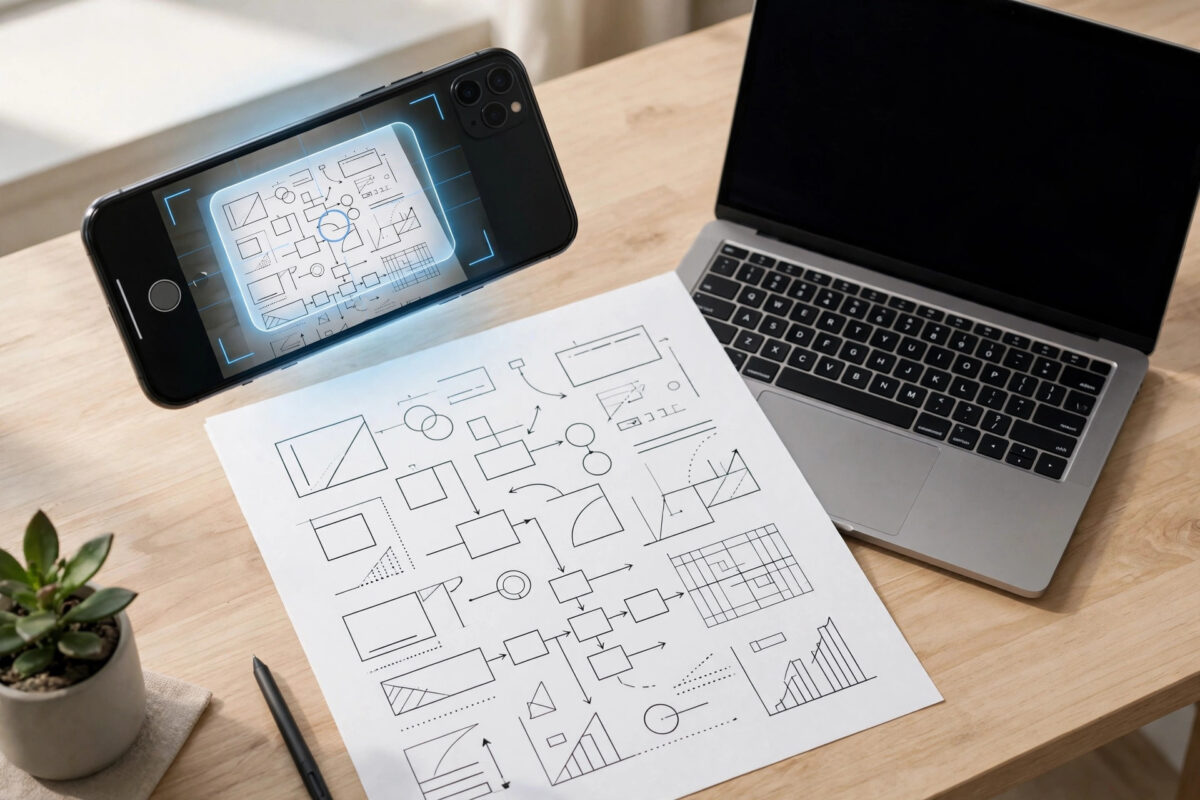
Somewhere in almost everyone’s week there is a moment like this: a photo of a whiteboard, a screenshot of an error message, a scanned letter, or a printed handout that you need as editable text. Retyping it would take half an hour and invite mistakes. OCR, short for optical character recognition, solves the problem by reading the letters in an image and turning them into text you can copy, edit, search, and paste into a document.
OCR used to mean expensive specialist software. Today, several excellent tools are completely free, including ones already sitting on your phone and inside services you use daily. This guide explains how the technology works in plain terms, walks you through the best free methods on computer and phone, and shows you how to get accurate results even from imperfect photos.
Quick Answer
To convert an image to text for free, open Google Drive, upload the image, right-click it, and choose Open with > Google Docs; the extracted text appears in a document below the picture. On a phone, use Google Lens or Microsoft Lens to copy text straight from a photo. For a quick one-off conversion in your browser, a free online OCR site works too, but avoid uploading sensitive documents to unknown websites.
What OCR Is and Why Accuracy Varies
OCR software analyses the shapes in an image, matches them against known letterforms, and rebuilds the words as real, editable characters. Modern tools use machine learning, which is why they cope far better with different fonts, page layouts, and even some handwriting than older scanners did. If you want the background, the Wikipedia overview of optical character recognition explains the history and techniques clearly.
Accuracy depends on the input far more than on which free tool you pick. A straight, well-lit photo of clean printed text can convert at near-perfect accuracy. A tilted screenshot of a faded receipt, a photo taken at an angle in poor light, or decorative fonts will produce errors in every tool. The practical lesson is simple: spend thirty seconds improving the image and you will save ten minutes correcting the text.
Method 1: Convert an Image With Google Drive and Google Docs
This is the most reliable free method for documents because it handles whole pages and keeps the result in a document you can edit and download. Google describes the feature in its help page on uploading and converting files in Google Drive.
- Open Google Drive in your browser and sign in.
- Click + New > File upload and select your image, or drag the image file into the Drive window. JPG, PNG, and scanned PDF files all work.
- Wait for the upload to finish, then right-click the image in Drive.
- Choose Open with, then Google Docs.
- A new document opens containing your original image at the top and the recognised text underneath it.
- Read through the text, fix any errors, and delete the image from the document if you do not need it.
- Download the result via File > Download as a Word document, or simply copy and paste the text wherever you need it.
Keep the original image beside the text while you proofread. Most errors cluster in predictable places: numbers mixed with letters, such as 0 and O or 1 and l, punctuation, and words the photo made faint. A quick find-and-replace pass catches many of them.
Method 2: Copy Text From a Photo on Your Phone
For a paragraph, a sign, a label, or a page in a book, your phone is faster than a computer because the camera is already in your hand. Both major free lens apps do OCR instantly.
Using Google Lens on Android and iPhone
- Open Google Lens from the Google app, the Photos app, or your camera app, depending on your phone.
- Point the camera at the text, or open an existing photo or screenshot.
- Tap the Text mode, usually labelled “Text” at the bottom of the screen.
- Drag to select the recognised text, or tap Select all.
- Tap Copy text, then paste it into Notes, a document, or an email. On some phones you can also choose “Copy to computer” to send it to your signed-in browser.
Using Microsoft Lens and OneNote
- Open Microsoft Lens and choose Document or Whiteboard mode.
- Photograph the page; the app trims and straightens it automatically.
- Save it to OneNote or as a Word document, where the recognised text becomes editable.
- On a computer, you can also right-click a picture inside OneNote and choose “Copy Text from Picture,” a handy free OCR feature many people never notice.
iPhone users have an even simpler built-in option: open a photo in the Photos app, press and hold on the text in the image, and Live Text lets you copy it directly without any extra app. Whichever phone method you use, check names, prices, and reference numbers character by character, because one wrong digit in a copied code can waste more time than typing would have. For more phone and software tricks in plain language, see NetworkUstad’s collection of free tool and app tutorials.
Method 3: Free Online OCR Websites
If you are on a borrowed computer or need a language or layout your usual tools handle badly, a free online OCR converter can help. You upload an image, the site processes it, and you download or copy the text. The catch is privacy and limits. Free sites commonly restrict file size or the number of conversions per hour, and your file passes through a stranger’s server.
Use online OCR only for harmless material such as a printed article, a menu, or a public notice. Never upload ID documents, bank letters, contracts, medical records, or anything containing personal data to a site you do not know. For sensitive pages, stick to Google Drive, Microsoft tools, or an offline program, and delete the uploaded image from any service once you have your text.
How to Get the Most Accurate Results
- Start with the best image you can: good even light, no shadows across the page, and the camera held square to the paper.
- Crop tightly to the text area so the tool does not waste effort on tables, hands, or background clutter.
- Straighten and increase contrast in your photo editor before converting if the page is skewed or faded.
- Convert one page at a time. Batch conversions of mixed-quality pages hide errors until it is too late.
- Proofread against the original, paying special attention to numbers, email addresses, URLs, currency amounts, and capital letters.
- If the source is handwriting, manage expectations: neat printed handwriting converts reasonably in Lens and similar apps, but joined-up or messy writing still produces many errors.
Common Mistakes and Tips
The biggest mistake is trusting OCR output without reading it. Even a 98% accurate conversion of a 500-word page contains about ten wrong words, and they tend to hide in the most important details. Always proofread numbers and names. Another common error is converting a tiny, compressed screenshot and expecting miracles; if you can barely read it, the software cannot either, so enlarge or re-capture the source first.
A useful tip for tables is to paste the recognised text into a spreadsheet or ask your tool to save as Word, which preserves layout better than plain text. And if you convert the same type of document regularly, such as invoices, pick one method and keep your routine identical each time; consistency makes errors easier to spot.
Conclusion
Converting an image to text is now a free, everyday task rather than a specialist job. Google Drive with Google Docs is the best all-round method for full pages, Google Lens, Microsoft Lens, and iPhone Live Text handle quick captures on your phone, and online converters fill the gaps for harmless one-off files. Give the tool a clean, straight, well-lit image, proofread the output carefully, and OCR will save you hours of dull retyping.
Frequently Asked Questions
Can OCR read handwriting accurately?
Modern apps read neat, separated handwriting surprisingly well, especially printed capital letters and clear notes. Cursive, joined-up, or hurried writing is much less reliable. Expect to correct handwritten conversions carefully, and consider whether typing a short note yourself is actually faster.
Is it safe to use free online OCR websites?
It is safe enough for public, harmless material, but you cannot control what happens to a file on someone else’s server. For anything personal, financial, medical, or legal, use Google Drive, Microsoft Lens or OneNote, or an app that processes the image on your own device instead.
Why did my OCR result come out garbled?
Garbled results almost always trace back to the source image: blur, glare, a strong angle, low contrast, or an unusual font. Retake or rescan the page in better light, held flat and square, crop it tightly, and convert again before blaming the tool.
Can I convert a scanned PDF to editable text for free?
Yes. Upload the scanned PDF to Google Drive and open it with Google Docs, as described above, and the pages are converted to editable text. Very long PDFs may be split or limited, so for a big document, convert a chapter or a section at a time.
What is the best free OCR tool overall?
For most people, Google Docs via Google Drive is the best balance of accuracy, convenience, and cost for documents, while Google Lens is the fastest for quick captures from a phone. Microsoft users get similar quality from Lens and OneNote without needing a Google account.



Leave a Reply