
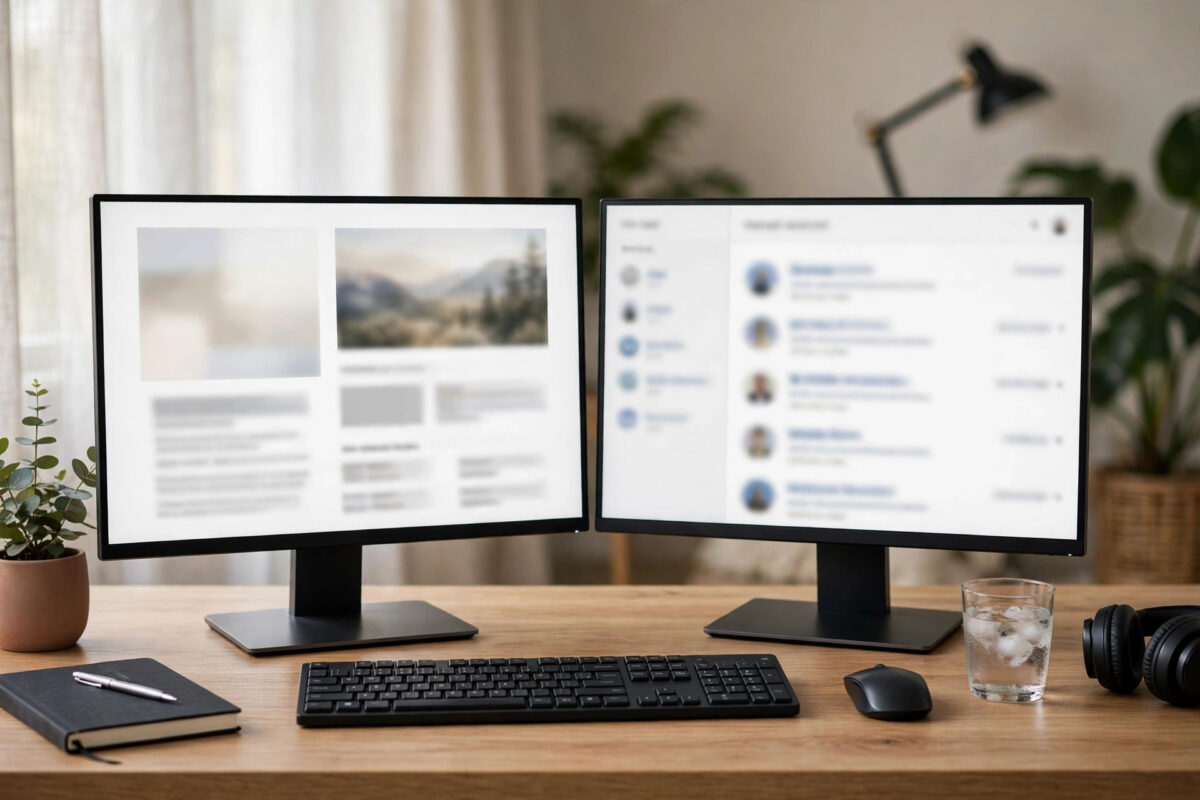
You plug in a second monitor expecting a productivity transformation, and at first it feels like one — until the clumsiness starts. Windows open on the wrong screen. You drag a document across and it snaps to a size you did not want. Your video call lands on the monitor you meant to take notes on, and you spend the first minute of every meeting rearranging your desktop instead of paying attention.
Using two monitors well is not about owning the hardware. It is about setting Windows up correctly once, assigning each screen a clear job, and learning a handful of keyboard shortcuts that move apps between displays instantly. Get those three things right, and a dual-monitor setup stops being two screens you wrestle with and becomes one calm, organised workspace.
This guide covers the complete process on Windows 11 and Windows 10: the correct display settings, how to arrange apps so each monitor has a purpose, the window snapping and shortcut techniques that make multitasking effortless, and the small settings most people never find that make the biggest daily difference.
Quick Answer
Connect both monitors, then go to Windows Settings > System > Display, arrange the screen icons to match your desk, and set scaling so text matches on both. Assign one monitor as your main focus screen and the other for reference apps, use Win + Arrow keys and Snap Layouts to place windows, and press Win + Shift + Left or Right Arrow to move any app between monitors instantly.
Step 1: Connect Everything and Set Up Display Settings Correctly
Start with the physical setup, because no setting fixes a bad foundation. Place the monitor you will look at most directly in front of you, with its top edge roughly at eye level, and angle the second screen slightly towards you on whichever side feels natural. If one monitor is noticeably brighter or sharper, that one should be your main screen, regardless of which side it sits on.
Arrange and Configure the Screens in Windows
- Right-click an empty area of your desktop and select Display settings, or go to Settings > System > Display.
- You should see two numbered rectangles representing your monitors. Click Identify to flash a number on each physical screen so you know which is which.
- Drag the rectangles so their positions match your real desk — if your second monitor is physically on the left, its rectangle must be on the left, or your mouse will cross over in the wrong direction.
- Select each monitor in turn and set its Display resolution to the recommended value, which is its native resolution.
- Under Scale, choose a percentage that makes text a comfortable, similar size on both screens. A 1080p monitor often suits 100 percent, while a 4K monitor usually needs 150 percent.
- Make sure Multiple displays is set to Extend these displays — this is the setting that gives you two separate desktops instead of a mirrored copy.
- Click the monitor you want as your primary screen and tick Make this my main display. Your taskbar, Start menu, and new windows will default to this screen.
Take thirty seconds to align the rectangles carefully along their shared edge. If the tops are misaligned in settings, your mouse pointer will appear to jump up or down as it crosses between screens, which feels broken all day long. Microsoft documents each of these options in Microsoft’s guide to using multiple monitors in Windows if you want the official reference alongside these steps.
Step 2: Give Each Monitor a Job
A proven arrangement for office and study work looks like this. Your main monitor, directly in front of you, holds the one app you are actively working in: the document you are writing, the spreadsheet you are editing, the code you are changing. Your second monitor holds everything that supports that task without needing your hands: email and chat, a reference document or web research, your calendar, a music player, or the meeting you are in while you take notes on the main screen.
The rule that makes this work is simple — one focus app, everything else is reference. The moment two demanding apps compete on both screens, you are context-switching constantly and the second monitor becomes a distraction machine instead of a productivity tool. Different work deserves different layouts, of course. Video editors put the preview on one screen and the timeline on the other. Traders and analysts often spread data everywhere. But for writing, admin, customer support, studying, and most knowledge work, the focus-plus-reference split is the arrangement that consistently delivers the benefit people bought the second screen for. You will find more workspace setups like this in NetworkUstad’s Windows productivity and how-to guides.
Step 3: Master Window Management, Snapping, and Shortcuts
Essential Keyboard Shortcuts
- Press Win + Shift + Left Arrow or Win + Shift + Right Arrow to throw the active window instantly to the other monitor, keeping its size and state. This is the single most useful dual-monitor shortcut there is.
- Press Win + Left Arrow or Win + Right Arrow to snap the active window to fill exactly half of its current screen — ideal for side-by-side documents.
- Press Win + Up Arrow to maximise a window, and Win + Down Arrow to restore or minimise it.
- Press Alt + Tab to switch between open apps, and Win + Tab to open Task View and see everything at once.
- Press Win + P to open the Project menu if you ever need to switch quickly between Extend, Duplicate for a presentation, or a single screen.
Use Snap Layouts on Windows 11
- Hover your mouse over the maximise button of any window — a palette of layout templates appears.
- Click the zone where you want that window, for example the left two-thirds of the screen.
- Windows then offers your other open windows to fill the remaining zone. Click one to complete the layout.
- Use this to build repeatable arrangements: email in a narrow column, browser filling the rest, or two documents side by side for comparison work.
Step 4: Adjust the Settings Most People Miss
Third, window memory. In Settings > System > Display, open the multiple displays options and enable Remember window locations based on monitor connection. This stops Windows dumping every window onto one screen after sleep, disconnection, or a laptop undock — a frustration that used to greet multi-monitor users every single morning. The behaviour of windows across displays is also summarised in the overview of multi-monitor setups if you want background on how the technology evolved.
Finally, match your screens’ feel. Two monitors rarely match out of the box, and a harsh brightness difference causes real eye strain over a working day. Set both to a similar brightness, use the same colour temperature if the monitors offer it, and turn on Night light in Settings > System > Display on both screens for evening work.
Common Mistakes and Tips
The most common mistake is choosing Duplicate instead of Extend. Duplicate shows the same thing on both screens, which is meant for presentations. If your second monitor seems useless, check this setting first — it accounts for a large share of dual-monitor confusion.
A second mistake is making the side monitor the main display by accident. Then the Start menu, notifications, and new windows all open off to the side, and your neck pays for it. The main display should always be the screen directly in front of you, as set in Display settings.
Do not ignore scaling mismatches. If text is crisp on one screen and tiny or blurry on the other, your eyes work harder every time your gaze crosses over. Spend two minutes aligning the Scale settings per monitor — it is the difference between a setup you love and one that quietly tires you out.
A genuinely useful tip: keep communication apps — email, Teams, Slack, WhatsApp — permanently on the secondary monitor, and turn off their pop-up notifications. You can glance at them on your terms during natural breaks instead of being interrupted mid-sentence on your focus screen. Most people who try this for a week refuse to go back.
Conclusion
Two monitors used efficiently come down to setup, roles, and shortcuts. Set Extend mode and align your displays properly in Settings, give your main screen one focus app and your second screen the reference material, and move windows with Win + Shift + Arrow keys instead of dragging. Adjust the taskbar, scaling, and window memory settings once, and the arrangement will simply stay out of your way. Do that, and your second monitor becomes what it was supposed to be — extra space that makes work calmer, not busier.
Frequently Asked Questions
How do I move an app from one monitor to the other quickly?
Click the app to make it active, then press Win + Shift + Left Arrow or Win + Shift + Right Arrow. The window jumps to the other monitor instantly, keeping its size. You can also drag it by its title bar, but the shortcut is far faster once it becomes habit.
Why does my mouse get stuck moving between screens?
Your monitors are misaligned or use very different resolutions, so part of one screen’s edge has no matching area on the other. Open Settings > System > Display and drag the screen rectangles so their edges line up as evenly as possible, then try crossing at different heights.
Which monitor should be my main display?
The one directly in front of you, at eye level — ideally the larger or sharper of the two. Set it in Settings > System > Display by selecting it and ticking Make this my main display. Your Start menu, taskbar clock, and new windows will open there by default.
Do two monitors slow down my computer?
Only very slightly. Driving a second screen uses a small amount of graphics power that modern PCs handle easily during office work. You may notice an impact only when gaming on one screen while playing video on the other using older hardware.



Leave a Reply