
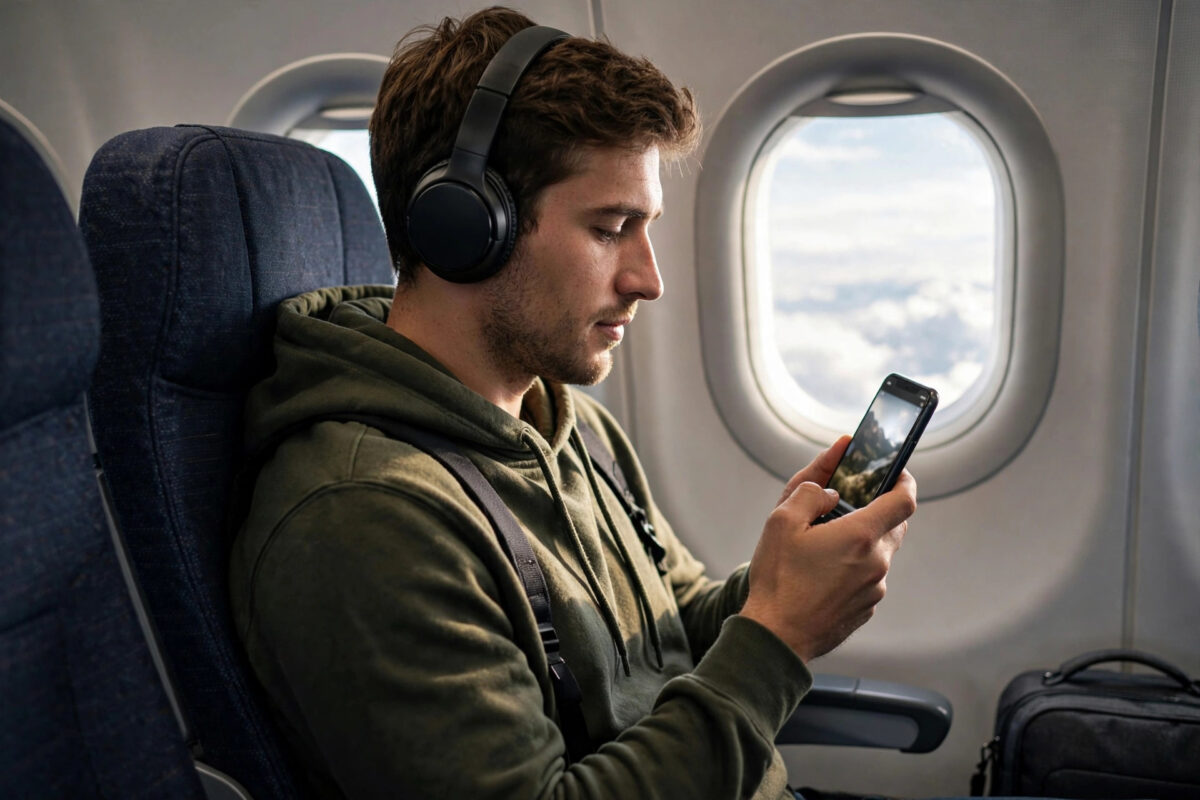
You are about to take a long flight, travel to an area with poor mobile signal, or commute through a tunnel where streaming always cuts out. You find the perfect tutorial, lecture, or travel documentary on YouTube and think, I wish I could just save this and watch it offline. That instinct is completely reasonable — but how you save it matters, both legally and for the safety of your devices.
Many websites promising free YouTube downloads break YouTube’s Terms of Service, infringe copyright, and expose your computer to intrusive ads and malware. The good news is that there are genuinely legal ways to watch offline: through YouTube Premium, by downloading your own uploads, and by using content creators have explicitly licensed for reuse. This guide explains each method step by step.
Quick Answer
The legal way to download YouTube videos for offline use is with a YouTube Premium subscription using the Download button in the official YouTube app. You can also download your own uploads anytime via YouTube Studio or Google Takeout. Only download other creators’ videos if they are licensed under Creative Commons or the creator has given explicit permission.
Understanding the Rules: Why Most Download Sites Are Not Legal
YouTube’s Terms of Service state that you may not download content unless you see a download button or similar link that YouTube itself displays for that video, or you have prior written permission from YouTube and the rights holder. That single rule explains almost everything. When YouTube Premium shows you a Download button, using it is fully allowed. When a random third-party site rips a video for you, it bypasses that rule and usually infringes the creator’s copyright at the same time.
Copyright belongs to the creator. Watching on YouTube gives you permission to stream, not to keep a copy, re-upload, sell, or share the file — even for purely personal or educational use. Narrow exceptions like fair use do not create a general right to download. See the YouTube copyright policies explainer from YouTube itself for an overview, and find more platform guides among the NetworkUstad apps and online safety tutorials.
Method 1: Download With YouTube Premium in the Official App
YouTube Premium is the main legal method for offline viewing of other people’s videos. The paid subscription removes ads, enables background play, and unlocks downloads in the official YouTube app.
- Open the YouTube app on your Android phone, iPhone, or tablet and sign in with the Google account you want to subscribe with.
- Tap your profile picture at the bottom right (or top right in older versions), tap Purchases and memberships or Get YouTube Premium, choose Individual, Family, or Student plan as appropriate, and complete payment through Google Play, the App Store, or youtube.com/premium in your browser.
- Find the video you want to save, open it so it starts playing, and look below the player for the Download button (a downward arrow). On some versions you tap the three dots menu under the video and select Download video.
- Choose the quality when prompted: 360p uses the least storage, 720p is a good balance for phones, and 1080p looks best on tablets but uses much more space. Tap OK or Download to start.
- Wait for the download to finish while connected to Wi-Fi. A tick or filled download icon confirms completion.
- To watch offline, tap your profile picture, tap Downloads, and select the video. No internet connection is needed for playback inside the app.
Premium downloads are not MP4 files you can copy elsewhere; they play only inside the YouTube app or supported browser while signed in. Downloads expire if your device does not connect to the internet at least once every 30 days, and some videos are unavailable because the rights holder disabled downloads. Availability varies by country, as listed on the Google support page for downloading YouTube videos with Premium.
Method 2: Download Your Own Videos From YouTube Studio and Google Takeout
If the video is yours — you uploaded it to your own channel — you can download it as a real file at any time, completely legally, because you hold the rights to that upload. This is essential for creators who lost their original project files.
- On a computer, go to studio.youtube.com and sign in to the channel that owns the video.
- Click Content in the left menu to see all your uploads, hover over the video you want, and click the three dots (Options) icon for that video.
- Click Download. YouTube prepares an MP4 file, typically at a maximum of 720p from Studio, and saves it to your computer’s Downloads folder. Note that you cannot download a video more than five times per day through Studio, and videos with a copyright claim for third-party audio may be blocked from downloading.
- For a complete backup of everything, go to takeout.google.com, deselect all services, tick only YouTube and YouTube Music, click Next step, choose your export size and delivery method, and click Create export. Google will email you a download link for a ZIP archive containing your uploads in their original quality where available, plus playlists and history data you choose to include.
Method 3: Use Creative Commons and Public Domain Content Correctly
Some creators publish under a Creative Commons Attribution licence, which allows reuse and downloading as long as credit is given. Public domain content, such as many older government films, is also free of copyright restrictions. These are the only categories of other people’s content you can download outside Premium with a clear legal basis, and you must follow the licence conditions.
- On YouTube desktop, search for your topic, click Filters at the top of the results, and under Features select Creative Commons. This narrows results to videos the uploader marked with that licence.
- Open a video, expand its description, and check the licence statement and any attribution the creator requests. Save a screenshot or note of the title, channel name, and URL for your credit line.
- Use the official download route if the video shows one, or contact the creator if no download option appears and ask for a file or written permission. Do not assume Creative Commons on YouTube automatically provides a download button for every video.
- When you reuse the material, give clear credit, for example: Video title by Channel Name, licensed under CC BY, with a link to the original. Honour any ShareAlike or NonCommercial terms in the licence.
What to Avoid: Third-Party Downloaders and Re-Uploading
Third-party downloader websites, extensions promising one-click MP4 downloads, and modified YouTube apps violate YouTube’s Terms of Service and are a well-known route for misleading ads and bundled unwanted software. If a site asks you to disable your antivirus or install a special player, close it immediately.
Never re-upload a downloaded video to your own channel or course platform unless the licence or written permission explicitly allows it. Re-uploading risks a copyright strike and channel termination. Instead, share the original link or embed the video using YouTube’s official Embed button under Share.
Common Mistakes and Tips
The biggest mistake is assuming that personal use automatically makes downloading legal. In most cases it does not. If there is no official Download button and no Creative Commons licence or written permission, streaming is allowed but downloading is not, regardless of whether you plan to share the file.
A second mistake is subscribing to Premium on one account and looking for downloads while signed into a different account. Downloads are tied to the subscribing account, so check your membership status under Purchases and memberships first.
Download over Wi-Fi the night before travel and test playback in airplane mode before you leave. Manage storage under Settings > Background & downloads, where you can set downloads to Wi-Fi only and choose a default quality. For lectures, ask the lecturer to enable downloads or share the original file if Premium is not an option.
Conclusion
Watching YouTube offline is useful, and doing it legally is not difficult. Use Premium’s Download button for everyday offline viewing, YouTube Studio and Google Takeout for file copies of your own uploads, and only download other creators’ work when a Creative Commons licence or explicit permission allows it. Avoid third-party ripping sites entirely, for legal reasons and for the security of your devices.
Frequently Asked Questions
Is it legal to download YouTube videos with YouTube Premium?
Yes. Downloading through the official Download button with an active Premium subscription is explicitly provided by YouTube and complies with its Terms of Service. The videos remain inside the YouTube app or supported browser, must be reconnected to the internet at least every 30 days, and cannot be copied out as standalone files.
Can I download a YouTube video if it is just for my own personal use?
Personal use alone does not make it legal in most cases. Without an official download option, a Creative Commons licence, or permission from the rights holder, downloading other people’s videos breaches YouTube’s terms and may infringe copyright, even if you never share the file with anyone else.
How do I download my own YouTube video in the best quality?
Use Google Takeout at takeout.google.com and export your YouTube data, which provides your uploads as close to original quality as Google stores them. YouTube Studio’s Download option is quicker for individual videos but is typically limited to 720p MP4 files and five downloads per video per day.
What does Creative Commons mean on YouTube?
It means the creator has chosen a Creative Commons Attribution licence that allows others to reuse the video under stated conditions, normally including giving credit. Always open the video description, confirm the licence, follow any NonCommercial or ShareAlike terms shown on the full Creative Commons licence, and keep a record of the source for attribution.
Why do some videos have no Download button even with Premium?
Some rights holders disable downloads for their content, and availability varies by country, age restrictions, and content type, including many music videos and YouTube Kids content. If no button appears, that video cannot be legally downloaded through Premium and should be streamed online or saved to a Watch Later playlist instead.



Leave a Reply