
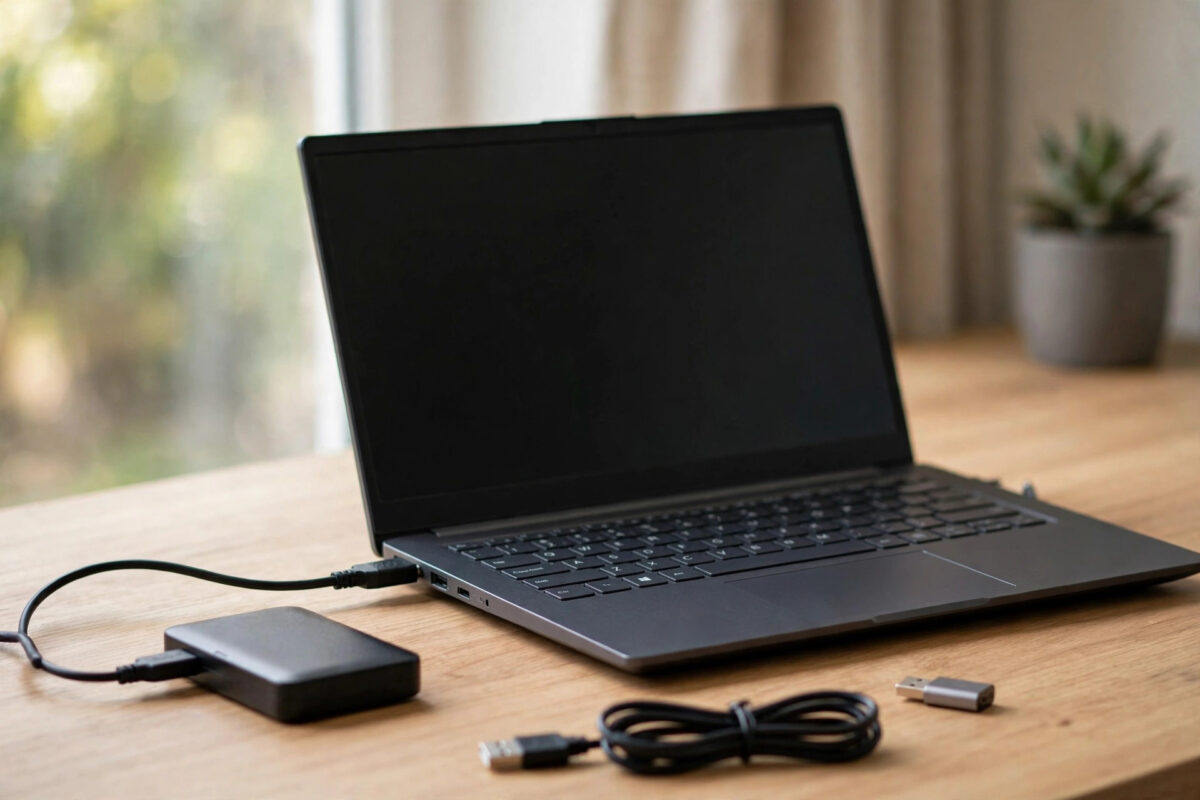
You plug in your external hard drive, you hear the familiar USB connection sound — or worse, nothing at all — and then you wait. No drive appears in File Explorer. Your backup, photo archive and work files sit on a device Windows seems to be ignoring. Few PC problems raise the heart rate like an external hard drive not showing up in Windows, because the first fear is always the same: has the drive died and taken everything with it?
In most cases, the answer is reassuring. The drive is usually fine. Windows may have failed to assign a drive letter, the disk may need initialising, the file system may have a fixable error, or the cable, port, driver or power setting may be at fault. The key is to diagnose in the right order, from safest checks to more involved ones, and to avoid the one action that can turn a recoverable problem into permanent data loss — formatting a drive that holds the only copy of your files.
This guide walks through a complete troubleshooting sequence using Disk Management and Device Manager, plus simple physical checks. Follow the steps in order and stop as soon as your drive appears.
First, Understand Where the Drive Can Hide
When people say a drive is not showing up, they usually mean it is missing from This PC in File Explorer. But Windows recognises a drive at several levels, and checking each level tells you where the problem sits. If the drive appears in Disk Management but not File Explorer, the connection is fine and the issue is a letter, formatting or partitioning problem. If it appears in Device Manager but not Disk Management, suspect a driver or disk problem. If it appears nowhere, suspect the cable, port, power supply or enclosure.
Our practical Windows troubleshooting guides for everyday users cover this layered method in more detail.
Step 1: Rule Out Simple Physical Causes
Start outside Windows. Unplug the drive and try a different USB cable if you have one — cables fail surprisingly often, especially thin cables bundled with older portable drives. Plug the drive directly into a port on the PC itself, not through an unpowered USB hub, because hubs often cannot supply enough power for a spinning hard drive.
Check Ports, Power and a Second Computer
Try a different USB port, ideally one on the back of a desktop PC, which connects directly to the motherboard. If your drive has its own power adapter, confirm it is plugged in and switched on, and that the drive light or spinning sound is present. A healthy portable drive gives a soft spin-up hum. Repeated clicking, beeping, or complete silence with no light can indicate hardware failure. If you have a second computer, plug the drive in there. If it appears instantly, your drive and cable are fine and the fault lies in your Windows PC. If it fails everywhere, the enclosure or drive itself is the prime suspect.
Step 2: Look for the Drive in Disk Management
Disk Management is the most important tool for this problem. Press Windows key plus X and select Disk Management. Maximise the window and look for your drive by size — a 1 TB drive shows as roughly 931 GB, which is normal, as explained in general references such as the overview of how hard disk drives store and report capacity.
Case A: The Drive Appears Without a Letter
If you see a healthy NTFS or exFAT partition with no drive letter, right-click the partition and select Change Drive Letter and Paths. Click Add, choose an unused letter such as E or F, and click OK. The drive should appear in File Explorer within seconds, files untouched.
Case B: The Drive Shows as Unallocated
Unallocated means the space has no partition. If the drive is brand new, right-click the unallocated space, select New Simple Volume, and follow the wizard to format it as NTFS for Windows-only use or exFAT to share it with a Mac. If the drive previously held files and suddenly shows as unallocated, do not create a new volume yet — that can overwrite recoverable data. Try another PC and consider recovery software or professional help first.
Case C: The Drive Shows as Not Initialized
A new drive may appear as Unknown and Not Initialized. Right-click the disk label on the left, select Initialize Disk, choose GPT for modern systems and drives over 2 TB, or MBR for very old compatibility, then create a volume as above. If a used drive with data suddenly demands initialisation, stop — initialising can complicate recovery.
Case D: The Drive Shows as Offline or RAW
If the disk is marked Offline, right-click its label and select Online. If the file system shows as RAW, Windows cannot read its structure. Do not accept any prompt to format it if the data matters. Note the symptom and move to the driver and error-checking steps, or use reputable recovery tools to copy files off before any repair involving formatting.
Step 3: Check Device Manager for Driver Problems
If Disk Management does not list the drive, open Device Manager with Windows key plus X. Expand Disk drives and Universal Serial Bus controllers. With the drive plugged in, watch whether an entry appears, disappears, or shows a yellow warning triangle or Unknown USB Device label. Right-click the drive entry under Disk drives, select Update driver, and choose Search automatically for drivers. If that changes nothing, right-click it, select Uninstall device, unplug the drive, restart the PC, and plug it back in so Windows installs a clean driver. Microsoft’s official advice on fixing USB device issues in Windows covers these steps in detail.
Step 4: Fix Power Settings That Put USB Drives to Sleep
Windows power management can suspend USB devices aggressively, especially on laptops, and some drives never wake properly. In Device Manager, expand Universal Serial Bus controllers, right-click each USB Root Hub, select Properties, open the Power Management tab, and untick Allow the computer to turn off this device to save power. Next, open Settings, then System, then Power and battery in Windows 11, or Control Panel Power Options in Windows 10, and set USB selective suspend to Disabled in advanced power settings for your current plan. Restart, reconnect the drive, and check Disk Management again.
Step 5: Run Error Checking Without Formatting
If the drive appears with a letter but Windows says it needs formatting or files will not open, file system errors may be the cause. Open Command Prompt as administrator by searching for cmd, right-clicking Command Prompt, and selecting Run as administrator. Type chkdsk E: /f, replacing E with your drive letter, and press Enter. The /f switch fixes errors it finds. If chkdsk reports it cannot proceed because the drive is RAW, stop and prioritise data recovery. Never run the /r switch on a drive you suspect is physically failing, because the long scan stresses a weak drive. Copy important files off first whenever the drive is accessible, even briefly.
When the Problem Is Likely Hardware Failure
Some symptoms point beyond Windows. A drive that clicks repeatedly, spins up and down in a loop, is recognised by no computer, or was dropped while running suggests mechanical failure. Stop plugging it in repeatedly — each attempt can worsen damage. If data is irreplaceable, use a professional recovery lab. If it is under warranty and backed up elsewhere, contact the manufacturer.
Common Mistakes and Expert Tips
The costliest mistake is clicking Format disk when Windows suggests it on a drive full of unbacked-up files. Formatting destroys the file system map and makes recovery harder, sometimes impossible. The second mistake is assuming the drive is dead after checking only File Explorer. Always check Disk Management first — a missing drive letter is a thirty-second fix people miss every day.
Another error is testing with the same faulty cable and hub repeatedly. Change one variable at a time: cable, then port, then computer, and keep a known good cable in your kit for this test. As a preventive tip, always eject external drives with the Safely Remove Hardware icon in the system tray. Pulling the cable while files are being written is a leading cause of RAW and corruption errors.
Finally, improve your backup habits. Copy important archives to a second drive or cloud storage, so the next hiccup is an inconvenience, not a crisis.
Conclusion
An external hard drive that does not show up in Windows is usually suffering from a fixable issue, not total failure. Work through the layers in order — cable, port and power first, then Disk Management, then Device Manager, and finally power settings and error checking. Resist formatting a drive holding unique data, and you will recover access in most cases with every file intact.
Frequently Asked Questions
Why does my drive show in Disk Management but not File Explorer?
Almost always because it has no drive letter. In Disk Management, right-click the partition, choose Change Drive Letter and Paths, click Add, assign an unused letter, and the drive will appear in File Explorer immediately.
Will initialising a disk erase my data?
Initialising writes a new partition style and is meant for new drives. On a used drive, initialising and creating a new volume can make recovery much harder, so avoid it until data is safely copied or recovered.
What does it mean when my drive shows as RAW?
RAW means Windows cannot recognise the file system, often due to corruption or unsafe removal. Do not format it if data matters. Try another computer, run chkdsk if a letter exists, or use recovery software to copy files off first.
My drive makes a clicking sound and never appears. Can software fix it?
Repeated clicking usually signals mechanical failure, which software cannot repair. Stop reconnecting it to avoid further damage, and contact a professional recovery service if the files are irreplaceable.
How can I prevent this problem in the future?
Always eject with Safely Remove Hardware, use a good cable plugged directly into the PC, avoid unpowered hubs for hard drives, and keep a second backup copy of anything important.



Leave a Reply