
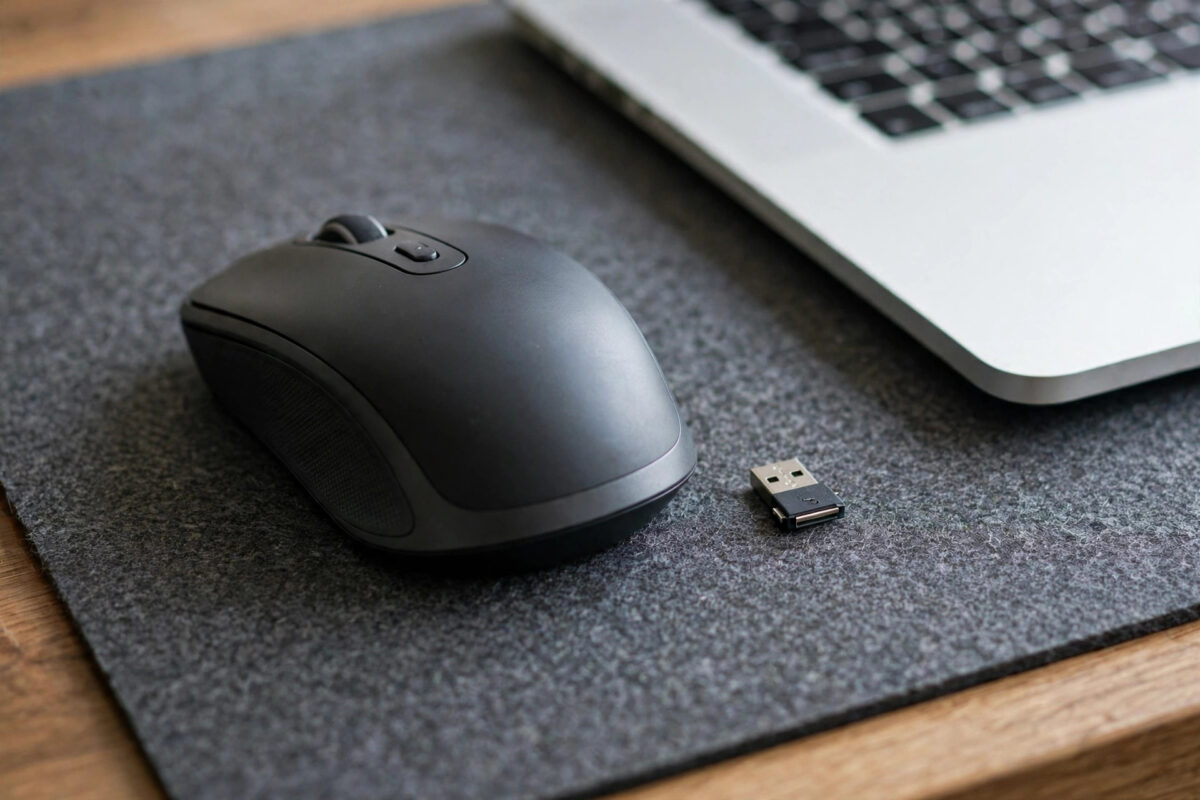
Your mouse cursor stutters across the screen, freezes for two seconds just as you are about to click something important, or stops entirely until you shake the mouse or unplug it and plug it back in. It is one of those small faults that quickly becomes infuriating, because you use the mouse for almost everything in Windows, and every freeze breaks your concentration.
The trick is to work out which category your freeze belongs to instead of trying random fixes. Does it happen only in games, only when the laptop is on battery, only with one particular mouse, or constantly no matter what you do? Those patterns point directly at the cause.
Start With the Simple Physical Checks
Before touching any setting, rule out the physical causes, because they account for a large share of cursor problems and take two minutes to test. If your mouse is wireless, replace or recharge its battery first, even if the indicator light looks fine; a fading battery often causes intermittent freezing long before it dies completely. Move the USB receiver to a different port, ideally a USB 2.0 port directly on the PC or laptop rather than through a hub, and keep the receiver within clear line of sight. USB 3.0 ports and external drives are known to create radio interference that disrupts 2.4 GHz receivers placed right next to them, a problem even noted in the technical background on USB 3.0 interference with wireless devices, so a short USB extension cable for the receiver can work wonders.
Next, look at the surface and the sensor. Optical and laser mice struggle on glass, glossy desks, and uneven or reflective surfaces. Test on a plain mouse mat or a sheet of matte paper. Turn the mouse over and check the sensor lens for dust, hair, or a crumb lodged in the recess; blow it clear and wipe it gently with a dry cotton swab.
Update, Reinstall, or Roll Back the Mouse Driver
If the hardware checks out, the driver is the next suspect, particularly if the freezing started after a Windows update, a feature upgrade, or connecting the mouse to a new machine. Windows uses a generic HID driver for most mice, while gaming and productivity mice from brands like Logitech, Razer and Corsair rely on their own drivers and companion software, which can clash with Windows or become outdated.
Update the Driver Through Device Manager
Right-click the Start button and select Device Manager. Expand Mice and other pointing devices, right-click your mouse, and choose Update driver, then Search automatically for drivers. While you are there, expand Universal Serial Bus controllers, because an outdated chipset or USB driver causes freezes that look like a mouse problem.
Reinstall the Driver Cleanly
If updating changes nothing, return to Device Manager, right-click the mouse, and choose Uninstall device. If a checkbox offers to delete the driver software, tick it for a branded mouse you plan to reinstall fresh.
Fix the Power Settings That Put Your Mouse to Sleep
Windows is aggressive about saving power, especially on laptops, and one of its favourite tricks is switching off USB devices it thinks are idle. The mouse then has to wake up before it responds, which feels exactly like freezing or stuttering, particularly after a few seconds of stillness or when running on battery.
Disable USB Power Saving for the Mouse
Open Device Manager, expand Universal Serial Bus controllers, and for each USB Root Hub entry, right-click, choose Properties, open the Power Management tab, and untick Allow the computer to turn off this device to save power. Do the same on the Power Management tab of your mouse itself under Mice and other pointing devices, if that tab is present. Then go to Settings > Bluetooth & devices > USB on Windows 11 where available and turn off USB battery saver style options. Finally, open Control Panel > Hardware and Sound > Power Options, click Change plan settings next to your active plan, choose Change advanced power settings, expand USB settings > USB selective suspend setting, and set it to Disabled while testing. For broader system tuning walkthroughs, see our collection of Windows performance and troubleshooting guides.
Check Whether Windows Itself Is the Bottleneck
Sometimes the cursor is not the problem at all; it is simply the most visible victim of a system that is briefly overwhelmed. When the CPU hits 100 percent, a disk stalls, or memory runs out, Windows still draws the desktop but input responses queue up, so the pointer jumps and freezes while everything else catches up.
Use Task Manager to Find the Culprit
Press Ctrl + Shift + Esc to open Task Manager. On the Processes tab, sort by CPU, then by Disk, then by Memory, and watch what spikes when the freezing happens. A runaway browser tab, a stuck Windows Update, real-time antivirus scanning, or a cloud sync client uploading thousands of files are frequent offenders. On older machines with a mechanical hard drive, a disk stuck at 100 percent active time is the classic cause of a stuttering pointer. If spikes coincide with freezing, fixing that program, rather than the mouse, is your answer. Microsoft’s own support advice for mouse problems in Windows similarly recommends checking drivers and system issues together rather than assuming the hardware has failed.
Run System File and Malware Checks
Corrupted system files and hidden malware both cause intermittent input lag. Open Terminal (Admin) or Command Prompt as administrator from the Start menu search, and run sfc /scannow, letting it complete fully. If it reports errors it could not fix, run DISM /Online /Cleanup-Image /RestoreHealth, then run sfc once more.
Laptop Touchpad and Display Settings That Cause Stutter
On laptops, cursor freezing often involves the touchpad rather than an external mouse. Palm detection and touchpad sensitivity settings can swallow or delay movement, so open Settings > Bluetooth & devices > Touchpad and set Touchpad sensitivity to Most sensitive while testing, and try disabling the option to leave the touchpad on when a mouse is connected, or enabling it, depending on which combination you use, to rule out conflicts between the two devices fighting for control.
Display settings can also deceive you. A very low refresh rate, a failing graphics driver, or a second monitor running at a mismatched refresh rate can make pointer movement look jerky even though the mouse is reporting perfectly. Confirm your display runs at its native rate in Settings > System > Display > Advanced display, and update your graphics driver from NVIDIA, AMD, or Intel directly.
Common Mistakes and Helpful Tips
The most common mistake is buying a new mouse before doing the swap test. If the new mouse freezes identically, the fault was always in Windows, the port, or the system load, and money was spent for nothing. Another frequent error is installing driver updater utilities from adverts; these often install worse drivers than the ones you had and add unwanted software. Always get drivers from Windows Update, Device Manager, or the hardware manufacturer.
Keep notes as you test. Change one thing at a time, note whether the freeze improves, and undo changes that do not help, so your system does not end up with a tangle of altered settings. If freezes happen only on battery power, focus on the power settings section. If they happen only under load, focus on Task Manager.
Conclusion
A mouse cursor that keeps freezing on Windows is almost always explainable and fixable at home. Test the basics first: fresh batteries, a clean sensor, a sensible surface, a different port, and a swap test to separate mouse faults from PC faults. Then update or reinstall the driver, disable the USB power-saving options that put the device to sleep, and use Task Manager plus system file checks to rule out an overloaded or unhealthy Windows installation.
Frequently Asked Questions
Why does my wireless mouse freeze but my wired mouse works fine?
That pattern points to the wireless link itself: a weak battery, interference from nearby USB 3.0 devices, or a receiver placed too far away or hidden behind the PC. Move the receiver to a front port or an extension cable and fit fresh batteries first.
Why does my cursor freeze for a few seconds then jump?
Brief freezes followed by a jump usually mean the system, not the mouse, stalled. Check Task Manager for CPU or disk spikes at the moment it happens, disable USB selective suspend in Power Options, and make sure your chipset and mouse drivers are up to date.
Can a virus cause my mouse to freeze?
Yes, malware consuming CPU or disk resources can make the pointer stutter along with everything else. Run a Full scan in Windows Security, follow with a Microsoft Defender Offline scan, and also run sfc /scannow to repair any damaged system files.
How do I update my mouse driver in Windows 11?
Right-click Start, open Device Manager, expand Mice and other pointing devices, right-click your mouse and choose Update driver. For best results, also install the latest chipset driver and mouse software from the manufacturer’s official support website for your exact model.
Why does my touchpad freeze while I am typing?
That is usually palm rejection working as designed, delaying touchpad input to stop accidental touches. In Settings under Bluetooth and devices, then Touchpad, raise the touchpad sensitivity setting and test again to confirm whether the delay reduces.



Leave a Reply