
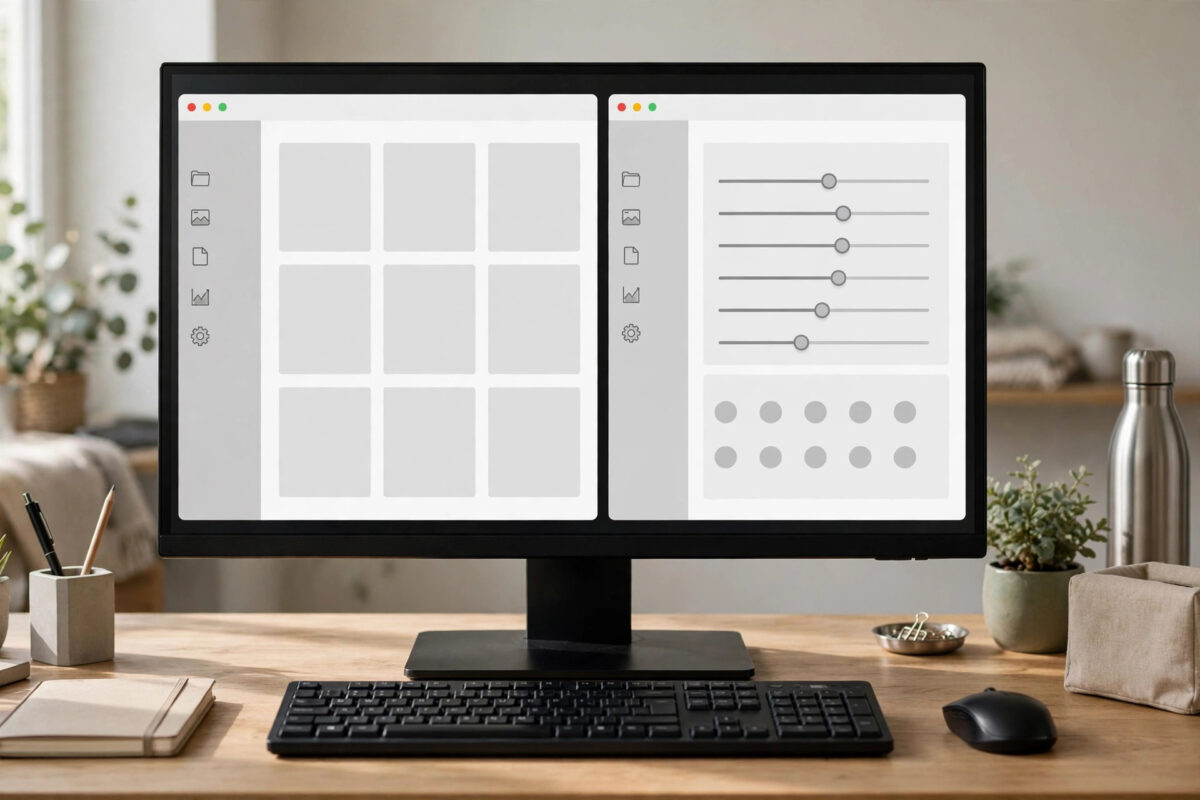
Working in one window at a time means constant switching: copy a figure from a spreadsheet, alt-tab to the document, paste, alt-tab back to check the next row. Splitting the screen between two apps removes that friction entirely. Both windows stay visible side by side, so you can read a source on the left while writing on the right, watch a tutorial while following along, or compare two versions of the same file at a glance.
Windows 10 and Windows 11 both include this feature natively — no downloads needed — but they present it slightly differently. This guide covers the drag method, the keyboard shortcuts that make splitting almost instant, Windows 11’s Snap Layouts, and the settings that control how snapping behaves, plus fixes for when windows refuse to snap.
The Fastest Method: Drag a Window to the Edge
The original technique, called Snap, works on both Windows versions and is the easiest to learn.
- Open both apps you want to use, for example Microsoft Word and your web browser.
- Click and hold the title bar of the first window — the strip at the very top of the app.
- Drag the window firmly to the left edge of the screen until you see a translucent outline covering the left half, then release the mouse. The window snaps into exactly half the screen.
- Windows now shows thumbnails of your other open windows in the empty right half. This is called Snap Assist. Click the second app and it fills the remaining space perfectly.
- To resize both windows together, hover over the dividing line between them until the pointer changes, then drag it. Both windows adjust in step.
Dragging to a corner instead of an edge snaps a window into a quarter of the screen, which lets you arrange three or four apps in a grid. Dragging to the top edge maximises the window, which is worth knowing because it is easy to trigger by accident.
Use Keyboard Shortcuts for an Instant Split
Once you learn two shortcuts, splitting the screen becomes faster than reaching for the mouse. Click into the window you want to move so it is the active app, then use:
- Windows key + Left Arrow — snaps the active window to the left half.
- Windows key + Right Arrow — snaps the active window to the right half.
- Windows key + Up Arrow after snapping sideways — moves the window into a top corner quarter.
- Windows key + Down Arrow — moves a snapped window to the bottom quarter, or minimises it if pressed again.
The workflow is simple: select the first window, press Windows key + Left Arrow, then use Snap Assist or Alt + Tab to pick the second window and press Windows key + Right Arrow. Keyboard snapping also works across multiple monitors — keep pressing the arrow key in the same direction and the window will jump to the next display, where it can snap again. Microsoft’s official Windows support documentation on snapping windows lists the full shortcut set for both Windows 10 and 11 if you want to explore further.
Windows 11 Snap Layouts: More Than Two Windows
Windows 11 expands the idea with Snap Layouts, a visual picker that appears when you hover the mouse over a window’s Maximize button in the top-right corner. Instead of only halves, you get a set of ready-made grids: two equal columns, a large window beside a narrow one, three columns, or a four-window grid, depending on your screen size.
Hover over the Maximize button, click the zone where you want the current window, and Snap Assist will offer your other open apps for the remaining zones. You can also press Windows key + Z to open the same layout picker from the keyboard, then press the number shown on the layout and position you want. Groups you create are remembered: hover over either app’s taskbar icon and you can restore the whole snapped group at once, which is genuinely useful when you switch away to something full-screen and come back.
Adjust the Snap Settings to Suit You
If snapping feels too eager or Snap Assist does not appear, check the settings. On Windows 11 go to Settings > System > Multitasking. On Windows 10 go to Settings > System > Multitasking as well, where the options sit under the Snap heading. The master toggle is Snap windows; if it is off, neither dragging nor keyboard shortcuts will work at all.
Useful individual options include “When I snap a window, automatically size it to fill available space”, “When I snap a window, show what I can snap next to it” (that is Snap Assist), and “When I resize a snapped window, simultaneously resize any adjacent snapped window”. On Windows 11 you can also control whether hovering the Maximize button shows layouts. If you share the PC with someone who dislikes snapping, turning off just the drag behaviour while keeping keyboard shortcuts is a good compromise — though note the settings are per user account, so each person can configure their own profile. For more ways to tailor your desktop, browse our wider range of everyday Windows tutorials and productivity tips.
When a Window Refuses to Snap
Some windows will not cooperate, and there is usually a clear reason. Apps with a fixed minimum size — certain settings dialogs and older utility programs — cannot shrink to half of a small screen, so Windows leaves them floating. A few applications use fully custom title bars and ignore drag snapping, though keyboard shortcuts often still work on them. Tablet mode on Windows 10, and very low display resolutions, can also limit snapping behaviour.
Check these fixes in order. First, confirm Snap windows is switched on in Settings > System > Multitasking. Second, raise your resolution in Settings > System > Display if it is set unusually low, and check that Scale is not set so high that windows cannot fit. Third, restart Windows Explorer: press Ctrl + Shift + Esc to open Task Manager, right-click Windows Explorer, and choose Restart. The taskbar will flicker and reload, and snapping usually returns.
Common Mistakes and Useful Tips
- Dragging by the wrong part of the window: only the title bar drags reliably. Dragging by a toolbar or content area may select text or move items inside the app instead.
- Releasing the drag too early: you must push the pointer right against the screen edge until the snap outline appears; letting go mid-screen just leaves the window floating there.
- Forgetting the divider trick: dragging the centre dividing line resizes two snapped windows together, which is far quicker than adjusting each one separately.
- Using a huge scaling percentage: at 175% or 200% scale on a small laptop screen, two windows may be too cramped to be useful. Lower the scale in Display settings or use an external monitor.
- Not knowing about portrait splits: on a tall or rotated monitor, stack windows with the corner snaps — top half and bottom half often read better than left and right.
- Ignoring Snap Groups on Windows 11: restoring a saved group from the taskbar saves rebuilding your layout after every interruption.
Conclusion
Splitting the screen between two apps takes seconds once the habit forms: drag a title bar to the edge, or press Windows key plus an arrow key, and let Snap Assist place the second app for you. Windows 11 users get the extra polish of Snap Layouts and Snap Groups for three- and four-window arrangements. Set the Multitasking options once, learn the two main shortcuts, and the constant alt-tab shuffle that fragments your attention largely disappears.
Frequently Asked Questions
What is the keyboard shortcut to split the screen in Windows?
Select a window and press Windows key + Left Arrow to snap it to the left half, or Windows key + Right Arrow for the right half. On Windows 11, Windows key + Z opens the Snap Layouts picker for more arrangements.
Can I split the screen between more than two apps?
Yes. Drag windows into screen corners to create a four-window grid, or use Windows 11 Snap Layouts, which offer three-column and four-window layouts. The usefulness depends on your screen size and resolution.
Why does Snap Assist not appear after I snap a window?
Snap Assist has its own toggle. Go to Settings > System > Multitasking and enable “When I snap a window, show what I can snap next to it” under the Snap windows options.
Does split screen work with two monitors?
Yes. Each monitor can host its own snapped windows, and pressing Windows key + arrow keys repeatedly moves a window across displays. Windows key + Shift + arrow keys moves a window between monitors instantly while keeping its size.
One app will not snap at all. Is it faulty?
Usually not. Some apps enforce a minimum window size or draw their own title bar, which limits snapping. Try the keyboard shortcuts, which work on many apps that ignore mouse dragging.



Leave a Reply