
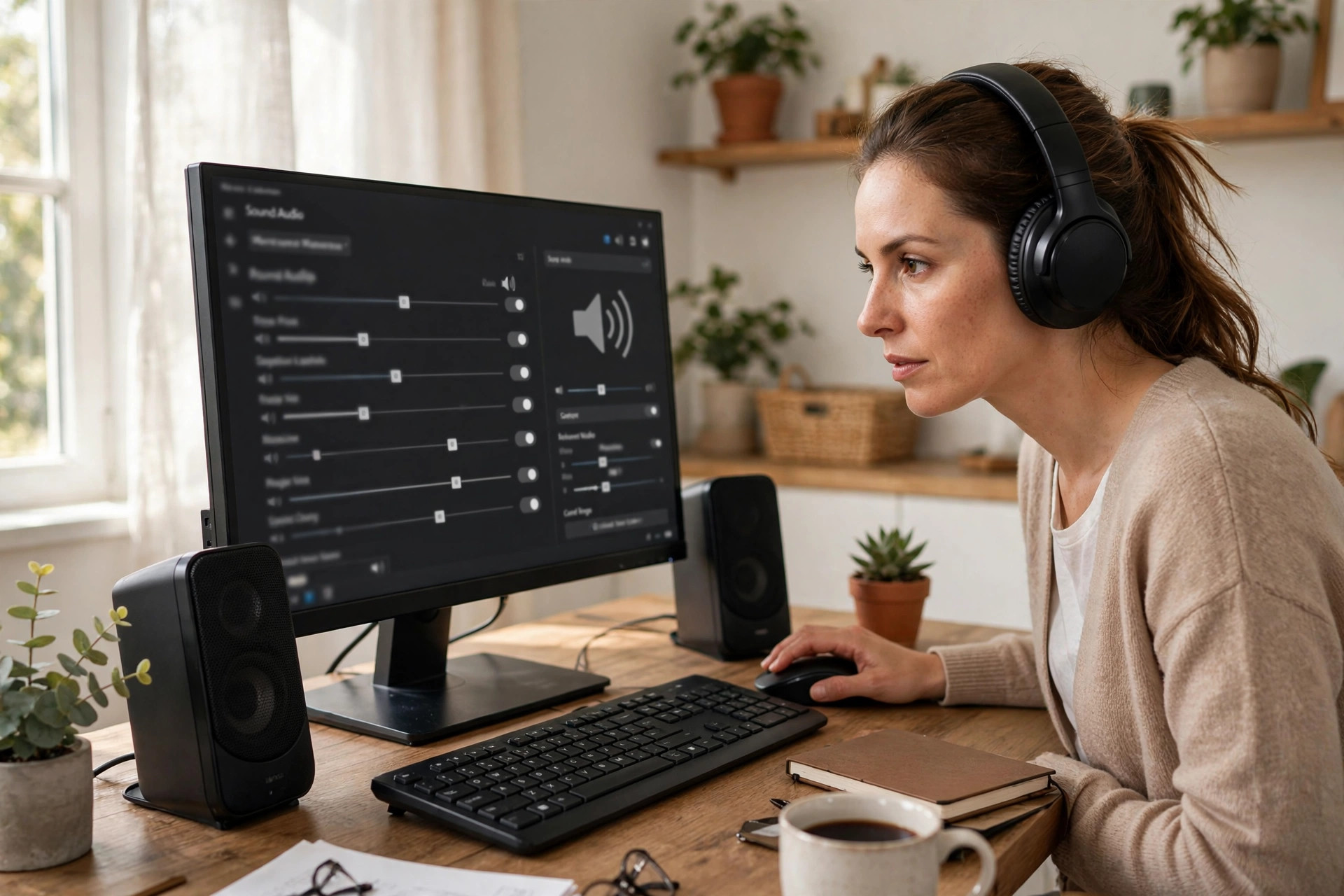
Few Windows problems are as frustrating as sound suddenly disappearing. One day your speakers work perfectly, and the next you are watching videos in silence, missing notification pings, and wondering whether your hardware has died. The reassuring truth is that sound not working on Windows 10 is rarely a dead speaker. In most cases it is a muted setting, the wrong output device, a stopped service, or a driver that an update quietly replaced.
This guide works through the fixes in the order you should try them — quick checks first, deeper repairs later. Follow the steps one at a time and test your sound after each change. In the majority of cases, you will hear audio again within the first few sections, without reinstalling Windows or paying for a repair.
Start With the Simple Checks
Before touching any settings menus, rule out the obvious. Check the physical volume control on your speakers or headset, make sure cables are pushed in fully, and try a different USB port for USB headsets. Look at the speaker icon in the taskbar near the clock: if it shows a small cross, your sound is muted. Click the icon and drag the volume slider up, then play something with known audio.
Also check the volume inside the app you are using. YouTube, media players, and games all have their own volume controls, and Windows can mute individual apps. Right-click the speaker icon and choose Open Volume mixer to see per-app sliders. Make sure your browser or player is not set to zero while everything else looks fine. Finally, restart the PC once. A simple reboot clears temporary glitches in the audio stack surprisingly often, and it takes less time than any other fix on this list.
Check the Correct Output Device Is Selected
Windows 10 is enthusiastic about switching audio devices. Plug in a monitor with built-in speakers, pair a Bluetooth headset once, or dock a laptop, and Windows may silently route sound somewhere you are not listening. Open Settings > System > Sound. Under Output, check the device shown in the Choose your output device dropdown. Select your real speakers or headphones explicitly, then click Test or play audio to confirm.
While you are there, scroll down and click Sound Control Panel on the right side under Related Settings. In the Playback tab, right-click your main device and choose Set as Default Device, and also Set as Default Communication Device if the option appears. Disable devices you never use by right-clicking them and choosing Disable; this stops Windows from jumping to an HDMI monitor or a disconnected headset in future. If you rely on step-by-step Windows troubleshooting regularly, bookmark NetworkUstad for everyday PC fixes and tutorials so the next problem takes minutes, not hours.
Run the Windows Audio Troubleshooter
Microsoft’s built-in troubleshooter is genuinely useful for audio problems because it checks services, defaults, and enhancements in one pass. Go to Settings > Update & Security > Troubleshoot > Additional troubleshooters, click Playing Audio, and choose Run the troubleshooter. Select the device you are having trouble with when prompted and let Windows apply any fixes it suggests.
Microsoft maintains the same workflow in its official guide to fixing sound or audio problems in Windows, which is worth following alongside this article if your issue involves a specific error message.
Restart the Windows Audio Services
Windows audio depends on background services, and if one of them stalls, sound can vanish even though every setting looks correct. Press Windows key + R, type services.msc, and press Enter. In the Services window, find Windows Audio, right-click it, and choose Restart. Do the same for Windows Audio Endpoint Builder, and check that both have their Startup type set to Automatic by double-clicking each service.
If the services refuse to start, note any error message shown, because that detail points to a deeper driver or system file problem rather than a simple setting. In most cases, though, a service restart brings the speaker icon and your sound back immediately.
Update, Roll Back, or Reinstall the Audio Driver
Drivers are the most common cause of sound problems that begin right after a Windows update. Press Windows key + X and choose Device Manager. Expand Sound, video and game controllers, right-click your audio device — often Realtek Audio or High Definition Audio Device — and choose Update driver, then Search automatically for drivers. If Windows finds nothing new, visit your PC or motherboard manufacturer’s support site and download the audio driver made for your exact model.
If the problem started immediately after an update, the opposite move helps. In Device Manager, double-click the audio device, open the Driver tab, and choose Roll Back Driver if the button is available. As a stronger repair, right-click the device and choose Uninstall device, tick Delete the driver software for this device if offered, then restart the PC. Windows will reinstall a clean driver on boot, which fixes many cases of distorted, missing, or one-sided audio.
Turn Off Audio Enhancements and Check Format Settings
Enhancements promise richer sound but frequently conflict with drivers. Open Settings > System > Sound, click Device properties under your output device, then click Additional device properties. In the window that opens, go to the Enhancements tab and tick Disable all enhancements, then click Apply. On some systems the option appears instead under the Advanced tab or as an Enable audio enhancements toggle in Settings itself.
In that same Advanced tab, try a different Default Format — for example 16 bit, 44100 Hz (CD Quality) — and click Test. Untick the options under Exclusive Mode as well, because an app holding exclusive control can block sound from everything else. These small changes fix a surprising number of crackling, stuttering, and silent-app problems.
Check Privacy Settings and Bluetooth Devices
If speakers work but your microphone or headset audio does not, open Settings > Privacy > Microphone and make sure Let apps access your microphone is turned on, and that the specific app is allowed below. For Bluetooth headsets, go to Settings > Devices > Bluetooth & other devices, remove the headset, and pair it again from scratch. Bluetooth audio profiles can become corrupted, and a fresh pairing rebuilds them cleanly. Also confirm the headset is not still connected to your phone, which can steal the connection the moment it powers on.
Common Mistakes to Avoid
Avoid downloading drivers from random driver-booster websites; they often install outdated or bundled software and can make the problem worse. Do not change settings in five places at once, because then you cannot tell which change helped or hurt. Avoid assuming hardware failure before testing with a different headset or speaker — a five-minute swap rules hardware in or out. And never edit the registry fixes suggested on old forum posts unless you have created a restore point first; the supported settings above solve the overwhelming majority of Windows 10 audio faults.
Conclusion
When sound stops working on Windows 10, work from the outside in: volume and cables, the selected output device in Settings > System > Sound, the troubleshooter, audio services, and only then drivers and enhancements. That order matters, because most silence is caused by the simple things. Keep your audio driver from your PC manufacturer rather than a generic download, test after every single change, and your sound will almost always return without drastic measures. If every step fails on multiple headsets and speakers, then — and only then — is it reasonable to suspect a hardware fault worth professional attention.
Frequently Asked Questions
Why did my sound stop working after a Windows 10 update?
Updates sometimes replace your manufacturer’s audio driver with a generic one, or reset the default output device. Reinstalling the driver from your PC maker’s website and reselecting your speakers in Settings > System > Sound fixes most post-update silence.
Why is sound only coming from one side of my headphones?
Check the balance settings in Sound Control Panel > Properties > Levels > Balance, and test the headphones on another device. If they fail elsewhere too, the cable or one driver unit is damaged and the headset needs repair or replacement.
My speaker icon has a red cross. What does that mean?
A red cross usually means the Windows Audio service is stopped or no audio device is detected. Restart the service in services.msc, reconnect your speakers or headset, and update the audio driver if the cross remains.
How do I test my speakers in Windows 10?
Open Settings > System > Sound, choose your output device, and use the Test button if shown. Alternatively, open Sound Control Panel, right-click your device, and choose Test to hear a chime in each channel.
Will reinstalling Windows fix my sound problem?
Almost certainly, but it is unnecessary in most cases. Driver reinstalls, service restarts, and output settings resolve the vast majority of audio faults. Treat a Windows reinstall as a last resort after hardware has been ruled out.



Leave a Reply