
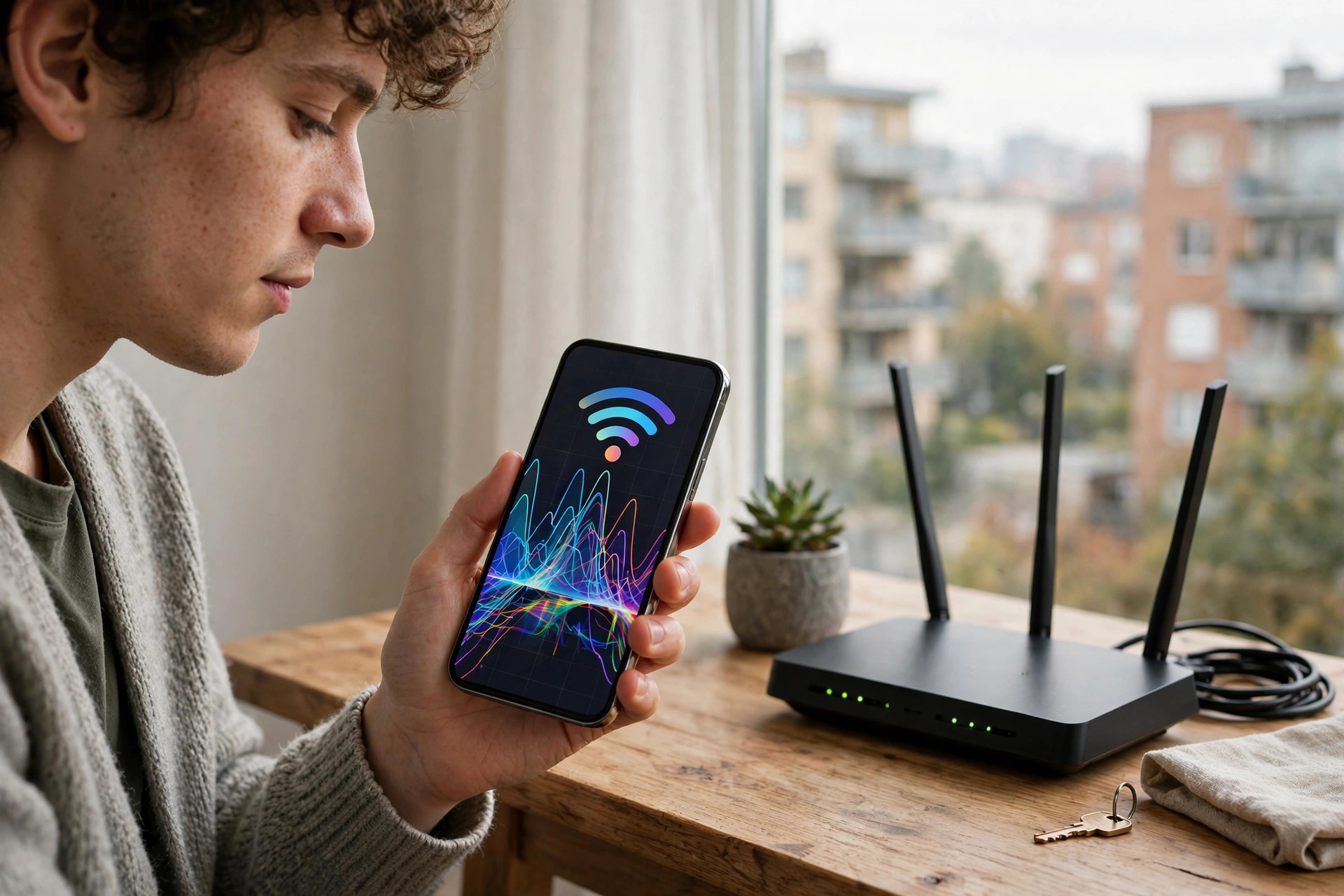
If your Wi-Fi slows down every evening, stutters during video calls, or works beautifully in one room and badly in the next, your neighbours may be part of the problem. Every wireless network in range is sharing the same airwaves, and when too many routers talk on the same channel at once, everyone has to wait their turn. The result feels like a slow internet connection, even when your broadband is healthy.
The good news is that changing your Wi-Fi channel is free, takes about ten minutes, and can transform performance in flats, terraces, and busy streets. This guide explains what channels actually are, how to see which ones your neighbours are using, and how to pick and set the best channel for both the 2.4GHz and 5GHz bands.
What Is a Wi-Fi Channel, in Plain English?
Each Wi-Fi band is divided into channels, which you can picture as lanes on a motorway. On the 2.4GHz band there are 11 usable channels in North America and 13 in most of Europe, but here is the catch: each Wi-Fi network is wide enough to cover about five of those lanes at once. Networks on nearby channels overlap and interfere with each other, a bit like cars constantly clipping each other’s mirrors.
Because of that overlap, only three channels on 2.4GHz are truly separate from one another: channels 1, 6, and 11. These are the famous non-overlapping trio, and experienced network engineers choose almost exclusively between them on 2.4GHz. Picking channel 3 or 9 because they look “emptier” is a classic mistake, because those channels overlap with two busy groups at once and suffer interference from both.
The 5GHz band is far more generous. It offers many more channels, they do not overlap at standard widths, and fewer gadgets use it. That is why 5GHz usually feels faster and calmer, even though its range is shorter. On 5GHz your main job is simply to avoid the most crowded channel near you.
Step 1: Scan Your Surroundings With a Wi-Fi Analyser
You cannot choose a good channel blindfolded. First, you need to see what your neighbours are doing. Free analyser tools turn invisible radio traffic into a simple chart.
- On Android: Install a free Wi-Fi analyser app from the Play Store. These apps list every nearby network, its channel, and its signal strength, and many recommend a best channel directly.
- On Windows: Free tools such as the analyser utilities available from the Microsoft Store show the same information in a clean graph.
- On macOS: Hold the Option key and click the Wi-Fi icon, then open Wireless Diagnostics. Ignore the diagnostics wizard and use the Scan window, which lists nearby networks and even suggests the best channels for each band.
- On iPhone: Apple’s own restrictions limit analyser apps, but the AirPort Utility app can perform a Wi-Fi scan if you enable it in the app’s settings.
Walk around your home while scanning, especially to rooms where Wi-Fi matters most. A channel that looks quiet beside the router may be busy at the far end of the house. Note the strongest competing networks: a network at -45 dBm on your channel is a real problem; one at -85 dBm is background noise. Google’s support documentation on optimising Wi-Fi performance and reducing interference explains the same thinking in more detail.
Step 2: Choose the Best Channel on 2.4GHz
With your scan results in front of you, apply this simple method:
- Look only at channels 1, 6, and 11. Ignore everything in between.
- For each of those three, note the strongest neighbour using it and how many networks share it.
- Choose the channel whose strongest competing network is the weakest. One faint neighbour on channel 6 is better than three strong neighbours on channel 1.
- If all three are equally busy, choose the one with the fewest strong networks, and accept that in a dense block of flats some sharing is unavoidable.
Also set your 2.4GHz channel width to 20 MHz. Many routers default to 40 MHz on this band, which hogs twice the space and guarantees overlap with neighbours. A narrower 20 MHz channel is slightly slower in theory but far more reliable in a crowded area, and reliability is what you actually feel day to day.
Step 3: Choose the Best Channel on 5GHz
On 5GHz, the process is simpler. Look at your scan, find which channels the strongest nearby 5GHz networks use, and pick a channel that is either empty or shared only with weak networks. Common safe choices are channels 36, 44, 100, or 149, depending on your region, but your scan matters more than any list.
A few practical notes for 5GHz:
- Channel width: 40 MHz or 80 MHz widths are normal and healthy here, because the band has room for them. If you live somewhere extremely crowded, dropping from 80 MHz to 40 MHz can improve stability at a small cost to peak speed.
- DFS channels: Channels roughly between 52 and 144 share space with radar, so your router may briefly change channel if it detects radar. They are often beautifully empty and legal to use, but false radar hits can cause unwanted channel hops.
- Regional limits: Some higher channels are not available in every country, and your router will only offer the channels your region allows.
Step 4: Change the Channel in Your Router Settings
Now apply your choice. The exact menus vary by brand, but the path is similar everywhere:
- Connect to your router, ideally with a cable or from a spot with a reliable signal, and open a browser.
- Go to your router’s admin address, commonly 192.168.1.1 or 192.168.0.1, and log in with your admin username and password.
- Find the wireless settings section, often labelled Wireless, Wi-Fi, or Advanced Wireless.
- If your router uses one combined network name for both bands, you may need to disable the “smart connect” or band-steering option temporarily so you can set each band separately.
- Set the 2.4GHz channel manually to your chosen value from 1, 6, or 11, and set the width to 20 MHz.
- Set the 5GHz channel manually to your chosen channel.
- Save or apply the settings. Your Wi-Fi will drop for 30 to 60 seconds while the router restarts its radios, then your devices will reconnect automatically because the network name and password have not changed.
Should you leave the channel on “Auto”? It works reasonably on 5GHz, but many routers only scan once, when they boot, then sit on that choice for months. A manual choice based on your own scan is usually better, especially on 2.4GHz. If you need a refresher on the admin pages, our guide to logging in to your router admin page for the first time walks through it step by step.
Step 5: Test, Compare, and Adjust
Channel changes are an experiment, so measure the result. Run speed tests and, more importantly, use your connection normally for a day: hold a video call, stream a film in the evening, and work from your usual spot. If performance improved, you are done. If it got worse, try your second-choice channel. It is worth testing two candidates, because scans are a snapshot and real usage includes interference from microwave ovens and Bluetooth gadgets, which do not appear as networks in an analyser.
Revisit your channels every few months, or whenever speeds mysteriously drop in the evenings. The wireless landscape changes over time, and a five-minute rescan keeps you on the quietest lane.
Common Mistakes and Helpful Tips
- Choosing channels 2, 3, 9, or 10 on 2.4GHz: These overlap with neighbours on both sides. Stick to 1, 6, or 11.
- Using 40 MHz width on 2.4GHz: It doubles your interference footprint. Use 20 MHz in any built-up area.
- Scanning only beside the router: Scan where you actually use Wi-Fi, because interference is local.
- Counting networks instead of weighing strength: One neighbour at -45 dBm hurts more than five at -85 dBm. Strength beats quantity.
- Expecting a channel change to fix a slow broadband line: Channels fix local congestion only. If a wired test is also slow, the fault lies elsewhere.
- Tip: After changing channels, forget and rejoin the network on a device that stubbornly underperforms; some devices cling to old connection parameters.
Conclusion
Finding the best channel comes down to three habits: scan before you choose, respect the 1, 6, and 11 rule on 2.4GHz with a 20 MHz width, and pick the emptiest space on 5GHz. Then apply the setting manually in your router, test it under real evening conditions, and rescan every few months as the neighbourhood changes. It is one of the highest-value tweaks in home networking: ten minutes of work, no cost, and in a crowded area it can feel like a broadband upgrade.
Frequently Asked Questions
What is the best Wi-Fi channel for 2.4GHz?
One of channels 1, 6, or 11, whichever has the weakest competing networks near you. These are the only three channels on 2.4GHz that do not overlap with each other, so they are always the starting point for a good choice.
Is it better to leave my router channel on Auto?
Auto is convenient but unreliable, because many routers scan only when they restart and then never reconsider. A manual channel chosen from your own analyser scan usually performs better, particularly on the crowded 2.4GHz band.
How often should I change my Wi-Fi channel?
Only when conditions change: a noticeable evening slowdown, a new neighbour, or a new router nearby. A quick rescan every few months is a sensible routine, but there is no need to change channels constantly.
Why did changing channels not improve my speed?
Channel congestion may not have been your bottleneck. Slow broadband, an overloaded router, or distance and walls can all limit speed regardless of channel. A wired speed test helps confirm whether the problem is local wireless or the line itself.
Do I need to change settings on my phones and laptops after switching channels?
No. The network name and password stay the same, so devices reconnect automatically once the router finishes applying the change. The whole process usually interrupts Wi-Fi for under a minute.



Leave a Reply