

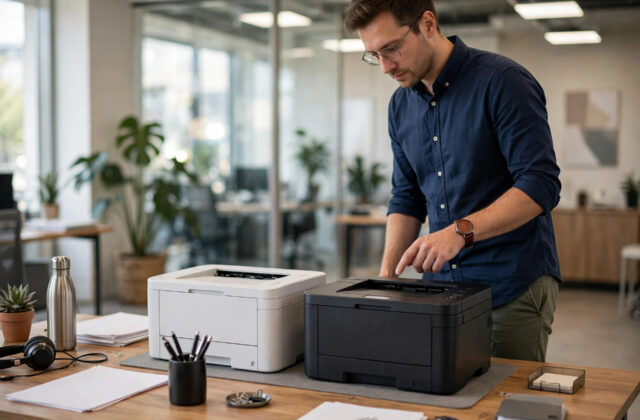
Your office has one good USB printer and three computers that need to use it. There is no print server, no network printer budget, and everyone is tired of emailing files to the one PC the printer is plugged into. The good news: Windows has printer sharing built in. Plug the printer into one PC, share it, and the other computers can print to it over your existing office network — no extra hardware required.
This guide covers the full setup: preparing the host PC, sharing the printer, connecting the other two computers, and the limitations you should know about before you rely on it.
Quick Answer
Install the printer on the host PC, then open Printer properties > Sharing, tick Share this printer, and give it a short share name. On each other PC, press Windows key + R, type \\HOST-PC-NAME, and double-click the shared printer to install it, signing in with a user account that exists on the host. The host PC must be switched on and awake whenever anyone prints.
Step 1: Prepare the Host PC
The host is the computer physically connected to the printer by USB. Its setup decides how reliable the whole arrangement is.
- Install the printer on the host with the manufacturer’s full driver package and confirm it prints a test page locally.
- Give the host a recognisable name: Settings > System > About > Rename this PC, for example
OFFICE-HOST. Restart if prompted. - Set the network to Private under Settings > Network & internet — sharing is restricted on Public networks.
- Stop the host sleeping during work hours: Settings > System > Power, set Screen and Sleep timers generously or to Never while plugged in. A sleeping host means no printing for anyone.
- Give the host a stable IP address, either with a static IP in its network settings or a DHCP reservation in the router. This stops connections breaking when the address changes — the same issue behind printers that vanish after restarts, covered in our guide to shared printers disappearing after every restart.
- Make sure each person who will print has (or can use) a user account on the host. The simplest approach for a small office is one shared account on the host used only for printer connections.
Step 2: Share the Printer
- On the host, open Settings > Bluetooth & devices > Printers & scanners, select the printer, and open Printer properties.
- Go to the Sharing tab and tick Share this printer.
- Enter a short share name with no spaces, such as
OfficePrinter. - Leave Render print jobs on client computers ticked — it keeps the host’s workload light.
- Click OK.
- Check sharing is allowed through the firewall: in Windows Security > Firewall & network protection > Allow an app through firewall, make sure File and Printer Sharing is enabled for the Private network.
Step 3: Connect the Other Two Computers
Repeat these steps on each client PC:
- Confirm the client is on the same office network and its profile is also Private.
- Press Windows key + R, type
\\OFFICE-HOST(or the host’s IP address, e.g.\\192.168.1.50), and press Enter. - If prompted, enter the user name and password of an account on the host, and tick Remember my credentials so it does not ask every day. To make it permanent, you can also add the credential in Control Panel > Credential Manager.
- In the window that opens, double-click the shared printer. Windows downloads the driver from the host automatically in most cases.
- If Windows cannot find a driver, install the manufacturer’s driver on the client first, then repeat the connection.
- Open the printer in Settings > Printers & scanners and print a test page.
- If this will be the person’s main printer, set it as their default.
If a client throws error 0x0000011b during connection, that is the known post-update sharing issue; the fix (updates on both PCs, and if needed a host-side setting) is a separate, well-documented procedure.
What to Expect: Honest Limitations
- The host is a single point of failure. Host off, asleep, restarting for updates, or unplugged = nobody prints. Plan update restarts outside busy times.
- Performance. Three people is fine. Ten people sending large jobs at once will slow the host PC noticeably, especially with rendering left on it.
- No real print management. There is no central queue control, quotas, or secure “release with a PIN” printing. Anyone connected can print anything.
- Driver quirks. Clients normally pull the driver from the host, but mixed setups (for example a very old 32-bit system) may need drivers installed locally by hand.
- Microsoft’s guidance. Windows printer sharing is designed for exactly this small-office scenario; the official Windows support pages describe sharing as a home and small-network feature rather than an enterprise tool.
Alternatives Worth Knowing About
If the USB-sharing setup outgrows itself, you have three upgrade paths that do not involve replacing the printer immediately. First, many “USB” printers also have Wi-Fi or an Ethernet port hiding in the spec sheet — check the back panel; connecting the printer to the network directly removes the host PC from the equation entirely. Second, some office routers have a USB port with a built-in print server function. Third, a small dedicated USB print server device costs little and does the host’s job full-time. Any of these keeps the same printer while removing the “Dave’s PC is off” problem.
Mistakes to Avoid
- Sharing on a Public network profile. Windows blocks most sharing there by design. Use Private for a trusted office LAN.
- Long share names with spaces. They cause path typos and connection errors. Short and simple wins.
- Letting the host sleep or run updates mid-day. It silently breaks printing for the whole office.
- Giving everyone the host’s administrator password. Create an ordinary account on the host for printer access instead.
- Skipping the test page on each client. Driver problems are much easier to fix at setup time than during a deadline.
Conclusion
Sharing one USB printer between three office computers without a print server is a built-in Windows feature, and it works well at this scale. Prepare the host properly — stable name, stable address, awake during work hours — share the printer with a simple name, then connect each client by the host’s name or IP. Just remember the deal you are making: the host PC becomes part of the office infrastructure, and it has to be treated that way.
Frequently Asked Questions
Does the host PC need to be logged in for others to print?
It needs to be switched on and awake, but it does not need anyone actively logged in at the desktop in most home and small-office setups. Sleep and hibernation are the real enemies — disable them during working hours.
Can the three computers run different Windows versions?
Yes. A Windows 11 host can share to Windows 10 clients and vice versa. Very old systems may need their driver installed locally first, but mixed Windows 10/11 offices work fine.
Do the client PCs need the printer driver installed?
Usually not manually: when a client connects, Windows copies the driver from the host automatically. If that fails, installing the manufacturer’s driver on the client before connecting almost always resolves it.
Can I share a printer with a Mac or a phone the same way?
Not reliably through Windows sharing. Macs can sometimes connect via SMB printing with the right driver, and phones generally cannot. If phone and Mac printing matters, connecting the printer directly to the network (Wi-Fi/Ethernet) is the better setup.
Is this secure enough for an office?
For a small trusted office on a private network, yes: connections require a host account, and the firewall limits sharing to your network profile. Avoid it on networks you do not control, and never expose printer sharing to the internet.
Leave a Reply