
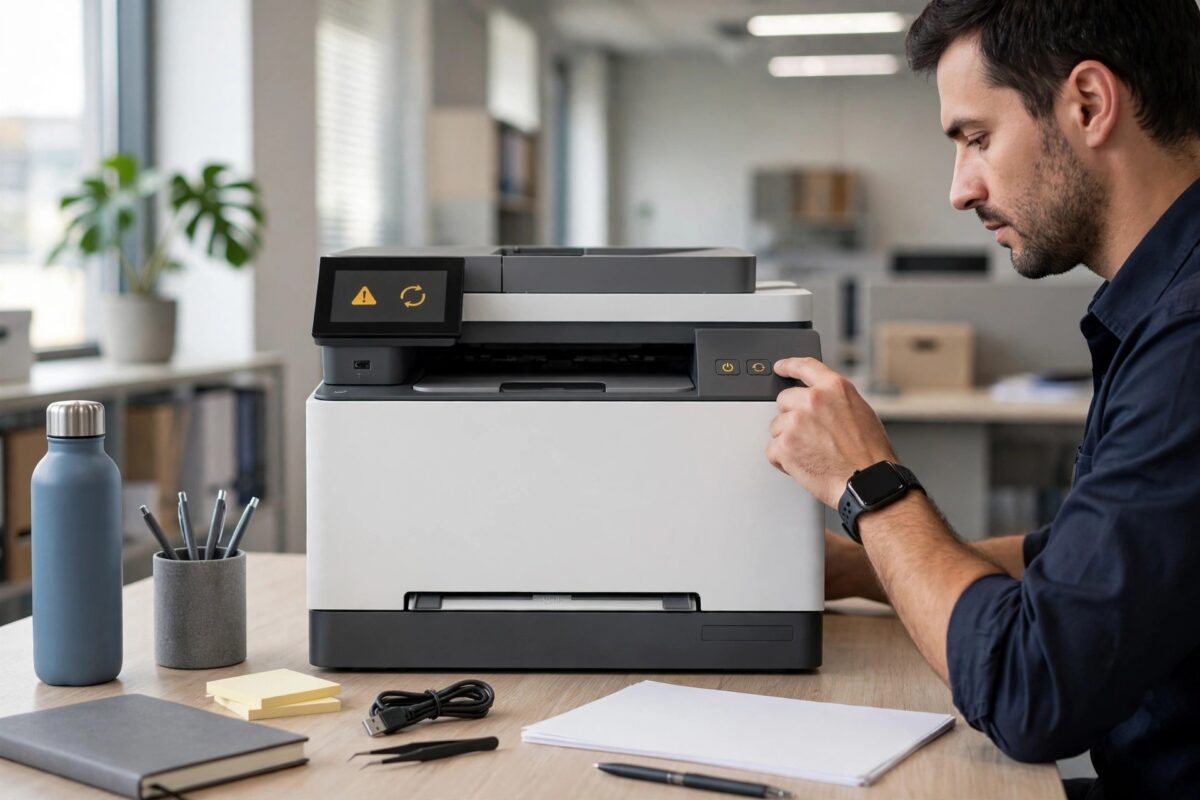
Few printer errors are as annoying as 49.4C02. Your HP LaserJet Pro M404 stops mid-job, the screen shows the code, and the only thing that seems to help is switching the printer off and on again — until it happens again on the next document. The good news is that this error is rarely a sign of dead hardware. In most cases it points to a problem with the print job itself, outdated firmware, or a damaged file confusing the printer’s formatter. This guide walks through the fixes in the order that works best, from the quick two-minute reset to the firmware update that stops the error coming back.
Quick Answer
HP error 49.4C02 is a firmware-level error that usually means the printer received a print job it cannot process, often a corrupted PDF or a job sent with the wrong driver. Clear the print queue, power-cycle the printer, update the firmware from HP’s website, and reinstall the printer using the official HP PCL6 driver. If the error only appears with one document, that file is the cause — print it as an image or re-save it as a fresh PDF.
What Error 49.4C02 Actually Means
The 49.xxxx family of errors on HP LaserJet printers means the firmware — the software running inside the printer — hit something it could not handle and stopped. Error 49.4C02 specifically tends to appear when:
- A PDF contains damaged fonts, broken embedded images, or malformed commands.
- The computer is using a generic or wrong-model driver that sends commands the M404 cannot interpret.
- A job in the queue became corrupted on its way over the network or USB cable.
- The printer’s firmware is old and has a known bug that newer firmware fixes.
Because the error lives in the job processing stage, replacing toner or cleaning the printer will not fix it. You need to work through the data side of the problem instead.
Step 1: Clear the Queue and Power-Cycle Properly
A standard restart often leaves the bad job waiting in the queue, so the error returns the moment the printer warms up. Do it in this order:
- On your computer, open the print queue for the M404 and cancel every pending document.
- On Windows, open Services, find Print Spooler, and restart it so stuck jobs are fully flushed.
- Turn the printer off with the power button, then unplug the power cable from the wall.
- Wait a full 60 seconds. This drains the formatter’s memory completely.
- Unplug the USB or network cable as well, so the printer starts up with no incoming data.
- Reconnect the power, switch the printer on, and wait until it reaches the Ready screen.
- Reconnect the data cable and print a simple one-page text document as a test.
If the test page prints cleanly, the error was caused by a corrupt job and you may already be done. If it returns even on a plain text file, move to the driver and firmware steps.
Step 2: Update the Printer Firmware
HP has fixed several 49-series crashes in firmware releases for the M404 series, so updating is one of the most reliable cures. The full process is covered in HP’s official guide to updating printer firmware, and the short version is:
- On the printer screen, print a Configuration Report from the Reports menu and note the current firmware datecode.
- On your computer, go to HP’s support site and search for LaserJet Pro M404.
- Download the newest firmware update file for your exact model (M404dn, M404dw, or M404n).
- Run the firmware update utility while the printer is connected and idle — do not send any print jobs during the update.
- Never switch the printer off during a firmware update, even if it seems to take a long time.
- When it finishes, the printer restarts. Print another test page to confirm.
Step 3: Reinstall with the Correct Driver
A wrong or generic driver is the second most common cause. Windows sometimes installs a basic class driver that mostly works but chokes on complex documents:
- Remove the M404 from your printers list in Windows Settings.
- In Print Server Properties, delete any leftover M404 driver packages.
- Download the full HP PCL6 print driver for the M404 from HP support.
- Install it, let it detect the printer, and set the new queue as default.
- Print the same document that triggered the error before.
If you manage several PCs, roll the same driver out to all of them. One machine with a bad driver can keep knocking the printer offline for everyone. If your printer also drops off the network entirely, our guide to fixing a printer that keeps showing offline covers the connection side of the problem.
Step 4: If Only One Document Triggers the Error
When the error appears with a single file — usually a PDF from an email or a scanned document — the file itself is damaged. Try these workarounds:
- Open the PDF and choose Print as Image in the print dialog’s advanced options.
- Re-save the file using “Save as PDF” from a different app, which rebuilds its internal structure.
- Print a few pages at a time to find and skip the one bad page.
- Convert the PDF to Word or an image and print that copy instead.
Common Mistakes to Avoid
- Just restarting without clearing the queue — the bad job is still there and the error returns instantly.
- Updating firmware over an unstable Wi-Fi connection — use USB or a wired network for firmware updates.
- Installing drivers for a “close enough” model — the M404 needs its own driver, not an M402 or M406 package.
- Ignoring the error when it becomes frequent — if 49.4C02 returns daily on simple jobs after all these steps, the formatter board may be failing and HP support should check it under warranty.
How to Tell Whether It Is the Job, the Driver, or the Printer
If you manage this printer for a small office, a quick isolation test saves hours. First, disconnect the printer from the network and USB entirely, switch it on, and print the built-in configuration page from its menu. If the printer cannot even do that without showing 49.4C02, the fault is internal — firmware or formatter — and no computer-side change will help. Second, connect one computer by USB and print a plain text page using the built-in Windows driver. If that works but the network setup fails, the problem lies with the driver or jobs from the network machines. Third, bring the computers back one at a time and have each print the same simple page, then the document that originally failed. The machine or file that reintroduces the error identifies itself. Keep a note of which documents trigger it too — in environments where one department sends scanned PDFs from an old copier, those files are frequently malformed in exactly the way that crashes printer interpreters, and fixing the copier’s export settings ends the errors for everyone.
Conclusion
Error 49.4C02 on the LaserJet Pro M404 is almost always a data problem, not a dead printer. Clear the queue and do a full power drain, update the firmware, and reinstall the correct PCL6 driver. Track down any single document that triggers it and rebuild that file. Worked through in that order, these steps permanently clear the error for the great majority of M404 owners.
Frequently Asked Questions
Does error 49.4C02 mean my M404 is broken?
Almost never. It means the firmware crashed while processing a job. Hardware failure is only likely if the error appears on every document after firmware and driver fixes.
Why does the error only happen with PDFs?
PDFs carry embedded fonts, compressed images, and complex drawing commands. A single malformed element can crash the printer’s interpreter while plain text documents sail through.
Can a network problem cause 49.4C02?
Yes — a job that arrives incomplete over a flaky connection can arrive corrupted. If the error is random, test with a USB cable to rule the network in or out.
Will a factory reset fix error 49.4C02?
It can clear a corrupt internal setting, but it rarely fixes job-related causes and wipes your network settings, so treat it as a last step after firmware and drivers.
How do I stop it happening again?
Keep the firmware current, use the official HP driver on every computer, and print problem PDFs as images. Those three habits prevent most recurrences.
Leave a Reply