
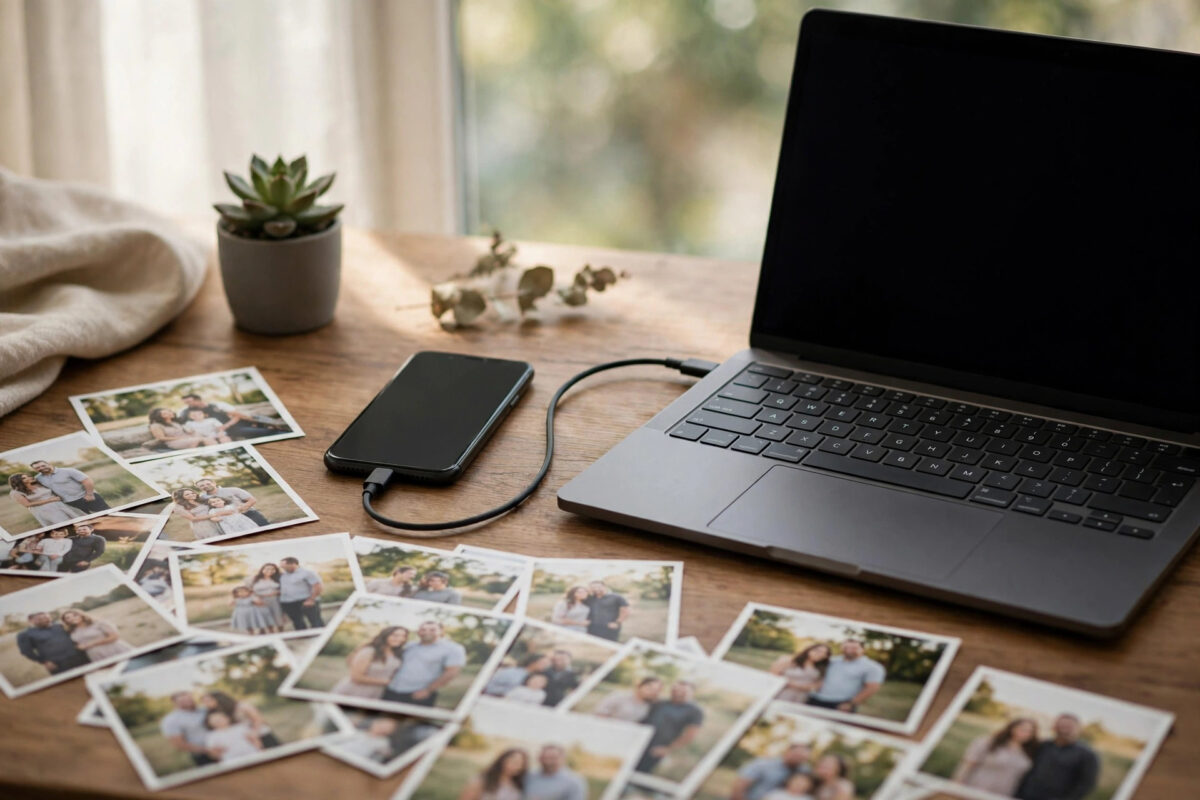
You have copied photos from an iPhone to your Windows PC, and File Explorer shows a wall of blank white icons instead of little previews of your pictures. The files are HEIC photos, and the photos themselves are fine. Windows simply does not know how to draw their thumbnails yet, so every folder looks empty or broken.
This is one of the most common photo problems on Windows, and it is free to fix. This guide explains what HEIC is, why the thumbnails are blank, and the exact steps to bring the previews back, plus what to check when one stubborn folder still refuses to cooperate.
Quick Answer
The fix is to install two free extensions from the Microsoft Store: HEIF Image Extensions and the free HEVC Video Extensions, because Windows uses the second one to decode HEIC pictures. After installing both and restarting File Explorer or the PC, HEIC thumbnails appear normally. If previews are still blank, clear the Windows thumbnail cache so Explorer rebuilds them.
What HEIC Is and Why Windows Struggles With It
HEIC is the photo format Apple made the default on iPhones with iOS 11. It stores high-quality pictures in roughly half the space of JPEG, which is why Apple adopted it: phones hold far more photos before filling up. The format is part of a family called HEIF for images, built on the same technology as HEVC video compression.
That family connection is the key to the whole problem. Windows does not include the decoder for this technology by default, partly because of patent licensing. Without the decoder, File Explorer cannot turn a HEIC file into a thumbnail picture, so it shows a blank generic icon. The full photo data is untouched inside the file; Windows is just missing the translator it needs to show you a preview.
Step 1: Install the Two Free Extensions
Microsoft provides the missing pieces in its own Store, and both are free. Many guides mention only the first one, which is why their readers stay stuck: HEIC decoding quietly depends on the second extension as well.
- Open the Microsoft Store app from the Start menu.
- Search for HEIF Image Extensions, confirm the publisher is Microsoft Corporation, and select Get or Install.
- Now search for HEVC Video Extensions from Device Manufacturer. This is the free edition of the HEVC codec. Install it if it is offered for your PC.
- If the free edition is not available, the standard HEVC Video Extensions listing also works, but check the free one first.
- Restart the PC to make sure every part of Windows picks up the new decoders.
- Open a folder of HEIC photos and give Explorer a few seconds to draw the thumbnails.
Download these extensions only through the Microsoft Store app. Websites offering HEIC codec installers as direct downloads are not official sources and frequently bundle unwanted software. The official Microsoft Store is the safe route, and the extensions there are published by Microsoft itself.
Step 2: Turn Thumbnails Back On in Explorer Settings
Sometimes the extensions are installed but a display setting blocks previews. Windows has an option that forces plain icons for performance, and it overrides everything else. Check it like this:
- Open any folder in File Explorer.
- In Windows 11, select the three dots in the toolbar, then Options. In Windows 10, select View then Options.
- Open the View tab in the window that appears.
- Make sure Always show icons, never thumbnails is unticked.
- Select Apply, then OK.
- Set the folder view to Medium, Large or Extra Large icons, since the Small icons and List views show little or no preview anyway.
While you are there, confirm you are not viewing the photos through a cloud placeholder state. Files stored in OneDrive with Files On-Demand may show a cloud icon and only generate thumbnails after they are downloaded. Right-click the folder and choose the option to always keep it on this device if you browse those photos often.
Step 3: Clear the Thumbnail Cache
Windows stores thumbnails in a cache so folders open quickly. If that cache recorded blank icons before the extensions were installed, Explorer may keep showing the old blanks. Clearing the cache forces it to rebuild every preview fresh:
- Open the Start menu, type Disk Cleanup, and open the app.
- Select your Windows drive, usually C:, and let the scan finish.
- Tick Thumbnails in the list. You can leave other boxes as they are.
- Select OK and confirm the deletion.
- Restart the PC, then open your HEIC folder again and wait while new thumbnails are generated.
Rebuilding can take a while in a folder with thousands of photos, and Explorer fills them in gradually rather than all at once. Scroll slowly through the folder once, then leave it; the cache saves each preview as it is created, so the folder opens instantly next time.
If the Photos Still Will Not Preview
If thumbnails appear for most folders but one folder stays blank, the problem is usually inside that folder. A single damaged file copied during an interrupted transfer can stall preview generation for its neighbours. Sort the folder by size: a HEIC file showing 0 KB is corrupt and will never preview, so copy it from the phone again or delete the empty copy.
Also check where the files came from. Photos sent through some messaging apps arrive renamed or converted, and a file called .HEIC may actually contain JPEG data or nothing useful. Apple explains the format and its settings in its official guide to HEIF and HEVC media on Apple devices, which is worth reading if you want the phone to save JPEGs automatically in future.
A simple test separates a Windows problem from a file problem: copy one problem photo to the Desktop and check its thumbnail there. If it previews on the Desktop, the original folder, drive or cloud sync is the issue. If it stays blank everywhere, test whether it opens fully when double-clicked. A file that opens in the Photos app but will not thumbnail usually just needs the cache clear in Step 3.
Common Mistakes and Helpful Tips
- Installing only the HEIF extension. This is the classic half-fix. HEIC decoding also needs HEVC support, so install both extensions before troubleshooting further.
- Paying for codec downloads from random websites. The extensions you need are free in the Microsoft Store. Any site charging for an HEIC fix is not an official source.
- Converting every photo to JPEG as a workaround. Conversion works, but it doubles your storage and adds a chore to every future transfer. Fix the thumbnails once and keep your originals.
- Changing the iPhone setting instead. On the iPhone, Settings then Camera then Formats offers a Most Compatible option that saves JPEGs. It is a valid choice, but it uses more phone storage, and it does nothing for the HEIC photos already on your PC.
- Keeping the Photos app updated. Open the Microsoft Store Library and install app updates. Viewing improvements for HEIC arrive through Photos updates as well as through the extensions.
If the blank icons turn out to be only one part of a bigger photo tidy-up, our guide on opening HEIC files on Windows and converting copies to JPG covers viewing, sharing and batch conversion in more depth.
Conclusion
Blank HEIC thumbnails are a missing-decoder problem, not damaged photos. Install the free HEIF and HEVC extensions from the Microsoft Store, make sure Explorer is set to show thumbnails, and clear the thumbnail cache so old blank icons are replaced. Within a few minutes your folders will show real previews again, and future iPhone transfers will display correctly the moment they land on your PC.
Frequently Asked Questions
Are my photos damaged if the thumbnails are blank?
Almost certainly not. Blank thumbnails mean Windows cannot decode the preview, while the photo data itself stays intact. Once the extensions are installed, the same files show full previews and open normally, which proves nothing was wrong with them.
Why does Windows need a video extension for photo thumbnails?
HEIC images are built on HEVC compression technology, the same system used for H.265 video. Windows decodes HEIC pictures through that codec, so the HEVC extension is required even though you are only looking at still photos, not videos.
Do I need to pay for the HEVC Video Extensions?
Look for the listing named HEVC Video Extensions from Device Manufacturer first, because that edition is free for many PCs. The separate paid listing exists too, but most people can use the free edition or avoid the cost entirely by fixing photos with the extensions they already qualify for.
Thumbnails work in some folders but not others. What is different?
Each folder view can have its own settings, and cloud-synced folders may hold offline placeholders. Open the problem folder, set it to Large icons, confirm thumbnails are enabled in Folder Options, and download the files fully if they are stored in OneDrive or another cloud service.
Can I stop my iPhone creating HEIC files at all?
Yes. On the iPhone, open Settings, then Camera, then Formats, and choose Most Compatible. New photos will be saved as JPEG and videos as H.264. The trade-off is larger files on the phone, and existing HEIC photos stay in HEIC format.



Leave a Reply