
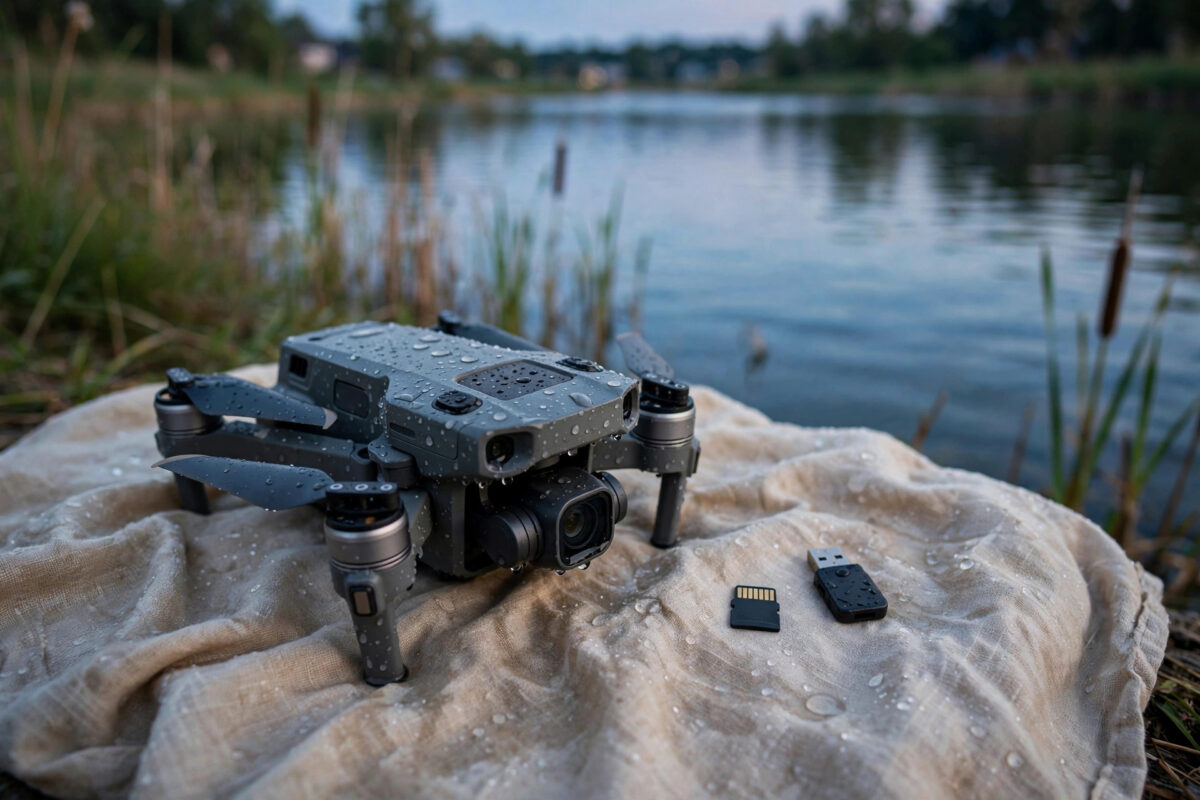
Watching a drone drop into a lake or the sea is a horrible moment, and the photos and videos on its microSD card can feel lost with it. In many cases they are not. Memory cards are sealed, tough little devices, and with calm, careful handling the data often survives long after the drone itself is beyond repair.
The key is what you do in the first hours. The steps below show how to dry the card safely, protect it from further damage, and recover the files using a computer image of the card rather than the card itself.
Quick Answer
Do not put the card in the drone or a reader while it is wet, and do not try to charge or power anything. Rinse salt water or dirty water off the card with clean fresh water, pat it dry, and let it air-dry fully for at least 24 to 48 hours. Then, on a computer, make a full image of the card first and run free recovery software such as PhotoRec on that image, saving recovered photos to a different drive.
Why the Card Often Survives When the Drone Does Not
A drone is full of motors, batteries, and exposed circuit boards, all of which hate water. A microSD card is different. The memory chip is sealed inside a plastic shell with no moving parts, and the gold contacts are the only exposed part. Short dips in fresh water are often survivable, and even salt water damage is mostly a corrosion problem that develops over hours and days, not seconds.
That timing matters. Corrosion and short circuits do most of the harm, and both get worse when electricity is applied to a wet card or when the card is left damp. Fast, gentle drying plus patience gives you the best possible chance.
Step 1: Rescue and Handle the Card Correctly
- Recover the drone and card as soon as it is safe to do so. Do not risk your own safety in deep or fast-moving water for a memory card.
- Do not switch the drone on to “check if it works.” Power and water together destroy electronics and can damage the card.
- Remove the microSD card carefully and note how it looks. Bent contacts, cracks, or a swollen shell suggest physical damage that software cannot fix.
- If the crash was in salt water, mud, or a dirty pond, rinse the card briefly under clean, room-temperature fresh water. This sounds strange, but leaving salt and grit to dry on the contacts causes far worse corrosion.
- Never use a hairdryer on hot settings, an oven, or direct sunlight on a radiator. Heat warps the plastic and can finish off a card that would otherwise survive.
Step 2: Dry the Card Fully Before Anything Else
Drying is the step most people rush, and rushing it is the most common reason a recoverable card dies.
- Pat the card dry with a soft, lint-free cloth. Do not rub the gold contacts hard.
- Place the card in a sealed container with uncooked rice or, better, silica gel packets. These draw moisture out of the air around the card.
- Leave it for at least 24 hours for a brief fresh-water dip, and 48 hours after salt water or a long soak.
- After drying, inspect the contacts. If you see green or white crust, you can clean the contacts very gently with a cotton bud lightly dampened with isopropyl alcohol, then let it dry again.
- Resist testing the card “just for a second” before it is fully dry. One powered minute in a damp card can short it permanently.
Our companion guide on recovering deleted photos from a memory card explains the general recovery workflow that follows once any card is dry and readable.
Step 3: Image the Card Before Recovering Files
Once the card is dry, the safest approach is to copy everything on it, sector by sector, into an image file on your computer. You then work on the image, not the fragile card. If the card fails halfway through recovery, you still have the image.
- Insert the card into a good quality USB card reader connected to your computer. Avoid cheap readers that disconnect randomly.
- If the computer asks to format the card, click Cancel. Never format a card you want to recover from, and never let a repair tool write to it.
- Use an imaging tool such as ddrescue on Linux or a disk imaging feature in recovery software to create a full image of the card on a drive with plenty of free space.
- If imaging reports many read errors, let it run. Tools like ddrescue retry difficult areas and rescue the easy data first.
- Remove the original card and store it safely. From this point on, work only with the image.
Step 4: Recover the Photos and Videos With PhotoRec
PhotoRec is a free, well-known recovery tool from CGSecurity that finds photos and videos by their file signatures, even when the card’s file system is damaged. Follow the usage guidance in the official PhotoRec step-by-step documentation alongside the summary below.
- Download PhotoRec (it comes with TestDisk) from the official CGSecurity website and install it.
- Start PhotoRec and select your card image file, or the card itself if you could not make an image.
- Choose the partition, or select “Whole disk” if no partition is found.
- In File Options, you can limit the search to JPG, DNG, and MP4 files to speed things up, because drones usually record those formats.
- Choose a destination folder on a different drive from the card. Saving recovered files onto the same card can overwrite the very data you are trying to rescue.
- Start the scan and let it finish. Large cards can take an hour or more.
- Open the recovered folders and check your photos and videos. File names will be generic, so sort by date or size to find the important ones.
A Note About Drone Videos
If the drone lost power mid-recording, the last video file may be unfinished. Many drone makers, including DJI, can sometimes finalise that file if the card is placed back in a powered drone, but only do this with a fully dry card and a working drone, and only after you have made an image. The official DJI support site lists model-specific advice and repair options. In many cases, recovery software finds the video stream anyway, though it may lack sound or a proper ending.
Common Mistakes That Destroy Recoverable Photos
- Powering the wet card. Testing the card in the drone or a reader while damp is the fastest way to kill it.
- Formatting when prompted. A format message means the file system is damaged, not that the photos are gone. Formatting makes recovery much harder.
- Recording new photos on the card. New data overwrites old data. A card being recovered from should never be used in a camera again until recovery is finished.
- Saving recovered files to the same card. Always recover to a different drive.
- Giving up after the first tool. Different tools find different files. If PhotoRec misses things, a second scan with another reputable tool on the same image is worthwhile.
When to Use a Professional Recovery Service
If the card is cracked, bent, or not recognised by any reader after proper drying, software has reached its limit. Professional labs can remove the memory chip and read it directly. This is not cheap, so it makes sense mainly for irreplaceable footage, such as wedding work or a once-only trip. Stop using the card completely and keep it dry while you decide, because every further attempt lowers the lab’s chances too.
Conclusion
A water crash does not automatically mean lost photos. Keep the card unpowered, rinse off salt and dirt, dry it slowly and fully, then image it and recover from the image with PhotoRec. Handled this way, a surprising amount of drone footage comes back intact.
Frequently Asked Questions
How long should I dry a microSD card after a water crash?
At least 24 hours after a short dip in fresh water, and 48 hours after salt water or a long soak, sealed in a container with silica gel or rice. Longer is safer than shorter, because hidden moisture under the label and around the contacts dries last.
Can photos be recovered if the drone was in the sea?
Often, yes. Rinse the card in clean fresh water to remove salt, dry it fully, then image and scan it. Salt corrosion is the main enemy, so speed matters more with sea water than with a lake or pool.
My computer wants to format the card. Should I?
No. That prompt means the computer cannot read the file system, but the photo data is usually still present. Cancel the prompt, image the card, and run recovery software on the image instead.
The card is not recognised at all. What now?
Try a different reader and a different computer first, because readers fail more often than cards. Clean the contacts gently. If no device sees the card at all, the damage is physical or electronic, and a professional recovery lab is the remaining option.
Will recovery bring back the last video the drone was recording?
Sometimes. A video that was never properly closed may appear as a partial file, play only in some players, or need the maker’s repair method. Photos and earlier, completed videos normally recover cleanly.



Leave a Reply