
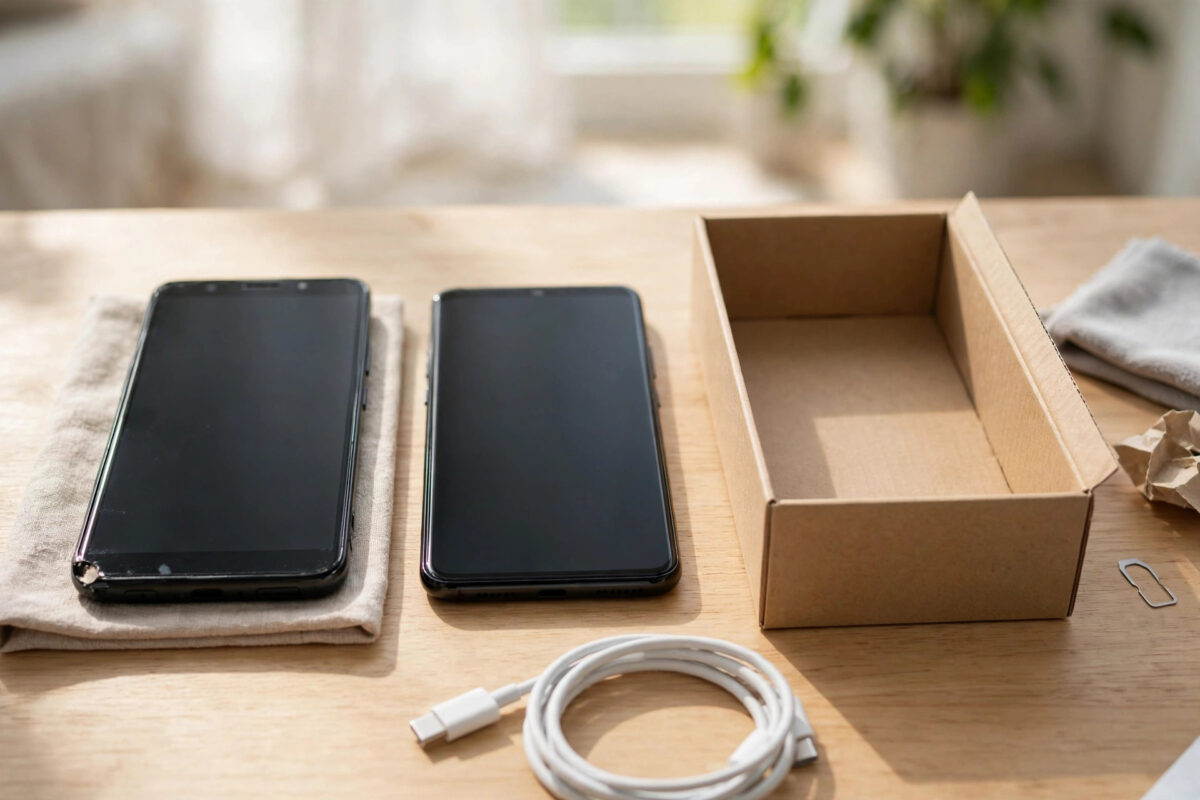
Switching to a new Android phone is exciting until you open your messages and find empty threads where years of conversations should be. If your old phone backed up to Google One, those messages are very likely part of that backup, but they only come back at a specific moment in the setup process.
This guide explains how Google One backups handle SMS and MMS messages, how to restore them properly, and what to do if you already finished setting up the new phone without restoring. The timing matters more than anything else, so read the key steps before you reset anything.
Quick Answer
Messages in a Google One backup are restored when you sign in with the same Google Account during setup of a new or factory-reset Android phone and choose that backup to restore. There is no button to download just the messages later from the Google One app. If you skipped restore during setup, make sure anything new is saved, then factory reset the new phone and set it up again, selecting the old phone’s backup this time.
What a Google One Backup Actually Contains
An Android backup managed through Google One can include app data, call history, contacts, device settings, photos and videos if backup for them is on, and SMS and MMS messages. That last part is the one people worry about, and yes, text messages are included when backup is turned on and has completed successfully.
The backup belongs to the Google Account and device that made it. You cannot open it, browse its messages on a computer, or extract only the texts. Google describes what an Android phone backup includes and how backups are managed in Google One, which explains why restoring happens during setup.
- Third-party apps: WhatsApp, Signal, and similar apps have their own backup systems. A Google One device backup does not replace a WhatsApp chat backup.
- Backup expiry: If a device is unused for a long period, Google may delete its backup.
Before You Restore: Confirm the Backup Exists
Never reset a phone on hope. Confirm the old backup is really there first.
- On any phone or computer, open the Google One app or go to one.google.com and sign in with the same Google Account used on the old phone.
- Open the Storage or Backup section and look for your old device name in the list of backups.
- Check the backup date and the details. Confirm it was made after the messages you want were received, and that messages or SMS are listed in what the backup covers.
- On the old phone, if you still have it, go to Settings, then Google, then Backup, and confirm Backup by Google One was on and note the last backup time.
- If the old phone is still available and the backup looks old, run a fresh backup now while it is on Wi-Fi and charging, and wait until it says it is complete.
If no backup is listed, a Google One restore cannot help, so look at the alternative methods below instead of resetting. The same checking habit is covered in our guide on how to restore an Android backup from Google Drive step by step.
How to Restore Messages During Setup
This is the main method, and the sequence matters. The restore offer appears once, during initial setup, after you connect to the account that holds the backup.
- If the new phone is brand new and not yet set up, turn it on and begin setup. If you already finished setup without restoring, see the next section about resetting first.
- Connect to a reliable Wi-Fi network when asked, because restoring over mobile data can be slow or incomplete.
- When asked about copying apps and data, choose to copy from an Android phone or from the cloud, depending on the wording your phone shows.
- Sign in with the exact Google Account that holds the old phone’s backup. A different account will show no backup or the wrong one.
- When the list of backups appears, select the old device backup with the correct date.
- On the restore options screen, make sure Messages or SMS, call history, apps, and settings are selected, then continue.
- Complete setup and then wait. Messages can take a while to repopulate. Leave the phone on Wi-Fi and charging, and check Google Messages again after an hour before worrying.
- Open a few long threads to confirm both old SMS and MMS picture messages have arrived, not just recent conversations.
Google’s own setup guidance on transferring and restoring data to a new Android phone follows this same flow, although the exact screen wording changes between phone brands.
Already Finished Setup Without Restoring? Here Is the Fix
This is the most common situation. You explored the new phone, skipped a step, and now the restore screen is gone. Android does not offer that same full restore later in Settings, so the official fix is a factory reset followed by a careful setup.
- Save anything new on the new phone first. Back up new photos, note new contacts, and export anything created since you started using it, because a reset erases the new phone completely.
- Confirm again, using the steps above, that the old backup still exists in Google One and note its date.
- Go to Settings, then System or General Management, then Reset, and choose Factory data reset or Erase all data.
- Work through setup again slowly. Connect to Wi-Fi, sign in with the correct account, and do not skip the copy and restore screens.
- Select the old backup, confirm messages are included in the restore choices, and let the phone finish and sync fully on Wi-Fi.
Alternative Routes If There Is No Usable Backup
- Use the old phone directly: If you still have it, a cable or manufacturer transfer tool such as Samsung Smart Switch or the setup transfer on Pixel phones can copy messages phone to phone.
- SMS backup apps: On the old phone, a well-reviewed SMS backup app can export messages to Google Drive or email as a file, which you then import on the new phone. This only works while you still control the old device.
- Carrier tools: Some carriers offer message transfer or cloud message services. Check your carrier’s official app, but do not expect it to hold messages it never synced.
- Manufacturer clouds: Samsung, Xiaomi, and other brands have their own backup services. If your old phone backed up messages there, restoring that account may be an option.
Common Mistakes to Avoid
- Signing in with the wrong Google Account: Many people have two accounts. The backup only appears under the account that was on the old phone.
- Skipping the restore screen: Tapping Skip or Set up later during setup closes the only easy restore window.
- Resetting before checking the backup: Always verify the backup exists, its date, and its contents before erasing the new phone.
- Losing new messages: A restore brings back the old backup’s messages. Messages received on the new phone after setup may not be in that old backup, so save them first.
- Expecting WhatsApp chats from Google One: WhatsApp restores from its own Google Drive chat backup inside the app, with the same phone number, not from the device backup.
- Judging too fast: Large message histories restore in the background. Check again after the phone has sat on Wi-Fi for a while.
How to Make the Next Switch Painless
- On your current phone, open Settings, then Google, then Backup, and keep Backup by Google One on.
- Run a manual backup before any phone switch and confirm it completed while connected to Wi-Fi.
- Keep the same Google Account as the main account on the new phone during setup.
- Do not wipe or trade in the old phone until you have opened the new phone’s messages and confirmed the history arrived.
- Turn on the separate chat backup inside apps like WhatsApp so those conversations move too.
Conclusion
Messages stored in a Google One backup come back during phone setup, when you sign in with the same Google Account and choose the old device’s backup to restore. Confirm the backup exists first, restore on Wi-Fi, and give large histories time to appear. If you already skipped setup, saving your new data and doing a factory reset to restore properly is the reliable fix. With backup left on and the old phone kept until the new one is verified, your next switch will lose nothing.
Frequently Asked Questions
Can I restore only my messages from a Google One backup?
No. Google does not let you pick a single item type out of a backup after setup or download the messages separately. During the setup restore you can choose data types such as messages and apps, but the restore itself only happens in that setup flow.
Does a Google One backup include WhatsApp messages?
No. WhatsApp keeps its own chat backup in Google Drive, separate from the Google One device backup. Restore WhatsApp by installing it on the new phone, verifying the same number, and accepting its own backup restore prompt.
What if my old backup does not appear during setup?
Check that you signed in with the same Google Account as the old phone, that you are connected to Wi-Fi, and that the backup still exists in the Google One app. Backups from devices unused for a long time can expire and be deleted by Google.
Will restoring an old backup delete messages already on my new phone?
It can. A factory reset erases the new phone before the restore, so any messages received only on the new phone and not backed up will be lost. Save or back up the new phone’s current data before you reset it.
How long does a message restore take?
Small histories appear within minutes, while years of SMS and MMS with many picture messages can take an hour or more in the background. Keep the phone on Wi-Fi and charging, then check Google Messages again before assuming it failed.



Leave a Reply