
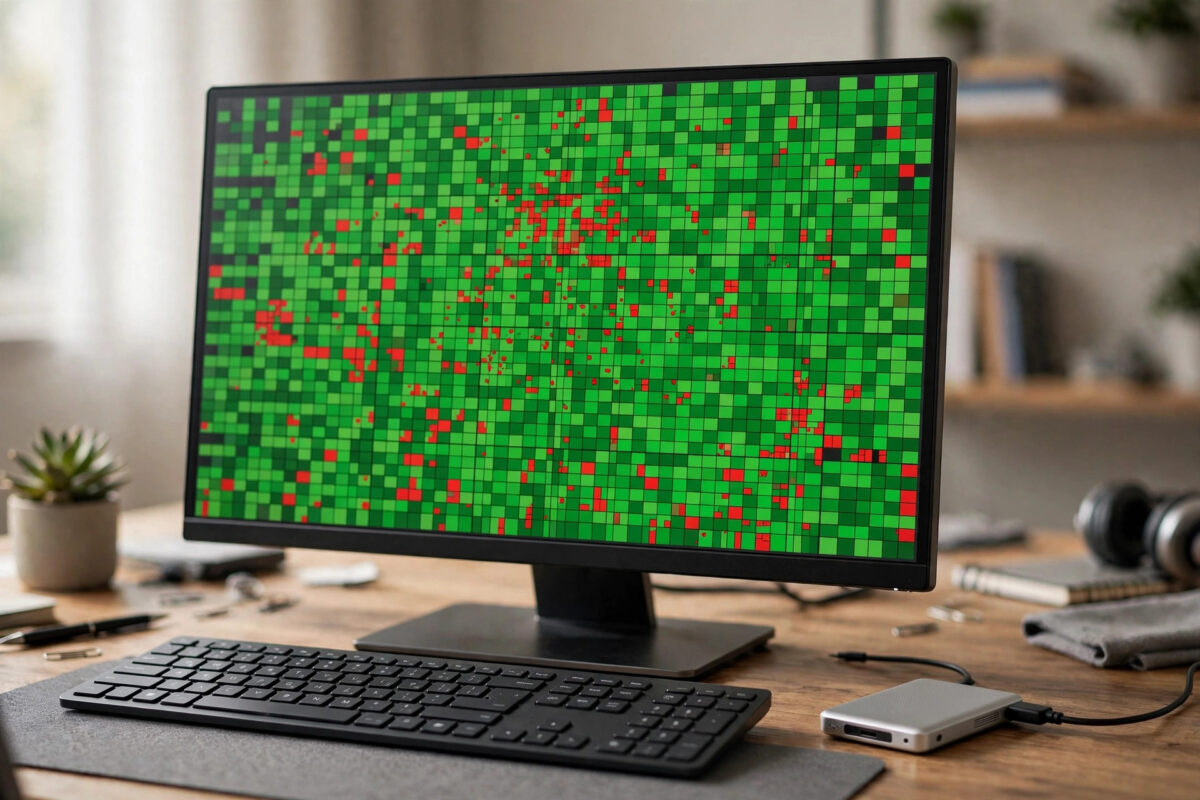
Imagine your clone finished at 99.2 percent rescued, but the one folder you need most still will not open. That missing 0.8 percent can sit inside a family video or database. The good news is ddrescue keeps a detailed map of which parts were copied and which failed.
That map file is more than a progress log. With the right tools, you can read it, find which files live on the bad sectors, focus extra recovery effort only where it matters, and avoid wasting days retrying areas that hold nothing important.
Quick Answer
Use the ddrescue map file together with ddrescuelog and the GNU ddrescue log tools to list finished, non-tried, and bad areas, then map those positions to files with a tool such as ddrescueview or by checking which file offsets fall inside the bad ranges. Keep the original drive powered off and work on the clone. Retry only the important bad areas with a new, focused map file using commands such as ddrescue -i<start> -s<size> so you stress the failing drive as little as possible.
What a ddrescue Map File Actually Contains
Every time ddrescue runs, it updates its map file. Each line describes a block of the drive: a starting position, a size, and a status character. The status tells you whether that block has not been tried yet, was copied without error, was finished with errors, or is known to be bad.
Common status characters include ? for non-tried, - for bad-sector areas, and + for finished areas. You do not need to memorize every symbol. The map file is a precise health chart of the disk that lets you resume, analyze, and target your work.
Warning: never edit a map file by hand unless you fully understand the format, and always keep a backup copy of the original map file before you generate filtered or focused versions. Also, always recover from a clone or image first. The original failing drive should only be connected again for short, targeted retry passes, never for general browsing or scanning.
Tools You Will Need
- The completed or partial clone, or the disk image file created by ddrescue.
- The original map file from the clone, for example
rescue.log. ddrescuelog, which is installed alongside ddrescue and can analyze and convert map files.ddrescueview, a graphical viewer that draws a block map of good and bad areas so you can see damage patterns at a glance.- A file recovery tool such as PhotoRec, R-Studio, or DMDE to link damaged areas to actual files on the clone.
The official GNU ddrescue manual covering map files and ddrescuelog documents every status character and option in full, and it is worth keeping open while you work.
Step-by-Step: Find Which Data Sits on Bad Sectors
Step 1: Back Up the Map File and Check Overall Status
- Copy the map file to a safe name:
cp rescue.log rescue-backup.log - Show a summary with:
ddrescuelog -t rescue.log - Note the total rescued size, the error size, and how many bad areas exist. A single large bad area suggests a scratch or head problem. Many tiny bad areas spread everywhere suggest a generally worn-out drive.
- List only the bad areas with:
ddrescuelog -l- -D rescue.logto output blocks whose status is bad-sector. Checkddrescuelog --helpfor exact flags on your version.
Step 2: View the Damage Visually
- Open ddrescueview and load your image file or clone device together with the map file.
- Zoom into the regions marked in red or as errors. Note whether damage clusters at the start, middle, or end of the disk.
- Damage near the start often affects partition tables and file system records, which explains why a drive may show as empty even though most data is intact.
- Save screenshots or note the byte positions of the bad ranges you care about.
Seeing the pattern helps you decide if targeted retries are worth the risk.
Step 3: Connect Bad Positions to Real Files
A byte position on the disk only becomes useful when you know which file uses it. There are two practical approaches, depending on whether the file system on the clone is readable.
If the file system mounts, even read-only, you can use file-fragment tools on Linux such as filefrag -v filename or hdparm --fibmap filename on the clone to learn which physical offsets a specific file occupies. Compare those offsets with the bad ranges from the map file. If they overlap, that file is the damaged one.
If the file system does not mount, scan the clone — never the original — with recovery software and note the starting sector or offset the tool reports for each recovered file. Again, compare with the bad ranges. Our guide to using PhotoRec to recover files from a cloned disk image walks through that scan-and-check process in detail.
- Make a short priority list: file name, its offset range, and how much of it overlaps bad sectors.
- Sort the list by importance, not by size. A small accounting file may matter more than a large replaceable download.
- Ignore bad areas that fall in free space or inside files you do not need. Retrying them only wears the drive.
Step 4: Create a Focused Map File for Targeted Retries
- Generate a domain map file that includes only the area you want to retry. For example, to focus on a 500 MB region starting at a known position, use ddrescue input position and size options on the next run instead of rescanning the whole disk.
- Alternatively, use
ddrescuelogwith its domain and filtering options to create a new map file limited to bad and non-finished blocks: check the syntax withddrescuelog --helpand always write to a new file name, never over your backup. - Keep the focused file beside the main map file and name it clearly, for example
retry-important.log.
Step 5: Run Short, Gentle Retry Passes on the Original
- Reconnect the original failing drive only for this targeted work, with the same verified source and destination order as your first clone. Double-check with serial numbers — reversing source and destination would overwrite your only good data.
- Run a limited pass, for example:
sudo ddrescue -f -r2 -i 50000000000 -s 500000000 /dev/sdX /dev/sdY retry-important.log, adjusting the start position with-iand size with-sto your bad range. - Try the
--reverseoption on a later pass if forward reads keep failing in that region. - Stop between passes. Let the drive cool, check how much new data was rescued, and decide if another attempt is worth the stress.
- After each successful gain, update or merge results carefully and verify the target files on the clone again.
What to Do With Files That Are Still Damaged
Sometimes a sector is gone for good. In that case, focus on partial recovery. Many file types tolerate small gaps well. A JPEG with a missing strip may still show most of the picture, and a video may play with a brief glitch. Archives and databases are less forgiving, but repair tools can sometimes extract undamaged records.
Copy any partially recovered file twice and try opening it in more than one program. A mostly-complete file is often the realistic best outcome once sectors are unreadable.
Common Mistakes and Smart Tips
- Deleting the map file after cloning: Without it, you lose the exact record of what failed and you cannot do targeted work or resume properly.
- Retrying the whole drive for one file: Full-disk retries waste the remaining life of a weak drive. Always narrow the range first.
- Scanning the original to find file offsets: All browsing, mounting, and scanning belongs on the clone. The original is only for brief ddrescue passes.
- Assuming every bad sector means a lost file: Many bad areas sit in free space or in system files that can be replaced. Check before you panic.
- Endless retries with no new data: If two or three focused passes rescue nothing new in that range, further attempts are unlikely to help and may kill the drive before you finish other important areas.
- Tip — work in priority order: Recover the most important damaged region first while the drive is freshest, not the first bad area on the list.
Conclusion
A ddrescue map file turns a vague problem — some data is missing somewhere — into an exact, workable list of positions, files, and priorities. Back it up, read its summary with ddrescuelog, view the damage pattern, link bad ranges to the files that actually matter, and then run only short, focused retry passes on the original drive. Everything else happens safely on the clone. That targeted approach gives your most important files the best possible chance, while giving the failing hardware the least possible punishment.
Frequently Asked Questions
Can I open a map file in a text editor?
Yes, a map file is plain text with position, size, and status lines. You can read it to understand damage, but avoid editing it manually. Use ddrescuelog to modify map files safely.
What does it mean if the bad area is at the very start of the disk?
Damage at the start often hits the partition table or boot and file system structures. The file data later on the disk may be mostly intact. Work on the clone with partition recovery tools first, because rebuilding that structure can make thousands of healthy files visible again at once.
How do I know which retry settings to use?
Start gentle: one or two retries, no aggressive options. If a pass gains new data, repeat a similar pass. If it gains nothing and the drive sounds worse, stop. There is no magic setting that fixes physically destroyed sectors.
Can I merge two map files from two different clones?
In some workflows, yes, ddrescuelog can combine information. For most home cases, one clone, one original map file, plus focused retry files is simpler and safer.
Should I keep the map file after recovery is done?
Keep it until you have opened, tested, and backed up every recovered file you care about. It takes almost no space, and if you later find another damaged file, that map tells you immediately whether its sectors were ever rescued.



Leave a Reply