
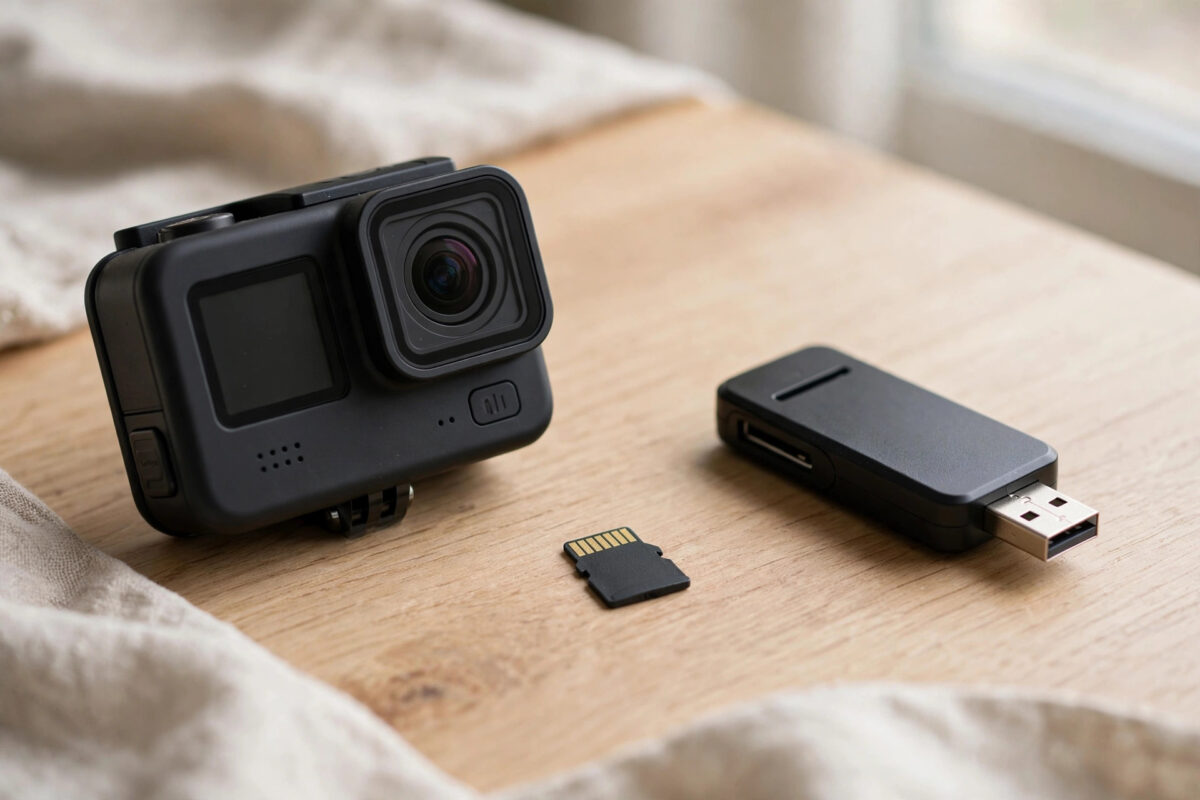
Your GoPro Hero 11 was recording fine a minute ago, and now the screen just says “SD ERR”. That message is scary, especially when the card holds footage you cannot shoot again. The good news is that “SD ERR” often comes from a dirty contact, a glitch after a crash, or a small file system error, not from a dead card.
You do not have to format the card to fix it. In fact, formatting should be the very last step, and only after your footage is safely copied somewhere else. This guide walks you through the safe order: stop, protect the footage, clean and reseat the card, test it in a computer, and repair small errors without erasing anything.
Quick Answer
Power the Hero 11 off, remove the microSD card, and clean its gold contacts gently with a dry, soft cloth. Reinsert it firmly, restart the camera, and try a different, known-good card to rule out a camera fault. If the error stays, put the card in a computer card reader, copy all footage off first, and only then run a file system check that repairs errors without formatting.
What “SD ERR” Actually Means on a Hero 11
The Hero 11 shows “SD ERR” when it can see a card is present but cannot read or write to it reliably. The camera is protecting itself. Recording to a card it cannot trust could corrupt new clips and old ones, so it stops and warns you instead.
Common causes include a card that was removed while the camera was still writing, a battery that died mid-recording, dust or moisture on the contacts, a card that is slightly loose in the slot, and a file system that was left in a messy state after a crash. Less often, the card itself is wearing out and its controller has started to fail.
First Rule: Stop and Protect Your Footage
Before you try any fix, protect what is already on the card.
- Turn the camera off properly. Do not pull the battery while it is trying to write.
- Remove the card once the camera is fully off.
- Do not record new clips to “test” the card until you have copied the old ones.
- Do not accept any prompt to format, in the camera or on a computer, until your files are recovered.
Every new write to a faulty card can overwrite data you still need. Treat the card as read-only evidence until your footage is safe on a computer or external drive.
Step 1: Clean and Reseat the Card Correctly
This simple step fixes a surprising number of “SD ERR” cases.
- Power the Hero 11 off and open the battery door.
- Press the microSD card in gently until it clicks, then let it spring out.
- Look at the gold contacts. If you see dust, fingerprints, or moisture, wipe them once or twice with a dry microfiber cloth. Do not use water, alcohol sprays, or anything abrasive.
- Check the slot for lint or sand, especially if you film at the beach or on trails. Blow it out with a hand air blower, never with your mouth.
- Reinsert the card with the label facing the battery, press until it clicks, close the door, and power on.
If the camera starts normally, copy your footage to a computer right away before recording again.
Step 2: Rule Out a Camera Problem
You need to know whether the fault is in the card or in the camera. The fastest test is a swap.
- Borrow or use a second microSD card that you know works and that meets GoPro’s speed requirements.
- Insert that card and power on the camera.
- If the second card works normally, the camera is fine and your first card is the problem.
- If the second card also shows “SD ERR”, try a full manual restart: remove the battery for 30 seconds, reinsert it, and power on again.
- If every card fails, the slot or camera firmware may be at fault, and you should check for a firmware update or contact support.
GoPro publishes a list of recommended cards and troubleshooting steps in the official GoPro support centre for camera errors and card advice, which is worth checking before you buy a replacement card.
Step 3: Read the Card on a Computer Without Formatting
If the camera still refuses the card, move to a computer. A computer can often read a card that a camera rejects, because it is more tolerant of small file system errors.
- Use a good quality USB card reader, not the camera cable. A poor reader can cause its own read errors.
- Insert the card and wait. If Windows or macOS offers to format it, cancel immediately.
- If the card opens, copy the entire DCIM folder to your computer first. Copy, do not move, so the original stays untouched.
- Play two or three copied clips fully to confirm the footage is intact, not just present.
- Only after the copy is verified should you try any repair step.
If the computer sees the card but shows no files, or asks to format it, do not panic and do not format. That usually means the file system is damaged while the video data is still physically there. Switch to recovery software instead, as described in our guide on recovering deleted and lost photos from a memory card safely, and work from a card image if the tool offers that option.
Step 4: Repair Small File System Errors Safely
Once your footage is backed up, you can try a gentle repair. These tools fix directory errors without the full erase that formatting performs.
On Windows
- Open File Explorer, right-click the card drive, and choose Properties.
- Go to the Tools tab and select Check under Error checking.
- Let Windows scan and repair file system errors.
- Safely eject the card, return it to the Hero 11, and power on.
On macOS
- Open Disk Utility and select the card in the sidebar.
- Choose First Aid and run it.
- Wait for the repair to finish, then eject the card properly before removing it.
If the repair reports that the card cannot be repaired, stop. Repeated repair attempts on a failing card make recovery harder, not easier. At that point the card should be treated as data to recover from, not a card to reuse.
Step 5: Check Card Speed, Age, and Authenticity
Sometimes “SD ERR” is the camera telling you the card is no longer fast or healthy enough for high-bitrate Hero 11 recording, especially 5.3K video.
- Confirm the card is a genuine, reputable brand card with a V30 or higher speed rating.
- Be suspicious of very cheap cards from unknown sellers. Counterfeit cards contain far less real storage than they report, and fail exactly like this once it fills.
- Test the card’s real capacity and speed on a computer with a card testing tool before trusting it again.
- Retire cards that produce repeated errors, even if a repair seems to work. A card costs far less than lost footage.
Common Mistakes That Make “SD ERR” Worse
- Formatting in the camera first: This erases the file system and makes recovery slower and less certain. Always copy or recover first.
- Pulling the card while the camera is on: This is one of the most common causes of the error in the first place.
- Using the same failing card again for an important shoot: A temporary fix is not proof the card is healthy.
- Blowing into the slot with your mouth: Moisture from your breath can corrode contacts over time.
- Buying the cheapest replacement card: Slow or fake cards trigger the same error on demanding settings.
When the Card Is Truly Finished
If cleaning does nothing, a computer cannot read the card at all, and a second computer and reader also fail, the card’s controller may have died. Software cannot fix dead hardware. If the footage is valuable and no tool can see the card, a professional data recovery lab is the remaining option, though it can be expensive and success is never guaranteed.
For ordinary footage, recover what you can, retire the card, and start fresh with a recommended card formatted in the camera before first use.
Conclusion
An “SD ERR” message on your Hero 11 does not automatically mean a format or a lost card. Clean and reseat the card, prove whether the camera or the card is at fault with a known-good card, copy your footage off on a computer, and only then run a gentle file system repair. If errors keep returning, retire the card with no regrets. Protecting the footage first, and the card second, is the order that saves your clips.
Frequently Asked Questions
Will fixing “SD ERR” delete my GoPro footage?
Cleaning, reseating, and copying files will not delete anything. A file system check is designed to repair, not erase, but you should still back up the card first because a badly damaged card can behave unpredictably during any repair.
Why does “SD ERR” appear after the camera crashes or the battery dies?
If power is lost while the camera is writing a clip, that file and the card’s index can be left unfinished. On the next start the camera finds an inconsistent file system and reports “SD ERR” instead of risking more damage.
Can I keep using the card after the error goes away?
You can for casual clips, but watch it closely. If the error returns even once, replace the card. Repeated errors are an early warning of failure, and the next failure may happen during your most important recording.
What card should I use in a Hero 11 to avoid this error?
Use a genuine microSD card from a reputable brand with a V30 speed rating or better, bought from a trusted seller. Cards that are too slow or counterfeit are a leading cause of card errors at high resolutions.
The computer also wants to format the card. What should I do?
Cancel the prompt and do not format. Use recovery software to scan the card and save any found footage to your computer first. Formatting destroys the file index and makes that recovery much harder.



Leave a Reply