
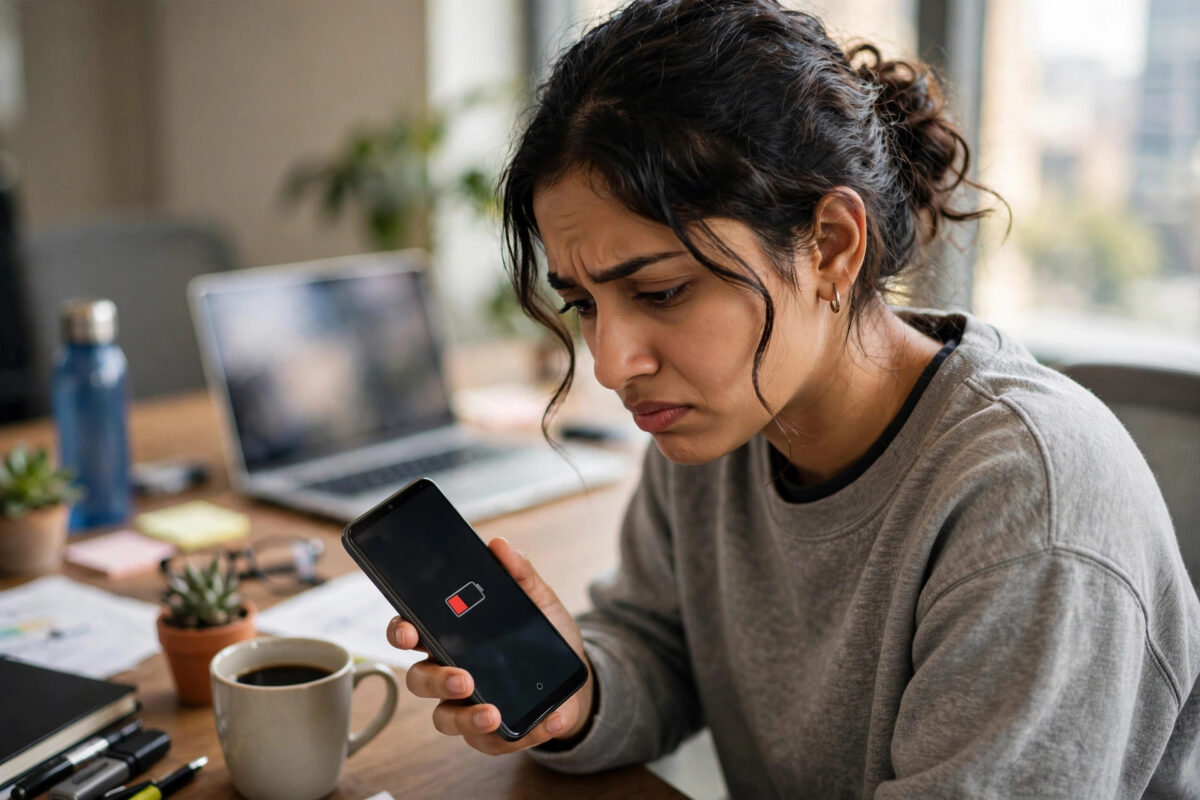
Waking up to a hot phone and a battery that dropped overnight is frustrating, especially when the main cause turns out to be one app. For many Android users, that app is Outlook. Constant syncing, push notifications for every folder, and background activity can keep the app awake far more than it needs to be, draining power even when you are not reading email.
The good news is that Outlook gives you several controls to calm this behaviour down. You do not have to delete the app or miss important work messages. This guide walks through the settings that matter most, from sync frequency and notification choices to Android battery controls, in a clear order that fixes the drain without breaking your inbox.
Quick Answer
To stop Outlook draining battery on Android, reduce how often and how much it syncs, turn off notifications for low-priority folders, and restrict its background battery use in Android Settings. Open Outlook Settings, limit synced folders and email history, disable Focused Inbox sync extras if you do not need them, then go to Android Settings, Apps, Outlook, Battery, and choose Restricted or Optimised. Restart the phone and monitor usage for a day.
Why Outlook Syncs So Much in the First Place
Outlook is built to deliver email instantly. To do that, it keeps a connection open to Microsoft servers, checks for new messages, downloads attachments in the background, updates calendar and contacts, and refreshes every folder you have ever opened. Each of those tasks is small on its own, but together they can wake your phone hundreds of times a day.
The problem grows if you have more than one account in the app. A work account, a personal Hotmail account, and a shared mailbox can each sync on their own schedule. Large folders, rules that file mail automatically, and a long sync history make the job heavier still. On a weak mobile signal, the app retries more often, which uses even more power.
Understanding this helps you fix the right thing. You are not trying to stop email completely. You are trying to stop wasteful, repeated syncing for folders and periods you rarely look at, while keeping your main inbox timely.
Step-by-Step: Calm Down Sync Inside Outlook
- Open the Outlook app on your Android phone.
- Tap your profile icon in the top corner, then tap the Settings gear icon.
- Under Mail accounts, tap the account that is using the most battery. If you have several accounts, repeat these steps for each one.
- Look for sync and download options. Reduce the amount of history the app keeps offline. Keeping thirty days instead of all time, for example, cuts download and storage work greatly.
- Turn off sync for folders you never check on mobile, such as old archive folders, sent items from years ago, or shared folders with heavy traffic.
- If there is an option to download attachments automatically, turn it off or limit it to Wi-Fi only.
- Return to Settings and review Notifications. Keep notifications for your main inbox, but turn them off for bulk, promotions, and low-priority folders.
- Close Outlook completely and reopen it so the new settings take effect cleanly.
After this first pass, use the phone normally for a few hours. Many users see a clear improvement from history and folder limits alone, because the app is no longer trying to keep a huge local copy of years of email up to date.
Use Android Battery Settings for Outlook
Android itself gives you strong controls over any app that misbehaves in the background. These settings work alongside the in-app changes, not instead of them.
- Open your phone Settings and tap Apps, then See all apps.
- Find and tap Outlook, then tap Battery or App battery usage.
- Choose Optimised if it is not already selected. This lets Android limit background work when you are not using the app, while still allowing normal use.
- If the drain is severe and you can accept slower delivery, choose Restricted. This limits background activity much more strongly, but notifications may arrive late.
- Go back and tap Mobile data and Wi-Fi. Turn off Background data only if you understand that email will then sync mainly when you open the app.
- Check Permissions and remove any you do not use, such as constant location access, if Outlook has been granted it.
Be careful with Restricted mode. It is a useful test to prove Outlook is the culprit, but for work email that needs instant alerts, Optimised is usually the better long-term balance. If you set Restricted and your battery life jumps back to normal, you know the sync behaviour was the cause.
Check Which Account or Folder Is the Real Problem
Sometimes the whole app is blamed when one account is doing all the damage. A misconfigured work account that fails to sign in can retry sync endlessly. A shared mailbox with thousands of unread messages can do the same.
Open Android Settings, tap Battery, then Battery usage, and look at Outlook over the last twenty-four hours. Then, inside Outlook, temporarily turn off notifications and sync for one account at a time for half a day. If the drain stops when a particular account is paused, that account needs attention. Sign out of it, restart the phone, and sign back in fresh. That clean sign-in often clears a stuck sync loop.
For general habits that help every app, not just Outlook, our guide on how to check which apps are using the most battery on Android shows you how to read battery usage screens properly before you change settings at random.
Other Fixes That Often Help
Update or Reinstall the App
An outdated version of Outlook can contain a sync bug that Microsoft has already fixed. Open the Play Store, search for Outlook, and install any update. If you are already up to date and the drain started suddenly, clear the app cache in Android Settings under Storage, then test again. As a last resort, uninstall Outlook, restart the phone, and reinstall it. Your email lives on the server, so it will sync back, but this time only with the history limit you set.
Reduce Widget and Calendar Sync Load
Home screen widgets that show your inbox or calendar refresh in the background. If you have an Outlook widget you rarely glance at, remove it for a day and see if battery improves. Similarly, if Outlook is syncing several calendars, open the calendar view, hide the ones you do not need on mobile, and stop them from refreshing constantly.
Watch Your Signal and Roaming
In areas with poor signal, any email app works harder. If the drain is worst at work or while travelling, your phone may be switching networks repeatedly while Outlook tries to stay connected. Turning on Airplane mode overnight as a test, or using Wi-Fi where it is stable, can confirm whether signal, rather than the app alone, is part of the problem.
Common Mistakes and Helpful Tips
- Turning off all notifications: This saves power but makes you miss urgent mail. Limit notifications by folder and account instead of switching everything off.
- Syncing all history forever: Keeping every email since you opened the account is the single biggest hidden load. Thirty to ninety days is enough for most people on mobile.
- Adding the same account twice: Check your account list. Duplicate accounts double the sync work for the same inbox.
- Ignoring a stuck sign-in: If Outlook keeps asking for a password, fix that first. Repeated failed sign-ins cause repeated sync attempts.
- Using a battery saver that fights Outlook: Third-party saver apps can wake Outlook repeatedly to check it. Prefer Android’s built-in battery controls.
- Expecting instant results: Give each change at least half a day of normal use, and check Battery usage again before changing more settings.
Microsoft documents its own mobile settings in detail. The official Microsoft support hub for Outlook on Android and iOS is a good place to confirm where a setting lives in your version, and the Microsoft guide to troubleshooting Outlook mobile issues covers stuck sync and sign-in loops.
Conclusion
Outlook battery drain on Android is usually caused by too much syncing, not by email itself. Limit how much history and how many folders the app keeps up to date, trim notifications to what matters, and let Android optimise the app’s background work. Test one account at a time if the problem persists, and update or reinstall the app if a sync loop will not clear. With those steps, you should keep timely work email without paying for it with half your battery.
Frequently Asked Questions
Will restricting Outlook battery use delay my emails?
Optimised mode rarely causes a noticeable delay, because Android still allows regular background checks. Restricted mode can delay notifications until you open the app, so use it as a test or only if you do not need instant alerts.
How much email history should I sync on my phone?
For most people, thirty days is plenty for daily work, and ninety days is a safe maximum. You can always search the server for older messages when you need them, without keeping them all stored and synced offline.
Does the Outlook widget drain battery?
It can contribute, because widgets refresh in the background to stay up to date. Remove the widget for a day as a test. If battery improves clearly, leave it off or check your inbox by opening the app instead.
Why does Outlook drain battery only at night?
Overnight drain often points to a stuck sync, a failing sign-in retry, or poor signal causing repeated reconnect attempts. Charge the phone, note the battery level, and check Battery usage in the morning to confirm Outlook is active while the screen is off.
Should I clear Outlook cache or data?
Clear the cache first, as it removes temporary files without signing you out. Clearing data is stronger and will reset the app, so you will need to sign in again and set your sync limits again afterwards.



Leave a Reply