
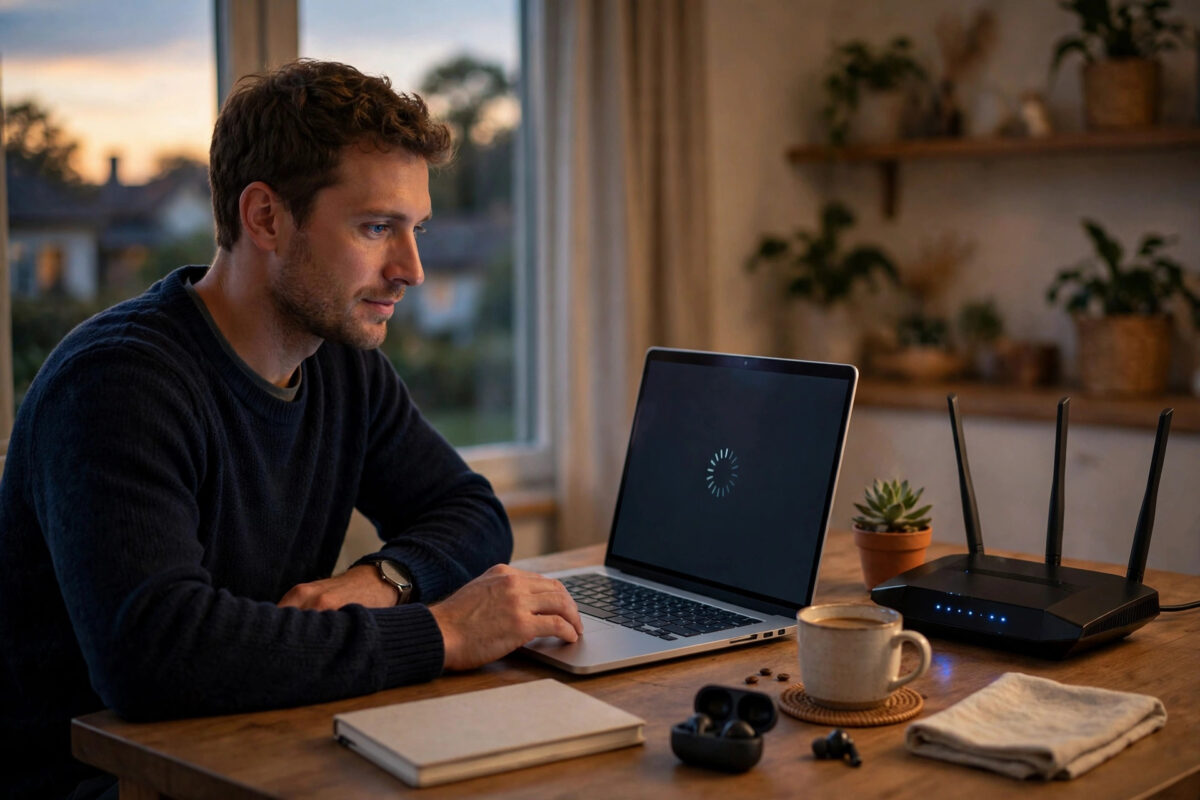
You attach a file to a Gmail message, press send, and then nothing happens. The message sits in your outbox, the progress bar crawls, or Gmail quietly gives up, especially with attachments over 10MB on a slow connection.
This is a very common problem in homes, small offices, and rural areas where upload speeds are far lower than download speeds. This guide explains why large attachments fail on slow links and gives you practical fixes that work without fast broadband.
Quick Answer
Gmail struggles with attachments over 10MB on slow connections because uploads time out, and email encoding makes files about one third bigger during sending. To fix it, compress the file, share it through Google Drive instead of attaching it, and send from a stable connection with other uploads paused. If you must attach the file, keep the total under 25MB, send one file at a time, and let the upload finish before closing Gmail.
Why Slow Connections Break Large Attachments
Most people judge their internet by download speed, because that is what videos and web pages use. Sending an attachment depends on upload speed, which is often ten times slower.
A 12MB file sounds small. On a connection uploading at 1 Mbps, that file can take two minutes or more in perfect conditions. Any dip, interruption, or competing device stretches that time and risks a failure.
The Hidden Size Increase Nobody Mentions
Email was never designed for large files. When Gmail attaches a file, it encodes it into a text-safe format for transport, and that encoding grows the file by roughly 33 percent.
So your 15MB attachment travels as about 20MB of data. Your 20MB file becomes close to 27MB, which then breaks Gmail’s 25MB sending limit and fails for a completely separate reason.
Other Reasons Sending Fails
- The browser tab is closed or the phone locks before the upload completes.
- A weak Wi-Fi signal drops packets and forces parts of the upload to restart.
- Another person starts a video call, cloud backup, or game download mid-send.
- The Gmail app on a phone pauses uploads to save battery or mobile data.
- Antivirus or a VPN scans the large file and slows the process until it times out.
First Check: Know the Real Limits
Before troubleshooting, separate the hard Gmail limits from the soft limits of your connection. They need different solutions.
- You can send attachments totaling up to 25MB per Gmail message.
- You can receive attachments of up to 50MB, which does not help when you are sending.
- Some file types, such as EXE files and certain archives, are blocked for security even inside ZIP files.
- Your connection has no fixed limit, but long uploads fail far more often than short ones.
Google confirms the sending limit in its official Gmail help page on sending attachments, which also explains the Drive sharing option described below.
Fix 1: Share Through Google Drive Instead of Attaching
This is the single best fix on a slow connection, and it is the method Google itself recommends for large files. A Drive link travels inside a tiny normal email, so the message sends instantly.
- Open Google Drive and upload the file once, ideally at a time when your connection is quiet.
- Wait for the upload progress bar to finish completely before doing anything else.
- Right-click the file and set sharing so the recipient can view or download it.
- Copy the link and paste it into your email, or use the Drive icon inside the Gmail compose window.
- Write a clear subject line and tell the recipient the link contains the file.
Drive uploads also resume better than email attachments. If your connection drops halfway, Drive usually continues from near where it stopped instead of failing the whole message.
Fix 2: Make the File Smaller Before Sending
If the recipient truly needs a direct attachment, shrinking the file is your next best move. Even a small reduction can turn a five-minute upload into a one-minute upload.
Simple Ways to Shrink Common Files
- Photos: Resize very large images or export them as quality JPEG files instead of raw camera files.
- PDFs: Use a trusted PDF compressor, and remove scanned pages saved at extreme resolution.
- Documents: Compress embedded images inside Word or presentation files using the built-in picture tools.
- Folders: Compress the folder into one ZIP file, which helps with many small files, though photos and videos shrink very little.
- Videos: Export a lower resolution copy for review purposes instead of sending the full original.
Our guide to sending large files through Gmail using Google Drive links covers these shrinking and sharing methods in more detail.
Fix 3: Send One Attachment at a Time
One email carrying five files asks your connection to survive one very long upload. Five separate emails break the job into safer pieces.
- Send the most important file first in its own message.
- Wait for confirmation that it left your outbox before sending the next.
- Number your subjects clearly, such as Report part 1 of 3, so the recipient can track them.
- Keep each message comfortably below 10MB where possible on very slow links.
- Ask the recipient to confirm arrival of every part before you delete your copies.
This approach also helps diagnosis. If part two fails but part one worked, you know the problem is that specific file or a connection dip at that moment.
Fix 4: Stabilize Your Connection for the Send
You cannot upgrade your area’s broadband in an afternoon, but you can give one upload the best possible conditions for a few minutes.
A Pre-Send Checklist
- Move closer to the router or plug in a network cable if one is available.
- Pause cloud backups, game downloads, and streaming on your devices.
- Ask others in the house to avoid video calls and large uploads for a few minutes.
- Close extra browser tabs and programs that sync files in the background.
- Keep the Gmail tab open and the device awake until the message leaves the outbox.
- On a phone, turn off battery saver for Gmail and allow background data while sending.
Timing helps too. Early mornings and late evenings are often less congested than busy evening hours on shared local networks.
Fix 5: Clear a Stuck Outbox Message
Sometimes one failed message blocks the queue and makes it look as if Gmail has stopped sending altogether. Clearing it properly is better than pressing retry forever.
- Open the Outbox label in Gmail and find the stuck message.
- Open it and remove the large attachment, or delete the draft if you have the content saved elsewhere.
- Refresh Gmail, or sign out and back in, to reset the sending queue.
- Compose a fresh message and use a Drive link or a smaller file this time.
- On the mobile app, clear the app cache if the outbox still shows a phantom sending message.
Repeatedly editing a stuck message rarely fixes it. A clean new message with a better method succeeds far more often.
Safety Note: Blocked File Types
Occasionally the attachment itself, not your connection, is the problem. Gmail blocks executable files and some archive contents to stop malware spreading.
Renaming a file to hide its type is a bad idea and can still be detected. The safe and honest route is to share the file through Drive, where the recipient can download it directly. Google lists the blocked types in its Gmail file type restrictions help page.
Common Mistakes to Avoid
- Closing the laptop too early: The message is not sent until the upload finishes and it leaves the outbox.
- Attaching the same file to a reply-all thread: Long threads plus big files multiply failures and annoy everyone.
- Splitting files with strange tools: Recipients often cannot rebuild split archives, so prefer separate normal files.
- Sending at peak evening time: A slow connection at its busiest hour is the worst moment for a 20MB upload.
- Retrying ten times in a row: Each retry restarts the full upload and wastes the little bandwidth you have.
- Ignoring the 33 percent growth: A file that looks under the limit on your disk may pass the limit once encoded.
Conclusion
Gmail failing on attachments over 10MB is rarely a Gmail fault. It is the maths of slow upload speeds, encoding growth, and uploads that cannot survive interruptions.
For the most reliable results, upload large files to Drive once and email the link. When you must attach, compress the file, send one at a time, pause competing traffic, and keep Gmail open until the outbox is empty. Those habits turn a daily frustration into a routine that simply works, even on a modest connection.
Frequently Asked Questions
What is the largest attachment I can send with Gmail?
You can send up to 25MB of attachments in total per message. Because encoding grows files during sending, keep your real files below about 18MB to stay safely under the limit.
Why does my attachment upload restart from the beginning?
Email uploads do not resume well after a connection drop, so Gmail often starts again. Drive uploads handle interruptions much better, which is why Drive links are recommended for large files.
Is it better to use the Gmail app or a browser on slow connections?
Both can work, but the browser on a wired or strong Wi-Fi connection is usually more stable. On phones, disable battery saving for Gmail so the app does not pause the upload.
Can I schedule a large email to send at a quieter time?
Gmail’s schedule send helps with timing, but the attachment upload still happens when you schedule it on many devices. Upload to Drive first, then schedule the small link email freely.
Why did a 22MB file fail even though the limit is 25MB?
The encoding Gmail applies during sending inflates the file by about a third. Your 22MB file likely grew past 25MB in transit and was rejected for size.



Leave a Reply