
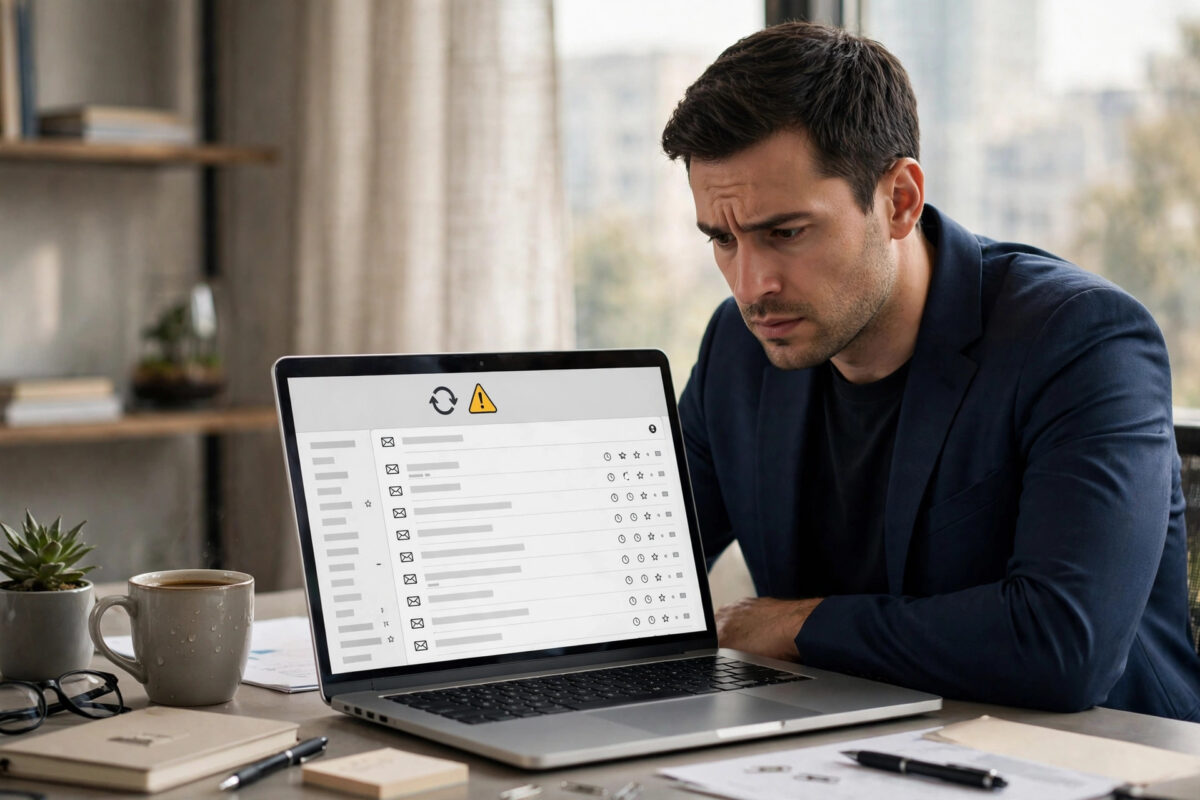
When Outlook keeps showing old emails, missing new messages, or a sync error at the bottom of the window, the problem is often the OST file. The OST file is a local copy of your mailbox. If that copy gets out of sync with the server, Outlook cannot show you the correct, up-to-date mailbox.
The good news is that you can usually fix this without losing mail. Your real mailbox lives on the server, so rebuilding the local copy is safe in most cases.
Quick Answer
Close Outlook, check that you are online and not in Offline Mode, then restart Outlook and let it sync. If the problem continues, clear offline items for the affected folder or delete the OST file while Outlook is closed so Outlook builds a fresh copy from the server. Always back up any data stored only locally before you delete anything.
What Is an OST File and Why Does It Go Out of Sync?
An OST file stands for Offline Storage Table. Outlook creates one when you use an Exchange, Microsoft 365, or Outlook.com account with Cached Exchange Mode turned on. It lets you read and write emails even without an internet connection.
When you go back online, Outlook compares the local copy with the server and syncs the changes both ways. Most of the time this happens quietly in the background. Problems start when that comparison fails.
Common causes include a sudden Outlook crash, a forced shutdown, a weak or interrupted network connection, and a very large mailbox. Antivirus scanning, a full hard drive, and damaged Outlook profiles can also break syncing. Once the local copy and the server disagree, you may see missing folders, duplicate items, or the message that Outlook is disconnected.
Signs Your OST File Is Out of Sync
- New emails appear on your phone or in webmail but not in Outlook.
- Sent items, deleted items, or calendar changes do not update on other devices.
- The status bar shows Disconnected, Trying to Connect, or a sync error.
- A folder shows a different item count than the same folder on the server.
- You see error codes such as 0x8004011D or messages about the OST file being in use.
Before You Start: Important Safety Checks
Before you repair or delete anything, take a few minutes to protect your data. Most mailbox data is stored on the server, but some things may exist only on your computer. That includes some contacts, calendar items, or folders that were created locally.
- Open Outlook on the web for your account and confirm your latest emails are there.
- Check that you know your account password, in case Outlook asks you to sign in again.
- Note any folders labelled This Computer Only, because their contents may not be on the server.
- Make sure you have enough free disk space for Outlook to rebuild the file, ideally several gigabytes.
- Close all other programs that might use the OST file, such as Teams add-ins or backup tools.
If webmail looks complete, rebuilding the OST file is very low risk. Outlook simply downloads the server copy again.
Step 1: Check Offline Mode and Your Connection
The simplest cause is also the most common. Outlook has a Work Offline button, and it is easy to turn on by accident. When it is on, Outlook will never sync, no matter how healthy the OST file is.
- Open Outlook and look at the status bar at the bottom of the window.
- Go to the Send / Receive tab on the ribbon.
- If the Work Offline button is highlighted, click it once to turn it off.
- Click Send / Receive All Folders and wait a few minutes.
- Test your connection by opening a website or checking webmail in your browser.
Also restart Outlook completely. Close the window, wait ten seconds, and open it again. Give a large mailbox time to sync before judging the result.
Step 2: Compare Folder Counts With the Server
Outlook lets you compare what is stored locally with what is on the server. This is a quick way to confirm which folder is out of sync instead of guessing.
- Right-click the folder that looks wrong, such as Inbox or Sent Items.
- Select Properties, then open the Synchronization tab.
- Compare the number of items in Server Folder Contains and Offline Folder Contains.
- Repeat the check for any other folder that looks incomplete.
If the numbers match, the folder itself is probably fine and the issue may be a view or filter. If the server has more items, follow the next steps for that specific folder first before you rebuild the whole file.
Step 3: Clear Offline Items for One Folder
If only one folder is wrong, you do not need to rebuild the entire OST file. Clearing offline items forces Outlook to download that folder again, which is much faster.
- Right-click the affected folder and choose Properties.
- On the General tab, click Clear Offline Items.
- Confirm the prompt and close the dialog.
- Click Send / Receive All Folders and wait for the folder to refill.
This is the best first repair for a single stuck folder. Your server data is not touched.
Step 4: Delete and Rebuild the OST File
When several folders are wrong, or clearing one folder did not help, rebuilding the whole OST file is the most reliable fix. Outlook will create a new file and download your mailbox again from the server.
- Close Outlook completely and confirm it is not running in the system tray.
- Press Windows key + R, type outlook.exe /safe only if you need to test add-ins later; for now, keep Outlook closed.
- Open File Explorer and go to the OST location, usually in your user AppData folder under Microsoft Outlook.
- Find the OST file named after your email account.
- Rename it by adding .old to the end instead of deleting it straight away.
- Restart Outlook and wait while it builds a new OST file and downloads your mail.
Renaming is safer than deleting because you can rename it back if something unexpected happens. Once the new file has synced fully and everything looks correct for a day or two, you can delete the old renamed file to free space. For detailed account settings, see the official guidance on repairing Outlook data files on Microsoft Support.
Large mailboxes take a long time to download again. Keep Outlook open on a stable connection during the first sync.
Step 5: Adjust the Sync Slider and Create a New Profile
If the rebuild works but sync problems keep returning, the issue may be how much mail Outlook tries to keep offline. The Mail to Keep Offline slider controls this.
- Go to File, then Account Settings, then Account Settings again.
- Select your account and click Change.
- Move the slider to a shorter period, such as 12 months, if your mailbox is very large.
- Click Next, then Done, and restart Outlook.
A shorter window means a smaller, healthier OST file. Older mail stays on the server.
If problems continue even after a rebuild, create a new Outlook profile from Control Panel under Mail. Add your account to the new profile and test it for a day. A damaged profile is a common hidden cause, and our guide to fixing Outlook profile loading errors step by step explains profiles in more detail. You can also check the Microsoft advice on fixing Outlook sync problems for account-specific notes.
Common Mistakes to Avoid
- Deleting the OST file while Outlook is open: The file is locked and the delete may fail or corrupt the profile. Always close Outlook first.
- Assuming local-only data is on the server: Folders marked This Computer Only can be lost in a rebuild. Export them first.
- Using random OST converter tools: Untrusted tools can expose your mail and rarely fix a simple sync issue.
- Interrupting the first sync: Closing the laptop mid-download leaves the new file incomplete and the problem returns.
- Repairing the wrong file: PST and OST files are different. Do not run PST repair steps on an account that only needs a resync.
Conclusion
An out-of-sync OST file looks worrying, but the fix is usually straightforward because your real mailbox is safe on the server. Start with Offline Mode and a restart, clear offline items for a single bad folder, and rebuild the OST file only when the problem is wider. If sync still fails after a clean rebuild, a new Outlook profile is the next sensible step.
Frequently Asked Questions
Will deleting my OST file delete my emails?
No, not for Exchange, Microsoft 365, or Outlook.com accounts. Your emails live on the server and Outlook downloads them again. Only data stored solely in local folders could be lost, so check for This Computer Only folders first.
How long does an OST rebuild take?
It depends on mailbox size and connection speed. A small mailbox may finish in minutes, while a mailbox of many gigabytes on a slow connection can take several hours. Keep Outlook open until the status bar shows that all folders are up to date.
Why does my OST file keep getting corrupted?
Repeated corruption often points to a failing drive, aggressive antivirus scanning, forced shutdowns, or an OST file that has grown too large. Reduce the offline period, check disk health, and exclude the Outlook data folder from real-time scanning if your IT policy allows it.
What is the difference between an OST and a PST file?
An OST file is a synced copy of a server mailbox and can be rebuilt at any time. A PST file is often the only copy of its data, such as for POP accounts or archives, so it must be repaired and backed up with much more care.
Can I move my OST file to another drive?
Yes, but it needs care. You can change the location through account settings or by using a symbolic link after closing Outlook. Moving the file to a faster internal drive with plenty of free space can help large mailboxes sync more reliably.



Leave a Reply