
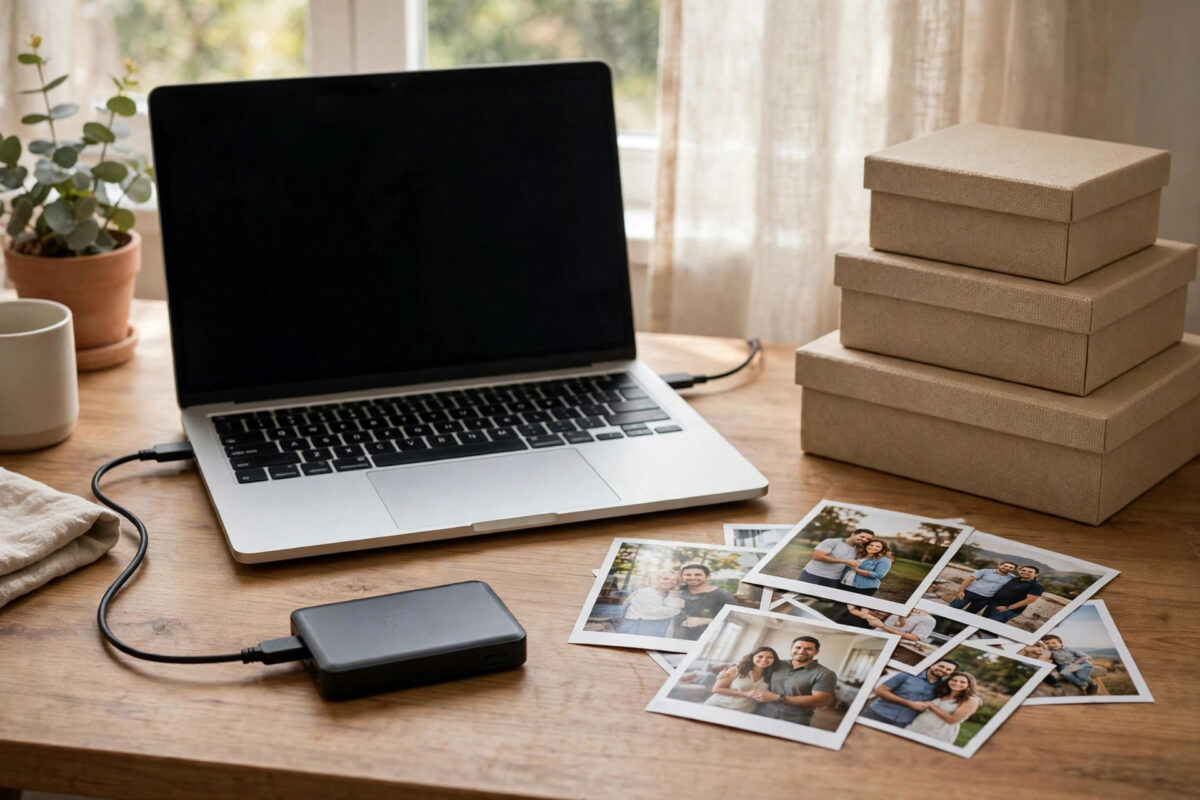
Cloud storage is convenient, but it is not a complete archive. Accounts fill up, subscriptions lapse, and one accidental delete can sync everywhere. A yearly archive on an external drive gives you a calm, offline snapshot of everything that mattered this year: documents, photos, videos, and downloads you want to keep for good.
The process takes an afternoon at most, and most of that time is just files copying while you do something else. This guide gives you a clear folder system, a step-by-step copying routine, and the checks that prove your archive will actually open when you need it years from now.
Quick Answer
Buy an external drive at least twice the size of the files you plan to keep, create a folder named with the year, and copy your documents, photos, videos, and important downloads into organised subfolders. Verify the copy by opening sample files and comparing folder sizes, then safely eject the drive and store it somewhere separate from your computer. Keep cloud copies too, so the archive is a second layer, not your only copy.
Why a Yearly Archive Is Worth Doing
Daily backups protect you from accidents this week. A yearly archive protects you from slow problems: a cloud account you lose access to, files overwritten by newer versions, or a photo library that becomes too messy to search. Because the archive never changes once it is made, it is also safe from ransomware and sync mistakes, which cannot touch a drive that sits unplugged in a drawer.
Making one archive per year also creates a natural history of your digital life. School work, tax papers, family photos, and projects each sit in the year they belong to, easy to find without digging through a single giant folder.
Choose the Right External Drive
Any modern external drive can do this job, but a few choices make the archive last longer.
- Capacity: Add up the size of your Documents, Pictures, Videos, and Downloads folders, then buy at least double that. Photos and phone videos grow faster than most people expect.
- Type: A portable SSD is fast and tough for travel, while a larger desktop hard drive gives cheaper storage for a home archive. Either works if stored carefully.
- Format: If you use both Windows and Mac, format the drive as exFAT so both can write to it. If you only use one system, its native format is fine.
- Second copy: For irreplaceable photos, consider two drives stored in different places, updated on the same day.
Microsoft’s guidance on backing up and restoring files in Windows and Apple’s advice on backing up your Mac with Time Machine are useful companions if you also want an automatic system backup running alongside this manual archive.
Prepare Your Folder Structure
Good structure is what turns a pile of copied files into a real archive. Create the year folder on the drive first, then subfolders inside it.
- Connect the drive and open it in File Explorer or Finder.
- Create a top folder named Archive followed by the year, for example Archive-2026.
- Inside it, create subfolders: Documents, Photos, Videos, Downloads-Keep, and Projects.
- Inside Photos, add subfolders by month or by event, such as 01-January or Family-Holiday.
- Inside Documents, add subfolders such as Finance, Work, Study, and Personal.
Write these names once and reuse the same layout every year. Consistency means you will always know where to look, whichever year’s drive you plug in.
Collect the Files From Every Source
Your files do not all live in one place. Work through this checklist so nothing important is left out.
- Computer folders: Documents, Pictures, Videos, Desktop, and the keep-worthy parts of Downloads.
- Phone photos and videos: Connect the phone by cable or import through your photo app, then copy the original full-size files, not only compressed versions.
- Cloud-only files: Download anything stored only in Google Drive, OneDrive, iCloud, or Dropbox. Files that show as online-only are not on your computer until you download them.
- Email attachments that matter: Save key attachments such as contracts, certificates, and tickets into the right subfolder.
- Exports: Add exports of notes, e-book notes, passwords vault backups, and any app data you would hate to lose.
Our guide to automatically backing up screenshots and downloads folders helps you tidy those often-forgotten corners before you archive them each year.
Copy Everything Across, Step by Step
- Plug the drive directly into the computer, not through an old USB hub, for speed and reliability.
- Copy one source folder at a time into its matching archive subfolder, starting with Documents.
- Let each copy finish completely before starting the next, and do not use the computer for heavy work during large video copies.
- For phone photos, import everything first to the computer, confirm the photos open, then copy them to the drive.
- When Downloads is concerned, copy only the Keep folder you prepared, not the entire messy folder.
- Keep the drive connected until every copy shows as finished, then wait one extra minute before ejecting.
How Long Should It Take?
Documents usually copy in minutes. Photos take longer, and a year of phone videos can take an hour or more on an older hard drive, much less on an SSD. If a copy seems stuck on one file for a very long time, that file may be damaged; skip it, note its name, and try copying it alone afterwards.
Verify the Archive Properly
Verification is the step people skip, and it is the step that matters most. An archive you have not checked is a guess.
- Compare the size of each source folder with its copy on the drive; they should match closely.
- Compare file counts where your system shows them.
- Open a sample from each subfolder: a document, several photos from different months, and one video, and play or read each fully enough to know it works.
- Check the oldest and newest photo in the archive to confirm the full year is covered.
- Create a small text file in the year folder describing what is included, the date you made the archive, and anything you deliberately left out.
Store the Drive Safely
Safely eject the drive every time; pulling the cable during a write can damage the file system. Store it in a cool, dry place, away from direct sunlight and magnets, ideally in a different building from your computer for your only copy of family photos. Label the drive clearly with the year and its contents. Once a year, when you make the next archive, plug the older drives in briefly and confirm they still open; drives that sit unused for many years can fail quietly.
Common Mistakes to Avoid
- Moving instead of copying: Always copy to the archive. Moving leaves the drive as your only copy, which defeats the purpose.
- Archiving online-only placeholders: Cloud placeholder files look real but contain nothing. Download the real files first.
- One giant unsorted folder: You will never find anything later. The ten minutes spent on subfolders pays off for years.
- Forgetting the phone: For most families, the year’s best photos live on phones, not computers.
- Keeping the drive plugged in all year: A permanently connected archive can be hit by the same accident or malware as the computer. Unplug and store it.
Make It a Yearly Habit
Pick a fixed time, such as the first weekend of January, and put it in your calendar now. Buy the drive early so cost never becomes an excuse. Each year, last year’s routine will feel easier, and you will build a shelf of clearly labelled drives that together hold your complete digital history, safe from account problems and everyday accidents alike.
Conclusion
A yearly archive on an external drive is simple insurance: one well-sized drive, a clear year folder with tidy subfolders, careful copying from your computer, phone, and cloud, and honest verification before you store it away. Do it once a year and your files and photos will survive lost accounts, broken computers, and forgotten passwords.
Frequently Asked Questions
How big an external drive do I need?
Measure the folders you plan to archive, then buy at least double that size. For most people, a 2 to 4 terabyte drive holds several yearly archives with room to spare.
Should the yearly archive replace my cloud backup?
No. Use both. Cloud backup protects you day to day and off-site, while the external archive is an offline snapshot that sync mistakes and account problems cannot touch.
How do I archive photos that are only in Google Photos or iCloud?
Download the originals to your computer first, using the service’s export or download tools, then copy them to the drive and open a few to confirm they are full quality.
What file system should I format the drive with?
Choose exFAT if you need the drive to work on both Windows and Mac. If you only ever use one system, its standard format is fine and may be more reliable for very large drives.
How long will an external drive keep my archive safe?
Hard drives and SSDs can last many years in good storage, but none lasts forever. Check each archive drive yearly, and plan to copy archives onto fresh drives roughly every five years.


Leave a Reply