
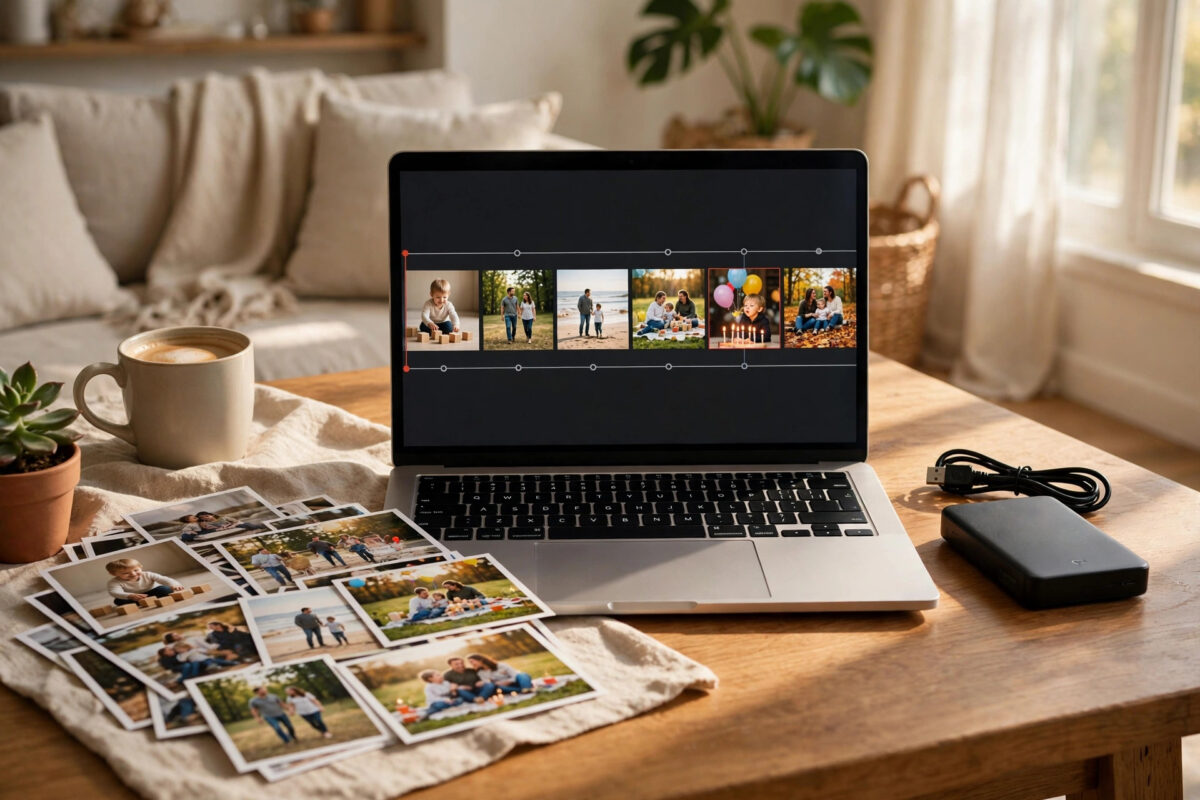
Family photos rarely live in one place. One parent may use Google Photos, another may use iCloud, an older relative may keep pictures in Dropbox, and years of phone backups may sit in accounts nobody opens any more. Bringing all of those collections into one library makes the photos easier to find, easier to share, and much easier to protect. This guide shows you a calm, step-by-step way to do it without losing images, mixing up dates, or deleting the only copy of an important memory.
Quick Answer
Choose one main service as your single library, then download or export the photos from every other account and upload them into that library. Sort the imported photos by date, remove exact duplicates, and set up shared albums for family members. Keep the original accounts untouched until you have checked the new library and made a separate backup.
Choose One Home for the Whole Collection
The most important decision comes first. Pick one service to be the permanent home for the family library. Good choices include Google Photos, iCloud Photos, Microsoft OneDrive, and Dropbox. Think about which phones your family uses most, how much storage you need, and whether you are happy to pay for a larger plan. A mixed Android and iPhone family often finds a cross-platform service easiest, while an all-Apple family may prefer iCloud.
Check the storage maths before you move anything. Add up the size of each separate collection if the service shows it, then choose a plan with room to grow for at least two or three years of new photos and videos. Videos take far more space than photos, and a single holiday can add many gigabytes. Running out of space halfway through a merge is one of the most common causes of a messy, half-finished library.
Also decide who will own the main account. Ideally it should be a stable account that will not be closed when someone changes jobs or leaves school. Use a strong password and turn on two-step verification, because this account will soon hold the family’s most precious digital files. Our guide to setting up two-step verification for cloud storage accounts explains how to protect it properly.
Make a Safety Copy Before You Move Anything
Merging libraries involves downloading, uploading, and sorting thousands of files. Mistakes are unlikely if you work slowly, but a safety copy means a mistake can never become a disaster. Before you change anything, copy each collection, as it is now, to an external hard drive or a second cloud account.
- Create a folder on the drive for each person and each service, such as Sara-Google, Dad-iCloud, and Old-Laptop-Photos.
- Download each collection into its own folder and do not rename files yet.
- Open a few photos and videos from each folder to confirm the downloads are complete and readable.
- Check the total size of each folder against the size reported by the service.
- Keep this drive disconnected and stored safely until the whole merge is finished and checked.
This untouched copy is your way back. If an upload fails, a date looks wrong, or you delete something by accident, you can simply import that folder again. Never delete photos from the source accounts during the merge itself.
Export Photos From Each Service
From Google Photos
You can download albums one by one from Google Photos, or request a full export through Google Takeout. Album downloads are simpler for small collections. A full export is better for large libraries, although the files may arrive in several compressed folders and some information, such as edited versions, may be stored separately. Follow the steps in the Google Photos help guide to downloading your photos and videos and save everything into the matching safety folder first.
From iCloud Photos
On a Mac, the Photos app can export originals to a folder. On Windows, iCloud for Windows can download the library, or you can select photos on the iCloud website and download them in batches. For very large libraries, requesting a copy or a transfer from Apple’s privacy site is slower but more reliable than thousands of manual downloads.
From Dropbox, OneDrive, and Old Devices
For file-based services, simply download the photo folders as they are. Do the same for old phones, memory cards, USB sticks, and family computers. Many families find forgotten photos in messaging app folders and in screenshots folders, so look beyond the main camera folder. Write down what you have collected, folder by folder, so nothing is missed.
Upload Everything Into the Main Library
Now import one source folder at a time into your chosen library. Doing it in stages makes problems easy to spot. After each import, wait for the upload to finish fully, then check that the number of items looks sensible and that the newest and oldest photos from that folder appear in the timeline.
- Upload the largest and most important collection first, so it becomes the base of the library.
- Import each remaining person’s photos as a separate batch, on a separate day if the library is large.
- Use a wired connection or a stable home Wi-Fi network, and keep the computer awake until the upload completes.
- Avoid uploading the same folder twice, even if you are unsure whether it finished. Check first.
- Once a batch is confirmed in the library, tick it off your written list.
Most services arrange photos by the date stored inside the image file, so scanned photos may appear with the scan date rather than the day they were taken. You can correct dates later for important pictures, such as wedding or baby photos, once the merge itself is complete.
Remove Duplicates and Organise the Library
When several people photograph the same birthday or holiday, duplicates are guaranteed. Some will be exact copies of the same file, while others will be near-identical shots taken seconds apart. Deal with exact copies first. Many services warn you when you upload a file that already exists, and some have a built-in duplicates view. For large collections, a trusted duplicate-finder tool on your computer, used on your safety folders before upload, can save hours.
Be careful with near-duplicates. Do not delete a slightly different photo just because it looks similar at thumbnail size. Zoom in. The version where everyone has their eyes open is the keeper. When in doubt, keep both. Storage is cheaper than a lost expression.
With duplicates reduced, build a simple album structure the whole family understands. Albums by year, by event, and by person work well. Then use the sharing features of your service to create a shared family album or partner sharing arrangement, so new photos from each person’s phone flow into the shared view automatically from now on. Decide together who may add, edit, or delete items in shared albums, and agree that nobody deletes from the main library without asking.
Common Mistakes to Avoid
Most merge problems come from rushing. Watch out for these frequent errors:
- Deleting source accounts too early: keep every original account and your safety drive untouched for at least a month after the merge looks complete.
- Uploading everything at once: one giant mixed upload makes duplicates and missing batches almost impossible to trace.
- Trusting free storage limits: a library that stops syncing because it is full can quietly leave new photos unprotected.
- Ignoring videos: short clips hide inside photo collections and can account for most of the storage you need.
- Letting one person tidy alone: what looks like a duplicate to one relative may be the only photo of a treasured moment to another.
Conclusion
Combining family photo collections from several accounts into one library takes a little patience, but the result is worth it: one searchable, backed-up home for every memory, shared by everyone who matters. Choose your main service, protect the originals, import in stages, and tidy up only at the end. Once the merge is done, set the new library to back up automatically, and your family photos will stay together from now on.
Frequently Asked Questions
Which service is best for a single family library?
The best choice is the one your family will actually use. Google Photos works well across Android, iPhone, and the web. iCloud Photos is smoothest for all-Apple families. OneDrive suits families already paying for Microsoft 365. Features matter less than enough storage and easy sharing.
Will merging photos reduce their quality?
It should not, if you download and upload the original files. Be careful with services or settings that save space by compressing images. When exporting, choose the original or unmodified option, and check your new service is set to store original quality.
How long does it take to combine several collections?
A few thousand photos may take an afternoon, mostly waiting for downloads and uploads. Tens of thousands of photos and videos can take several days on a home connection. Working in batches, one account at a time, keeps the job manageable.
What should I do with the old accounts afterwards?
Keep them for at least a month while everyone checks the new library. After that, you can remove the photos, downgrade paid plans, or close accounts you no longer need. Keep your external drive copy permanently as an extra backup.
Can family members keep adding photos automatically?
Yes. Most services offer shared albums or partner sharing that adds new photos automatically. Set this up once the main merge is complete, agree simple rules about deleting, and every new memory will land in the shared library without extra effort.



Leave a Reply