
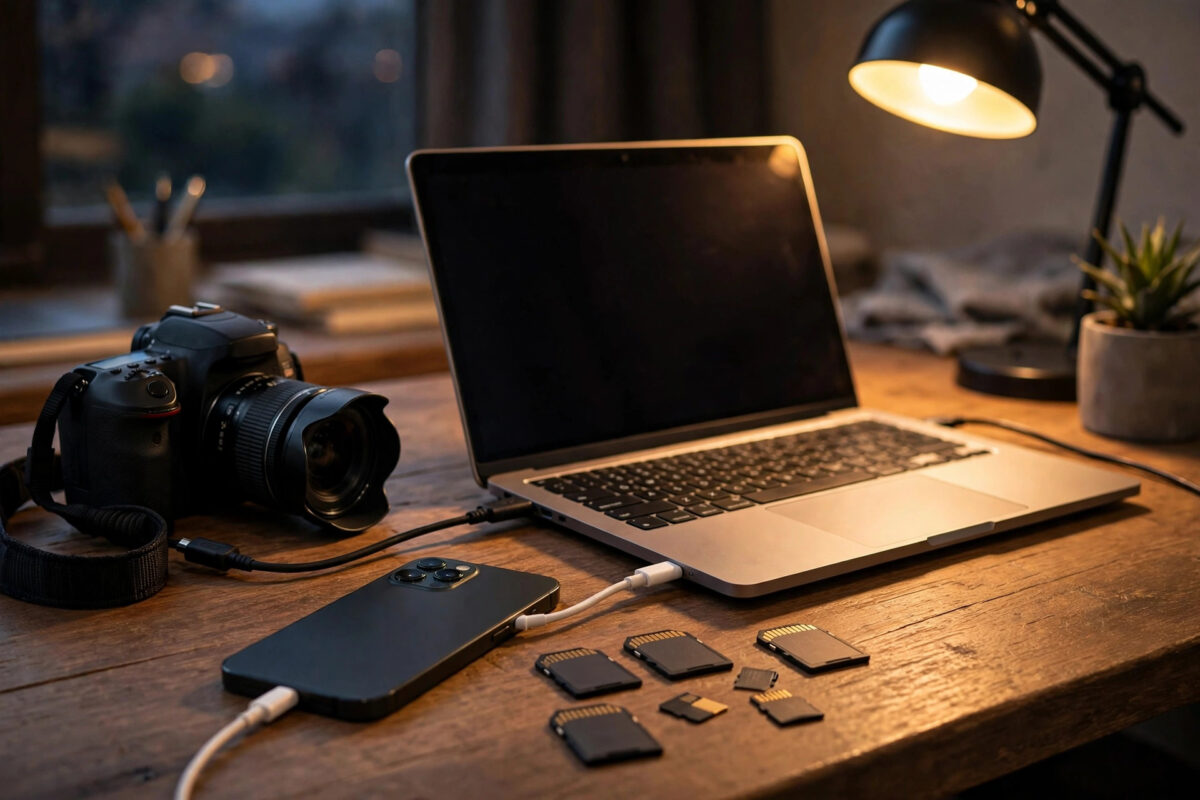
The best backup is the one that happens without you remembering it. Plugging in your camera or phone is a natural moment you already repeat after every trip, shoot, or family event, so making photos copy themselves at exactly that moment turns a chore into a habit you cannot forget.
This guide shows how to set up automatic photo imports on Windows and Mac, how cloud apps like Google Photos, OneDrive, and Dropbox handle camera uploads, and the small checks that confirm the automation is genuinely working rather than silently switched off.
Quick Answer
On Windows, use the Photos app or your cloud app’s camera import feature and set it to import when a device connects. On a Mac, open Image Capture or Photos, select your device, and set the auto-import or ‘open Photos when camera connects’ option so imports begin on plug-in. In cloud apps such as OneDrive and Dropbox, turn on Camera Upload or Camera Backup, and your phone’s photos will also flow to the cloud automatically whenever you plug in and connect.
Set Up Automatic Import on Windows
- Plug your camera or phone in with a cable and unlock the phone, choosing the option to allow photo access or file transfer if it asks.
- Open the Windows Photos app, go to its import settings, and note the destination folder it uses.
- In Settings on the PC, open Bluetooth & devices, then AutoPlay, and choose what happens when a camera or memory card connects: set it to import photos or open the Photos app.
- Plug the device in again to test. The import should begin or offer itself without you hunting through menus.
- Point the import destination at a folder that your normal backup or cloud sync already covers, so imported photos gain a second copy automatically.
If you prefer your cloud app to do the work, OneDrive and Dropbox both include camera upload features that watch for connected devices and phone libraries. Microsoft’s OneDrive automatic saving guidance describes how its phone camera upload behaves, and the desktop import tools follow the same principle.
Set Up Automatic Import on a Mac
The Mac gives you two built-in routes. The Photos app can open automatically when a camera connects: connect the device, open Photos, select the device in the sidebar, and tick the option to open Photos for that device. From then on, plugging in takes you straight to the import screen, where one click imports everything new.
Image Capture, the quiet utility in Applications, offers the stronger automation. Select your device in Image Capture and set the ‘Connecting this camera opens’ menu to a chosen app, or set the import destination and use its options as your starting point. Photographers who keep their library in plain folders rather than the Photos app usually prefer Image Capture, because it copies original files into normal folders you control.
Let Cloud Apps Handle the Phone Automatically
For phones, cables are optional these days. Google Photos, OneDrive, iCloud, and Dropbox can all upload new photos automatically in the background, so by the time you plug the phone in to charge, the backup is often already done. The plug-in moment still matters as a check: open the app and confirm it says everything is backed up.
- Turn on Camera Upload (OneDrive), Camera Backup (Dropbox), or Backup (Google Photos) in the app’s settings.
- Choose Wi-Fi only unless you have abundant mobile data.
- Include videos if your storage allows; they are the files most often missed by smaller free plans.
- On iPhone, keep iCloud Photos or your chosen app’s background refresh enabled, or iOS will pause uploads.
Travellers who shoot with a separate camera as well can combine methods: cloud upload for the phone, cable import for the camera, all landing in one library. Our guide on backing up SD card photos to the cloud while travelling covers the on-the-road version of this routine.
Connect the Import to Your Wider Backup System
An import is only a first copy. Automation becomes protection when the destination folder feeds your other layers: a synced cloud folder gives the photos an off-site copy, and your monthly offline drive copy sweeps them up with everything else. Set the import destination once, deliberately, inside that system rather than in a random folder the app chose.
Naming matters too. Most import tools can place photos into folders by date, which is the single most useful organisation decision you can make. A library arranged as year, month, and day folders needs no further tidying and stays understandable for decades.
One Cable, Several Devices
Households usually have more than one camera and phone, and the automation can serve them all. Set the same import behaviour on the family computer once, and every device that plugs in gets the same treatment: photos flow into dated folders, named consistently, in one library. If different family members want separate libraries, most import tools let you choose a destination per device or per session. Decide the arrangement once, write it on a note near the computer, and guests’ confusion disappears along with the scattered folders.
Test That the Automation Really Works
Automatic systems fail silently more often than loudly. Test yours with intent.
- Take three new photos with the camera or phone.
- Plug the device in exactly as you normally would and touch nothing else.
- Wait two minutes, then check the destination folder or cloud app for the three photos.
- If they are missing, open the import or cloud app manually and note what it asks for; permissions and ‘allow access’ prompts are the usual culprits.
- Repeat the test after any big system or app update, because updates sometimes reset these permissions.
Common Mistakes to Avoid
Automation disappointments usually trace back to these:
- Assuming the first successful import means the automation is on; it may have been a one-off manual prompt.
- Leaving the phone locked, so the computer cannot see its photos and nothing imports.
- Importing into a folder that no other backup covers, creating a single copy while feeling protected.
- Letting the cloud quota fill up, after which automatic uploads quietly stop.
- Formatting the camera card the moment the cable is unplugged, before confirming the photos arrived.
Conclusion
Automatic plug-in backups are a small setup job with a permanent payoff: configure AutoPlay or your Mac’s import options, turn on camera upload in your cloud app, aim the imports at a folder your wider backup system covers, and test with three photos. From then on, every cable connection quietly protects your newest pictures without a single reminder.
Frequently Asked Questions
Why does nothing happen when I plug my phone in?
The phone is usually locked or set to charge-only. Unlock it, choose the file transfer or photo access option if it appears, and check that you have allowed the computer to access photos. A different cable helps too, since some cables carry power only.
Can I import from an SD card reader the same way?
Yes. Windows and Mac treat a card reader like a camera. Set the same AutoPlay or Image Capture behaviour for memory cards, and imports will start whenever you insert a card, which is ideal for dedicated cameras.
Will automatic import create duplicates every time?
Proper import tools track what they have already imported and skip those photos. If you change apps or computers, the new tool may import everything once more, so check for duplicates after any switch using photo counts and a sample comparison.
Should imports delete photos from the camera afterwards?
Most tools offer this, and it is risky. Leave the originals on the card until you have confirmed the imported copies open correctly and a second backup exists. Only then format the card in the camera, ready for the next shoot.
Do I still need cloud backup if imports are automatic?
The import protects against a lost camera, but the imported folder still sits on one computer. Letting that folder sync to the cloud or be swept into your offline drive routine is what turns importing into a real backup system.



Leave a Reply