
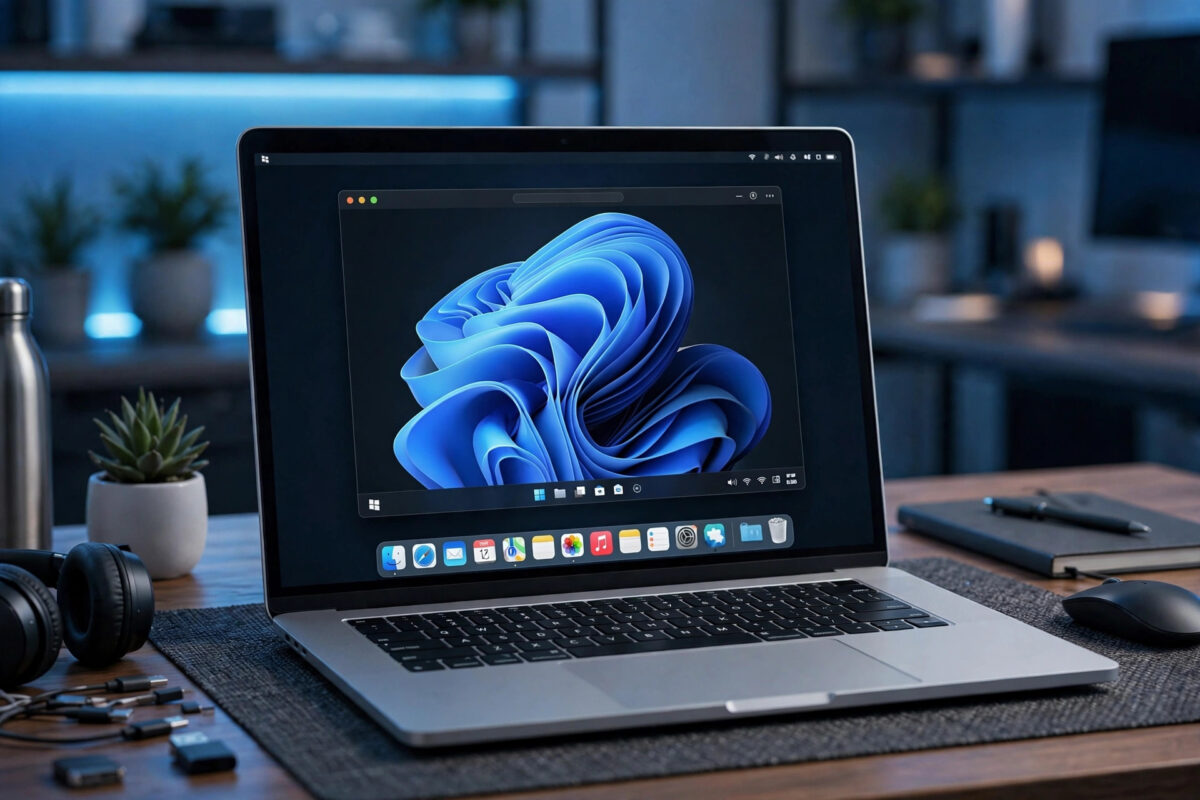
There are many good reasons to run Windows on a Mac. You might need a Windows-only work program, a specific version of Microsoft Office, accounting software, a PC game, or a testing environment for development. The question is not whether it can be done, but which method suits your Mac and your needs: Parallels Desktop, a virtualisation app, or Boot Camp, Apple’s built-in dual-boot tool.
The answer depends heavily on which Mac you own. Boot Camp only works on Intel Macs. On Apple silicon Macs, with M1, M2, M3, or M4 chips, Parallels is the practical route, running the ARM version of Windows 11. This guide explains both methods step by step, compares them honestly, and helps you choose before you spend money or disk space.
Quick Answer
To install Windows on a Mac, use Parallels Desktop on Apple silicon Macs: install Parallels, let it download Windows 11 for ARM automatically, and follow the setup assistant. On an Intel Mac, you can either use Parallels the same way or use Boot Camp Assistant, which partitions your drive so you can restart into full native Windows. Parallels is easier and lets you run macOS and Windows side by side; Boot Camp is free and gives Windows the Mac’s full power, but requires a restart to switch.
Parallels vs Boot Camp: Which Should You Choose?
Before installing anything, understand the real differences, because they affect performance, cost, and daily convenience.
How Each Method Works
Parallels Desktop is virtualisation software. It creates a virtual machine, a pretend computer inside a window, and Windows runs inside it while macOS keeps running underneath. You can copy files between systems, run Windows apps next to Mac apps, and pause Windows whenever you like. Boot Camp works completely differently. It splits your internal drive into two partitions, installs Windows on one of them, and when you restart and hold the Option key, you choose which system to boot. While Windows runs under Boot Camp, macOS is fully shut down, and Windows gets every bit of the Mac’s processor, memory, and graphics power.
Side-by-Side Comparison
- Compatibility: Parallels works on both Intel and Apple silicon Macs. Boot Camp works only on Intel Macs; it does not exist on Apple silicon.
- Cost: Boot Camp is free, built into macOS on Intel models. Parallels is a paid subscription or licence, though a free trial is available.
- Performance: Boot Camp gives Windows full native speed, best for demanding games and 3D work on Intel Macs. Parallels is fast for everyday apps and office work, with a small overhead because two systems share the hardware.
- Convenience: Parallels wins clearly. No restarts, shared folders, copy and paste between systems, and snapshots that let you roll Windows back if something breaks.
- Windows version: On Apple silicon, Parallels installs Windows 11 for ARM. Most modern apps run well on it, but some niche drivers and older games may not. Boot Camp on Intel runs standard x86 Windows 10 or 11 exactly as a PC would.
For most people today, especially anyone with an M-series Mac, Parallels is the recommended choice. Boot Camp remains attractive for Intel Mac owners who need maximum performance or want a free option. Microsoft itself notes Parallels as an authorised way to run Windows on Apple silicon in its support guidance on using Windows 11 with Mac computers with Apple M1, M2, and M3 chips.
What You Need Before You Start
- Enough free space: Allow at least 64 GB for Windows and basic apps; 100 GB or more is more comfortable. Check your free space in System Settings under General and Storage.
- A Windows licence: Parallels can download Windows 11 during setup, but you still need a valid product key to activate it long term. Boot Camp needs a Windows ISO file downloaded from Microsoft and a licence key.
- A backup: Back up your Mac with Time Machine before partitioning with Boot Camp or making any major change.
- Power and time: Plug your MacBook into power. Allow an hour for either method, including Windows updates afterwards.
- A stable internet connection: Windows downloads are several gigabytes, and activation requires going online.
Method 1: Install Windows With Parallels Desktop
- Download Parallels Desktop from the official Parallels Desktop product page and install it like any other Mac app, moving it to Applications and approving any security prompts.
- Open Parallels. The Installation Assistant appears and offers to get Windows 11 from Microsoft.
- Click Install Windows. Parallels downloads the correct edition for your Mac automatically — the ARM edition on Apple silicon, the standard edition on Intel.
- Choose what you will mainly use Windows for if asked, such as productivity or games. Parallels adjusts memory and processor settings to match.
- Create or sign in to your Parallels account, then wait while the virtual machine is created and Windows Setup runs. This part is mostly automatic.
- Complete the Windows welcome setup: language, region, Microsoft account, and privacy choices.
- When the Windows desktop appears, let Parallels Tools finish installing. This package enables shared folders, smooth mouse movement, correct screen resolution, and copy and paste between macOS and Windows.
- Activate Windows in Settings under System and Activation using your product key.
- Run Windows Update until no more updates are offered, restarting the virtual machine when asked.
Method 2: Install Windows With Boot Camp (Intel Macs Only)
- Confirm your Mac has an Intel processor. Click the Apple menu and choose About This Mac; if it names a chip, you have Apple silicon and must use Parallels instead. If it names an Intel processor, continue.
- Download a Windows 10 or Windows 11 ISO file from Microsoft’s website and save it in Downloads.
- Back up your Mac with Time Machine. Partitioning is reliable but you should never do it without a backup.
- Open Boot Camp Assistant from Applications, then Utilities.
- Follow the assistant: select the ISO file, then drag the divider to choose how much space Windows gets. Give Windows at least 64 GB, and more if you plan to install games or large programs. This split cannot be changed easily later.
- Click Install. Your Mac downloads support software, partitions the drive, and restarts into Windows Setup.
- In Windows Setup, choose your language, enter your product key, and when asked where to install, select the partition labelled BOOTCAMP and format it when prompted.
- Complete setup. When Windows starts, the Boot Camp installer should open automatically to install Apple’s drivers for Wi-Fi, trackpad, graphics, and sound. Run it and restart.
- To switch systems later, restart and hold the Option key, then choose macOS or Windows. You can also set the default startup disk in System Settings on macOS or the Boot Camp control panel in Windows.
Apple’s official Boot Camp Assistant User Guide is the best companion if you get stuck on any of these steps, because exact wording varies slightly between macOS versions.
Common Mistakes to Avoid
- Trying Boot Camp on an Apple silicon Mac: Boot Camp Assistant does not exist on M-series Macs. Parallels is the route there, and no workaround changes that.
- Giving Windows too little space: Windows updates fail on a cramped partition or virtual disk. Be generous at setup; shrinking later is far easier than growing.
- Skipping the backup before Boot Camp: Partitioning touches your main drive. A Time Machine backup turns a rare failure from a disaster into an inconvenience.
- Forgetting activation: Unactivated Windows limits personalisation and nags constantly. Buy a legitimate licence and activate promptly.
- Expecting every PC game to run on Windows ARM: On Apple silicon, most productivity apps work beautifully, but some games with anti-cheat systems or special drivers will not run. Check your must-have apps before committing.
- Installing Boot Camp drivers from random websites: Use only the support software Boot Camp Assistant downloads, or updates through Apple Software Update inside Windows.
Once Windows is running, keep both systems updated, and see our guide on allowing apps from outside the App Store in macOS security settings for the Mac side of your setup.
Conclusion
Installing Windows on a Mac is straightforward once you pick the right method for your hardware. Apple silicon owners should choose Parallels Desktop, which installs Windows 11 for ARM almost automatically and lets both systems run side by side. Intel Mac owners can choose Parallels for convenience or Boot Camp for free, native performance with a restart to switch. Prepare enough disk space, keep a backup, activate Windows properly, and your Mac becomes two computers in one — ready for whatever software your work or play demands.
Frequently Asked Questions
Can I install Windows on an M1, M2, M3, or M4 Mac?
Yes, with Parallels Desktop running Windows 11 for ARM. Boot Camp is not available on Apple silicon Macs. Most modern Windows apps run well under the ARM edition, though some specialised drivers and games may not be compatible.
Is Boot Camp free?
Yes, Boot Camp Assistant is built into macOS on Intel Macs at no charge. You still need a valid Windows licence to activate Windows, and Boot Camp is not available at all on Apple silicon models.
How much storage does Windows need on a Mac?
Microsoft’s minimum is 64 GB, but that fills up quickly with updates and apps. Aim for 100 GB or more if your Mac’s drive allows it, especially if you plan to install games or large professional programs.
Can I remove Windows later?
Yes. With Parallels, delete the virtual machine from the Parallels Control Center to reclaim the space. With Boot Camp, open Boot Camp Assistant on your Intel Mac and choose the option to remove the Windows partition, which restores the drive to a single macOS partition.
Does running Windows on a Mac slow macOS down?
With Boot Camp, no, because only one system runs at a time. With Parallels, macOS and Windows share processor and memory while Windows is open, so heavy Windows tasks can affect Mac performance. Pausing or shutting down the virtual machine frees those resources immediately.



Leave a Reply