
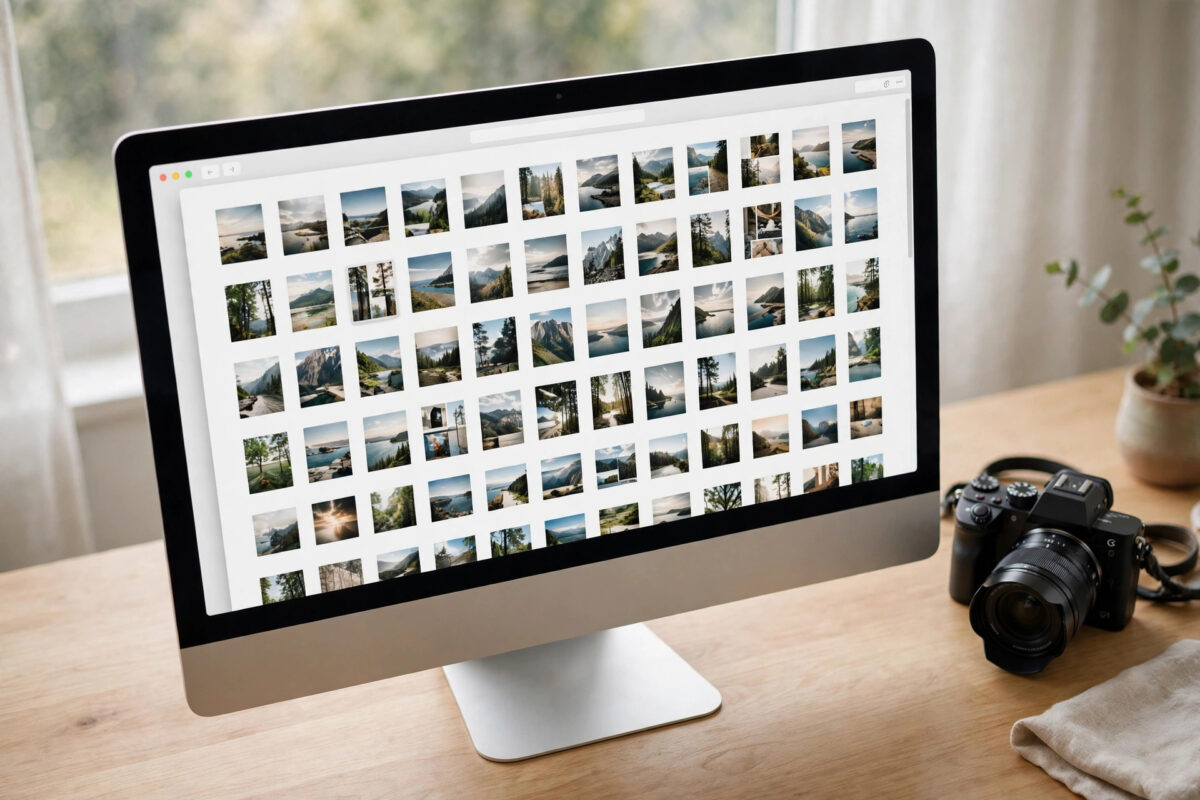
Renaming files one by one is painful. A camera import can leave you with two hundred photos named DSC_0041, DSC_0042, and so on, and clicking through each one in Finder would take all afternoon. The good news is that macOS has a proper batch rename tool built into Finder. It can replace text, add dates, and number whole folders of files in seconds. This guide walks you through all three methods, shows you how to preview changes before they happen, and explains how to undo a rename if something goes wrong.
Quick Answer
Select all the files in Finder, right-click (or Control-click) and choose “Rename Items.” In the rename window, pick Replace Text to swap words, Add Text to insert extra words, or Format to rename everything with a clean name plus a number, date, or counter. Check the live preview at the bottom of the window, then click Rename. If you make a mistake, press Command + Z in Finder to undo it.
Step 1: Select the Files You Want to Rename
The rename tool works on any group of files or folders you select in a Finder window:
- Open the folder that contains the files.
- Select a group of neighbouring files by clicking the first one, holding Shift, and clicking the last one.
- Or select scattered files by holding Command and clicking each one.
- Or press Command + A to select everything in the folder.
Sort the folder first if the final order matters. When you use numbering, Finder assigns numbers in the order the files appear in the current sort, so sort by name or date before you start if you want a specific sequence.
Step 2: Open the Rename Tool
With the files selected, do one of the following:
- Right-click or Control-click on any selected file and choose Rename Items (the wording shows the number of items).
- Or open the File menu in the menu bar and choose Rename Items.
A small window appears with a dropdown at the top-left offering three modes: Replace Text, Add Text, and Format. Each mode solves a different job, explained next.
Method 1: Replace Text in File Names
Use this when most of the name is fine but one part is wrong or ugly — for example, changing “IMG_” to “Holiday-” across two hundred photos.
- Choose Replace Text from the dropdown.
- In the Find field, type the exact text you want to remove, such as IMG_ or Screenshot.
- In the Replace with field, type the new text. Leave it empty to simply delete the found text.
- Look at the example preview at the bottom of the window to confirm the result looks right.
- Click Rename.
Replacement is literal: it only changes names that contain the exact text in the Find field, and it matches capitals exactly as typed.
Method 2: Add Text to Existing Names
Add Text keeps the current names and attaches extra words at the start or the end, which is handy for labelling a batch without losing the original names.
- Choose Add Text from the dropdown.
- Type the text to add, such as Client-Proof- or -final.
- Choose before name or after name from the second dropdown. “After name” places the text before the file extension, so photo-final.jpg stays a valid file.
- Check the preview and click Rename.
Method 3: Format Names with Numbers or Dates
Format gives every file the same clean base name plus a number, counter, or date. This is the best option for camera photos, downloads, and scanned documents.
- Choose Format from the dropdown.
- Under Name Format, pick one of three styles:
- Name and Index — a plain number: Beach 1, Beach 2
- Name and Counter — a padded number: Beach 00001, Beach 00002, which sorts perfectly in long lists
- Name and Date — the current date and time added to the name
- Type your base name in the Custom Name field, such as Beach Trip.
- Choose where the number goes: after name or before name.
- Set the starting number in the Start numbers at field if you are continuing an earlier batch.
- Check the preview example, then click Rename.
For large photo sets, the counter style is usually the smartest choice because padded numbers keep the files in the correct order everywhere, including on Windows PCs and websites. Apple’s Finder rename guide on Apple Support covers the same dialog with screenshots for each macOS version.
How to Undo a Batch Rename
Made a mistake? Do not rename everything back by hand.
- Click on the Finder window (or the desktop) so Finder is the active app.
- Press Command + Z, or choose Edit then Undo Rename.
- All files return to their previous names in one step.
Undo only works while Finder still holds the action in its history — switching focus is fine, but restarting the Mac clears it. Check your results right after renaming, while undo is still available. If the names feed into a bigger filing system, our guide on organizing files with Finder tabs and tags will help you keep everything tidy afterwards.
Renaming Files Inside a Folder vs. Renaming the Extensions
One warning: batch rename changes names, not file types. The tool deliberately protects the extension (the part after the final dot, such as .jpg or .pdf) in most modes. If you truly need to change extensions — for example from .jpeg to .jpg — rename files one at a time, and only when you are sure the content matches the new extension. Giving a file the wrong extension can make it refuse to open.
Common Mistakes and Helpful Tips
- Not checking the preview. The little example at the bottom of the rename window exists to save you. Read it before every rename.
- Renaming in the wrong sort order. Numbers follow the on-screen order at the moment you rename. Sort first, rename second.
- Forgetting that spaces and capitals matter in Replace Text. “Img_” and “IMG_” are different. Copy the text from an actual file name if you are unsure.
- Renaming files another app is using. Close documents before renaming them; some apps lose track of open files whose names change.
- Mixing methods in one pass. You can run the tool several times in a row — for example, Format first for clean names, then Replace Text to tidy one word. Each pass is quick.
Conclusion
Finder’s built-in rename tool handles in seconds what would take an hour by hand. Select the files, choose Replace Text for quick fixes, Add Text for labels, or Format for clean numbered names, always check the preview, and remember that Command + Z can save you if anything looks wrong. No extra software is needed — the tool is already on your Mac.
Frequently Asked Questions
Can I rename folders in a batch as well as files?
Yes. The same Rename Items dialog works on any mix of selected files and folders in Finder, and all three modes apply to folders exactly as they do to files.
Will batch renaming change the contents of my files?
No. Only the names change. The photos, documents, and data inside the files are completely untouched.
How do I add the date each photo was taken to its name?
The Format mode adds the current date, not the photo’s capture date. For capture dates you would need a photo app such as Photos (which organizes by date automatically) or a dedicated renaming utility.
I renamed files and one app cannot find its documents. What happened?
Some apps remember documents by name and location. Rename files back with Command + Z if the rename just happened, or reopen the documents from their new names so the app learns the new paths.
Can I rename files on an external drive or USB stick?
Yes. Select the files on the drive in Finder and use Rename Items the same way. Just avoid unplugging the drive until the rename finishes.



Leave a Reply