
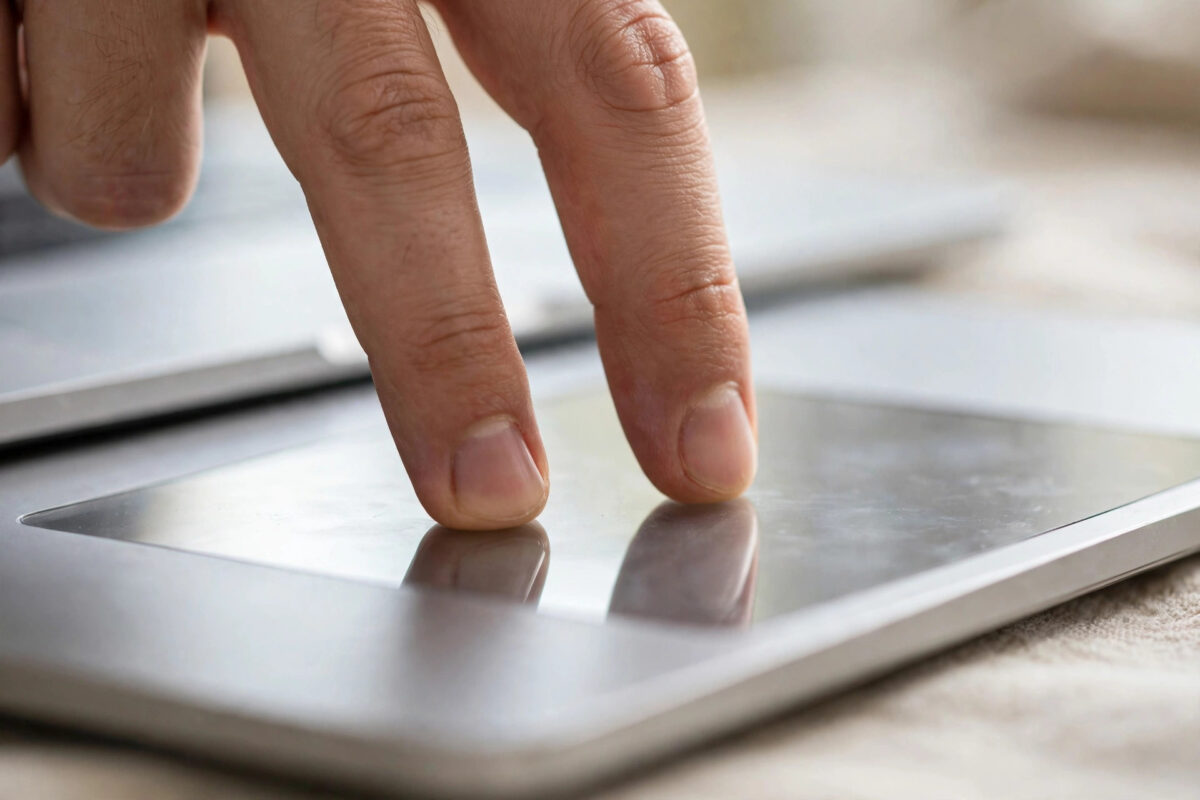
Coming from a Windows laptop, the Mac trackpad can feel like it is missing a button: where is the right-click? It is there — but on a fresh Mac it may be turned off, hidden behind a two-finger tap you have not discovered yet, or set to a corner-press you keep missing. The same goes for tap to click, which lets you click by lightly tapping instead of pressing the pad down. This short guide turns both on, explains every right-click method a Mac offers, and fixes the cases where the settings seem to ignore you.
Quick Answer
To enable right-click on a Mac trackpad, open System Settings, click Trackpad, and in the “Point & Click” tab set “Secondary click” to “Click or tap with two fingers” (or a corner option if you prefer). On the same screen, tick “Tap to click” so a light one-finger tap counts as a click and a two-finger tap counts as a right-click. For a Magic Mouse, open System Settings, click Mouse, and tick “Secondary click,” choosing the right or left side as you prefer.
How to Enable Right-Click and Tap to Click on a Trackpad
- Open the Apple menu and choose System Settings.
- Click Trackpad in the sidebar (connect or wake the trackpad first if it is a separate Magic Trackpad).
- Open the “Point & Click” tab.
- Find “Secondary click” and choose how you want it: “Click or tap with two fingers” is the most popular; alternatives are clicking in the bottom-right or bottom-left corner.
- Tick “Tap to click” on the same screen.
- Test immediately: tap once with one finger to click, tap with two fingers anywhere on the pad to right-click.
On older macOS versions these live in System Preferences under Trackpad, same tab, same options. While you are on this screen, also look at “Click pressure” if your trackpad has Force Touch, and the tracking speed slider — setting things up in one visit saves repeat trips. Apple’s guide to right-clicking on a Mac lists every supported method, including the keyboard shortcut below.
Every Way to Right-Click on a Mac
- Two-finger click or tap: Press or tap with two fingers anywhere on the trackpad. The everyday method once enabled.
- Corner click: If you chose a corner in settings, pressing the bottom-right (or left) corner acts as a right-click — familiar to people from button-style trackpads.
- Control-click: Hold the Control key and click with one finger or the mouse button. This works on any Mac, with any settings, even when secondary click is off — the universal fallback worth memorising.
- Magic Mouse: With secondary click enabled in Mouse settings, click the right side of the mouse surface.
- Standard two-button mouse: Any ordinary USB or Bluetooth mouse with real buttons just works — the right button right-clicks with no settings needed.
Right-clicking is the gateway to the contextual menus that make macOS fast: Get Info for the default-app settings in our guide to changing the default app that opens a file type, Quick Actions in Finder, and the “Open With” menu all live behind it.
Adjusting Tap to Click to Feel Right
Some people enable tap to click and find the Mac clicking things when they only brushed the pad. That sensitivity is normal at first — most people adapt within a day or two as their hands learn the lighter touch. If accidental clicks persist, turn “Tap to click” back off and use physical presses; there is no wrong choice, only preference. Also note that tap to click and two-finger tap are linked: with tap to click on, a two-finger tap right-clicks; with it off, you must physically press with two fingers. Dragging by tap works too: tap, then immediately tap again and hold to drag — or enable the three-finger drag in Accessibility settings under Pointer Control if you move files around all day.
When Right-Click Still Does Not Work
If you enabled secondary click and nothing happens, check these in order. First, confirm you changed the settings for the right device — a Mac with both a Magic Trackpad and a mouse has separate Trackpad and Mouse screens, and each needs its own setting. Second, disconnect and reconnect a Bluetooth trackpad, or plug it in with its cable briefly, to wake it properly. Third, restart the Mac; settings that refuse to apply usually settle after one reboot. Fourth, if only one app ignores right-clicks, the app itself may capture clicks unusually — test in Finder to separate app behaviour from system behaviour. Finally, on a work or school Mac, a management profile may lock these settings; the options appear greyed out, and only your administrator can change them.
Common Mistakes to Avoid
- Looking for a physical right button. Apple’s trackpads and the Magic Mouse are single surfaces; the “button” is a setting and a gesture, not a separate piece of plastic.
- Pressing too hard with two fingers. A light tap is enough once tap to click is on. Force is never required.
- Enabling it for the wrong device. Trackpad and Mouse settings are separate. Set both if you use both.
- Giving up on tap to click in the first hour. Accidental clicks fade fast as your hands adjust. Give it a couple of days before deciding.
Making the Trackpad Comfortable in Other Ways
While you are shaping the trackpad to your hands, a few neighbouring settings are worth a look. Tracking speed controls how far the pointer travels per swipe; new Mac users often find the default slow and raise it one or two notches. “Scroll direction: Natural” makes content follow your fingers as if you were pushing paper — some people love it, others turn it off so scrolling mimics a mouse wheel; there is no correct answer, only yours. In the “More Gestures” tab you will find swipes for Mission Control, switching between desktops, and showing the desktop — enabling the ones that match how you work turns the trackpad into a small command centre. And if you use your MacBook on a desk with a Magic Trackpad beside it, remember both trackpads follow the same settings, while a separate mouse keeps its own — set each device the way its hand position demands.
One comfort tip from people who click all day: if physical presses start to tire your finger, tap to click plus tap-to-drag removes nearly all pressing from your day. Combine that with a slightly raised tracking speed and most people find the Mac trackpad stops feeling like a compromise versus a mouse — and starts feeling like the reason they prefer a laptop at all.
Conclusion
Right-click and tap to click turn a Mac trackpad from a single blunt tool into the precise input device it was designed to be. Turn on secondary click and tap to click in Trackpad settings, remember Control-click as the method that always works, and adjust the small options to your hands. Two minutes of setup, years of easier menus.
Frequently Asked Questions
Why does my Mac call it “secondary click” instead of right-click?
Because the click can be assigned to either side, activated by corners, taps, or the Control key. “Secondary click” is Apple’s name for the action that opens contextual menus.
Can I right-click with a one-button mouse?
Yes. Hold the Control key while clicking. That combination is the built-in right-click for any pointing device on a Mac.
Does tap to click wear out the trackpad faster?
No — the opposite. Tapping avoids the physical press mechanism entirely, so if anything it is gentler on the hardware.
My two-finger tap works in some apps but not others. Why?
A few apps and games interpret clicks themselves. Test in Finder first; if Finder behaves, the setting is fine and the app is the exception.
How do I turn off right-click corner mode?
Return to Trackpad settings, Point & Click, and change Secondary click to “Click or tap with two fingers” or to Off.



[…] The same settings screen has “Press and hold Fn key to” — choose what holding Fn reveals: the F keys, the Control Strip, App Controls, or Quick Actions. Setting this to show F keys while your default is App Controls gives you both worlds with one press. This keyboard flexibility is one of several small customisations worth doing on a new Mac, alongside enabling right-click and tap to click on the trackpad. […]