
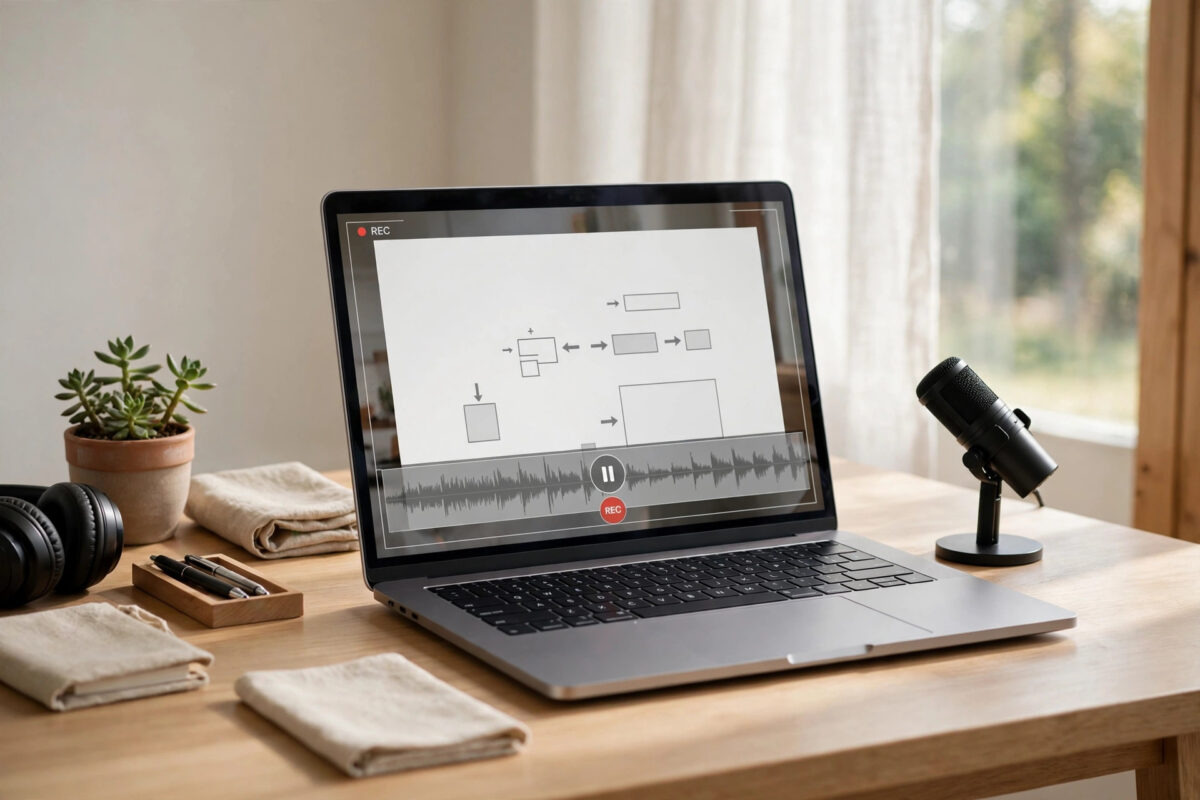
Recording your screen on a Mac is useful in many everyday situations. You might want to show a family member how to fix a setting, record a software bug for support, save an online class, or create a tutorial for work or YouTube. Many people assume they need to buy special software for this, but that is not true.
Every modern Mac already includes two free screen recording tools: the built-in Screenshot toolbar and QuickTime Player. Both are made by Apple, both are already installed, and both can record your whole screen or just part of it. With a few simple settings, you can also record your voice along with the video.
This guide explains both methods step by step, shows how to record sound correctly, and covers the common problems people face, such as recordings with no audio. You will not need to pay for anything or install risky software from the internet.
Quick Answer
To record your screen on a Mac for free, press Command + Shift + 5, choose “Record Entire Screen” or “Record Selected Portion”, click Options to pick your microphone, then click Record. Press Command + Control + Esc, or click the stop button in the menu bar, to finish. The video saves to your desktop or the folder you selected.
Method 1: Record With the Screenshot Toolbar
The Screenshot toolbar is the easiest and most complete free method. It works on macOS Mojave and all newer versions, which covers almost every Mac still in use today.
Step-by-Step Instructions
- Open the app, page, or content you want to record and arrange it on your screen.
- Press Command + Shift + 5. A toolbar appears near the bottom of the screen.
- Choose one of the two recording icons: “Record Entire Screen” or “Record Selected Portion”.
- If you chose a selected portion, drag the edges of the frame to cover exactly the area you want.
- Click Options and choose where the video will be saved, set a timer if you need one, and select your microphone if you want to record your voice.
- Click Record. If you are recording the entire screen, click anywhere on the screen to begin.
- Do the task you want to show, speaking clearly if you are narrating.
- Click the stop button in the menu bar at the top of the screen, or press Command + Control + Esc to stop.
- A thumbnail appears in the corner. Click it to trim or share the video, or leave it to save automatically.
The recording is saved as a MOV file, which plays in QuickTime Player and uploads easily to most websites.
Choosing Between Entire Screen and Selected Portion
Recording the entire screen is best when your task moves between apps, menus, and windows, such as a full how-to tutorial. Recording a selected portion is better when only one area matters, for example a single video window or one app. A smaller area also means a smaller file and fewer private details in the recording, so choose the portion option whenever your task stays in one place.
Method 2: Record With QuickTime Player
QuickTime Player is the older method, and it still works well. Some people prefer it because the controls feel familiar from playing videos.
- Open QuickTime Player from your Applications folder or with Spotlight search.
- Click File in the menu bar, then choose New Screen Recording.
- The same screenshot toolbar appears. Choose your recording area, set your options, and click Record.
- Stop the recording with the menu bar stop button when you finish.
- Click File, then Save, to name the video and choose where it goes.
On older macOS versions, QuickTime opens its own recording window instead. Click the arrow next to the record button to choose your microphone, then click the red button to start.
Apple documents both methods in its official help page on how to record the screen on your Mac, including pictures of each control.
How to Record Your Voice and Mac Sound
Sound is where most beginners get confused, so it helps to understand the two kinds of audio. Your voice comes from a microphone. The sound your Mac makes, such as music or a video playing, is called system audio, and macOS treats the two differently.
Recording Your Voice
Recording your voice is simple and fully supported. Before you start, click Options in the screenshot toolbar and choose your microphone under the Microphone section. You can use the built-in microphone, wired earphones, or a USB microphone. Speak a few test words after starting a short trial recording, then play it back to check the volume before you record the real thing.
Recording the Sound From Your Mac
By default, the built-in tools do not record system audio directly. This is a design limit of macOS, not a mistake in your settings. If you record a video playing on your screen, the picture is captured but the Mac’s own sound is not, unless your microphone happens to pick it up from the speakers, which gives poor quality.
Workarounds exist through extra software that creates a virtual audio device, but beginners should be careful with downloads and permissions. For most tutorials, classes, and support videos, a clear voice recording is all you need. If recording internal sound is essential for your work, research the extra tool carefully and download it only from its official website.
Trim and Share Your Recording
Most recordings have a messy start or end, usually the seconds where you reach for the stop button. You can fix that in seconds without any editing software.
- Open the recorded file in QuickTime Player.
- Click Edit in the menu bar, then choose Trim.
- Drag the yellow handles at the start and end of the timeline to cut the parts you do not want.
- Click Trim, then save the file.
To share the video, right-click the file and use the Share option to send it by Mail, Messages, or AirDrop. For large files, a cloud link works better than an email attachment, since many email services reject very big videos.
Screen recordings pair naturally with still images. When a tutorial needs both, our guide on Mac screenshot keyboard shortcuts for every capture type covers the matching still-image shortcuts in detail.
Helpful Tips for Better Recordings
- Clean your screen first. Close extra apps, hide personal files and notifications, and use a plain desktop background for a professional result.
- Turn on Do Not Disturb. A private message popping up during recording can ruin a good take and leak personal information.
- Show mouse clicks. In Options, enable “Show Mouse Clicks” so viewers can follow what you click.
- Use the timer. A 5-second countdown gives you time to settle, open the right window, and take a breath before recording starts.
- Keep recordings short. Two focused three-minute videos are easier to watch, and easier to make, than one long twenty-minute video.
- Check storage before long recordings. Screen videos use a lot of space, especially on high-resolution displays.
Common Problems and Fixes
The Recording Has No Sound
Check that you selected a microphone in Options before recording, because “None” is sometimes chosen by default. Then open System Settings, go to Privacy and Security, then Microphone, and confirm the app you used is allowed to access it. Finally, play the file at full volume to rule out a simple playback issue.
The Screen Recording Option Is Greyed Out
Some apps block recording for copyright or security reasons, and a few work computers have recording disabled by an administrator. Try recording a different app to see whether the problem is general or limited to one app.
The Video File Is Very Large
Long recordings of the full screen on a Retina display create big files. Record a smaller portion of the screen, keep the length sensible, and trim away the parts you do not need. You can also open the file in QuickTime and export it at a lower resolution such as 720p from the File and Export menu.
Conclusion
You never need to pay to record the screen on a Mac. The Screenshot toolbar you open with Command + Shift + 5 handles full-screen and partial recordings, includes microphone selection, and saves in a few clicks. QuickTime Player gives you the same power with simple trimming built in.
Remember the key habits: choose your microphone in Options before you start, record only the area you need, and do a ten-second test first. With those steps, your free Mac recordings will look and sound clear every time.
Frequently Asked Questions
Is screen recording on a Mac really free?
Yes. The Screenshot toolbar and QuickTime Player are built into macOS by Apple and cost nothing. Any website asking you to pay just to unlock basic recording is selling you something your Mac already does.
Where is my screen recording saved?
By default it is saved to your desktop as a MOV file named with the date and time. You can change the location in the Options menu of the screenshot toolbar before you record.
How do I stop a screen recording?
Click the small stop button that appears in the menu bar at the top of your screen, or press Command + Control + Esc. The video then saves automatically to your chosen location.
Can I record a video call or a streaming movie?
Technically you can record your screen during a call with your microphone on, but always get permission from the people involved first. Some streaming apps block recording of their content, so the video may come out black. That blocking is intentional.
What format are Mac screen recordings?
They are saved as MOV files, which play in QuickTime Player and work on most sharing platforms. If a website asks for MP4, many converters and the export options in video apps can convert the file for you.



Leave a Reply