
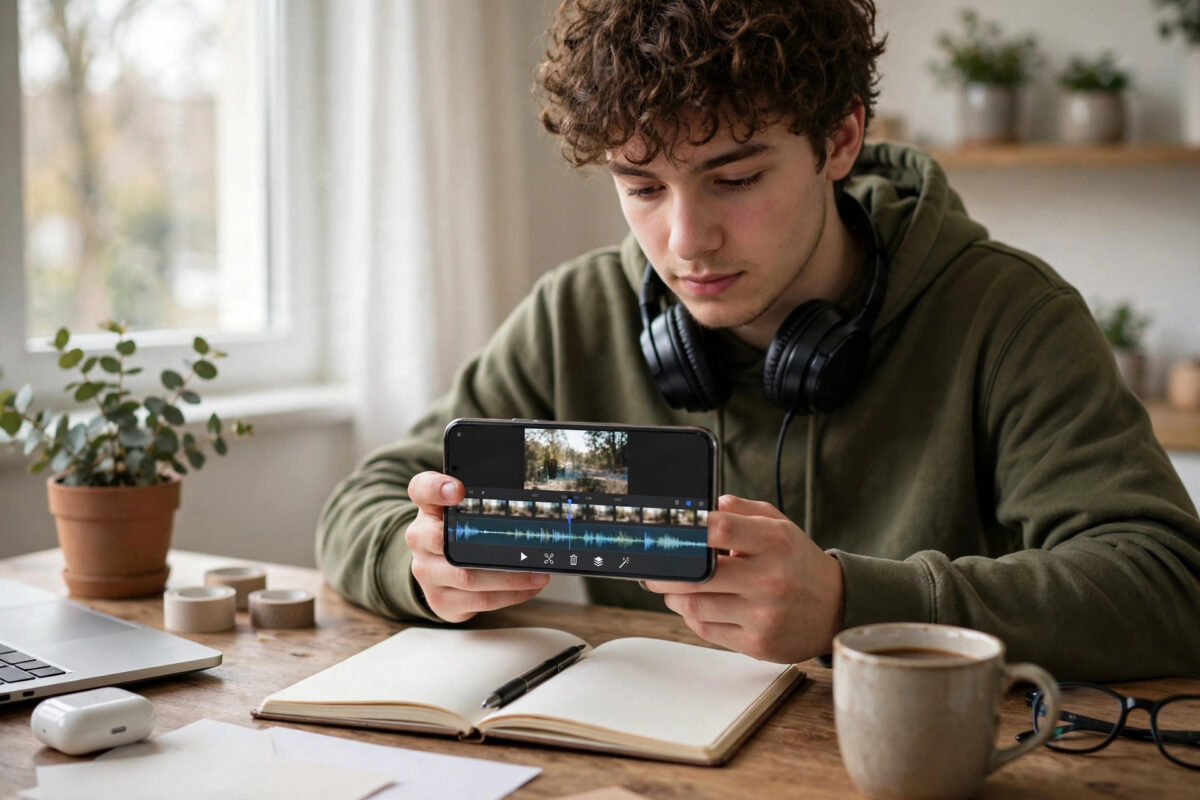
Editing short videos used to mean learning a timeline editor. YouTube is changing that with AI prompts inside the Shorts composer: you describe the edit you want in plain words, and the tool applies effects, cuts, captions, and styling for you. It is editing by conversation instead of by timeline.
This guide shows you how to use AI prompts in the Shorts composer, what kinds of edits it handles well, and how to write prompts that actually produce the result you pictured.
Quick Answer
Record or upload your clip in the Shorts composer, open the AI editing option, and type a plain-language instruction such as “add bold captions and cut the pauses” or “make it look cinematic with a zoom on the product.” The AI applies the edit, you preview it, tweak the prompt if needed, and post. No timeline skills are required.
How AI Editing in the Shorts Composer Works
The Shorts composer is the creation screen inside the YouTube app where you film, trim, add music, and add text. The new layer adds an AI assistant that listens to typed instructions. Instead of hunting through menus for the caption style, the transition, or the filter, you ask for the finished effect.
Behind the scenes, the system analyses your clip: it finds speech for captions, detects pauses and scene changes, and matches your words to its editing tools. You stay in charge because every AI edit is a preview first. If you dislike the result, you can adjust the prompt, undo the change, or edit manually as before.
The feature is rolling out through late 2026, so the exact button names may differ slightly between phones. The workflow, however, is consistent: compose, prompt, preview, refine, publish. If you prefer a fuller editing app for longer sessions, our companion guide on how to use conversational AI editing in the YouTube Create app covers the same idea in YouTube’s dedicated editor.
Edits the AI Handles Well
Prompt-based editing is strongest at repetitive, well-defined jobs:
- Captions. Auto-captions in different styles, sizes, and colours, corrected and timed to speech.
- Silence and filler removal. Cutting pauses, ums, and dead air to tighten pacing.
- Basic colour and mood. Brightening a dull clip, warm or cinematic looks, cleaner skin tones.
- Framing. Zooming toward a face or product, punching in for emphasis at key moments.
- Text overlays. Titles, lower-thirds, and call-to-action text placed sensibly.
- Music suggestions. Matching a track’s energy to the clip when you describe the vibe.
It is weaker at precise creative judgement: exact frame-level cuts, complex transitions between many clips, and subtle comedic timing still benefit from manual control. Treat the AI as a fast first draft, not a replacement for your eye.
How to Edit With AI Prompts Step by Step
- Open the YouTube app and tap the plus button, then choose Create a Short.
- Record a clip or upload one from your gallery.
- On the editing screen, open the AI edit option, shown as a sparkle or assistant icon in current builds.
- Type your instruction in plain words. Start with the most important change, such as captions.
- Tap generate and wait while the edit is processed.
- Preview the result from the beginning, with sound on.
- Add a follow-up prompt to adjust one thing at a time, such as “captions bigger” or “less zoom.”
- When satisfied, continue to the upload screen, add your title and hashtags, and post.
Working one change at a time is the discipline that makes this tool shine. A single prompt containing six requests can produce a confusing blend; a short chain of clear prompts gives you control and easy undo points. YouTube’s official guidance on Shorts creation lives in YouTube Help, which is worth checking as features shift between versions.
Writing Prompts That Get Good Results
Good prompts are specific about the outcome and light on jargon. “Make it pop” is vague; “brighten the video, add bold white captions with a dark outline, and cut pauses longer than half a second” is actionable. Name the subject (“zoom on the red shoes”), the style (“clean and minimal” or “energetic and punchy”), and any text the AI should display word for word.
Also describe what to protect. Lines like “keep the intro as it is” or “do not change the music” prevent the assistant from improving things you liked. If the result drifts, revert and re-prompt with a narrower instruction rather than piling corrections on top of a bad edit.
Keep a small notebook of prompts that worked for your style of video. Reusing a proven prompt chain across similar Shorts builds a consistent channel look with almost no effort.
Captions Deserve Special Attention
Most Shorts are watched with the sound off at first, so captions are often the single highest-value AI edit. Ask for captions early, then review them like a proofreader. Auto-captions stumble on names, accents, slang, and technical terms, and a wrong word on screen can change the meaning of a sentence or simply look careless.
Fix errors before posting, choose a caption style that stays readable against your backgrounds, and keep lines short. If the composer lets you edit caption text directly, do it there; if not, a follow-up prompt naming the wrong word and its correction usually works.
Keeping Your Own Style While Using AI
The risk of easy editing is sameness: a thousand channels using the same caption style, the same zooms, the same energy. Your defence is direction. Decide your channel’s visual habits deliberately — caption colours, how much zoom you like, how your hooks open — and encode them into your saved prompts so the AI reproduces your style, not the average.
Also keep doing by hand the one or two things your audience recognises as you: a signature opening shot, a particular way of framing the product, a recurring phrase on screen. AI is superb at the middle of the edit and weakest at identity. Guard the identity yourself, delegate the labour, and the Shorts stay fast to make without becoming interchangeable with everyone else’s.
Common Mistakes to Avoid
- One giant prompt for everything. Break edits into steps so you can undo precisely.
- Not previewing with sound. Cuts that look fine silently can chop words in half. Always listen.
- Trusting captions blindly. Proofread names and key terms before publishing.
- Over-styling. Heavy filters, zooms, and text everywhere make Shorts tiring to watch. Restraint wins.
- Skipping the manual check on hooks. The first two seconds decide the swipe. Edit those yourself if the AI’s version feels slow.
Conclusion
AI prompts in the Shorts composer turn editing into a conversation: describe the result, preview, refine. Use it for captions, cuts, and styling, keep your prompts specific and sequential, and always give the final video a careful watch with sound on. You get editor-level speed while staying the creative director of every Short.
Frequently Asked Questions
Is AI editing in the Shorts composer free?
The composer features are part of the normal YouTube app experience. Availability is rolling out by region and account during 2026, and some advanced effects may change over time.
Can I still edit manually after using AI prompts?
Yes. AI edits sit on top of the normal composer tools. You can trim, adjust text, and change music manually afterwards, or undo the AI changes and start again.
What if the AI option does not appear for me?
Update the YouTube app and check again. The feature is arriving gradually, so some accounts see it weeks before others on identical phones.
Does the AI change my original video file?
Your edits apply to the Short you are creating in the composer. The original clip in your gallery is untouched, so you can always start a fresh version.
Are AI captions accurate enough to post directly?
Usually close, but not perfect. Names, accents, and unusual words are common error spots. A quick proofread of the captions before posting is always worthwhile.

[…] Crucially, the edits are non-destructive and reviewable. The app presents changes as steps you can toggle, refine with a follow-up message, or undo entirely. Think of it as a very fast assistant editor who never gets tired but still needs your approval. If you mainly publish quick clips, compare this with the lighter workflow in our guide on how to edit YouTube Shorts with AI prompts in the Shorts composer. […]