
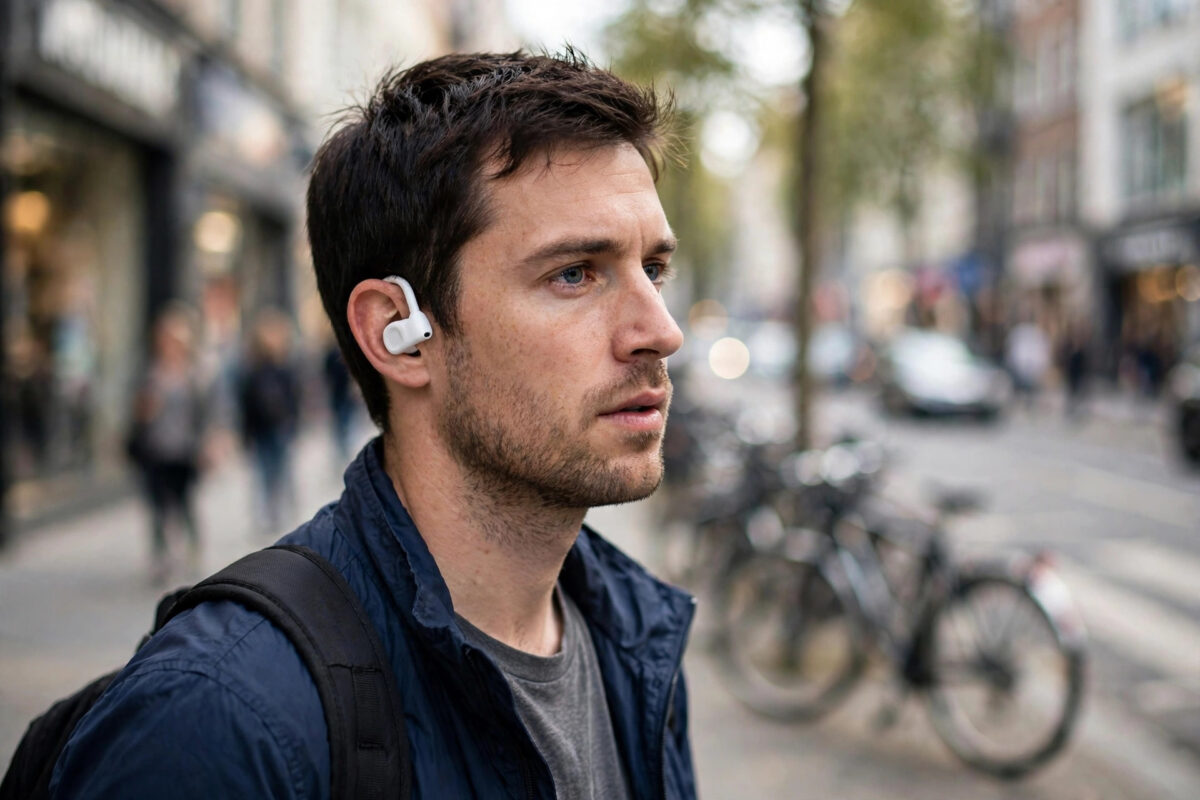
Samsung’s Galaxy Buds On are the company’s first clip-on earbuds, and one of their headline tricks is hands-free AI: you can start a Gemini Live conversation using only your voice, without touching your phone. Once it works, you can ask questions, brainstorm, or get directions while your phone stays in your pocket.
Getting there takes a few setup steps, because voice activation depends on your phone’s assistant settings as much as on the earbuds themselves. This guide walks through the requirements, the setup, and the fixes for the moments when Gemini stays silent.
Quick Answer
To start Gemini Live by voice on Galaxy Buds On, pair the earbuds with your Galaxy phone, open the Google Gemini app and set Gemini as your default digital assistant, and make sure “Hey Google” voice activation is turned on for connected earbuds. Then, while wearing the buds, say “Hey Google, let’s talk” or “Hey Google, start Gemini Live” and wait for the Live tone. If nothing happens, check that the earbuds are set as the audio device, that Voice Match recognises you, and that Gemini Live is available in your region and account.
What You Need Before You Start
Voice-started Gemini Live needs all of these pieces in place:
- A Samsung Galaxy phone running the latest software, paired with Galaxy Buds On
- The Google Gemini app installed and signed in with your Google account
- Gemini set as the phone’s default digital assistant instead of, or alongside, Bixby
- Voice Match set up so the assistant can recognise your voice
- An internet connection — Gemini Live runs in the cloud, not on the earbuds
- Gemini Live availability in your country and language; the feature rolls out gradually
If any one of these is missing, the earbuds will still play music and take calls, but the voice command for Live will fail quietly. Work through the setup below in order and you will cover all of them. Google’s own Gemini support pages on Google Support list the current country and language availability if you are unsure about your region.
Step-by-Step: Set Up Voice Activation
- Put both Galaxy Buds On in your ears and confirm they are connected in your phone’s Bluetooth settings.
- Open the Galaxy Wearable app and check for earbud firmware updates. Install any update offered.
- Open the Gemini app, tap your profile picture, and open Settings.
- Under the assistant settings, confirm Gemini is your default digital assistant.
- Find “Hey Google” and Voice Match and switch on voice activation. Retrain Voice Match in a quiet room if asked.
- Still in assistant settings, allow the assistant to respond on the lock screen and through connected earbuds or headphones.
- Open the Galaxy Wearable app, go to earbud settings, and confirm touch-and-hold or voice controls are not disabled.
How to Start a Gemini Live Conversation
With setup done, starting Live is a one-sentence job:
- Wear at least one earbud — both is better, because the microphones pick up your voice more clearly.
- Say “Hey Google, let’s talk” (or “start Gemini Live”).
- Wait for the short Gemini Live tone and greeting in your ear.
- Just speak naturally. Gemini Live is conversational, so you can interrupt, change topic, or say “go on” without repeating a wake word.
- To finish, say “stop” or “that’s all”, or tap the end button in the Gemini app.
During the conversation your phone screen shows a live transcript if you open the app, but you never need to look at it. Everything — questions, follow-ups, even mid-sentence corrections — happens by voice through the earbuds.
Useful Things to Try Once It Works
Gemini Live through earbuds shines in hands-busy moments:
- “Talk me through this recipe step by step” while cooking
- “I’m walking to the station — how long will it take and will it rain?”
- “Quiz me on Spanish verbs while I walk”
- “Summarise the meeting notes I just opened, in three points”
Because the Buds On have a clip-on, open design, you still hear traffic and people around you — a genuine safety plus for walking and cycling compared with sealed earbuds. Pair this with the buds’ other hands-free tricks, like answering calls with simple head gestures, and the whole experience stays touch-free.
Troubleshooting: Gemini Live Will Not Start
The wake word does nothing
Check that the earbuds are the active audio output, then retrain Voice Match. Background noise and wind fool the microphones on clip-on buds more easily than on in-ear models, so test in a quiet room first.
Bixby answers instead of Gemini
Your default assistant is still Bixby. Change it in Settings, Apps, Default apps, Digital assistant app, and choose Gemini. Also check the Galaxy Wearable press-and-hold settings, which can be mapped to Bixby separately.
Live starts on the phone speaker, not the earbuds
Forget and re-pair the earbuds, and make sure “calls” and “media audio” are both enabled in the Bluetooth device settings for Buds On.
It says Gemini Live is not available
That is a region, language, or account limit rather than a fault. Confirm availability in the Gemini app on the phone itself; if Live works on the phone screen but not by voice, the earbud voice trigger is usually the setting at fault, not availability.
Privacy and Data Notes Worth Knowing
A voice-started assistant means your earbuds’ microphones activate on a wake word and stream your conversation to Google’s servers for processing. That is how the feature works — there is no offline mode for Gemini Live — so use it with the same judgment you would apply to any voice assistant. Sensitive conversations belong in person, not through a cloud AI, and you can review or delete your Gemini activity from your Google account’s activity controls at any time. In the Gemini app settings you will also find the controls for whether audio recordings are saved; setting them the way you prefer takes a minute and is worth doing on day one rather than day ninety.
Common Mistakes and Useful Tips
Skipping the firmware update. New earbuds often ship with early firmware. Several voice features only switch on after the first update in Galaxy Wearable.
Training Voice Match in a noisy place. The assistant learns your voice from those samples. Train somewhere quiet and the wake word works far more reliably outdoors.
Expecting it to work offline. Gemini Live is a cloud conversation. In a tunnel or a dead zone it will pause or fail, no matter how good the earbuds are.
Leaving the phone locked out. If the assistant cannot act while the phone is locked, enable lock-screen access for the assistant; otherwise every request ends with “unlock your phone first”.
Conclusion
Starting Gemini Live by voice on Galaxy Buds On comes down to three things: updated earbuds, Gemini set as your default assistant with Voice Match on, and lock-screen and earbud access allowed. Set those once, and “Hey Google, let’s talk” puts a full conversational AI in your ear whenever you need it — no screen, no taps, no phone in hand.
Frequently Asked Questions
Do I need both earbuds in to start Gemini Live?
No, one earbud is enough, because a single bud has a working microphone. Two earbuds give clearer voice pickup in noisy places, so use both outdoors when you can.
Does Gemini Live work on Galaxy Buds On with a non-Samsung phone?
Basic audio and calls work with most Android phones, but the smoothest voice-assistant setup — including some Wearable app settings — is designed for Galaxy phones. On other phones, start Gemini from the Google app or the phone’s own assistant shortcut instead.
Why does “Hey Google” work for questions but not for Live?
Normal voice answers and Gemini Live are separate features. If short answers work but Live will not open, check that your account, language, and region support Live in the Gemini app, and that the app is updated.
Can I start Gemini Live by pressing the earbud instead of speaking?
Yes. In the Galaxy Wearable app you can assign a touch-and-hold gesture to open the voice assistant, which then connects you to Gemini. This is handy in quiet public places where talking to your earbuds feels awkward.
Does using Gemini Live drain the earbud battery faster?
Slightly, because the microphones stay active for the whole conversation. Normal music playback still lasts longer per charge than a long Live session, so keep the case nearby on heavy-use days.



Leave a Reply