
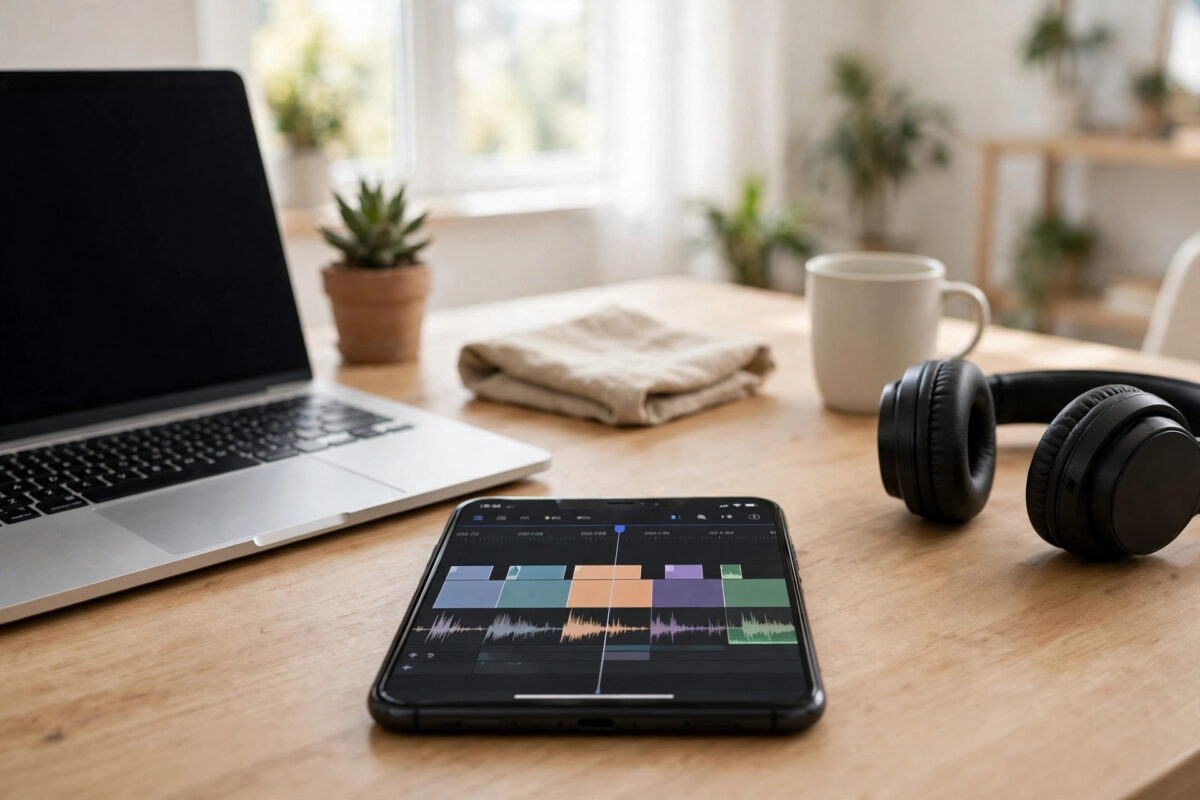
The Edits app by Meta has quietly become a favourite tool for short-form video creators, and one of its most useful perks is the free cloud storage that comes with your account. Every user gets 10 GB of cloud space at no cost, which is enough to back up dozens of drafts and keep your projects synced between your phone and a second device.
The problem is that Meta does not shout about this feature. Many people use Edits for months without realising the storage is there, or they assume it needs a paid plan. This guide shows exactly how to claim the free 10 GB, how to check how much you have used, and how to avoid filling it up too quickly.
Quick Answer
To get the free 10 GB of cloud storage in the Meta Edits app, sign in to Edits with your Instagram or Facebook account, open the app’s Settings, and look for the Storage or Cloud section. The 10 GB free allowance is attached to your Meta account automatically once you are signed in, and your drafts begin syncing as soon as cloud backup is switched on. There is no code to enter and no card required. If the storage does not appear, update the app, sign out and back in, and make sure you are using the same Meta account you signed up with.
What the Free 10 GB Storage Actually Includes
The free allowance is designed for project backup rather than general file storage. It covers the things you create inside Edits, including:
- Video drafts and unfinished projects, with their edits intact
- Imported clips that are part of a saved project
- Audio tracks and voiceovers you recorded in the app
- Project settings, captions, and overlays linked to each draft
Finished videos that you export to your phone’s gallery do not need cloud space, because they already live on your device. The cloud copy matters most when you change phones, reinstall the app, or edit on more than one device. Think of the 10 GB as a safety net for work in progress.
It is also worth knowing that the storage is tied to your Meta account, not to your phone. Signing in on a new device with the same account brings your synced projects with it. Signing in with a different Instagram account shows a different, empty library.
How to Claim and Activate the Free Storage, Step by Step
Follow these steps in order. The whole process takes about two minutes.
- Update the Edits app from the App Store or Google Play so you are running the latest version.
- Open Edits and sign in with your Instagram or Facebook account if you have not already.
- Tap your profile icon or the menu button to open the main menu.
- Open Settings, then find the Storage or Cloud Backup section.
- Confirm that your free plan shows 10 GB. If a toggle for cloud sync or automatic backup is present, switch it on.
- Choose whether uploads can use mobile data or only Wi-Fi. Wi-Fi only is the safer choice for large projects.
- Go back to your drafts, open one project, and wait for the sync icon to finish. That project is now backed up.
On some versions of the app, the storage screen appears the first time you save a draft after signing in. If you skipped that prompt, the Settings route above leads to the same place. The Instagram Help Center’s guidance on the Edits app is the official reference if your menus look slightly different, because Meta adjusts the layout between updates.
How to Check How Much Storage You Have Used
Open Settings and return to the Storage section. You will see a bar showing used and free space, plus a rough breakdown of what is taking room. Large video projects are almost always the biggest item.
Check this screen once a month if you edit often. When the bar turns red or you pass about 90 percent, new drafts may stop syncing until you free space. The app normally warns you, but the warning is easy to miss if notifications are off.
If the numbers look wrong — for example, the app claims you are using space but your library is empty — sign out, restart the app, and sign in again. This forces a fresh sync of the storage figures.
What Counts Towards the 10 GB, and What Does Not
Understanding the rules helps you stretch the free space much further.
Things that count
- Every draft project, including duplicate copies you made “just in case”
- Long imported clips stored inside a project, especially 4K footage
- Recorded voiceovers and imported music files attached to drafts
Things that do not count
- Videos you exported to your phone’s gallery
- Templates and effects you browsed but never used in a project
- Videos you published directly to Instagram or Facebook
A single 4K project with several long clips can use 1 GB or more. Ten unfinished projects like that will fill your free space, which is why regular clean-ups matter.
How to Free Up Space Without Losing Important Work
When you run low, work through these steps before deleting anything you care about:
- Export finished projects to your phone, then delete the draft version from Edits.
- Delete duplicate drafts. Creators often keep three versions of the same video.
- Remove abandoned test projects and practice edits.
- Trim very long imported clips inside projects so the stored file is smaller.
- Check for old voiceover takes and unused audio files in project folders.
After deleting, empty the app’s recycle or trash area if your version has one, because trashed projects may keep using space for a set period before they are removed for good. You can also pair this clean-up with the tricks in our guide to using the Meta AI assistant inside the Edits app, which helps you finish drafts faster instead of leaving them half-done in storage.
Common Mistakes and Useful Tips
Using more than one account. The most common reason people “lose” their storage is signing in with a second Instagram account. The 10 GB and the projects belong to one account only.
Leaving sync on mobile data. A few big uploads on mobile data can eat your data plan. Keep uploads on Wi-Fi only unless you urgently need a backup.
Assuming exported videos are backed up. Exporting saves a copy to your phone, but if the phone is lost, the cloud draft was your only backup. Keep important projects synced until you have the final video stored in two places.
Ignoring the storage warning. When the app says sync is paused, new drafts are only on your device. Free space the same day so you do not lose work.
Conclusion
The free 10 GB of cloud storage in the Meta Edits app is already yours — you just need to be signed in with your Meta account and have cloud sync switched on in Settings. Check the storage screen now and then, delete duplicate and finished drafts, and your projects will stay safely backed up and ready on any device. It takes two minutes to set up and can save hours of lost editing work.
Frequently Asked Questions
Is the 10 GB of Edits cloud storage really free?
Yes. The 10 GB allowance comes free with your Meta account when you sign in to the Edits app. You do not need to add a payment card or start a trial to use it.
Why does my Edits app show no cloud storage?
Usually this means you are not signed in, the app is out of date, or you signed in with a different account than expected. Update the app, sign out, and sign back in with your main Instagram or Facebook account, then check Settings again.
Can I get more than 10 GB of storage in Edits?
Meta may offer larger paid storage options in some regions, and availability changes over time. For most creators, cleaning out finished and duplicate drafts keeps the free 10 GB comfortable without paying anything.
Do my drafts sync between my phone and tablet?
Yes, as long as both devices are signed in to Edits with the same Meta account and cloud sync is on. Give large projects a few minutes on a good Wi-Fi connection to finish uploading before opening them on the second device.
What happens to my projects if I uninstall Edits?
Projects that finished syncing to the cloud are restored when you reinstall the app and sign in with the same account. Drafts that never synced, or were saved while storage was full, only existed on the phone and cannot be recovered after uninstalling.



Leave a Reply