
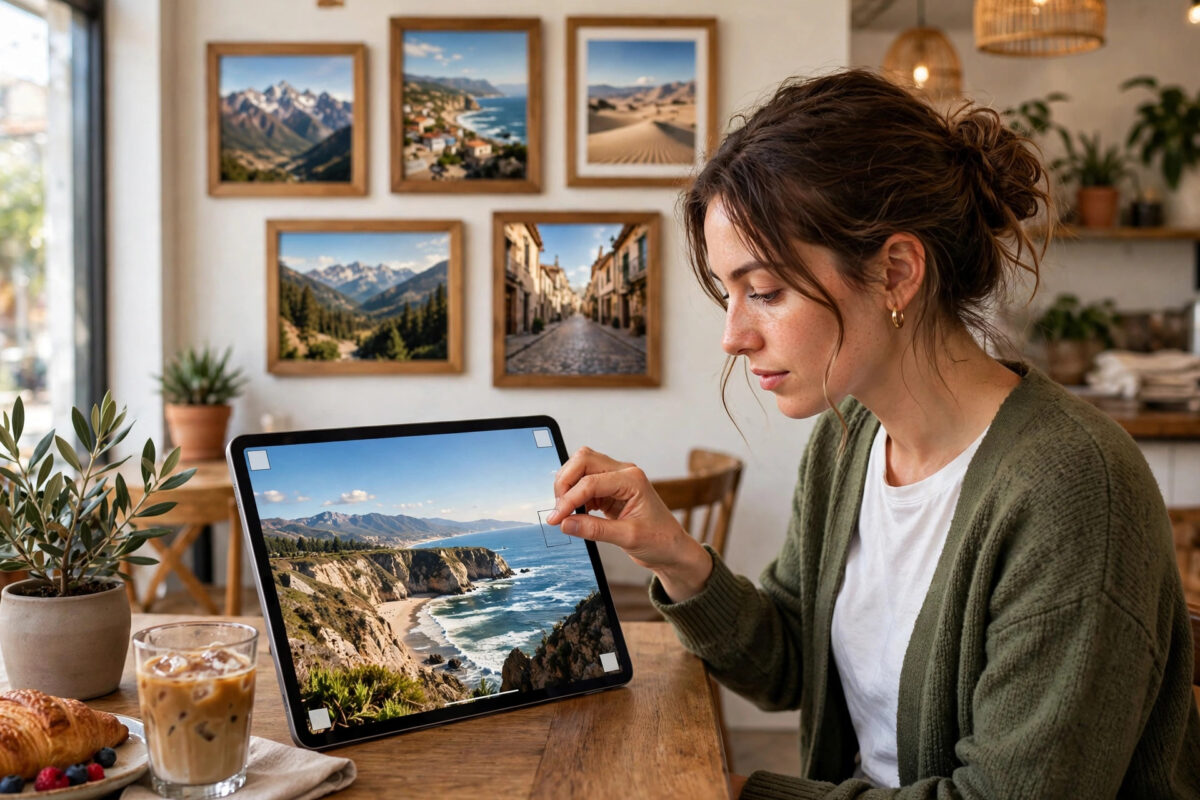
Instagram cropping has ruined countless good photos. You upload a picture you love, and the app slices off the top of someone’s head, the edges of a group, or the product you were trying to show. It happens because Instagram displays images at fixed aspect ratios, and any photo that does not match gets cropped to fit.
The fix is to resize the image before you upload it, adding space where needed instead of letting the app cut content away. Free online tools do this in seconds, and this guide covers the exact sizes Instagram uses, the resizing steps, and how to keep your photos sharp.
Quick Answer
To resize an image for Instagram without bad cropping, use a free resizer such as Canva or Adobe Express, choose the Instagram preset — 1080 × 1350 pixels (4:5) for portrait posts, 1080 × 1080 (1:1) for square, or 1080 × 1920 (9:16) for stories and reels — and let the tool add background space or extend the canvas rather than cutting your photo. Export as JPG or PNG and upload.
Instagram Image Sizes You Actually Need
Instagram supports three main shapes for feed posts. Square posts are 1:1, displayed at 1080 × 1080 pixels. Portrait posts are 4:5, at 1080 × 1350 pixels, and they are the best choice for most photos because the taller shape takes up more screen space and shows more of the scene. Landscape posts are 1.91:1, at about 1080 × 566 pixels, mainly useful for wide panoramas. Stories, reels, and full-screen vertical content use 9:16 at 1080 × 1920 pixels. Profile pictures are circular, so keep the subject centred in a square image. Designing at these exact sizes means Instagram shows your image the way you planned it, with no surprise cropping.
Step-by-Step: Resize with a Free Online Tool
Canva’s free photo editor and resizer is beginner-friendly and includes ready-made Instagram templates; Adobe Express offers a similar free image resize tool with platform presets. The workflow is nearly the same everywhere.
- Open the resizer and upload your photo.
- Choose the Instagram preset you need — “Instagram Post (Portrait)” at 4:5 is the best default for photos.
- The tool places your photo on a canvas of the new shape. If your photo is wider or shorter than the canvas, you will see empty space rather than a forced crop.
- Fill the empty space in one of three ways: use a blurred version of the photo as the background (the classic look for this job), pick a solid colour that suits the image, or extend the photo with the tool’s background or expand feature if it offers one.
- Position the photo so nothing important sits at the very edges, where app buttons and captions can overlap it.
- Download the result as a JPG for photographs. Keep the file size reasonable — a sharp 1080-pixel-wide export is exactly what Instagram wants.
- Upload it to Instagram and check the preview before posting.
Why Resizing Beats Cropping
Cropping throws away parts of your photo. Resizing with added space keeps the whole picture and simply changes the frame around it. This matters most for group photos, product shots with text or logos near the edges, and tall subjects like buildings. The blurred-background technique is popular for a reason: it fills the frame attractively using colours from the photo itself, and viewers’ eyes stay on the sharp image in the middle. For a cleaner, designed look, a solid background colour with the photo centred works beautifully for product and announcement posts. Either way, nothing and nobody gets cut in half.
If your original photo is very large, shrinking it yourself also prevents Instagram’s own compression from making choices for you — and if the file is heavy to begin with, our guide on the best free online image compressor that keeps quality high shows how to slim it down first without visible damage.
Keeping Your Resized Photos Sharp
Sharpness problems usually come from starting too small. Never enlarge a tiny image to 1080 pixels and expect it to look crisp; work from the original photo whenever possible. Export at exactly the recommended pixel size rather than much larger, because Instagram compresses oversized uploads anyway, and its compression is not gentle. Save photographs as JPG, not PNG, unless the image contains text or flat graphics, where PNG stays cleaner. Finally, avoid re-editing and re-uploading the same image repeatedly — every save through another app adds a layer of compression.
Resizing Batches and Planning a Consistent Feed
If you post regularly, resizing one photo at a time quickly becomes a chore. Most free resizers, including Canva, let you place several photos onto the same template size in one session, so a week of content can be prepared in fifteen minutes. Working in batches also creates a consistent look: when every post uses the same 4:5 canvas, the same background treatment, and similar margins, your profile grid starts to look deliberate and professional rather than accidental. Some creators pick a signature background colour drawn from their brand, so followers recognise their posts mid-scroll before reading a word. Keep a folder of ready-to-post resized images, named by date, and keep the full-size originals in a separate archive. That small system — originals untouched, resized copies ready — is the same safe habit photographers use, and it means a lost phone or a deleted app never takes your best work with it.
Common Mistakes and Useful Tips
- Uploading a 16:9 landscape photo straight to the feed. It gets cropped or shrunk with awkward bars. Resize it onto a 4:5 canvas instead.
- Placing important content at the edges. Profile grids crop feed images to a square preview, so keep faces and text near the centre.
- Using the story size for a feed post. A 9:16 image in the feed gets cropped heavily. Match the preset to the placement.
- Enlarging low-resolution images. Start from the original file. Upscaled small images always look soft.
- Forgetting the grid preview. Portrait posts display as squares on your profile grid. Check the centre square looks good, because that is what profile visitors see.
Quick Fixes for Photos Already Posted Badly
If your feed already contains awkwardly cropped posts, you have a few options. Instagram does not let you replace the image in an existing post, so for an important photo the cleanest fix is to resize it properly and post it again, deleting the old version if it looks truly bad. For a business account, consider whether the post earned enough engagement to leave alone — a slightly cropped old post is rarely worth deleting if it performed well. Going forward, build the check into your routine: resize, preview the profile-grid square in your head, then post. Many creators draft the resized version and view it in the app’s preview screen for a full minute before publishing, because the preview is exactly what followers will see, and the crop surprises only happen to people who skip it.
Conclusion
Bad Instagram crops are a sizing problem, and sizing problems are easy to prevent. Resize your photo first with a free tool, use 1080 × 1350 for portrait posts, fill extra space with a blur or colour instead of cutting content away, and export at exactly the size the platform wants. Your photos will appear complete, sharp, and exactly as you intended.
Frequently Asked Questions
What is the best image size for Instagram posts in 2026?
Portrait posts at 1080 × 1350 pixels (4:5) give the best combination of screen space and no cropping. Square posts remain 1080 × 1080.
How do I post a full photo on Instagram without cropping it?
Resize it onto a canvas with an Instagram-supported ratio first, filling the extra space with a blurred background or a solid colour, then upload the resized file.
Why does my photo look blurry after uploading?
Usually because the original was smaller than 1080 pixels wide, or it was compressed several times by other apps. Start from the original and export at the exact recommended size.
Should I use JPG or PNG for Instagram?
JPG for photographs — smaller files and no visible difference. PNG is better only for graphics with text, logos, or sharp edges.
What size are Instagram stories and reels?
1080 × 1920 pixels (9:16). Keep text and faces away from the top and bottom edges, where the app places buttons and captions.
Leave a Reply