
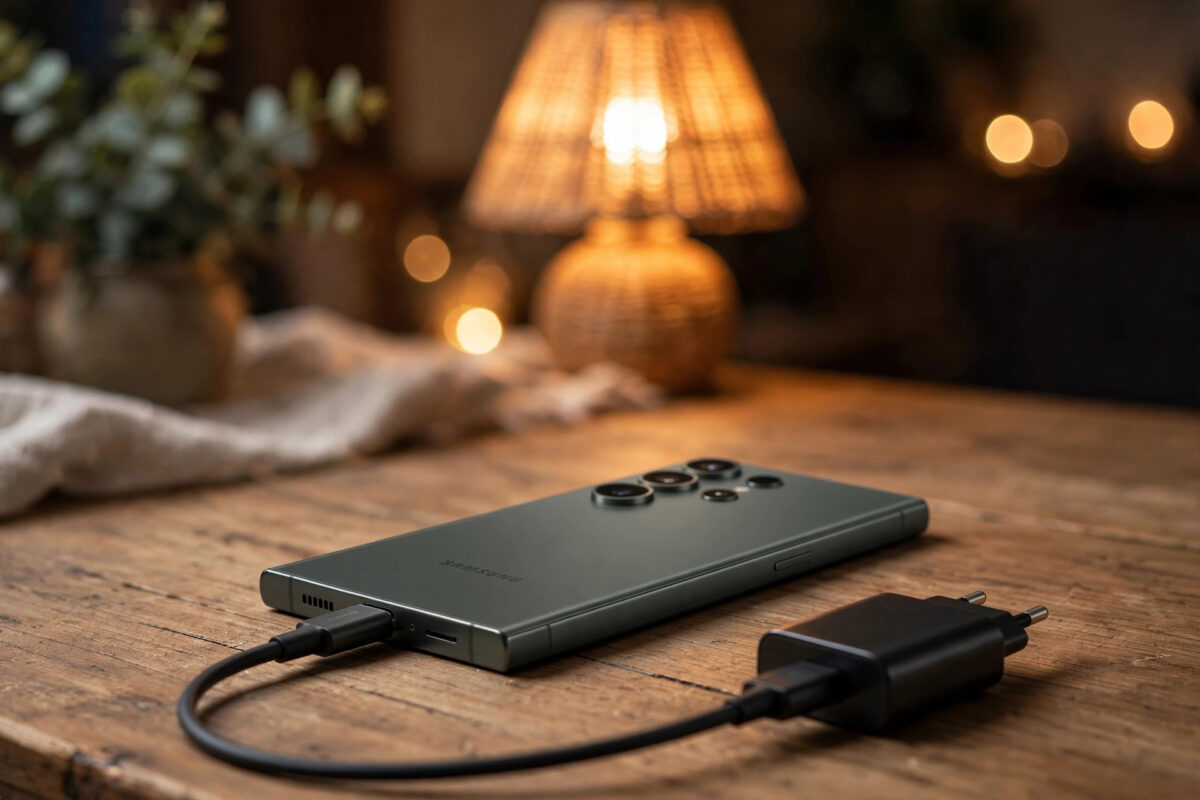
A major Samsung update should make your Galaxy phone feel fresher, not leave you hunting for a charger by mid-afternoon. Since One UI 9 began rolling out in stages to Galaxy phones, battery drain has become one of the most talked-about complaints. Some owners see a sharp drop in the first day or two, others notice steady overnight loss, and a few find one app suddenly using far more power than before.
One UI 9 is based on Android 17, so this is not a small patch. It changes system services, background rules and Samsung’s own apps, which means your phone needs time to re-optimise after the update, just like after any large Android upgrade. In many cases the drain settles on its own. When it does not, there is usually a specific cause you can find and fix without a factory reset.
This guide walks you through the normal settling period, how to read Samsung’s battery tools accurately, and the proven steps in the right order: from Device care and app checks to cache partition wipe and Safe Mode testing.
Quick Answer
One UI 9 battery drain on Samsung Galaxy phones usually settles within two to three days as the system re-optimises apps and learns your usage again. If drain continues, check Settings > Battery for abnormal app use, run Device care optimisation, update all apps and Good Lock modules, and wipe the cache partition in Recovery. Persistent drain after a week points to a rogue app or a setting that needs resetting.
Why One UI 9 Can Cause Battery Drain at First
After a major update, Android rebuilds app caches, re-indexes media, re-compiles apps for the new runtime and re-learns your usage patterns for adaptive battery features. Samsung adds its own layer on top: Galaxy AI services, One UI Home, Good Lock modules and carrier services may all update or reset in the background. That work uses processor time, storage and network access, so the phone may feel warm and the battery graph may fall faster, especially on the first day.
How Long Should You Wait Before Troubleshooting?
Give a normal update 48 to 72 hours. Keep the phone charged overnight on Wi-Fi for at least two nights so optimisation can run while idle. If the trend improves each day, keep waiting. If after three days the phone still loses a lot of charge overnight with no use, or a single app dominates battery use, start the steps below. After a week, continued heavy drain should be treated as a fault to isolate, not as settling.
Step 1: Check Battery Usage and Device Care
Start with Samsung’s built-in tools. They show you whether the problem is screen time, a background app, poor signal or system activity.
- Open Settings > Battery and review the usage graph and estimated remaining time.
- Tap Battery usage or the app list to see use since the last full charge.
- Look for an app with high background use compared with its screen time. More walkthroughs are in our Samsung guides at Network Ustad.
- Go back and open Settings > Device care.
- Tap Optimise now and let the scan finish.
- In Device care, check Memory and Storage for warnings, but do not delete personal files to chase battery gains.
Step 2: Update Apps, Galaxy Store Apps and System Components
Outdated apps are a leading cause of post-update drain. An app built for the previous One UI version may loop, sync constantly or fail to enter sleep properly on One UI 9.
- Open the Play Store, tap your profile, then Manage apps and device > Updates available > Update all.
- Open the Galaxy Store, tap Menu > Updates, and update Samsung apps.
- Go to Settings > Software update > Download and install to check for a follow-up patch.
- Go to Settings > Security and privacy > Updates and check for a Google Play system update.
- If you use Good Lock, open it and update every module, as modules often need a new version after a major One UI update.
Restrict a Problem App Without Uninstalling It
- Go to Settings > Battery > Background usage limits.
- Tap Never sleeping apps and remove any app that does not need instant alerts.
- Tap Deep sleeping apps and add rarely used apps that show high background use.
- Alternatively, open Settings > Apps, select the app, tap Battery, and choose Restricted.
Step 3: Review the Settings That Drain Battery Quietly
A few everyday settings can explain steady drain after an update, especially if they were reset to more demanding defaults.
- Display: Go to Settings > Display and use Adaptive brightness. Consider a shorter screen timeout and, on high refresh rate models, test Motion smoothness on Standard for a day to measure the difference.
- Connectivity: Poor mobile signal forces the phone to boost power. If drain is worst in one location, compare Wi-Fi and mobile data days. Turn off Bluetooth, NFC or location when you genuinely do not need them, rather than as a permanent habit.
- Location: Go to Settings > Location > Location services and review Wi-Fi scanning and Bluetooth scanning. Set app location permissions to Allow only while using where possible.
- Always On Display: Go to Settings > Lock screen and AOD and set it to Tap to show or As scheduled if it is currently always on.
Step 4: Wipe the Cache Partition in Recovery
If app updates and restrictions do not help, wiping the cache partition is the next safe step. It removes temporary system cache files that can become corrupted after a major update. It does not delete your photos, apps or accounts.
- Turn the phone completely off.
- Connect the phone to a computer with a USB cable if your model requires it to enter Recovery.
- Press and hold Volume Up and the Side key together until the Samsung logo and then the Recovery menu appear, then release.
- Use the Volume keys to highlight Wipe cache partition and press the Side key to select it.
- Highlight Yes and confirm.
- When it finishes, select Reboot system now.
Step 5: Test in Safe Mode to Find a Rogue App
Safe Mode runs the phone with only pre-installed system apps active. It is the cleanest way to tell whether a downloaded app is causing the drain.
- Press and hold the Side key (or Side and Volume Down on some models) to open the power menu.
- Touch and hold Power off until Safe mode appears, then tap it.
- Use the phone in Safe Mode for several hours with normal screen and network use.
- To exit, restart the phone normally.
If battery use is normal in Safe Mode, a third-party app is the likely cause. Reinstall or remove recently updated apps one by one, starting with the highest user in Battery settings. If drain is just as bad in Safe Mode, the issue is more likely system-related, and you should check for a software patch or contact support through Samsung Support before considering a factory reset. Back up everything fully before any reset.
Common Mistakes and Tips
The biggest mistake is factory resetting on the first day. A reset forces all optimisation and app setup to start again, so drain can return for days and you lose time restoring everything. Another mistake is installing battery saver or cleaner apps from ads. They cannot fix system optimisation, often run constantly themselves, and may show alarming warnings to sell upgrades.
Better tips are practical. Keep the phone cool while it settles; gaming, filming and fast charging in a hot car will always look like drain. Use the original or a quality charger and cable if charging seems slow or hot. Turn on Protect battery in Settings > Battery if you charge overnight for long periods and want to limit wear, understanding it caps the maximum charge. Most importantly, compare like with like: judge battery by the same routine, same signal area and similar screen time, not by one unusual travel day.
Conclusion
One UI 9 battery drain is common in the first two to three days because your Galaxy is rebuilding, re-learning and updating in the background. Check Battery and Device care first, update everything including Galaxy Store apps and Good Lock, restrict only the apps with proven background abuse, and then wipe the cache partition if needed. Use Safe Mode to prove whether an app is responsible before you think about a reset. Followed in order, these steps fix the majority of post-update drain cases and leave you with a phone that lasts as it should on Android 17.
Frequently Asked Questions
How long does One UI 9 battery drain last on Galaxy phones?
For most users it settles within 48 to 72 hours, especially with overnight charging on Wi-Fi. If heavy drain, heat or large overnight loss continue after a week, troubleshoot it as an app or system fault rather than normal settling.
Does wiping the cache partition delete my data?
No. Wipe cache partition in Recovery removes temporary system cache files only. Your photos, videos, apps, messages and accounts remain. Do not confuse it with Wipe data or factory reset, which does erase personal data.
Should I use Deep sleeping apps for everything?
No. Deep sleeping is useful for rarely used apps, but if you apply it to messaging, email or delivery apps, their notifications will be delayed until you open them. Restrict only apps with proven high background use that you do not need instantly.
Why does my Galaxy lose battery overnight after One UI 9?
Common causes are background optimisation in the first days, an app syncing repeatedly, poor mobile signal, or Always On Display. Charge on Wi-Fi for two nights, check the overnight battery graph, and restrict any app that dominates background use.
When should I factory reset for battery drain?
Only as a last resort after updates, cache wipe and Safe Mode testing, and only after a full backup. If drain persists on a clean setup with no extra apps, contact Samsung Support, as a hardware battery issue becomes more likely.



Leave a Reply