
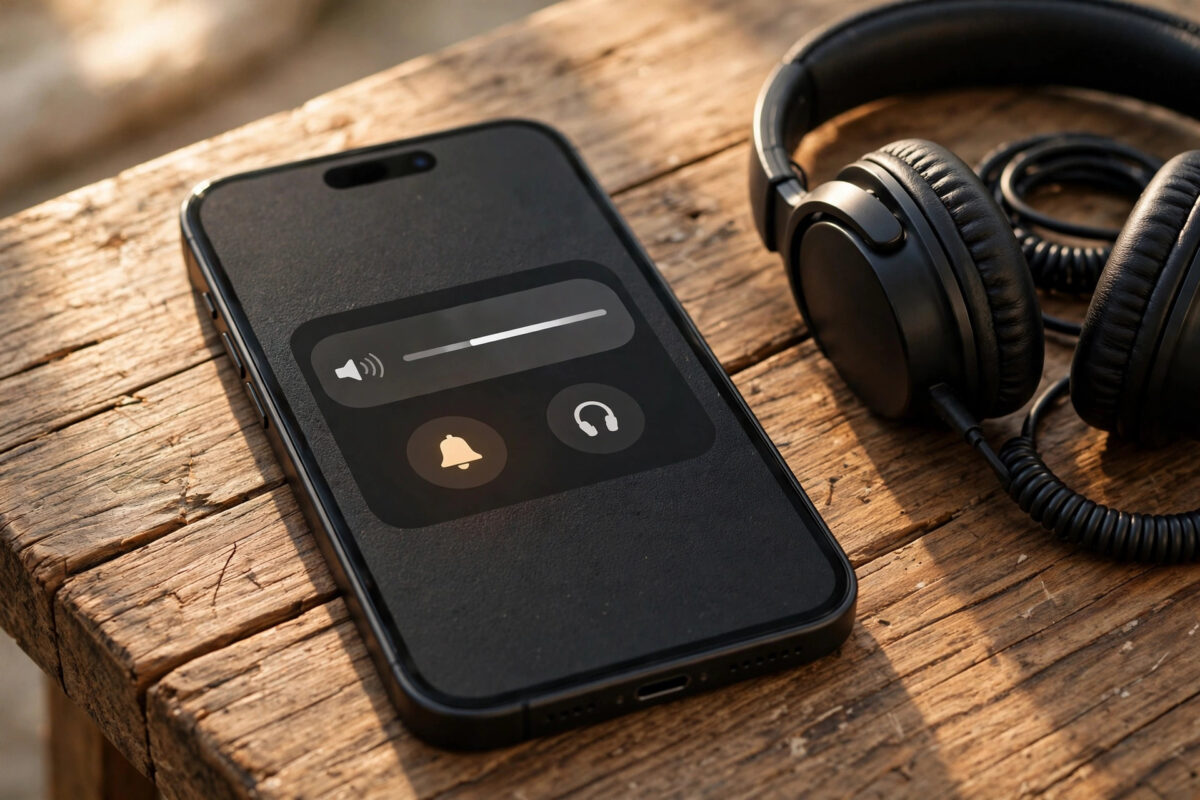
Almost every iPhone owner has lived through the same frustration. You turn the volume down for a video or a game, and later you miss an important notification because it was too quiet. Or you turn the volume up to hear an alert in a noisy place, and the next video blasts far louder than you wanted. Media, ringtones, and notifications have never felt fully separate, and that is exactly the problem iOS 27 aims to improve.
In iOS 27, notification volume is managed in Sounds & Haptics settings, giving you a clearer place to control how loud your alerts sound without guessing what the side buttons will affect next. Setting a dedicated level for notifications means your messages, emails, and app alerts can stay consistent, while your music and video volume can move up and down freely through the day.
This guide walks you through exactly where to find the control, how to set a separate notification volume step by step, how to test it properly, and how to avoid the classic mistakes that make people think the setting is not working. By the end, your iPhone will alert you at the volume you actually chose — not at whatever volume your last video happened to leave behind.
Quick Answer
You set a separate notification volume in iOS 27 by opening Settings > Sounds & Haptics and adjusting the notification volume slider to your preferred level, independent of media playback.
Use the side volume buttons for media while you are playing it, and use Sounds & Haptics when you want to change how loud notifications and alerts sound.
Why a Separate Notification Volume Matters
Notifications and media do different jobs. Media volume is about comfort — you adjust it for the room you are in, the headphones you are wearing, or the video you are watching. Notification volume is about not missing something important — a message from family, a delivery update, a calendar reminder, or a work alert. When those two jobs share one level in your mind, one of them always loses.
A separate notification volume solves three everyday problems. First, consistency: your alerts sound at the same level in the morning, at work, and in the evening, unless you deliberately change them. Second, confidence: you can watch a quiet video at night without worrying that tomorrow’s first message will be silent. Third, accessibility: people who rely on audible alerts to catch reminders can keep notifications clearly audible even when they prefer media to be soft.
It is also worth setting your expectations correctly. Sounds & Haptics is where notification volume is managed in iOS 27, but individual apps can still have their own notification settings, sounds, and time-sensitive delivery rules in Settings > Notifications. Think of the Sounds & Haptics volume as the master level for alerts, and per-app settings as the fine detail for which alerts arrive and how they are presented.
How to Set a Separate Notification Volume Step by Step
Follow these steps slowly the first time. Play a test notification afterwards so you can hear the level you have chosen in a real situation, not just on a slider.
Step 1: Open Sounds & Haptics
- Open Settings on your iPhone.
- Tap Sounds & Haptics.
- Look for the volume controls for ringtones and alerts, including the notification volume control for iOS 27.
- Before you change anything, note your current level so you can return to it if needed.
Step 2: Set Your Notification Volume Level
- Drag the notification volume slider in Sounds & Haptics to your preferred level — for most people, somewhere in the middle to upper-middle range is a good starting point.
- Pause and listen to any preview sound your iPhone plays as you adjust, so you judge the level by ear, not by the slider position alone.
- If there is an option to control whether the volume buttons change this level, set it so your notification volume stays separate — the aim is for button presses during media playback not to silently rewrite your alert level.
- Choose your ringtone and text tones on the same screen while you are here, so volume and sound are set together.
Choosing the right level is personal. In a quiet home, a moderate level is plenty. If you work outdoors, in a kitchen, or in any noisy environment, you may need notifications noticeably louder than media. Set it for the place where missing an alert would matter most, then use Focus modes to quieten things at night rather than constantly moving the main slider.
Step 3: Set Haptics to Match Your Volume
- Still in Settings > Sounds & Haptics, tap the haptics options for ringtones and alerts.
- Choose whether haptics play always, in Silent Mode only, or never, based on how you carry your phone.
- If your phone lives in a pocket or bag, strong haptics plus a clear notification volume is the most reliable combination.
- Turn on Silent Mode with the side switch or Control Centre to confirm vibration behaves as you expect.
Haptics matter because volume alone does not help when your phone is on silent in a meeting. A well-chosen vibration pattern can catch your attention when sound cannot, and it stops you from setting notification volume unnecessarily high for every situation.
Step 4: Check Per-App Notification Settings
- Open Settings > Notifications.
- Tap an important app such as Messages, Mail, or your delivery app.
- Confirm Allow Notifications is on, sounds are enabled, and the alert style suits you.
- Repeat for two or three essential apps, and turn off sound for noisy, low-priority apps instead of lowering your overall notification volume for everything.
This step prevents a common confusion: the master notification volume can be perfect, but an app with sounds turned off will still seem silent. Check the app before blaming the slider. For broader iPhone help, see our iPhone guides at Network Ustad, where Sounds, Notifications, and Focus are covered in plain, practical steps.
How to Test Your New Notification Volume
Testing properly takes two minutes and saves days of doubt.
- Lock your iPhone and ask someone to send you a normal message, or send yourself a reminder that triggers in one minute.
- Listen to the alert at your new notification volume without touching the volume buttons.
- Now play a video or song and change the media volume with the side buttons — turn it down low, then up again.
- Trigger another notification and confirm it still arrives at the level you set in Sounds & Haptics, not at the last media level.
- Test once more with headphones disconnected and, if you use them, check how alerts behave when headphones are connected.
If the second notification matches the first, your separate volume is working as intended. If it changes with media, revisit Sounds & Haptics and check any option linking the volume buttons to ringtones and alerts.
Focus and Silent Mode still affect alerts, so check them before judging volume. For related controls, see changing notification settings on iPhone from Apple Support and adjusting iPhone volume from Apple Support.
Common Mistakes and Useful Tips
Testing while media is playing. If music or a video is playing, the volume buttons control media, and what you hear may not reflect your notification setting. Always test notifications with media stopped and the phone locked.
Forgetting Focus or Silent Mode. A perfect notification volume will still seem silent if a Focus mode is filtering the app or Silent Mode is on. Check Control Centre for the Focus and bell icons before changing sliders.
Lowering everything because one app is noisy. Do not punish Messages and Mail because a shopping app pings too often. Turn off sound for the noisy app in Settings > Notifications and keep your main notification volume for the alerts you value.
Tip: Pair volume with a distinctive tone. Choose a clear, distinct sound for your most important app in Sounds & Haptics. Recognition matters as much as loudness — you react faster to a sound you instantly identify.
Conclusion
Setting a separate notification volume in iOS 27 is a small change with a daily payoff. Open Settings > Sounds & Haptics, set the notification volume slider to a level you have tested by ear, configure haptics to support it, and check per-app settings in Settings > Notifications for the apps that matter. Test with media stopped, then with media playing, and let Focus handle quiet hours instead of constantly moving the slider. Do that once, properly, and your alerts will finally sound the way you intended — every time.
Frequently Asked Questions
Where do I find notification volume in iOS 27?
Notification volume is managed in Settings > Sounds & Haptics. Open that screen and use the volume slider for ringtones and alerts, including notifications, to set a level that is separate from the media volume you control during playback.
Why do the volume buttons still change what I hear?
The side buttons usually control media volume while media is playing, and their behaviour for ringtones and alerts depends on your Sounds & Haptics options. If button presses seem to change your alert level, revisit Sounds & Haptics and check the setting that links buttons to that volume.
My notifications are still quiet after setting the volume. What should I check?
Check Silent Mode, check whether a Focus mode is active, and open Settings > Notifications for the specific app to confirm sounds are allowed. Also test with headphones disconnected, as audio routing can change what you hear.
Can I set a different volume for each app?
iOS manages notification volume mainly as an overall level in Sounds & Haptics, while per-app settings in Settings > Notifications control whether an app can notify you, its sound, and its alert style. You fine-tune by app through those controls rather than a separate slider per app.
Will Focus modes override my notification volume?
Focus does not mainly change volume — it filters which notifications arrive and when. A filtered notification will not alert you audibly even if your volume is high, which is why you should check Focus whenever an expected alert seems missing.



Leave a Reply