
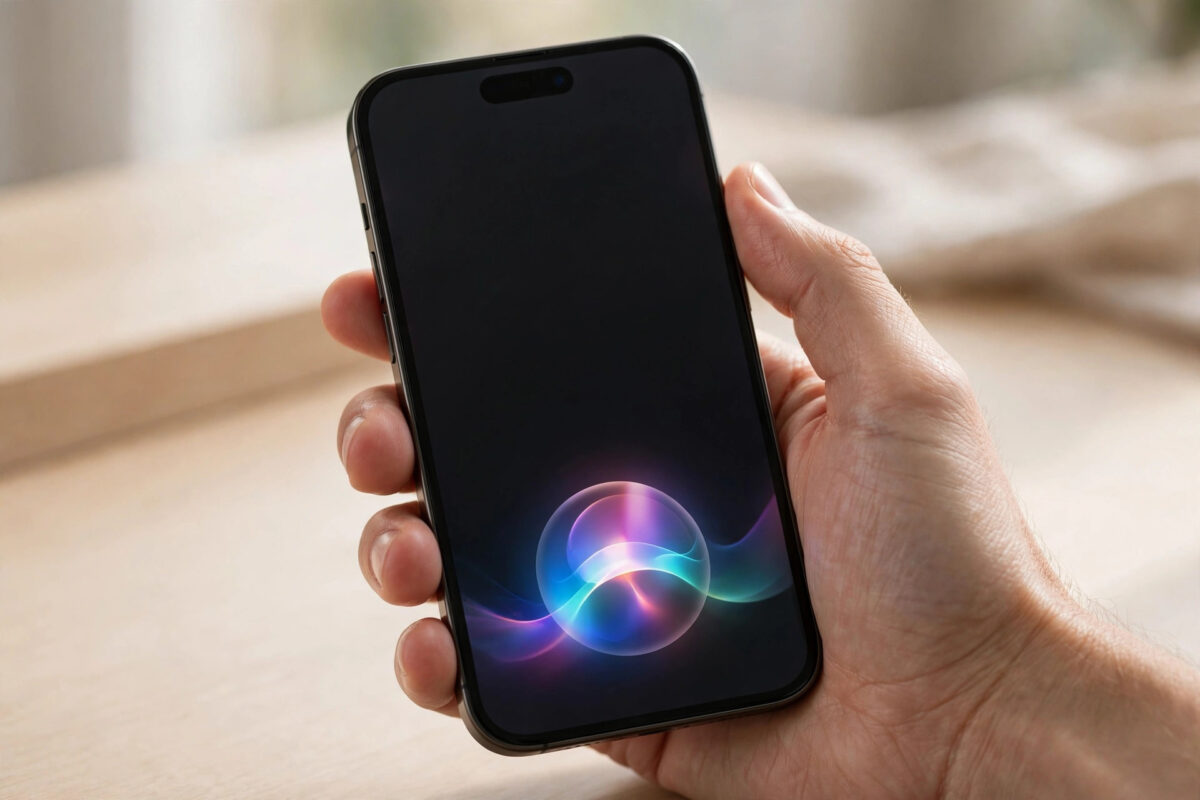
iOS 27 changes Siri more than any update in years. The new AI-powered Siri experience is designed to understand context better, remember what is on your screen, and handle follow-up requests in a more natural way. For many people that is an improvement, but not everyone wants it on day one. If you preferred the older, simpler way Siri worked — quick answers to timers, calls, messages, and basic questions without the extra conversational layer — you are not alone. That older behaviour is what many users now call Siri Classic.
The good news is that you do not need to downgrade your iPhone or avoid iOS 27 to get back a more familiar experience. Apple Intelligence has no single master switch that turns everything off, but Siri is managed in a practical way through Settings > Apple Intelligence & Siri and through per-app settings. By working through those controls carefully, you can reduce the new AI behaviour, limit what Siri learns from apps, and make Siri respond much more like it did before.
Quick Answer
You can make Siri behave like Siri Classic in iOS 27 by going to Settings > Apple Intelligence & Siri and turning off the Apple Intelligence-powered Siri features, then limiting Siri suggestions and learning in per-app settings.
There is no single button labelled Restore Siri Classic, so the result comes from a small set of switches working together rather than one toggle.
What Siri Classic Means in iOS 27
Siri Classic is not an official Apple product name. It is the name users use for the previous Siri behaviour — the familiar assistant that handled commands directly, gave shorter answers, and did not try to build a long conversational thread from your apps, messages, and on-screen content. When people say they want Siri Classic back, they usually mean three things: faster basic commands, less proactive suggestion, and fewer surprises in how Siri answers.
The new AI-powered Siri in iOS 27 is built to do more. It can draw on personal context, understand references like “send this to Mum” when “this” is on screen, and keep context across requests. That power is useful, but it also changes tone, length of answers, and sometimes speed. If you use Siri mainly for alarms, reminders, calling, dictation, and controlling your phone, the classic style can feel more efficient.
Understanding this difference matters because your settings choices should match your goal. If you want privacy, focus on learning and suggestions. If you want speed and simplicity, focus on the Apple Intelligence features for Siri. If you want both, work through all the sections below.
Before You Start: Check Your iPhone
Take two minutes to prepare. This avoids confusion if a setting looks different on your device.
- Open Settings > General > Software Update and confirm you are on iOS 27 or iOS 27.0.1.
- Open Settings > Apple Intelligence & Siri and take a quick look at which features are currently on.
- Check Settings > General > iPhone Storage if your phone feels full, because Apple Intelligence stores on-device models and features that can use several GB.
- Make sure Siri is set to your preferred language and voice, as language affects which features are available.
If your iPhone does not support Apple Intelligence, you are already much closer to the classic experience by default. The steps below will still help you tidy suggestions and learning.
How to Restore a Siri Classic Experience Step by Step
Work through these steps in order. After each section, try a couple of normal Siri requests — set a timer, send a message, ask for the weather — to see how the behaviour changes.
Step 1: Adjust the Main Siri Settings
- Open Settings > Apple Intelligence & Siri.
- Review the Apple Intelligence features listed for Siri and turn off the enhanced, context-aware options you do not want to use.
- Tap into the Siri section and confirm your basic preferences for voice, language, and responses.
- Turn off Siri Suggestions options that show proactive content you do not need, such as suggestions in search or on the Lock Screen, if they are enabled.
- Leave the core Siri switch on if you still want voice commands — turning Siri off completely is different from restoring the classic style.
The key idea here is restraint. Apple Intelligence has no single master switch, so you manage features individually. Turning off the intelligence-powered layer while keeping basic Siri on is what most people mean by restoring Siri Classic in practice.
Step 2: Stop Siri Learning From Apps You Do Not Want It to Use
Much of the new Siri behaviour comes from what it learns across apps. You can limit this app by app.
- Go back to Settings > Apple Intelligence & Siri.
- Scroll to the list of apps and open an app you use often, such as Messages, Mail, or Photos.
- Turn off options such as Learn from this App and Suggest App if you do not want Siri to use that app for context or suggestions.
- Repeat for banking, health, work, and other private apps first — those give the biggest privacy benefit.
- Leave learning on only for apps where suggestions genuinely help you, if any.
This step makes a noticeable difference. With learning limited, Siri goes back to answering the command in front of it rather than trying to connect it to recent activity in other apps, which is much closer to the classic feel.
Step 3: Clean Up Siri Suggestions Across iOS
- Open Settings > Apple Intelligence & Siri and review suggestion settings for Search, Look Up, and the Lock Screen.
- Open Settings > Notifications and check whether Siri-related suggested actions are adding extra alerts.
- On your Home Screen, long-press any Siri Suggested Shortcuts or widgets you no longer want and remove them.
- Restart your iPhone once after making several changes, so the new preferences settle cleanly.
For more general help with your phone, you can also browse our iPhone guides at Network Ustad for step-by-step tutorials written in the same practical style.
What About Voice, Dictation, and Hey Siri?
Restoring a classic feel does not mean you have to change how you talk to your phone. You can keep “Hey Siri” or side-button activation on while still limiting the AI layer. In Settings > Apple Intelligence & Siri, keep your preferred activation method, choose a voice you find clear, and set Siri Responses to prefer spoken or silent answers according to your routine.
Apple’s own overview on using Siri on iPhone from Apple Support is a useful reference for the basic activation and response settings, and the background on the history and development of Siri on Wikipedia helps explain why this iOS 27 change feels so significant.
Common Mistakes and Useful Tips
Looking for a single Restore button. Many guides imply there is one hidden switch. There is not. Apple Intelligence has no single master switch, so expecting one button leads to frustration. Work through the Siri and per-app settings instead — that is the real method.
Turning Siri off completely by accident. If you disable Siri entirely, you lose timers, hands-free calling, and accessibility benefits. The goal is a simpler Siri, not no Siri. Keep the core assistant on and limit the intelligence features around it.
Forgetting per-app learning. Changing only the top-level settings while leaving Learn from this App on for Messages, Mail, and Photos will keep much of the new context-aware behaviour alive. The per-app step is where the classic feel really returns.
Tip: Review after every update. After updating to iOS 27.0.1 or later point releases, quickly recheck Settings > Apple Intelligence & Siri. Updates can introduce new options, and a two-minute review keeps your classic setup intact.
Conclusion
You cannot download the old Siri, but you can absolutely make Siri in iOS 27 feel like Siri Classic again. Go to Settings > Apple Intelligence & Siri, turn off the intelligence-powered features you do not want, limit Siri suggestions, and stop Siri learning from apps you would rather keep private. Test with the commands you use every day, adjust once more if needed, and you will have a faster, simpler, and more predictable assistant — without giving up iOS 27’s security and other improvements. That balance is the best reason to set it up properly rather than avoiding the update altogether.
Frequently Asked Questions
Is there an official Siri Classic button in iOS 27?
No. Siri Classic is the name users use for the previous Siri behaviour, not an official Apple setting. You restore that feel by adjusting the features in Settings > Apple Intelligence & Siri and in per-app settings, rather than tapping a single restore button.
Will turning off Apple Intelligence features break Siri completely?
No, basic Siri commands such as timers, alarms, calls, messages, reminders, and weather should still work. You are limiting the enhanced, context-aware layer, not removing the core assistant, as long as you leave Siri itself turned on.
Does restoring Siri Classic save storage or battery?
It may reduce background suggestion and learning activity slightly, but the bigger storage factor is the on-device Apple Intelligence models themselves, which you can review under Settings > General > iPhone Storage. Do not expect a large battery saving from these Siri changes alone.
Can I go back to the new AI Siri later?
Yes. Return to Settings > Apple Intelligence & Siri and turn the features back on, then re-enable Learn from this App for the apps you want Siri to use for context. The change is fully reversible and does not require restoring your iPhone.
Why does Siri still sound different after I changed the settings?
The voice and some response styling in iOS 27 are part of the system update itself, so they may remain even when the intelligence features are limited. Check your Siri Voice and Siri Responses preferences, and focus on behaviour — length, context, and suggestions — as the true measure of a classic setup.



Leave a Reply