
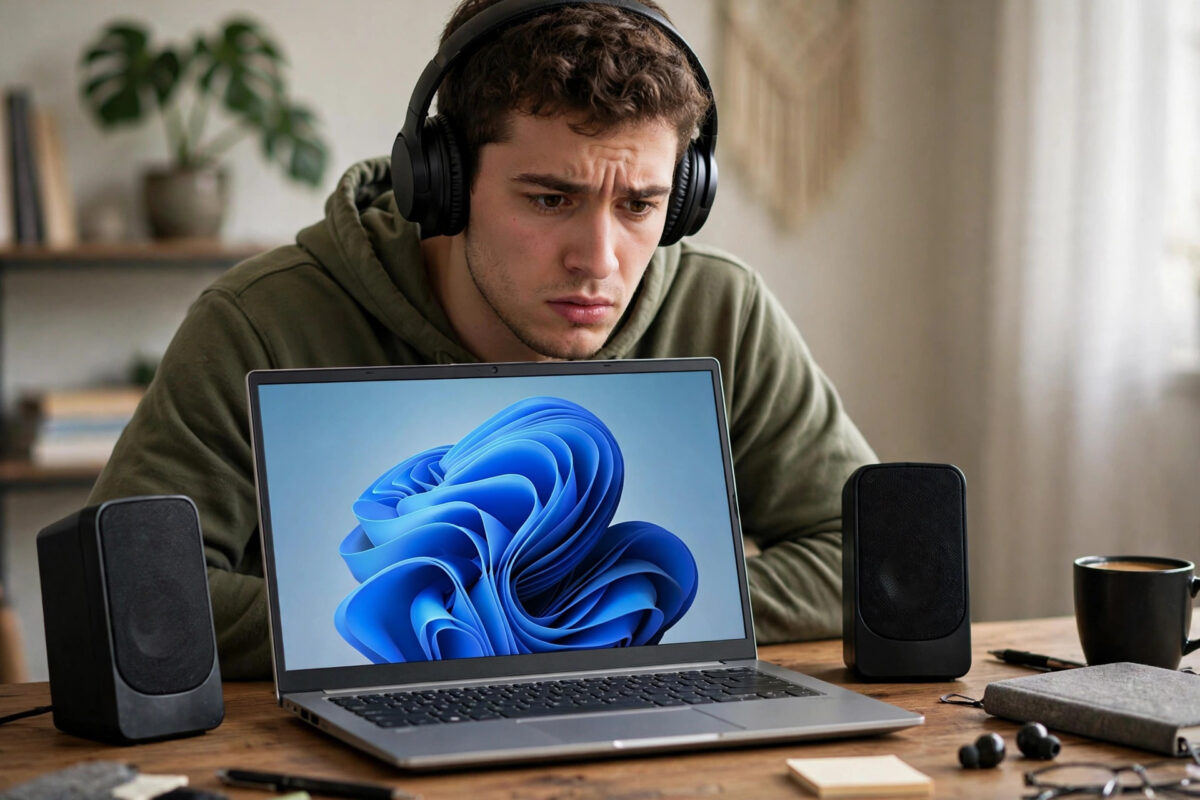
One day your speakers and headphones work perfectly. You install the latest Windows update, restart, join a meeting or press play — and there is complete silence. The volume icon may show a red cross, the slider may move with no effect, or Windows may insist no output device is found.
If your silence started with the October 2026 update, the timing matters. On October 13, 2026, Patch Tuesday, Microsoft released KB5127648 for Windows 11 versions 24H2, 25H2, and 26H2, the last being the newest annual feature release. Reported problems include install errors 0x800f0845, 0x80070306, and 0x800f0989, Smart App Control becoming grayed out, Remote Desktop error 0xC000000D, WPA2-Enterprise Wi-Fi breakage, and some users losing sound. Audio problems after updates usually come down to a driver, a stopped service, or the wrong output device — all fixable. Work through the steps in order and test after each one.
Quick Answer
Windows 11 shows no sound after the October 2026 update most often because KB5127648 disrupted the audio driver, stopped the Windows Audio service, or changed the default output device. Select the correct speakers or headphones in Settings > System > Sound, restart the Windows Audio service, and reinstall your audio driver from Device Manager. If sound worked before the update and no driver fix helps, uninstall KB5127648 temporarily and pause updates until a corrected update arrives.
First Checks: Output Device and Connections
Start with checks that need no technical changes. Updates occasionally change the default output, especially on PCs with monitors, docks, and Bluetooth devices competing to be the output.
- Select the speaker icon in the taskbar, make sure volume is up and not muted, then use the output selector beside the slider to confirm your real speakers or headphones are chosen — not an HDMI monitor with no speakers.
- Go to Settings > System > Sound. Under Output, choose your speakers or headphones and play a test video or song.
- For wired devices, unplug, inspect the plug and cable, and reconnect firmly. Try front and rear jacks if you have both, and test the headphones on your phone to confirm they still work.
- For Bluetooth headphones, go to Settings > Bluetooth & devices, remove the device, and pair it again. Updates sometimes corrupt a Bluetooth audio profile while leaving the device apparently connected.
- Restart the PC fully. Drivers and services that glitched during the update often recover on a clean boot.
If the correct device does not appear in the Output list at all, that points to a driver or service problem rather than a wrong selection. Continue below, and keep our Windows troubleshooting guides at Network Ustad handy for supporting driver guides.
Run the Troubleshooter and Review Sound Settings
- In Settings > System > Sound, scroll to Advanced and select Output devices under “Troubleshoot common sound problems.” Follow the prompts — it can re-enable a disabled device, fix a wrong default, and restart stuck components.
- Back in Sound settings, open your output device’s properties. Make sure audio is set to Allow and the device volume there is not at zero.
- Check the Output format on that page. If it shows an unusual sample rate, set it back to a standard option such as 16-bit, 48000 Hz and test again.
- Turn off Audio enhancements temporarily and test. Manufacturer enhancement packages occasionally conflict with a new Windows build and silence output until disabled or updated.
Microsoft’s checklist in Fix sound or audio problems in Windows follows a similar order and is a useful second reference.
Restart the Windows Audio Services
Sound depends on the Windows Audio service and the Windows Audio Endpoint Builder. If either stopped during the KB5127648 install, devices may vanish and nothing will play.
- Press Windows key + R, type services.msc, and press Enter.
- Find Windows Audio Endpoint Builder. Its Startup type should be Automatic and its status Running. If not, right-click it and choose Start.
- Find Windows Audio, which should also be Automatic and Running. Right-click it and choose Restart even if it claims to be running, to clear a stuck state.
- Close Services and test sound. If it returns, restart once more and test again to confirm the fix survives a reboot.
If a service fails to start, note the error exactly. A service that cannot start after an update often recovers once the audio driver is reinstalled, which is the next step.
Fix the Audio Driver in Device Manager
Driver trouble is the most common serious cause of no sound after a cumulative update. Windows may have replaced your manufacturer’s driver with a generic one, or left the existing driver in a bad state.
- Right-click Start and open Device Manager.
- Expand Sound, video and game controllers and note your audio device, commonly Realtek, Intel, AMD, or NVIDIA audio. Also check Audio inputs and outputs for warning icons.
- Right-click the main audio device and choose Update driver > Search automatically for drivers. Install anything offered and restart.
- If that does not help, right-click the device and choose Uninstall device, then restart. Windows reinstalls a working driver automatically on boot in most cases.
- For the most reliable result, download the latest Windows 11 audio driver for your exact PC model from your laptop or motherboard manufacturer’s support page and install it manually.
- If sound broke when a new driver arrived with the update, open the device’s Properties > Driver tab and use Roll Back Driver if available, then restart and test.
Avoid third-party driver updater utilities, which install mismatched packages that cause new problems. Windows Update and your manufacturer are the only sources you need, as Microsoft also advises in its guide to updating drivers manually in Windows.
Check App Volumes and Communication Settings
Sometimes Windows sound works but one app is silent, which feels like total loss. Rule this out before blaming the update.
- Play something in the silent app, then go to Settings > System > Sound > Volume mixer. Confirm the app’s slider is up and its output is your speakers or headphones.
- Test a second app, such as a browser video. If one app is silent and others work, the problem is that app’s settings, not Windows audio as a whole.
- If sound drops mainly during calls, open Settings > System > Sound > More sound settings, go to the Communications tab, and choose Do nothing so Windows stops muting other sounds during calls.
Last Resort: Uninstall KB5127648 Temporarily
If sound worked the day before the update, every check above failed, and especially if you also see other reported KB5127648 symptoms, removing the update is reasonable on a personal PC. On a work device, ask IT first.
- Confirm the install at Settings > Windows Update > Update history.
- Go to Update history > Uninstall updates, select KB5127648, choose Uninstall, and restart when prompted.
- Test sound immediately. If it returns, the update or its bundled driver change was the cause.
- Go to Settings > Windows Update and Pause updates for one to two weeks, then install a corrected cumulative update when the pause ends.
An administrator can alternatively run wusa /uninstall /kb:5127648 from an elevated Command Prompt. Uninstalling also removes security fixes, so keep the pause short.
Common Mistakes and Tips
The most common mistake is assuming the speakers have died and buying new hardware. If silence began with an update restart, the cause is almost always software — a device selection, service, or driver — and the fix is free. Test trusted headphones and a second app before spending anything.
Another mistake is uninstalling the audio device and not restarting. The reinstall happens on reboot, so skipping it leaves you with no driver. Also watch for the monitor trap: Windows may route sound to an HDMI monitor with no speakers. Switch back to your speakers, and note what fixed your sound for next time.
Conclusion
No sound after the October 2026 update is usually a side effect of KB5127648 changing a driver, service, or default device — not broken hardware. Select the correct output, run the troubleshooter, restart the Windows Audio services, and update, reinstall, or roll back the driver in Device Manager, testing after each step. Keep uninstalling KB5127648 as a short-term last resort with updates paused briefly, and install the corrected update when it arrives. For most PCs, sound returns at one of the early steps.
Frequently Asked Questions
Why does Windows say no audio device is installed after the update?
That message usually means the audio driver failed to load or the Windows Audio services did not start after KB5127648 installed. Restarting the services and reinstalling the audio driver from Device Manager, followed by a restart, resolves it in most cases.
Will uninstalling my audio driver delete my music or settings?
No. Uninstalling the audio device removes only the driver software for that hardware. Your music files, apps, and documents are untouched, and Windows normally reinstalls a working driver automatically when you restart.
My sound works in browsers but not in games or calls. Is it the update?
Possibly not entirely. Check the Volume mixer to make sure that app’s volume is up and routed to the right output, and check the Communications setting that can mute other sounds during calls. Per-app problems usually live in those two places.
Should I download an audio driver from a driver updater site?
No. Use Windows Update or your PC or motherboard manufacturer’s official support page for your exact model. Third-party updaters frequently install generic or wrong audio packages that fix the speakers while breaking the microphone, or vice versa.
How do I stop KB5127648 reinstalling after I remove it for sound problems?
Immediately after the uninstall and restart, go to Settings > Windows Update and pause updates for one to two weeks. Then install the next cumulative update when offered, since newer cumulative updates supersede KB5127648 and include its security fixes in corrected form.



Leave a Reply